AppsForDynamics365-Logins
Um auf das AppsForDynamics365-Portal (TEM-Portal) zuzugreifen und ExFlow Travel & Expense zu nutzen, muss jeder Benutzer einen AppsForDynamics365-Login haben. Dieser Login wird unternehmensübergreifend verwendet und erweitert den Business Central-Mitarbeiter, indem sichergestellt wird, dass die in Business Central definierten mitarbeiterspezifischen Einstellungen im AppsForDynamics365-Portal durchgesetzt werden.
Wenn der Abschnitt Mitarbeitereinrichtung bereits abgeschlossen wurde, wurde ein AppsForDynamics365-Login für den Mitarbeiter erstellt, und Sie können die folgenden Schritte überspringen.
Es gibt zwei Möglichkeiten, einen AppsForDynamics365-Login zu erstellen, abhängig davon, ob der Mitarbeiter bereits als Business Central-Benutzer existiert.
- AppsForDynamics365-Logins aus Business Central-Benutzern erstellen: Diese Option ist bevorzugt, wenn Ihre Mitarbeiter bereits als Business Central-Benutzer eingerichtet sind. Diese Aktion importiert Benutzerinformationen direkt aus Business Central und erstellt automatisch die entsprechenden AppsForDynamics365-Logins.
- AppsForDynamics365-Login manuell erstellen/verwalten Wählen Sie diese Option, wenn der Mitarbeiter keine Business Central-Benutzer-ID hat oder um einen bestehenden Login zu verwalten.
Logins aus Business Central-Benutzern erstellen:
-
Wählen Sie auf der Seite Travel & Expense Setup Overview die Option AppsForDynamics365 Logins. Alle zuvor erstellten AppsForDynamics365-Logins werden angezeigt.

-
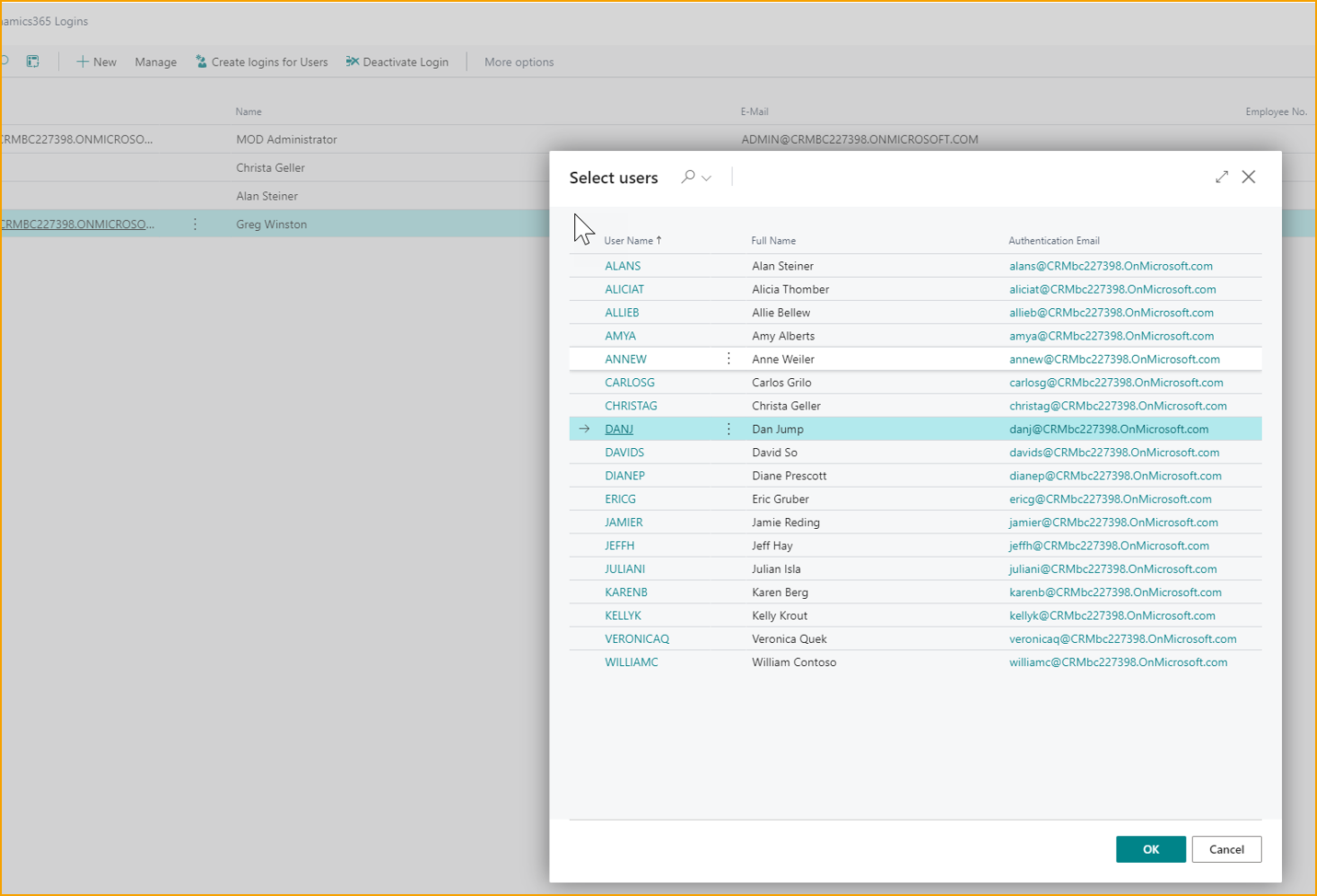
Wählen Sie Create Logins for Users. Diese Aktion importiert Benutzer aus Business Central-Benutzern.
-
Wählen Sie einen oder mehrere Benutzer aus der Liste und wählen Sie OK
-
Die ausgewählten Benutzer werden importiert und entsprechende Einträge auf der Seite AppsForDynamics365-Benutzereinrichtung erstellt.
-
Um Einstellungen zu ändern, wählen Sie den Benutzer aus und wählen Sie Bearbeiten, um die Seite AppsForDynamics365-Benutzereinrichtung zu öffnen.
AppsForDynamics365-Login erstellen/verwalten
- Wählen Sie auf der Seite Travel & Expense Setup Overview die Option AppsForDynamics365 Logins. Alle zuvor erstellten AppsForDynamics365-Logins werden angezeigt.
- Wählen Sie New.
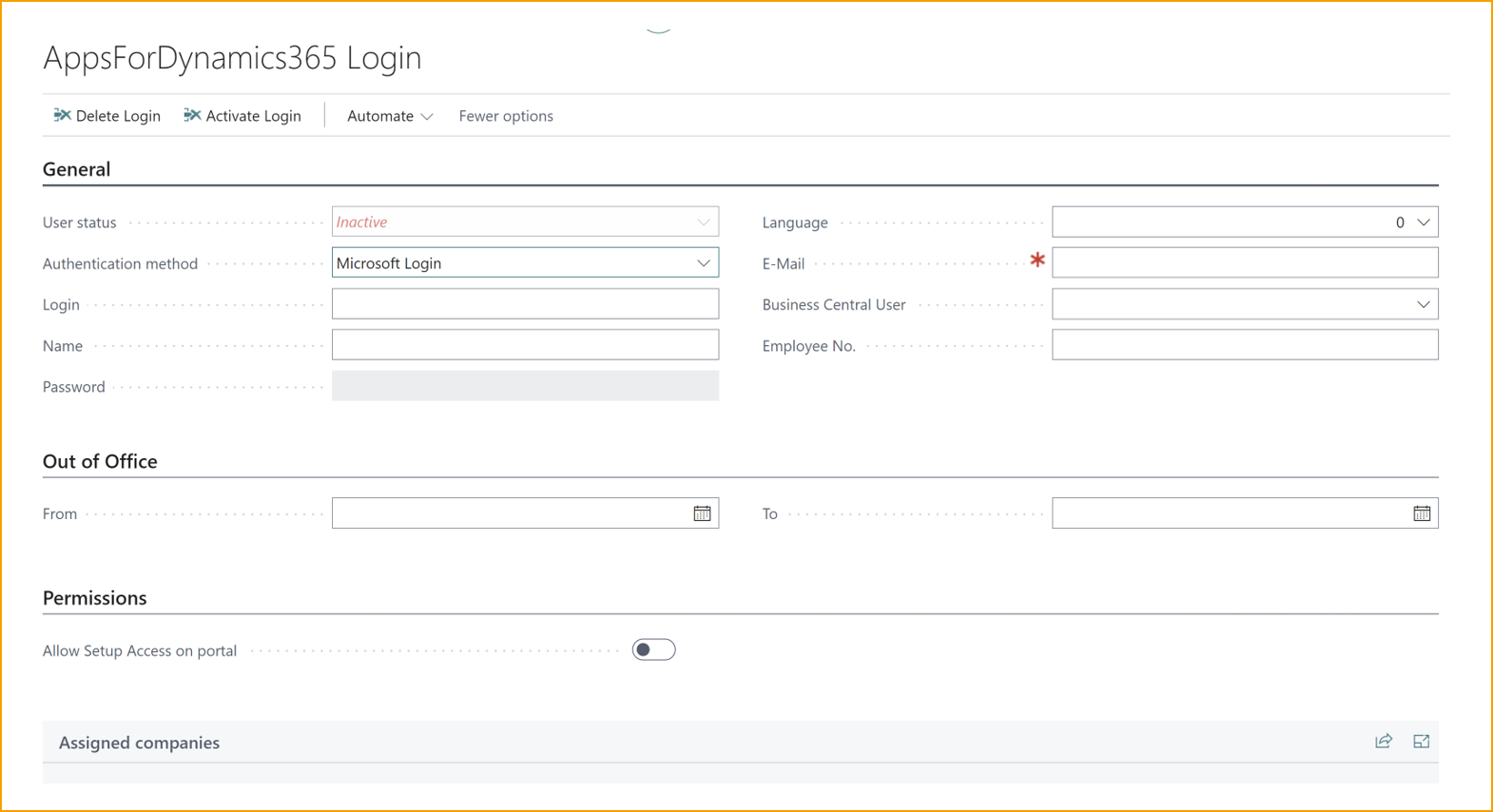
- Füllen Sie die Seite AppsForDynamics365-Benutzereinrichtung aus.
- General
- User Status Gibt an, ob der Benutzer aktiv oder inaktiv ist.
- Authentication method Wählen Sie die Authentifizierungsmethode für den jeweiligen Benutzer.
- Microsoft login
- User/password
- Login: Benutzer-ID, die der Benutzer zum Anmelden am Portal verwendet.
- Name: Der vollständige Name des Mitarbeiters.
- Password: Das Passwort, das der Benutzer zum Anmelden am Portal verwendet. (Nur wenn "user/password" ausgewählt ist).
- Language: Die vorgesehene Sprache für den Benutzer.
- E-mail: Die E-Mail-Adresse des Benutzers. Diese wird für Benachrichtigungen verwendet.
- Business Central User: Wählen Sie den Business Central-Benutzer aus, dem dieser Benutzer zugeordnet werden soll.
- Employee Number: Dies ist die Mitarbeiternummer aus Business Central, die dem Benutzer zugeordnet ist. Sie wird automatisch ausgefüllt, wenn die Option Für TEM konfigurieren von der Mitarbeiterkarte in Business Central ausgeführt wird.
- Verknüpfen Sie den erstellten AppsForDynamics365-Login mit dem entsprechenden Business Central-Mitarbeiterdatensatz. Detaillierte Schritte finden Sie unter Mitarbeitereinrichtung.
AppsForDynamics365-Logins exportieren/importieren
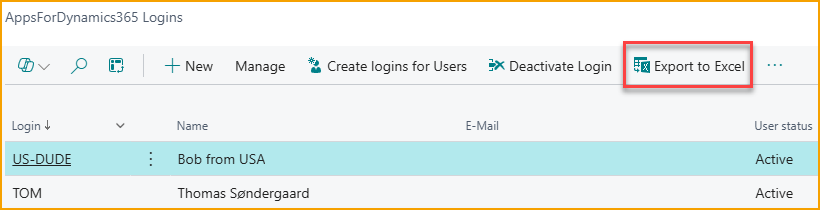
Von der Logins-Seite aus können Sie jetzt alle Logins in eine Excel-Datei exportieren, was beim Verschieben von Daten aus einer Testumgebung in die Produktion nützlich ist.
Zum Importieren von Logins, entweder aus einer exportierten AppsForDynamics365-Login-Datei oder aus Dateien, die aus anderen Systemen exportiert wurden, verwenden Sie die Copilot-Funktion "Aus Datei importieren".
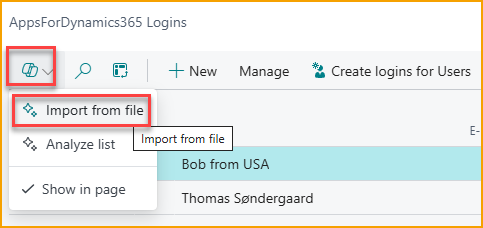
Zum Importieren von Logins verwenden Sie die Copilot-Funktion "Aus Datei importieren". Sie können entweder eine CSV- oder eine Excel-Datei anhängen, und Copilot analysiert automatisch den Inhalt, um die relevanten Informationen zu identifizieren.
Beispiel: Eine CSV-Datei wie diese:
Username,First name,Last Name,Email
JOE,Joe,Little,
john@mail.com,john,nielsen,john@mail.com
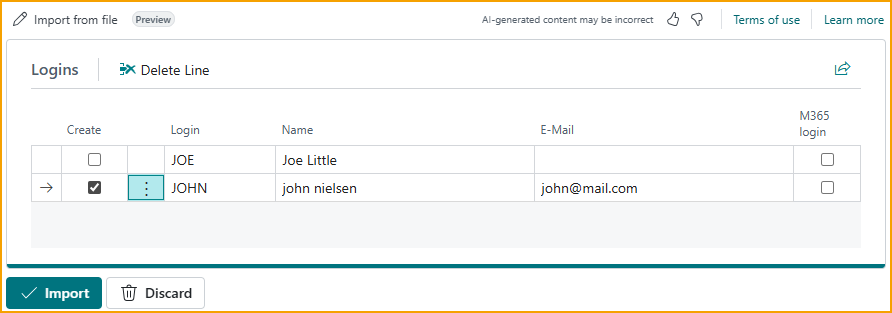
ergibt vorgeschlagene Logins wie dargestellt. Wenn alles korrekt aussieht, wählen Sie einfach Importieren und die Logins werden erstellt.