Navegación e interfaz de la aplicación móvil
Esta sección describe los elementos principales de la interfaz de la aplicación móvil ExFlow Travel & Expense y cómo navegar por ellos.
Pantalla de inicio
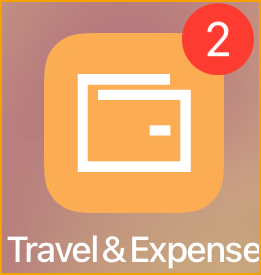
Después de descargar la aplicación, el icono de ExFlow Travel & Expense aparece en la pantalla de inicio de su dispositivo.
Si el icono de la aplicación muestra una insignia indicadora, significa que hay gastos o entradas de kilometraje no enviados que aún no se han enviado o sincronizado.
Panel de control
El Dashboard es la primera pantalla que se muestra al abrir la aplicación.
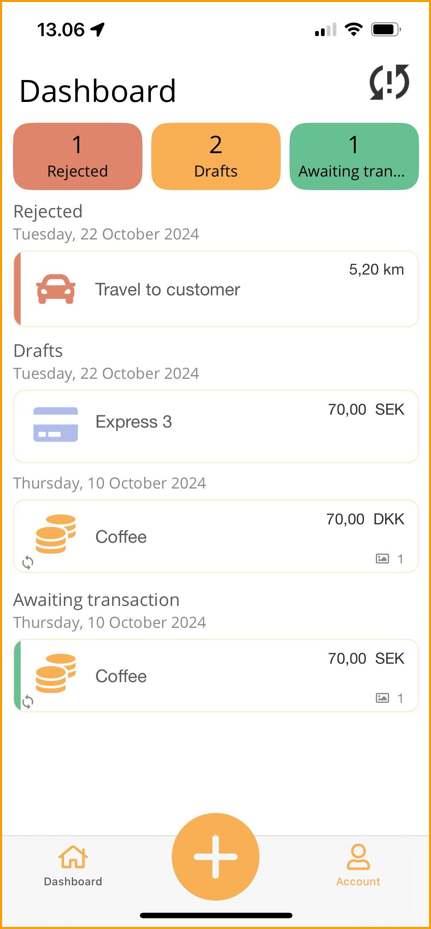
En la parte superior del panel de control hay un icono de Refresh, que indica si se requiere sincronización con la nube. La sincronización puede ser necesaria si:
- Ha pasado un tiempo desde la última sincronización, o
- Hay entradas pendientes o recién creadas
Puede sincronizar los datos con la nube en cualquier momento:
- Tocando el icono de actualización en la esquina superior derecha, o
- Deslizando hacia abajo en la pantalla del panel de control
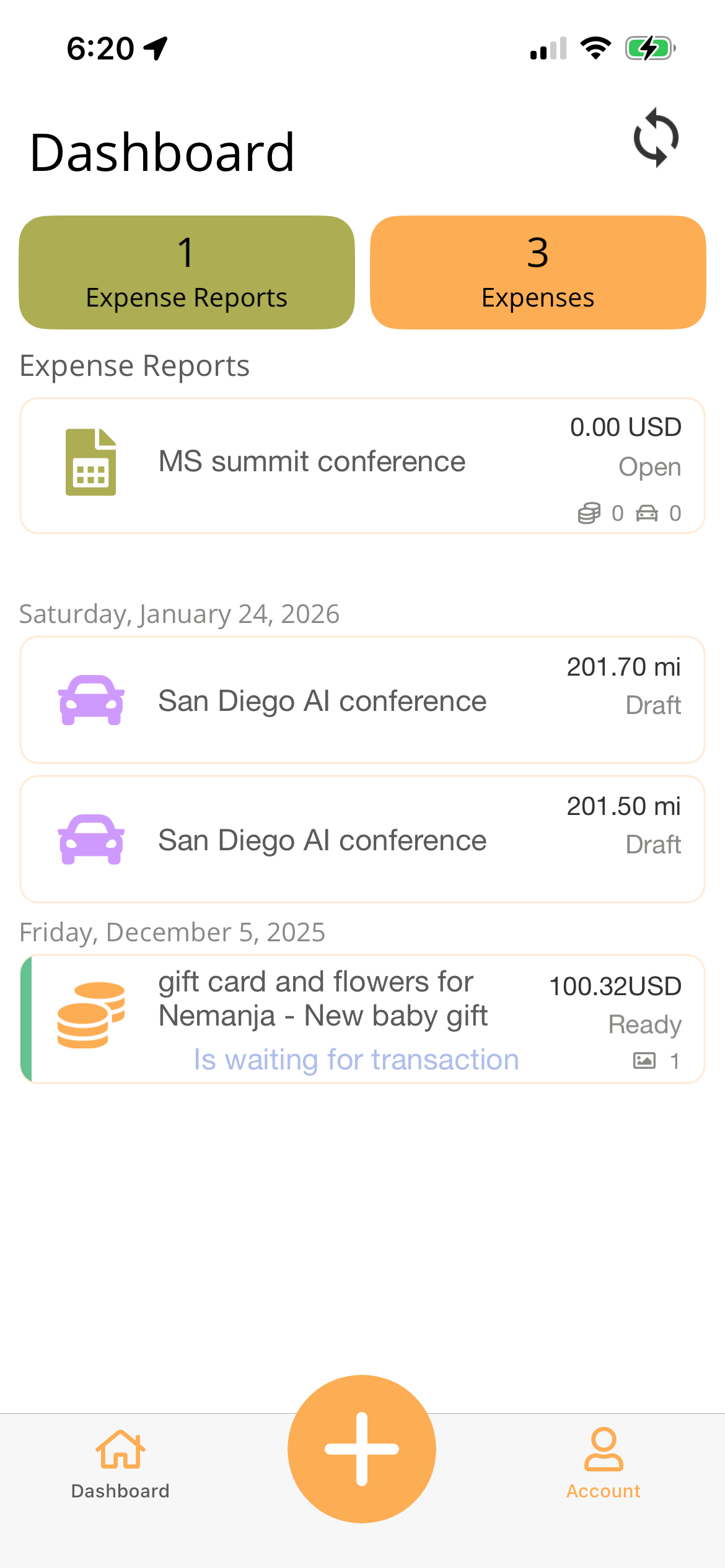
El área principal del panel de control muestra un resumen de los tipos de gastos agrupados en la parte superior de la pantalla.

Si algún gasto o kilometraje ha sido rechazado, aparece en la parte superior de la lista y se resalta en rojo.
Un pequeño icono de sincronización aparece en las transacciones que aún no se han sincronizado con el servidor.
Cuenta
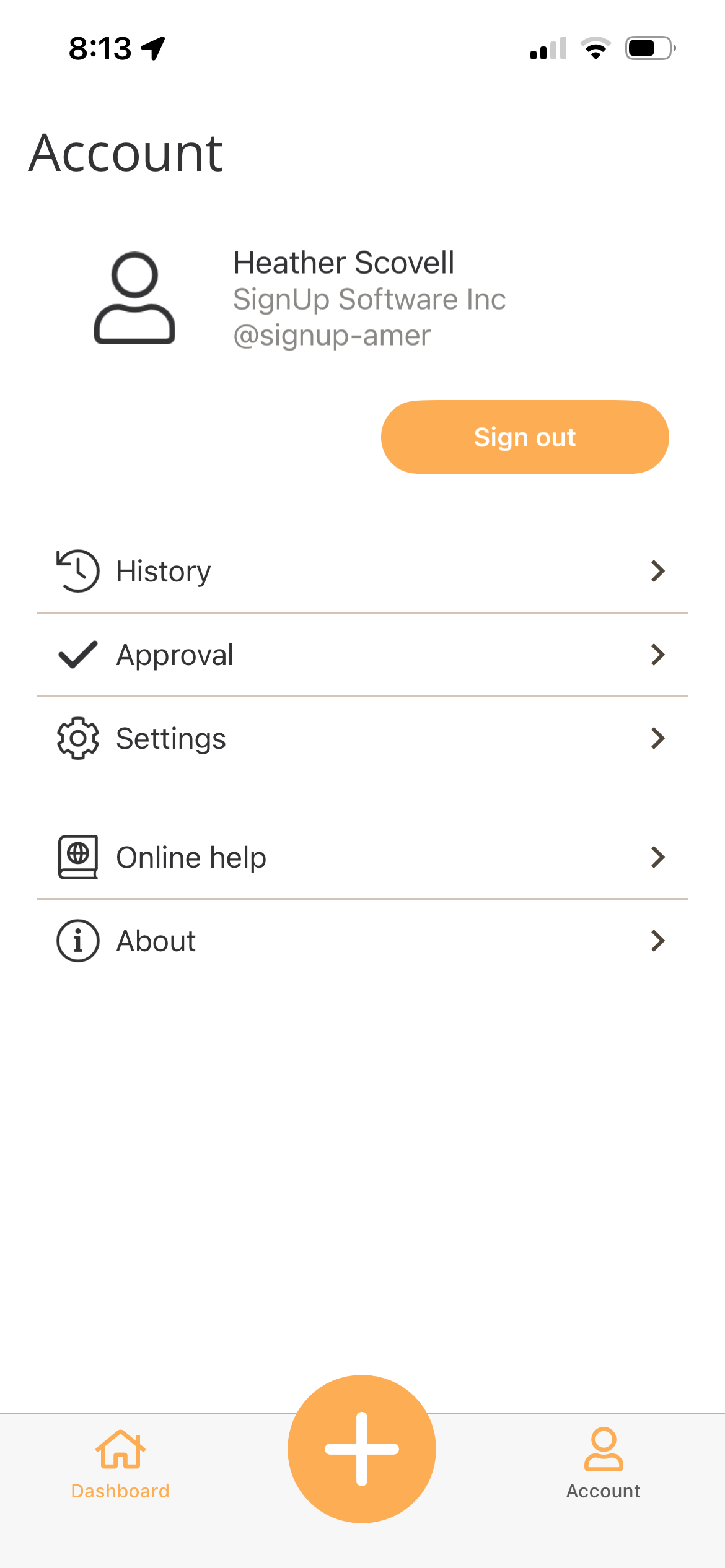
El menú de cuenta, ubicado en la parte inferior derecha de la pantalla, proporciona acceso a las siguientes opciones:
- Sign Out: Cerrar sesión en la aplicación.
- History: Ver gastos y kilometrajes enviados previamente.
- Settings:
- Online Help: Acceder al manual de usuario en línea de Travel & Expense.
- About: Versión de Travel & Expense, ID de cliente, ID de soporte y Términos y Condiciones.
Historial
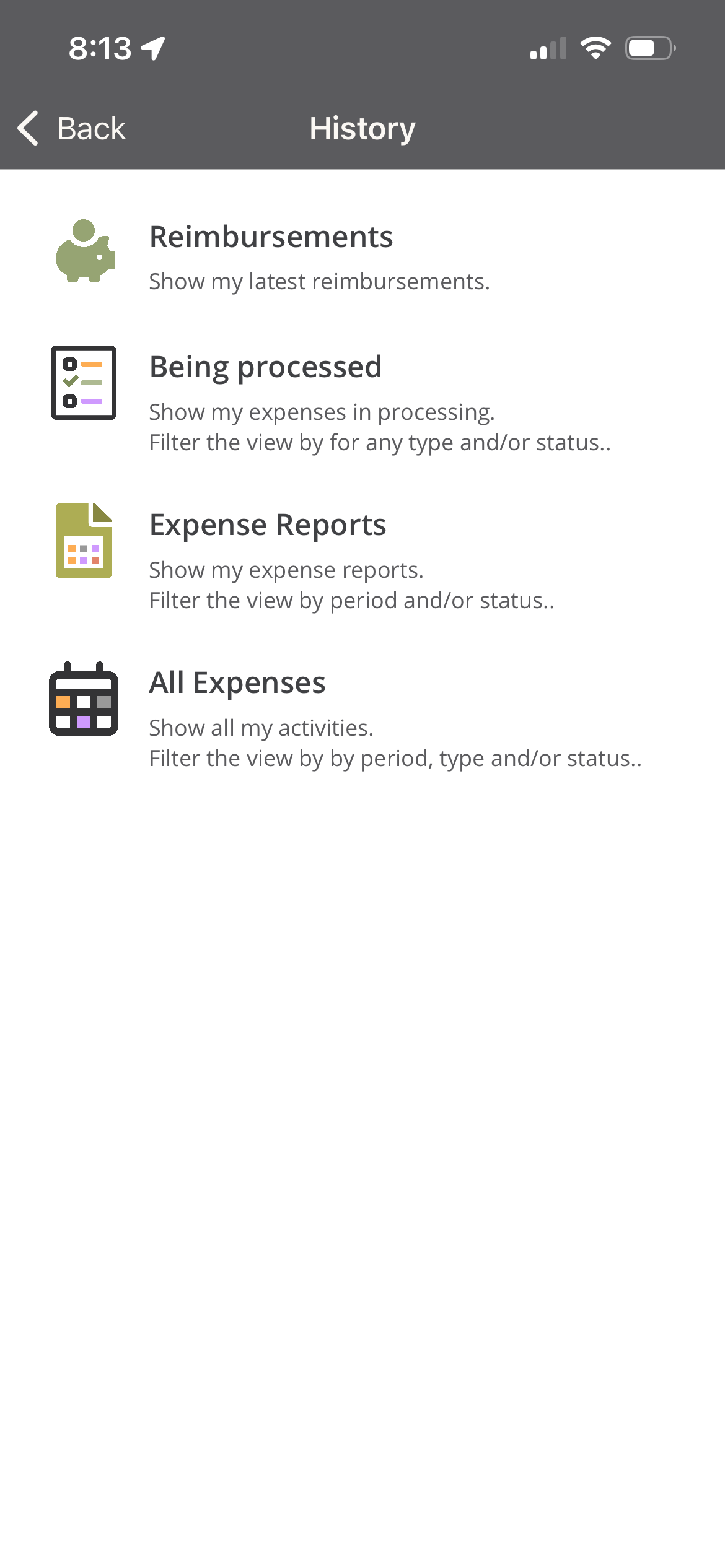
La página de historial proporciona una vista centralizada de su actividad de gastos pasada y actual. Desde esta página, puede acceder rápidamente a reembolsos, gastos que aún están en proceso, informes de gastos enviados o todos los gastos en un solo lugar.
Acceder a la página de historial Desde la navegación de la aplicación móvil, seleccione Account > History
Reembolsos Seleccione Reimbursements para ver sus reembolsos más recientes.
- Muestra los gastos que han sido aprobados y reembolsados
- Le permite revisar los montos y el estado de los reembolsos
- Útil para confirmar cuándo se han completado los pagos
En proceso
- Seleccione Being Processed para ver los gastos que están actualmente en progreso.
- Incluye gastos que se han enviado pero aún no se han finalizado.
- Puede filtrar la lista por:
- Tipo de gasto
- Estado del gasto
- Útil para rastrear dónde se encuentra un gasto en el flujo de trabajo de aprobación o procesamiento.
Informes de gastos Seleccione Expense Reports para ver sus informes de gastos enviados.
- Muestra los informes de gastos por período de reporte
- Muestra el estado actual de cada informe (por ejemplo, enviado, aprobado o rechazado)
- Los filtros le permiten limitar los resultados por:
- Período
- Estado
Todos los gastos Seleccione All Expenses para ver una lista completa de su actividad de gastos.
- Incluye todos los gastos independientemente del tipo o estado
- Los filtros le permiten refinar la lista por:
- Período
- Tipo de gasto
- Estado
- Mejor opción para revisar datos históricos de gastos en una vista consolidada
Aprobación
Las aprobaciones no pueden completarse actualmente dentro de la aplicación móvil. Cuando seleccione Approval, se abrirá un navegador web en su dispositivo móvil y lo redirigirá al portal web de Travel & Expense, donde podrá revisar y completar las aprobaciones pendientes.
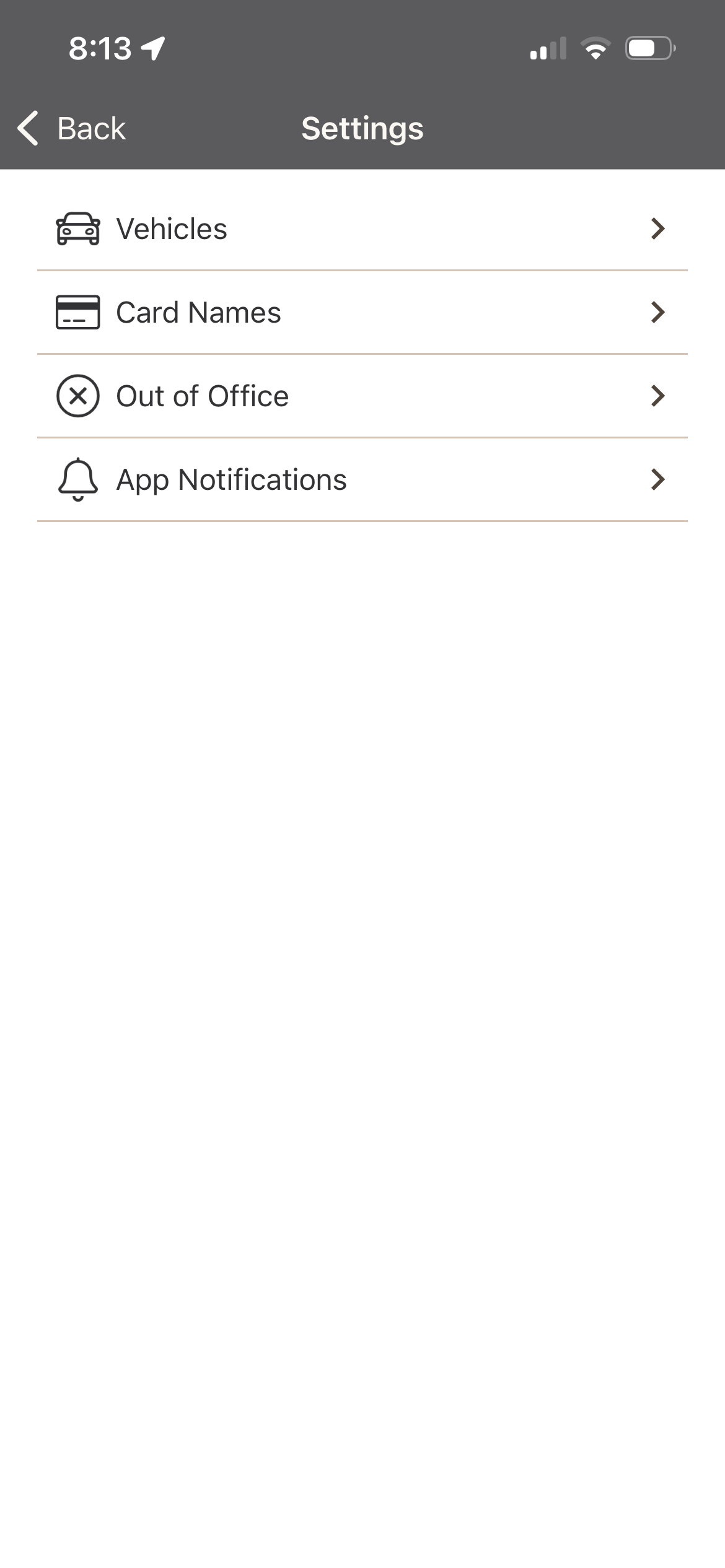
Configuración
El menú de configuración permite a los usuarios administrar configuraciones personales y revisar los recursos asignados dentro del portal. Cada opción proporciona control sobre aspectos clave de su cuenta.
-
Vehicle Assignments – Ver y administrar los vehículos asignados a su cuenta. Para cada vehículo, la siguiente información está disponible:
- Description: Nombre o descripción del vehículo
- Vehicle Type: Tipo de vehículo
- Reimburse Mileage: Indica si el reembolso de kilometraje está habilitado.
- Use as Default: Indica si el vehículo es su predeterminado para entradas de kilometraje.
- Delete: Eliminar el vehículo de su cuenta si ya no es necesario.
-
Card Names – Muestra las tarjetas de crédito asignadas a su cuenta. Puede revisar y editar los detalles de la tarjeta según sea necesario:
- Card Type: Tipo de tarjeta (por ejemplo, corporativa, personal)
- Card No.: Últimos cuatro dígitos de la tarjeta
- Card Name: Nombre de tarjeta definido por el usuario para fácil identificación
- Edit: Modificar detalles de la tarjeta
-
Out of Office – Configure un período de ausencia para que el sistema sepa cuándo no está disponible:
- I am Out of Office: Marque esta casilla para habilitar el estado de ausencia
- From Date: Ingrese la fecha de inicio de su ausencia
- To Date: Ingrese la fecha de su regreso
-
App Notification - Controle qué notificaciones recibe del portal:
- When Expense is Approved
- When Expense Report is Approved
- When Expense is Reimbursed