Crear y presentar un gasto de dieta a través de la aplicación móvil
Las dietas son asignaciones diarias proporcionadas a los empleados para cubrir los gastos del día a día incurridos durante los viajes de negocios. En ExFlow Travel & Expense, usted ingresa la ubicación de inicio y la fecha/hora del viaje, junto con el destino final y la fecha/hora de finalización del viaje. El sistema calcula automáticamente el monto de la dieta basándose en las tarifas configuradas.
Crear una entrada de dieta
-
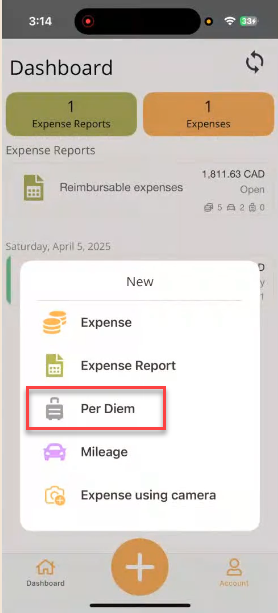
Toque el icono Más (+) en la parte inferior de la aplicación.
-
Seleccione Per Diem.
-
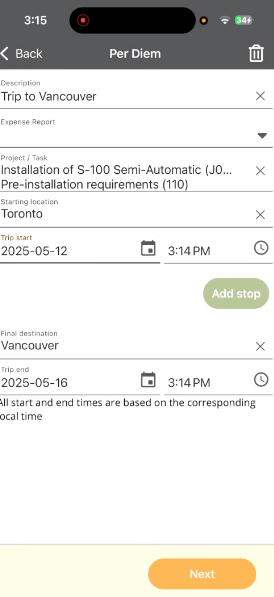
Complete los campos a continuación para presentar su dieta para aprobación. Los campos marcados con una línea roja son obligatorios.
- Description: Ingrese una breve descripción del gasto de dieta.
- Expense Report: Opcionalmente seleccione un informe de gastos existente para agrupar este gasto. Si crea el gasto dentro del informe de gastos, el valor se completará automáticamente.
- Project / Task: Busque y seleccione el proyecto, luego la tarea. Una vez seleccionados, se muestran las descripciones del proyecto y la tarea.
- Starting Location Toque el campo Starting Location e ingrese la dirección de inicio o el nombre de la ubicación. Seleccione la ubicación correcta de la lista.
- Trip Start: Ingrese la fecha y hora en que comenzó el viaje.
- Final Destination Toque el campo Final Destination e ingrese la dirección de destino o el nombre de la ubicación. Seleccione la ubicación correcta de la lista.
- Trip End: Ingrese la fecha y hora en que finalizó el viaje.
-
Toque Next. Travel & Expense calcula el número de días del viaje.
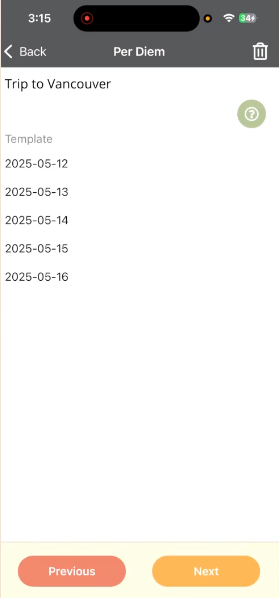
-
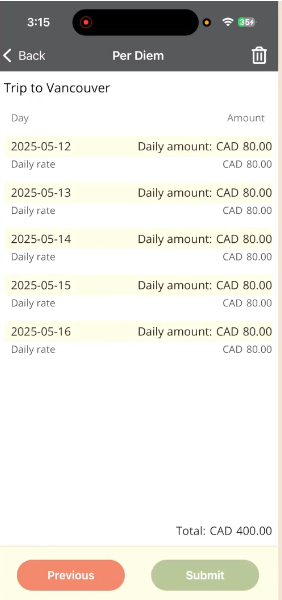
Toque Next nuevamente. Travel & Expense aplica las tarifas de dieta aplicables para cada día y destino. Las tarifas y métodos de cálculo se definen en Business Central >> Travel & Expense Overview >> Per Diem.
-
Toque Submit para enviar la dieta para aprobación.
Crear y presentar un gasto de dieta a través del portal web
Las dietas son asignaciones diarias proporcionadas a los empleados para cubrir los gastos del día a día incurridos durante los viajes de negocios. En el portal web de ExFlow Travel & Expense, usted ingresa la ubicación de inicio y la fecha/hora del viaje, junto con el destino final y la fecha/hora de finalización del viaje. Travel & Expense calcula automáticamente el monto de la dieta basándose en las tarifas configuradas.
Crear una entrada de dieta
-
Abra el portal web de Travel & Expense
-
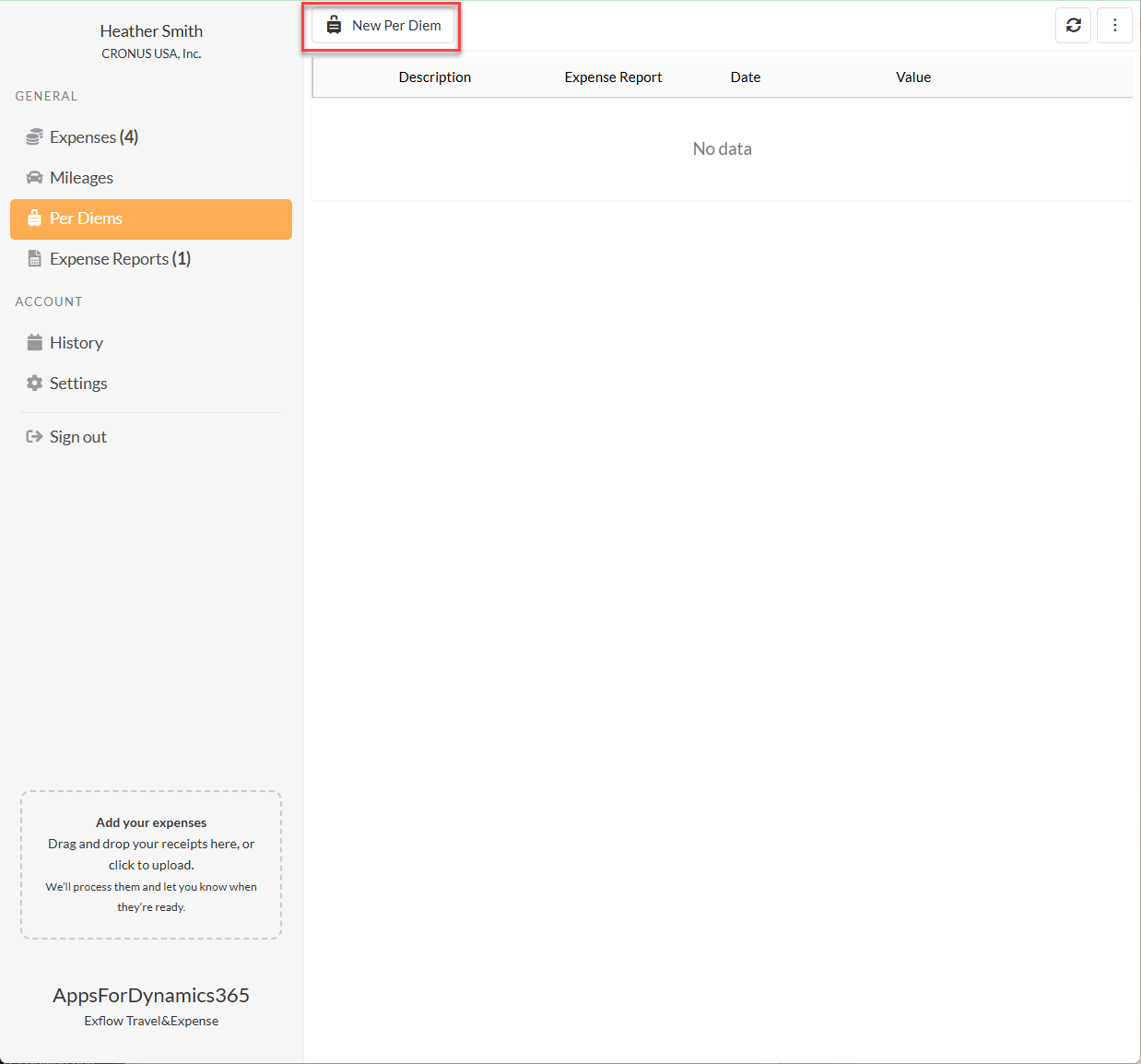
Desde el menú General en el lado izquierdo, seleccione Per Diem.
-
Seleccione New Per Diem en la parte superior de la página para crear un nuevo gasto.
-
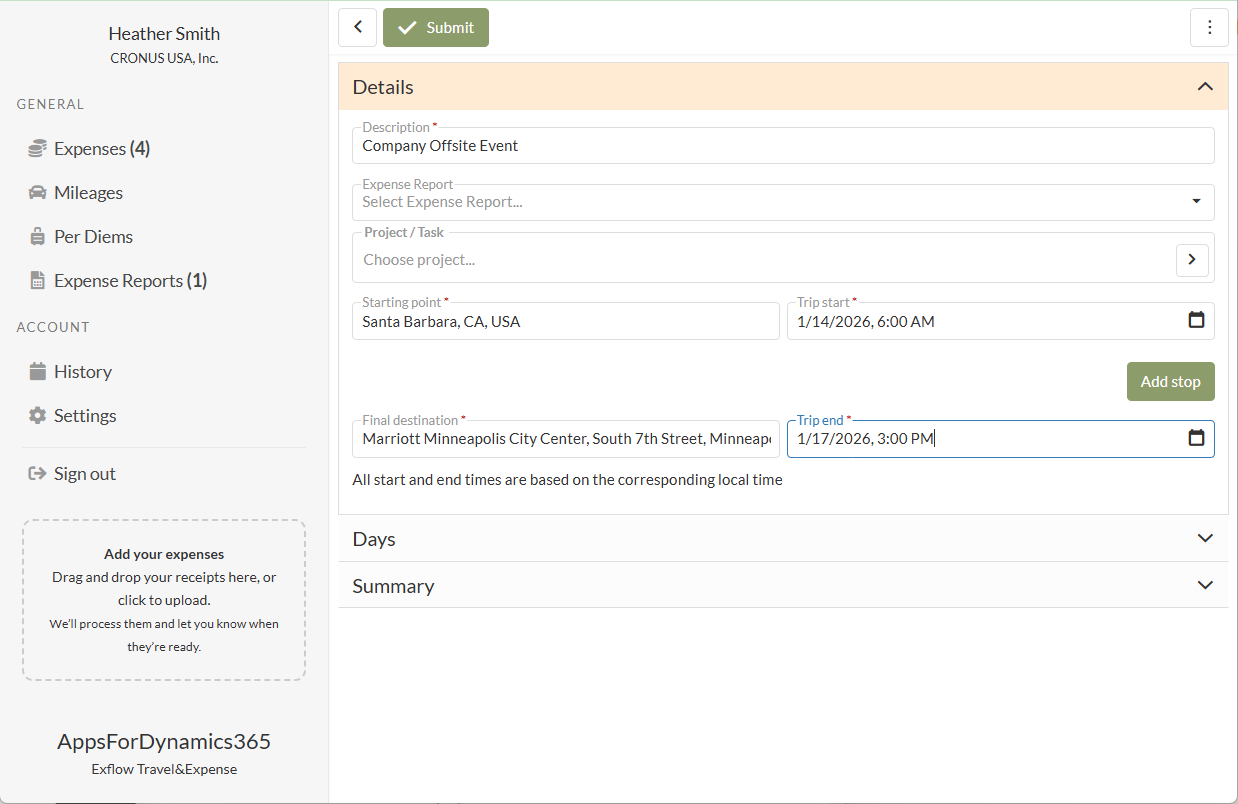
Complete los campos a continuación para presentar su dieta para aprobación. Los campos marcados con una línea roja son obligatorios.
- Description: Ingrese una breve descripción del gasto de dieta.
- Expense Report: Opcionalmente seleccione un informe de gastos existente para agrupar este gasto. Si crea el gasto dentro del informe de gastos, el valor se completará automáticamente.
- Project / Task: Busque y seleccione el proyecto, luego la tarea. Una vez seleccionados, se muestran las descripciones del proyecto y la tarea.
- Starting Location Toque el campo Starting Location e ingrese la dirección de inicio o el nombre de la ubicación. Seleccione la ubicación correcta de la lista.
- Trip Start: Ingrese la fecha y hora en que comenzó el viaje.
- Final Destination Toque el campo Final Destination e ingrese la dirección de destino o el nombre de la ubicación. Seleccione la ubicación correcta de la lista.
- Trip End: Ingrese la fecha y hora en que finalizó el viaje.
-
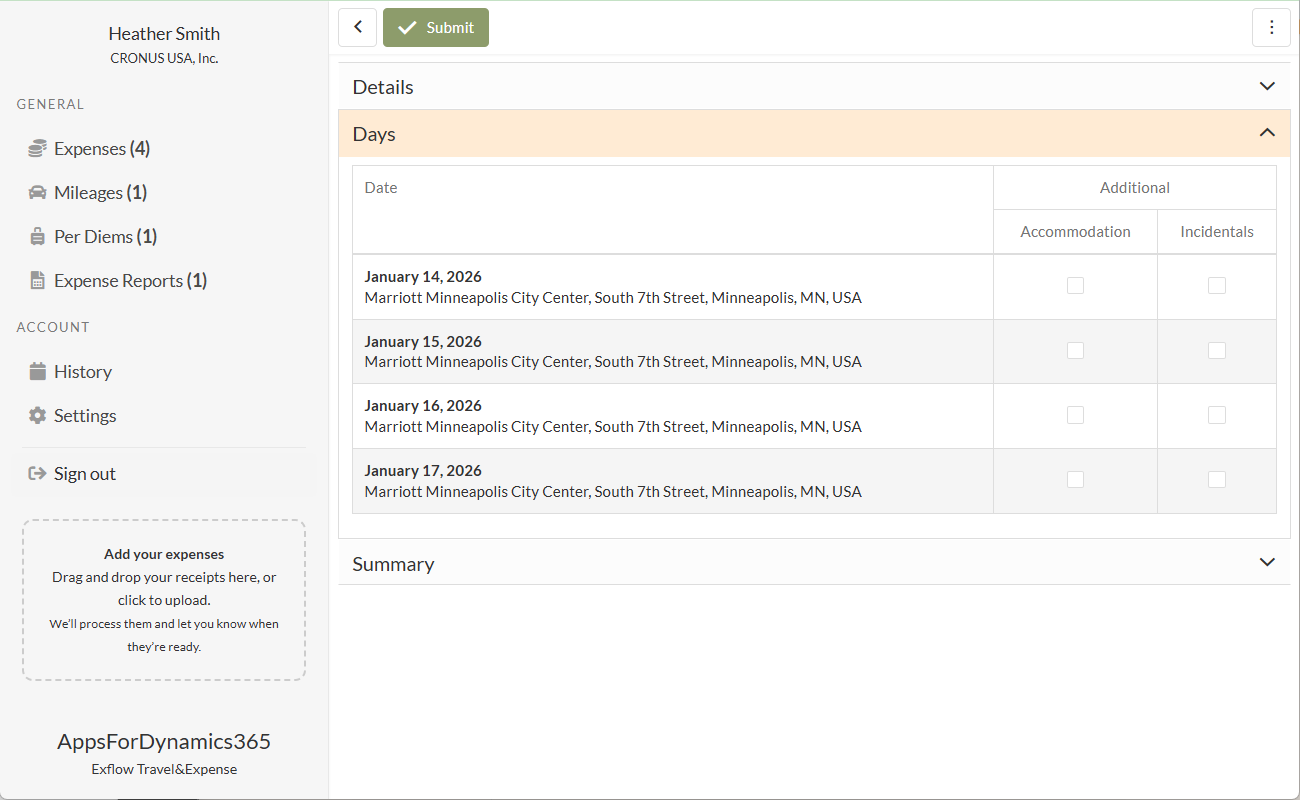
Seleccione el acordeón Days para ver el número de días calculados por Travel & Expense para el viaje.
-
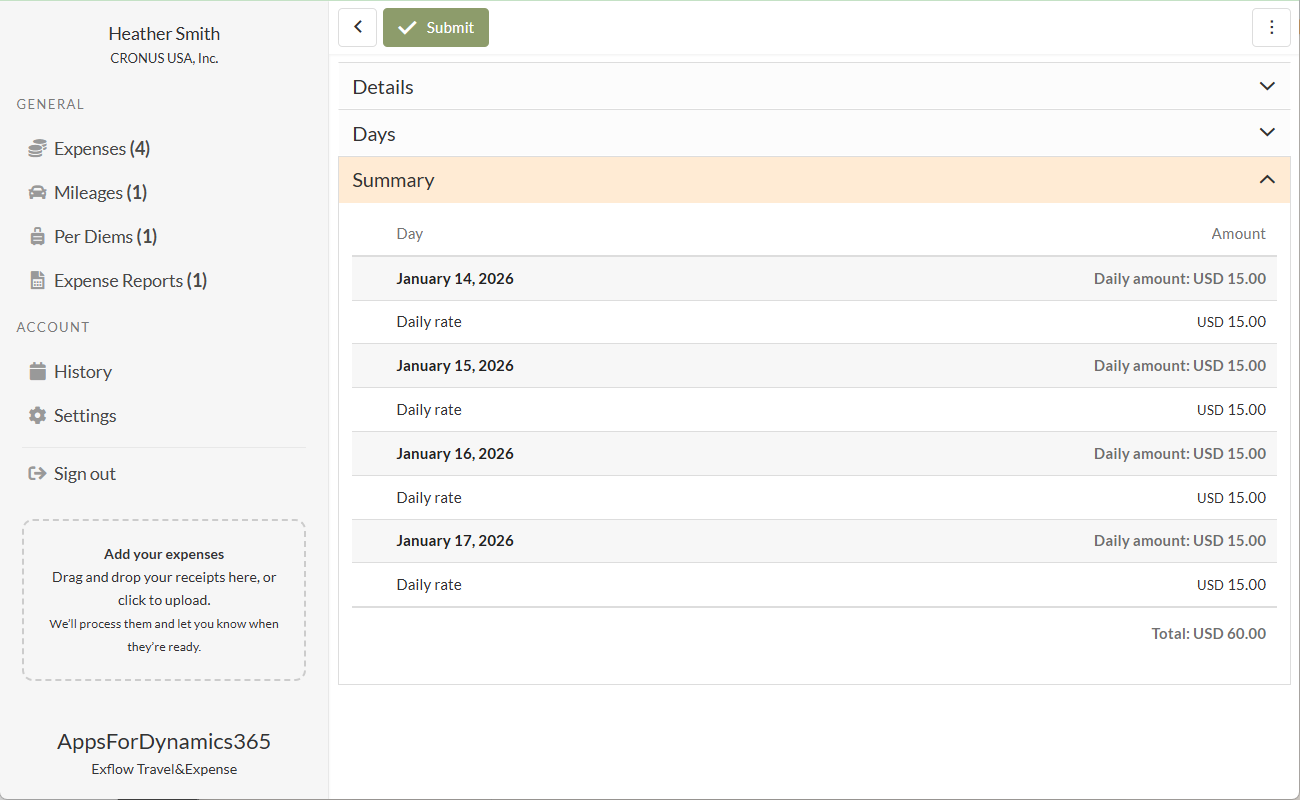
Seleccione el acordeón Summary para ver los montos de reembolso calculados por Travel & Expense. El sistema aplica las tarifas de dieta aplicables para cada día y destino. Las tarifas y métodos de cálculo se definen en Business Central >> Travel & Expense Overview >> Per Diem.
-
Seleccione Submit para enviar la dieta para aprobación.