Configuración de Dietas (Solo Edición Pro)
Las dietas son asignaciones diarias fijas que se proporcionan a los empleados para cubrir gastos relacionados con viajes, como comidas, alojamiento y costes incidentales. En lugar de reembolsar cada gasto individual, una dieta proporciona una cantidad fija por cada día de viaje.
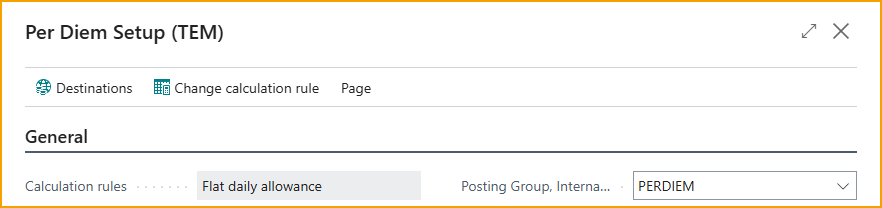
La página Per Diem Setup le permite configurar los ajustes básicos para la funcionalidad de dietas. Esto incluye definir tarifas predeterminadas, deducciones por comidas y las reglas de cálculo que determinan cómo se calculan las dietas.
-
Desde la página Travel & Expense Setup – Overview, en la sección Per Diem, seleccione Setup
-
Change Calculation Rule: Para cambiar la regla de cálculo, seleccione Change Calculation Rule en la barra de acciones, esto activará la funcionalidad de dietas y seleccionará la regla de cálculo a utilizar.
-
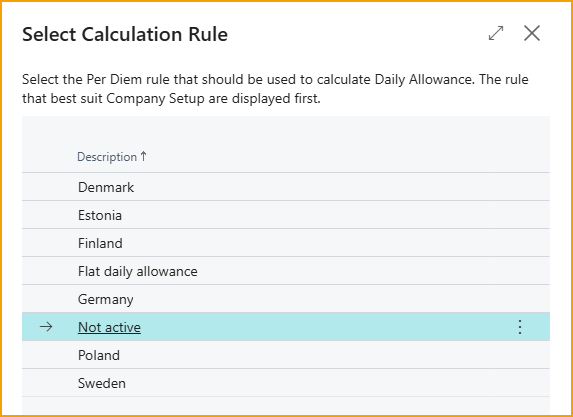
Select Calculation Rule: Seleccione la regla de cálculo apropiada. Las reglas para calcular dietas varían según el país. Actualmente, TEM admite los siguientes conjuntos de reglas de cálculo: Suecia, Finlandia, Dinamarca, Alemania y una regla general de "Tarifa Diaria Fija".
- Flat Daily Allowance
- Finland
- Sweden
- Denmark
- Germany
- Poland
- Estonia
Dependiendo de la regla seleccionada, estarán disponibles diferentes opciones de configuración para adaptar los ajustes de dietas para ese país o tipo de regla.Nota: En la configuración alemana, la opción de Alojamiento se oculta cuando no se define ninguna cantidad en la configuración.
-
Posting Group, Domestic: Seleccione un Grupo de Contabilización para utilizar en gastos nacionales.
-
Posting Group, International: Seleccione un Grupo de Contabilización para utilizar en gastos internacionales.
-
-
Series Numéricas
- Per Diem: Seleccione la serie numérica que desea utilizar para los gastos de dietas.
- Posted Per Diem: Seleccione la serie numérica que desea utilizar para los gastos de dietas registrados.
-
Deducciones: (Solo Tarifa Fija)
-
La sección de % de Deducciones en la Configuración de Dietas le permite especificar el porcentaje de la dieta diaria a deducir cuando las comidas son proporcionadas por el empleador, incluidas en una estancia de hotel o cubiertas de otro modo. Esto asegura que los empleados solo sean reembolsados por las comidas que necesitan pagar, evitando pagos en exceso.
- Breakfast: El porcentaje de la dieta diaria a deducir si se proporciona desayuno.
- Lunch: El porcentaje de la dieta diaria a deducir si se proporciona almuerzo.
- Dinner: El porcentaje de la dieta diaria a deducir si se proporciona cena.
Por ejemplo: Si la dieta de un empleado es de $100 por día y se proporciona desayuno, y la deducción por Desayuno está configurada al 20%, entonces se restarán $20 de la dieta diaria, y el empleado recibirá $80 por ese día.
- Tarifas - Especifique las tarifas a utilizar para las opciones proporcionadas. Se muestran diferentes opciones según la Regla de Cálculo seleccionada.
Tarifas por Destino
Según la Regla de Cálculo seleccionada, puede configurar Tarifas por Destino que le permiten establecer tarifas de dietas específicas para diferentes destinos de viaje. Esto es útil cuando las tarifas varían según la ubicación a la que viaja un empleado.
Crear una nueva Tarifa por Destino
- Desde la página Travel & Expense Setup – Overview, en la sección Per Diem, seleccione Destination Rates
- Seleccione +New para crear una nueva tarifa por destino.
- Destinations: Desde la barra de acciones de Configuración de Dietas, seleccione Destinations.
- Country Code: Introduzca el código de país de 2 letras para el destino.
- Name: Introduzca un nombre descriptivo del destino.
- City: Opcionalmente introduzca una ciudad si las tarifas difieren por ciudad dentro del país seleccionado.
- Rate: Introduzca la tarifa de dieta que aplica para el destino para el Período de Dietas que se ha configurado.
Períodos
La Configuración de Períodos de Dietas se utiliza para definir los períodos de tiempo que determinan qué tarifas de dietas se aplican a los gastos. Los períodos le permiten gestionar las tarifas de dietas a lo largo del tiempo, facilitando el seguimiento de tarifas históricas e introducir nuevas tarifas para períodos futuros, como un nuevo año fiscal o calendario.
Cada período representa un rango de fechas definido (por ejemplo, un año calendario) y está vinculado a un conjunto específico de tarifas de dietas. Cuando se crea un gasto, ExFlow Travel & Expense aplica automáticamente la tarifa de dieta correcta basándose en la fecha del gasto y el período activo.
Los administradores normalmente crean un nuevo período cuando las tarifas de dietas cambian, como al inicio de un nuevo año. Los períodos existentes deben permanecer sin cambios para garantizar la precisión en los informes y la auditoría de gastos históricos.
Crear un nuevo Período de Dietas
- Desde la página Travel & Expense Setup – Overview, en la sección Per Diem, seleccione Periods
- Seleccione +New para crear un nuevo Período de Dietas.
- Code: Introduzca un identificador corto y significativo para el período.
- Description: Introduzca una descripción clara para el período.
- Starting From: Introduzca la fecha a partir de la cual se aplicarán las tarifas de dietas definidas para este período. Los gastos con fecha igual o posterior a esta fecha utilizarán las tarifas asociadas a este período.