Create and Submit a Per Diem Expense via the Mobile App
Per diems are daily allowances provided to employees to cover day-to-day expenses incurred during business travel. In ExFlow Travel & Expense, you enter the trip’s starting location and date/time, along with the final destination and trip end date/time. The system then automatically calculates the per diem amount based on configured rates.
Create a Per Diem Entry
-
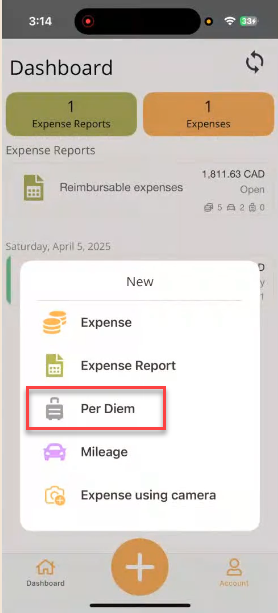
Tap the Plus (+) icon at the bottom of the app.
-
Select Per Diem.
-
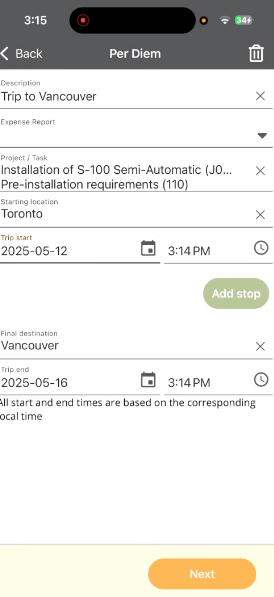
Complete the fields below to submit your per diem for approval. Fields marked with a red line are required.
- Description: Enter a brief description of the per diem expense.
- Expense Report: Optionally select an existing expense report to group this expense. If creating the expense within the expense report, the value will automatically populate.
- Project / Task: Search for and select the project, then the task. Once selected, the project and task descriptions are displayed.
- Starting Location Tap the Starting Location field and enter the starting address or location name. Select the correct location from the list.
- Trip Start: Enter the date and time the trip began.
- Final Destination Tap the Final Destination field and enter the destination address or location name. Select the correct location from the list.
- Trip End: Enter the date and time the trip ended.
-
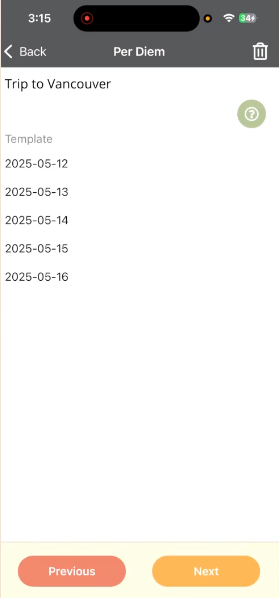
Tap Next. Travel & Expense calculates the number of days for the trip.
-
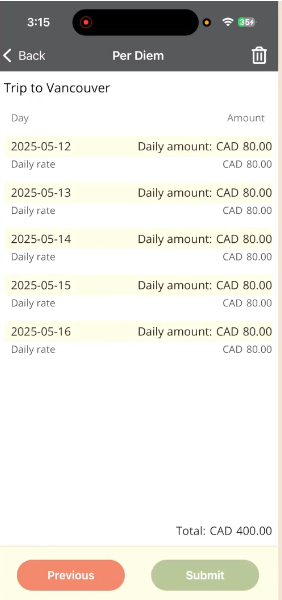
Tap Next again. Travel & Expense applies the applicable per diem rates for each day and destination. The rates and calculation methods are defined in Business Central >> Travel & Expense Overview >> Per Diem .
-
Tap Submit to send the per diem for approval.
Create and Submit Per Diem Expense via Web Portal
Per diems are daily allowances provided to employees to cover day-to-day expenses incurred during business travel. In the ExFlow Travel & Expense Web Portal, you enter the trip’s starting location and date/time, along with the final destination and trip end date/time. Travel & Expense then automatically calculates the per diem amount based on configured rates.
Create a Per Diem Entry
-
Open the Travel & Expense Web Portal
-
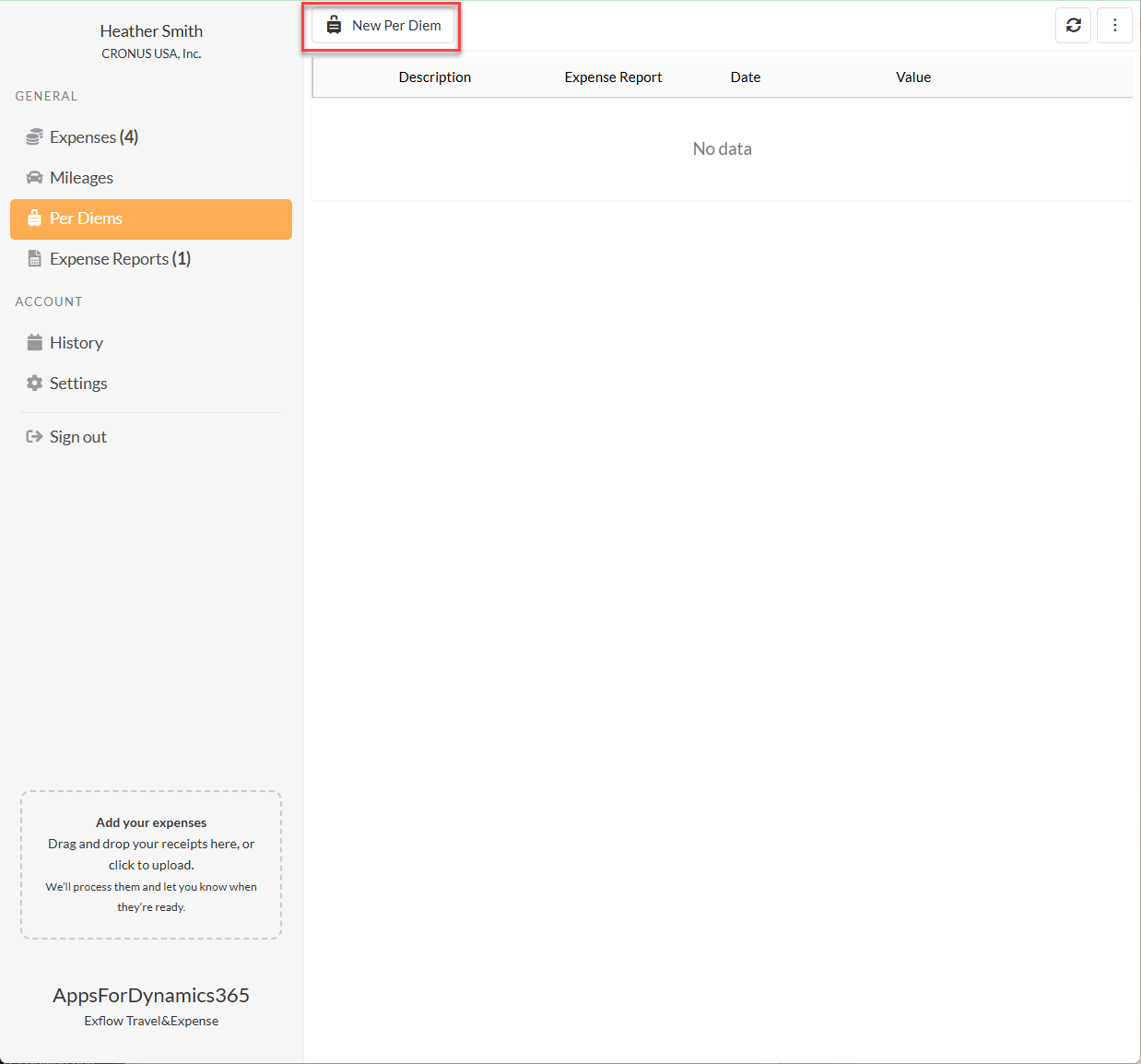
From the General menu on the left-hand side, select Per Diem.
-
Select New Per Diem at the top of the page to create a new expense.
-
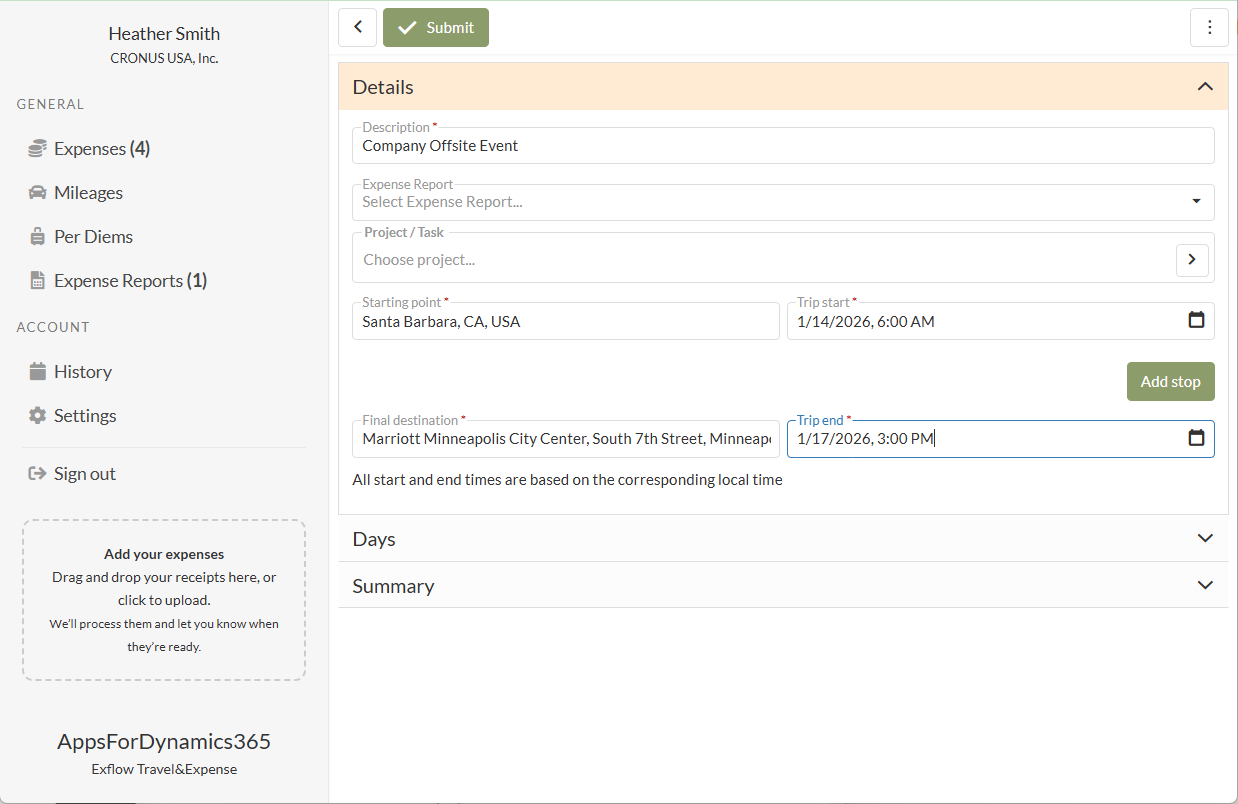
Complete the fields below to submit your per diem for approval. Fields marked with a red line are required.
- Description: Enter a brief description of the per diem expense.
- Expense Report: Optionally select an existing expense report to group this expense. If creating the expense within the expense report, the value will automatically populate.
- Project / Task: Search for and select the project, then the task. Once selected, the project and task descriptions are displayed.
- Starting Location Tap the Starting Location field and enter the starting address or location name. Select the correct location from the list.
- Trip Start: Enter the date and time the trip began.
- Final Destination Tap the Final Destination field and enter the destination address or location name. Select the correct location from the list.
- Trip End: Enter the date and time the trip ended.
-
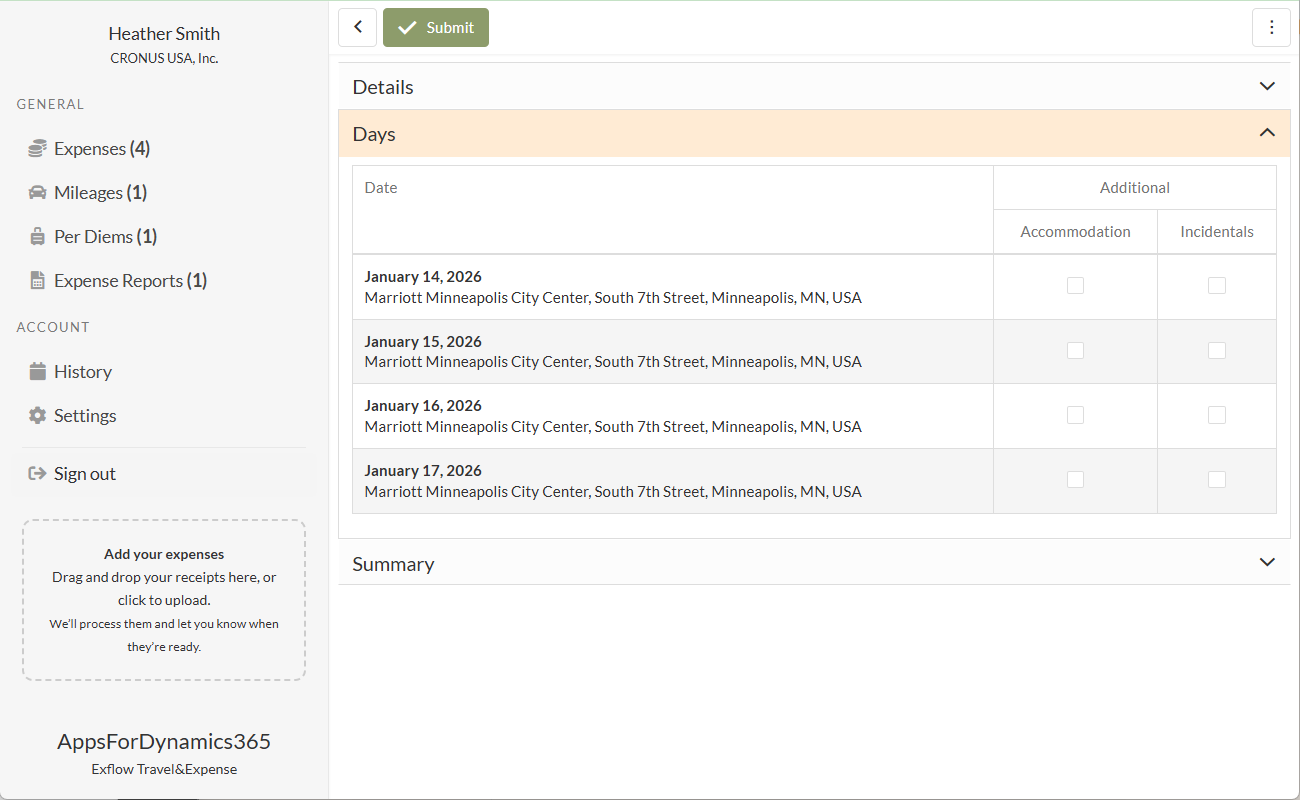
Select the Days accordion to view the number of days calculated by Travel & Expense for the trip.
-
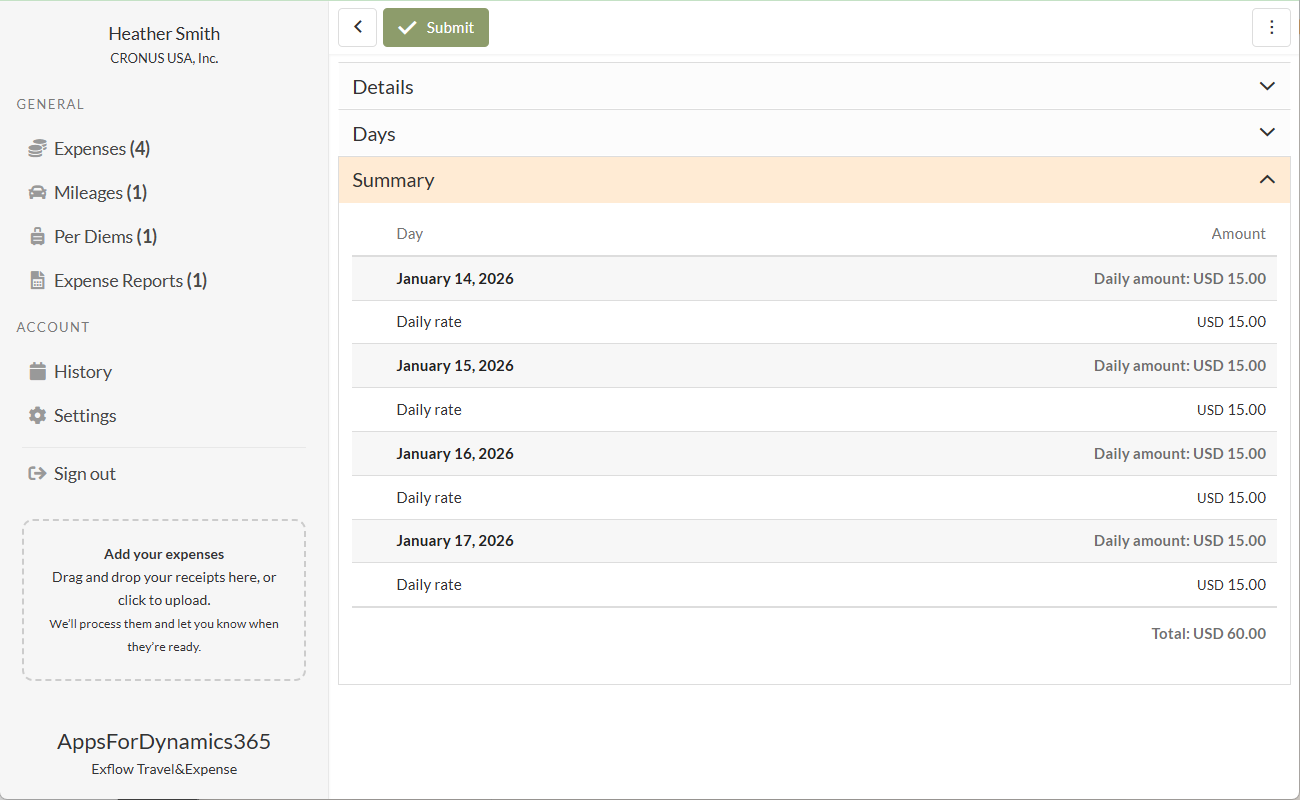
Select the Summary accordion to view the reimbursement amounts calculated by Travel & Expense. The system applies the applicable per diem rates for each day and destination. The rates and calculation methods are defined in Business Central >> Travel & Expense Overview >> Per Diem .
-
Select Submit to send the per diem for approval.