Genehmigte Einträge buchen
Ziel
Genehmigte Spesen, Kilometergeldforderungen und Tagegeldanträge aus der Genehmigungswarteschlange ins Hauptbuch von Business Central übertragen.
Voraussetzungen
- Einträge müssen den Status Genehmigt haben (grün angezeigt) - nur genehmigte Einträge können gebucht werden
- Sie benötigen Buchungsberechtigungen in Business Central
- Prüfen Sie etwaige SmartExtract-Banner vor dem Buchen - ein blauer Banner signalisiert, dass KI-extrahierte Zeilen vor der Bestätigung auf Richtigkeit geprüft werden sollten
Schritte
-
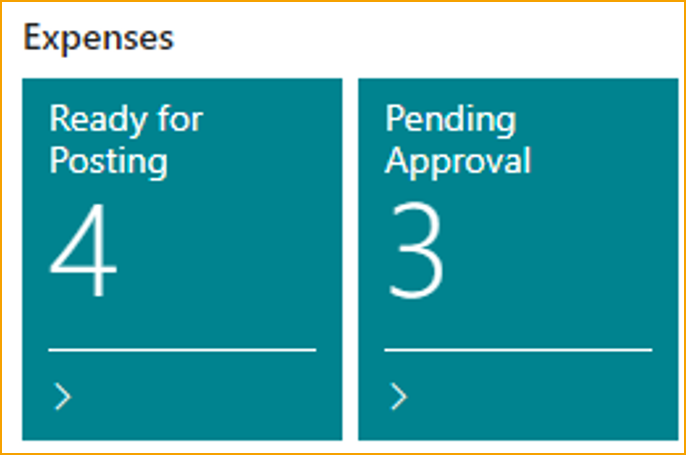
Gehen Sie in Business Central zu Bereit zur Buchung (TEM) - diese Liste zeigt alle genehmigten Spesen, Kilometergeldforderungen und Tagegeldanträge, die noch gebucht werden müssen
-
Prüfen Sie den Eintrag. Wenn Sachkonten, Dimensionen oder Buchungsdaten angepasst werden müssen, öffnen Sie den Datensatz und bearbeiten Sie ihn vor dem Buchen - siehe Vor dem Buchen prüfen und bearbeiten
-
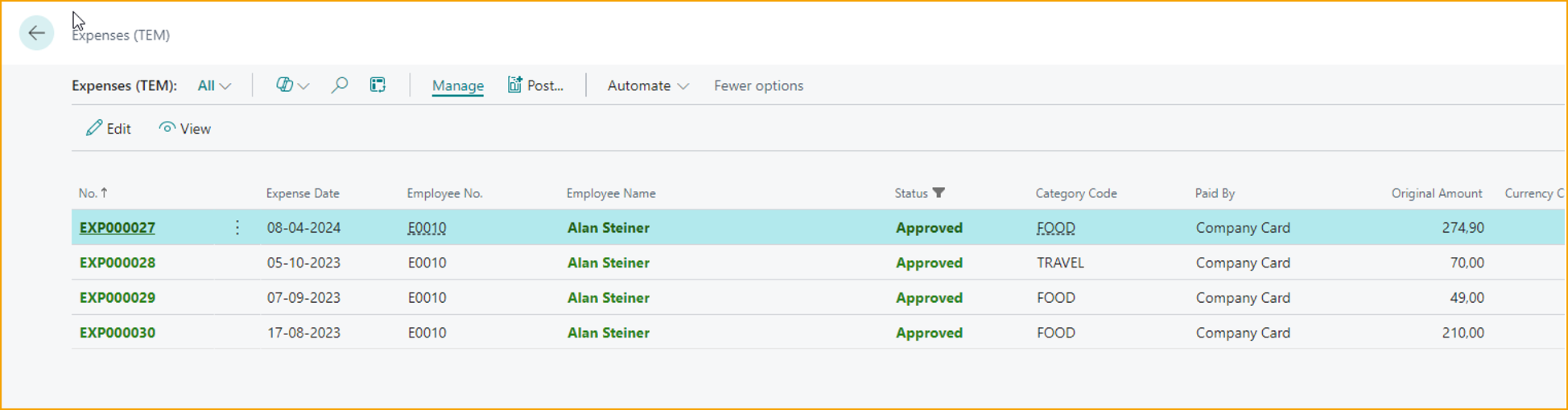
Einen einzelnen Eintrag buchen: Wählen Sie ihn aus und drücken Sie F9 oder klicken Sie auf Buchen
-
Mehrere Einträge auf einmal buchen: Wählen Sie sie über die Kontrollkästchenspalte aus und klicken Sie dann auf Buchen
Kilometergeld und Tagegeld werden auf dieselbe Weise aus derselben Bereit zur Buchung-Liste gebucht.
Was zu prüfen ist
| Prüfung | Wo nachschauen |
|---|---|
| Soll auf dem korrekten Spesen-Sachkonto | Sachkontoeinträge des gebuchten Eintrags |
| Haben auf dem korrekten Balance-Type-Konto (Mitarbeiterverbindlichkeit oder Kartenhaftung) | Dieselben Sachkontoeinträge |
| Buchungsdatum liegt in einer offenen Periode | Wenn das Buchen fehlschlägt, prüfen Sie die Einstellung Wenn Buchungsdatum in abgeschlossenem Zeitraum liegt in TEM-Einrichtung |
Weitere Aktionen auf der Spese
| Aktion | Was sie tut |
|---|---|
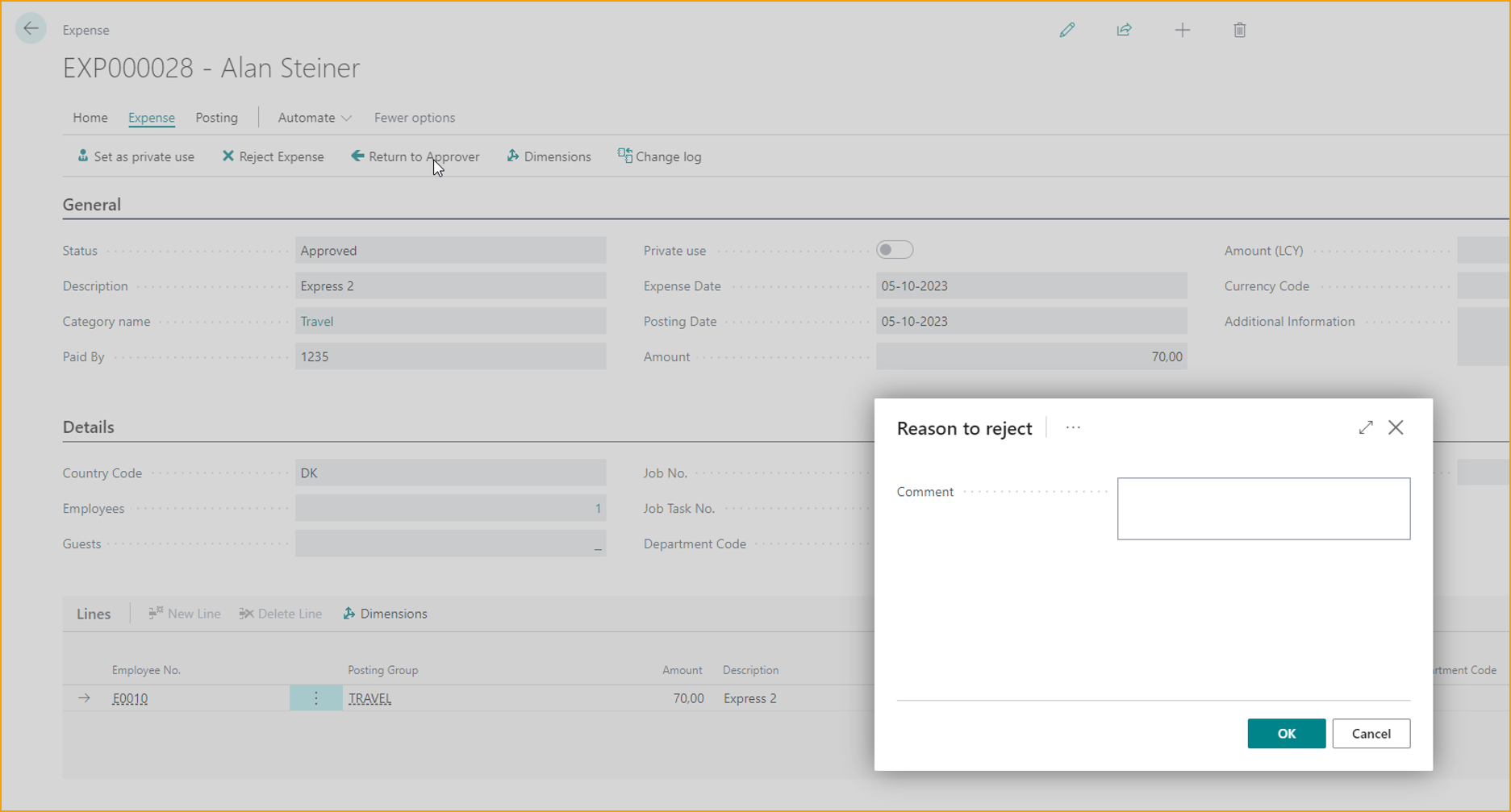
| Ablehnen | Sendet den Eintrag zurück an den Mitarbeiter. Ein Ablehnungsgrund ist erforderlich. |
| Genehmigung erzwingen | Überschreibt Genehmigungsbedingungen und genehmigt den Eintrag. Ein Kommentar ist erforderlich. |
| Erstattungslimit festlegen | Überschreibt den erstattungsfähigen Betrag, wenn eine Einreichung den Mitarbeiterprofil-Höchstbetrag überschreitet - siehe Vor dem Buchen prüfen und bearbeiten. |
| Als Privatnutzung festlegen | Markiert eine Firmenkartenspese als nicht erstattungsfähig - siehe Privaten Kartenbeleg bearbeiten. |
| Genehmiger hinzufügen | Fügt einen zusätzlichen Genehmiger hinzu und öffnet die Spese für eine weitere Genehmigung wieder. Ein Kommentar ist erforderlich - siehe Genehmiger zu einer genehmigten Spese hinzufügen. |
| Als erledigt markieren | Entfernt eine Firmenkartenspese und archiviert die verknüpfte Transaktion als anderweitig erledigt. |
Verwandte Themen
- Konzept: Spesen-Lebenszyklus
- Konzept: Buchung und Sachkonto
- Weiter: Erstattungen verarbeiten