Company Card Setup (PRO Edition Only)
Set up Company Cards to enable automatic matching of expenses with card statements.
Company Card Setup includes:
- Agreement Setup
- Company Card Setup
- Excel Import Definitions
Agreements
Company Card Agreements are used to define how Expense Management interacts with a specific company card banking institution. You typically create one Agreement for each company card bank your organization works with.
Setting up the agreement is the first step in the company card configuration process. Once the agreement is in place, you can then set up individual employee corporate company cards and associate them with the appropriate agreement. This structure provides the foundation for processing and managing Company Card transactions.
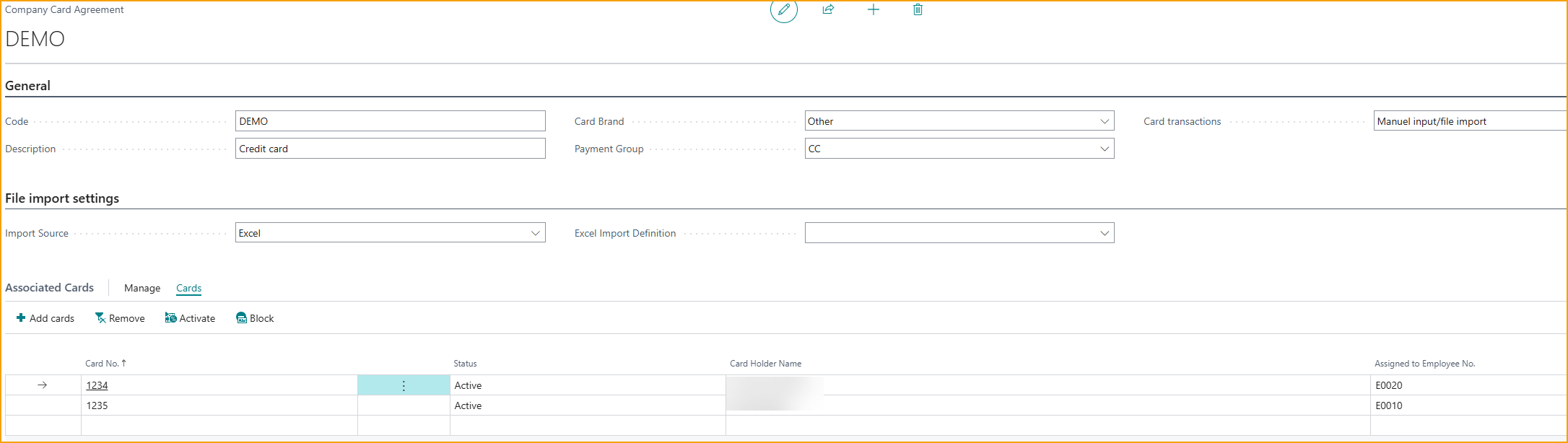
Create/Manage a Company Card Agreement
- From the Truvio Expense Management - Overview page, under the Company Card section, select Agreements
- Select +New to create a new agreement.
- To manage an existing agreement, select the Agreement from the list and edit the record.
- Enter values for the following fields:
- General (Code and Description identify the agreement)
- Brand name: The card brand (e.g. Visa, Mastercard). Auto-fills when a Card provider is selected; otherwise enter manually.
- Balance Type: Select a Balance Type that has been previously set up.
- Max credit card surcharge (in %): The maximum surcharge percentage that may be added by this card provider. Used during transaction matching to account for surcharges not shown on receipts.
- Card transactions: Select the method for the import of company card transactions:
- Manual Input/File Import: Select this option if the transaction will be typed in manually or imported with an Excel file.
- Bank Statement: Company Card transactions are imported from the Bank Statement in Business Central.
- Bank Reconciliation: Company Card transactions are imported from the Bank Reconciliation in Business Central.
- Automated feed: Transactions are delivered automatically via a card provider integration. When selected, the Card provider field becomes active.
- Card provider: Select the card provider for automated feed. Available in Nordic countries only.
- AirPlus - AirPlus corporate card integration.
- Nordea First Card (OpenCard) - Real-time transaction feed from Nordea First Card.
- File Import Settings
- Import Source: Select the import source. Your options are Excel or CSV file.
- Excel Import Definition: Select the Excel Import Definition previously created, if import source is Excel. See Excel Import Definition instructions to learn more.
- Associated Cards
- This section displays the Company Cards that have been linked to the selected Company Card Agreement.
- To associate cards with an agreement, you must first set up employee Company Cards on the Company Card Setup page. page.
- To associate Company Cards with the agreement:
- In the Associated Cards section, select Cards from the action bar, then choose Add Cards.
- Select one or more Company Cards from the list.
- To select multiple Company Cards, click a card line and press Shift + Arrow Down on your keyboard.
- Select OK to confirm.
- Multiple Company Cards can be associated with a single agreement. For detailed instructions on creating Company Cards, see the Company Card Setup section.
- General (Code and Description identify the agreement)
Company Card Setup
The Company Card Setup page allows you to set up and manage individual Company Cards assigned to employees. This page displays all Company Cards that have been created, along with their associated employees and agreements.
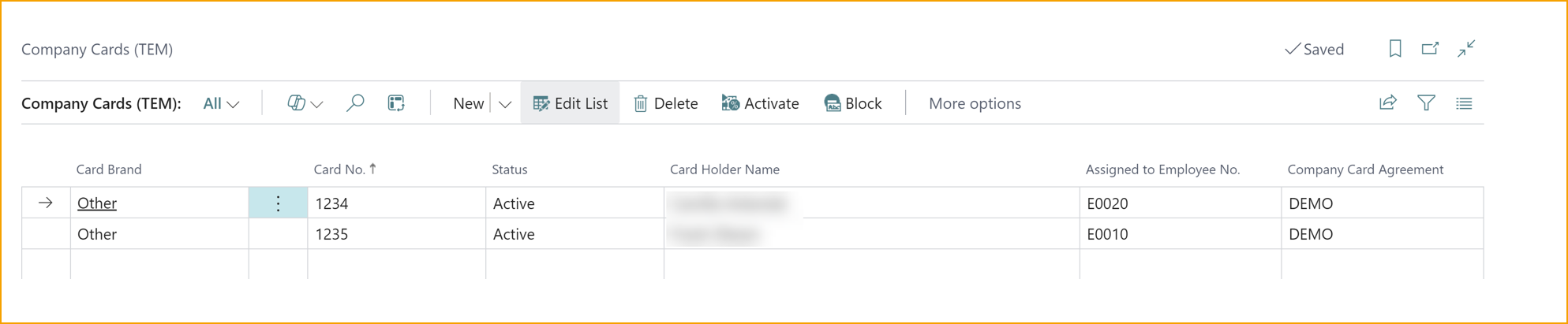
Create a New Company Card
- From the Truvio Expense Management - Overview page, under the Company Card section, select Company Cards.
- Select +New and enter the card number, card holder, the employee it is assigned to, and the Company Card Agreement. The Card Brand defaults once the agreement is selected.
- Activate: After a Company Card has been registered, it must be activated before it can be used. To set a company card’s status to Active, the card must be assigned to both a Company Card Agreement and an Employee.
- Select a Company Card from the list.
- Click Activate from the action bar.
Excel Import Definitions
The Excel Import Definitions page allows you to define how data from a card statement Excel file is mapped and imported into Expense Management. On this page, you configure column mappings and import rules so the system can correctly read and process the Company Card expense data.
Create a new Excel Import Definition
-
From the Truvio Expense Management - Overview page, under the Company Card section, select Excel Import Definition.
-
Select +New to create a new agreement.
-
General (Code and Description identify the import definition)
- Header Line Before Transactions: Enable this field if there is a header row in the Excel file.
- Caption for First Header Column: Enter the caption you wish to display on first column header.
- Date Order: Choose the date format used in the file.
- Payment is Shown as a Negative Amount: Enable this parameter if the payment amount in the file is negative.
- Text to strip from Description: You can define text that should be stripped from transaction descriptions during import.
-
Map Fields to Excel Columns - This section allows you to specify which columns in your Excel file correspond to the fields in Expense Management. Mapping ensures the system can correctly read and import the data.
For each field, enter the column letter from your spreadsheet that holds that data (Card Number, Card Holder, Transaction Date, Transaction Amount, Billing Amount, Description, and the optional Currency, Country, MCC, MCC Description, Unique Reference, and Invoice No.).

A few mappings are worth noting:
- Transaction Amount vs Billing Amount: the Transaction Amount is in the currency where the purchase was made (possibly foreign); the Billing Amount is the same purchase in your company's local currency, as billed by the provider. For domestic purchases the two are equal.
- Billing Amount (Credit): map this when the file uses separate debit and credit columns rather than signed amounts.
- Unique Reference: map this if the file provides a transaction reference - it improves matching and prevents duplicate imports.
-
Assign the Excel Import Mapping to the appropriate Company Card Agreement.
CSV Import Definitions
CSV Import Definitions work the same way as Excel Import Definitions but for CSV files. Use this if your company card provider supplies transactions as a CSV rather than an Excel file.
Create a new CSV Import Definition
- From the Truvio Expense Management - Overview page, under the Company Card section, select CSV Import Definition.
- Select +New to create a new definition.
- Configure the General fields and Map Fields to CSV Columns in the same way as an Excel Import Definition (see above).
- Assign the CSV Import Definition to the appropriate Company Card Agreement and set Import Source to CSV.
Related
- Concept: Company Card flow
- Set it up: Step 12 - Company cards