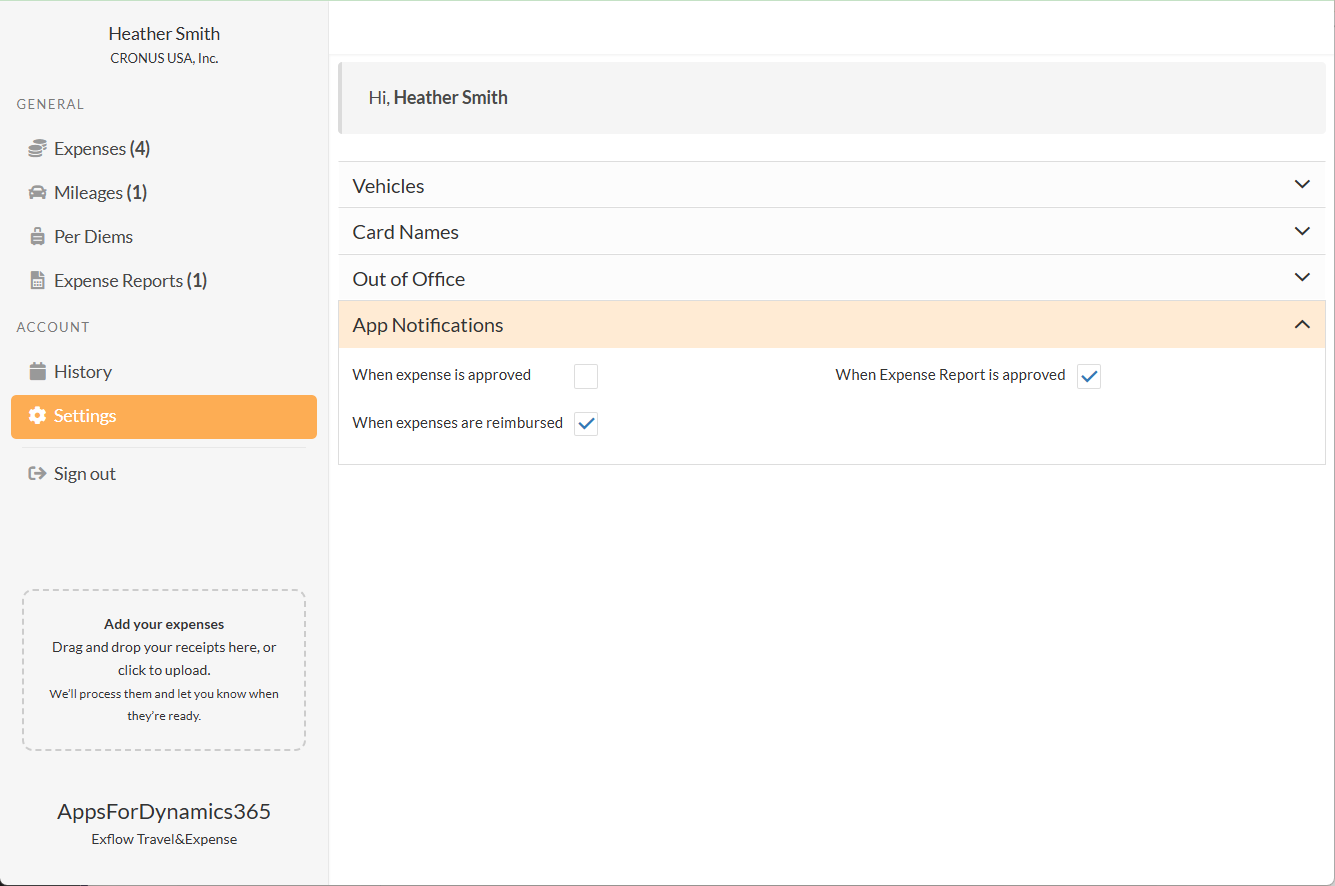
Web Portal Navigation & Interface Overview This section describes the main interface elements of the ExFlow Travel & Expense Web Portal and how to navigate them.
Logging into the Portal
To access the AppsForDynamics365 Portal, use the login information provided by email when your account was set up. There are two ways to log in:
- Username and password or
- Sign in with Microsoft.
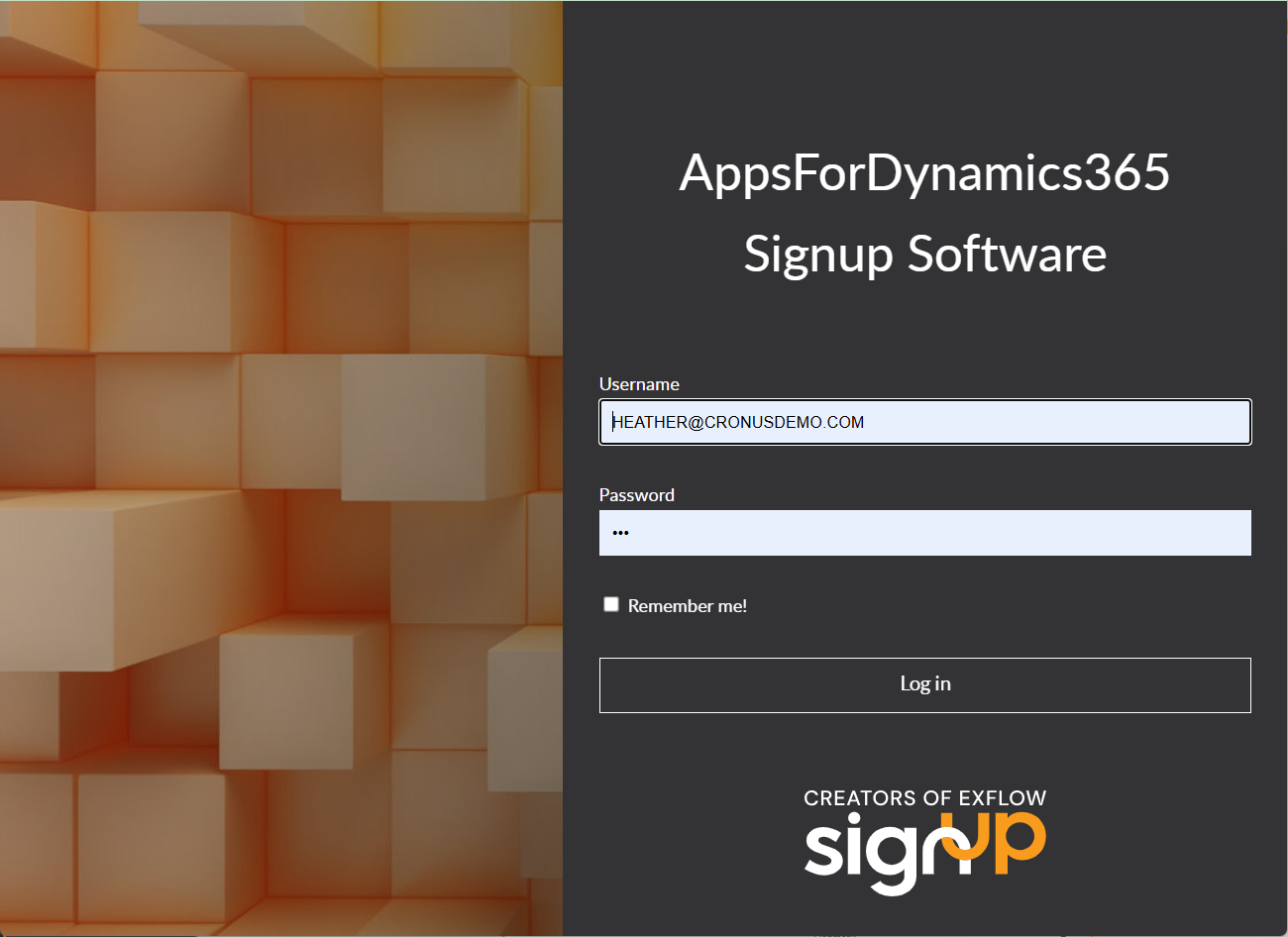
Note: If you are unable to log in, contact your Business Central Administrator or IT department for assistance.
Dashboard
The Dashboard is the first screen displayed when you open the app. It provides an overview of all your entries, grouped by Expenses, Mileages, Expense Reports, and Per Diems, depending on your account settings.
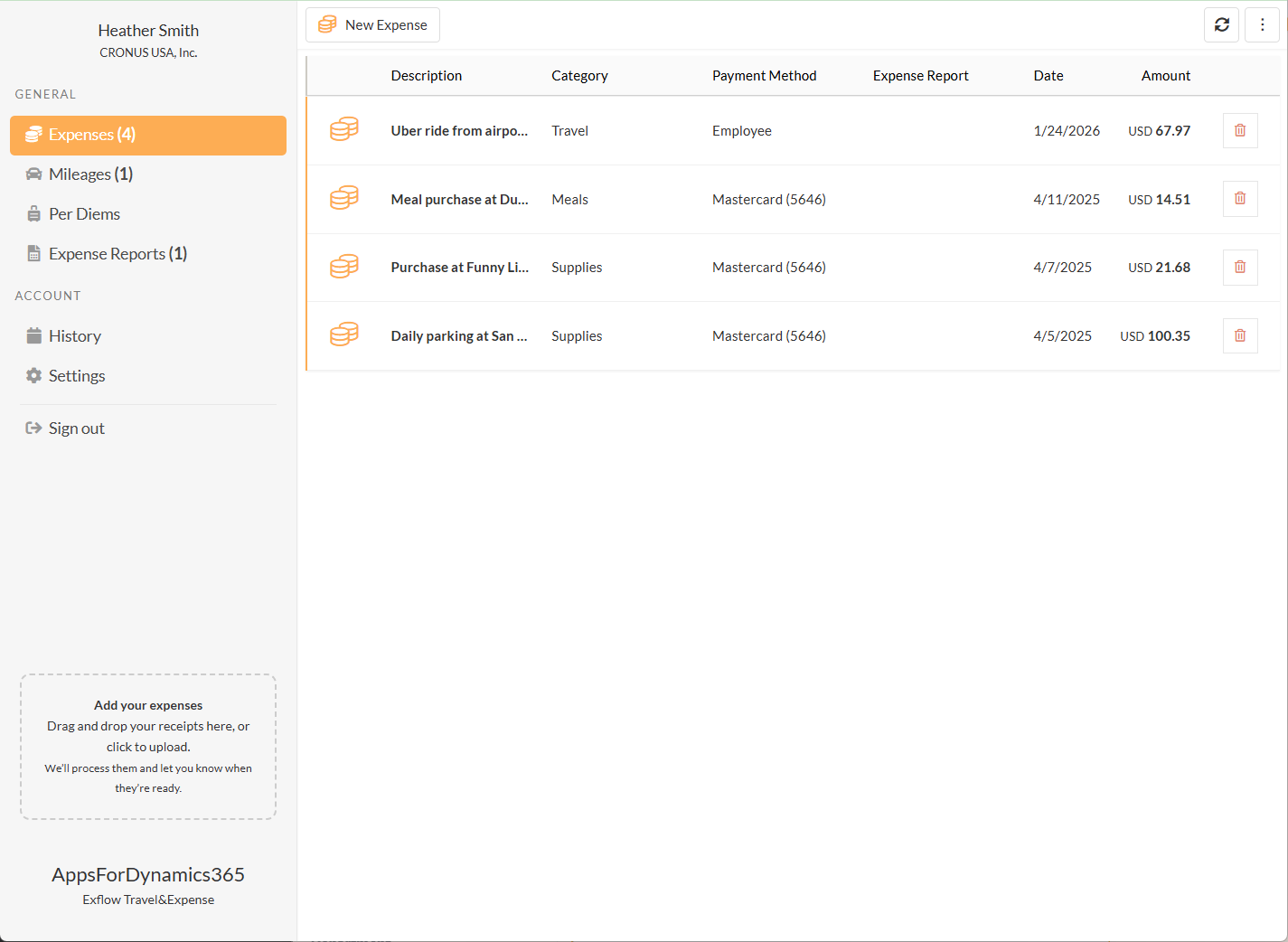
General
The General section displays the various expenses grouped by type.
- Expenses: This list shows expenses that have not yet been submitted for approval.
- Mileages: This list shows mileage entries that have not yet been submitted for approval.
- Per Diems: This list shows per diem entries that have not yet been submitted for approval.
Note: Items that have already been submitted or approved will not appear in these lists.
Account The Account section allows users to review transaction history, manage settings, and configure personal preferences within the portal or mobile app.
History
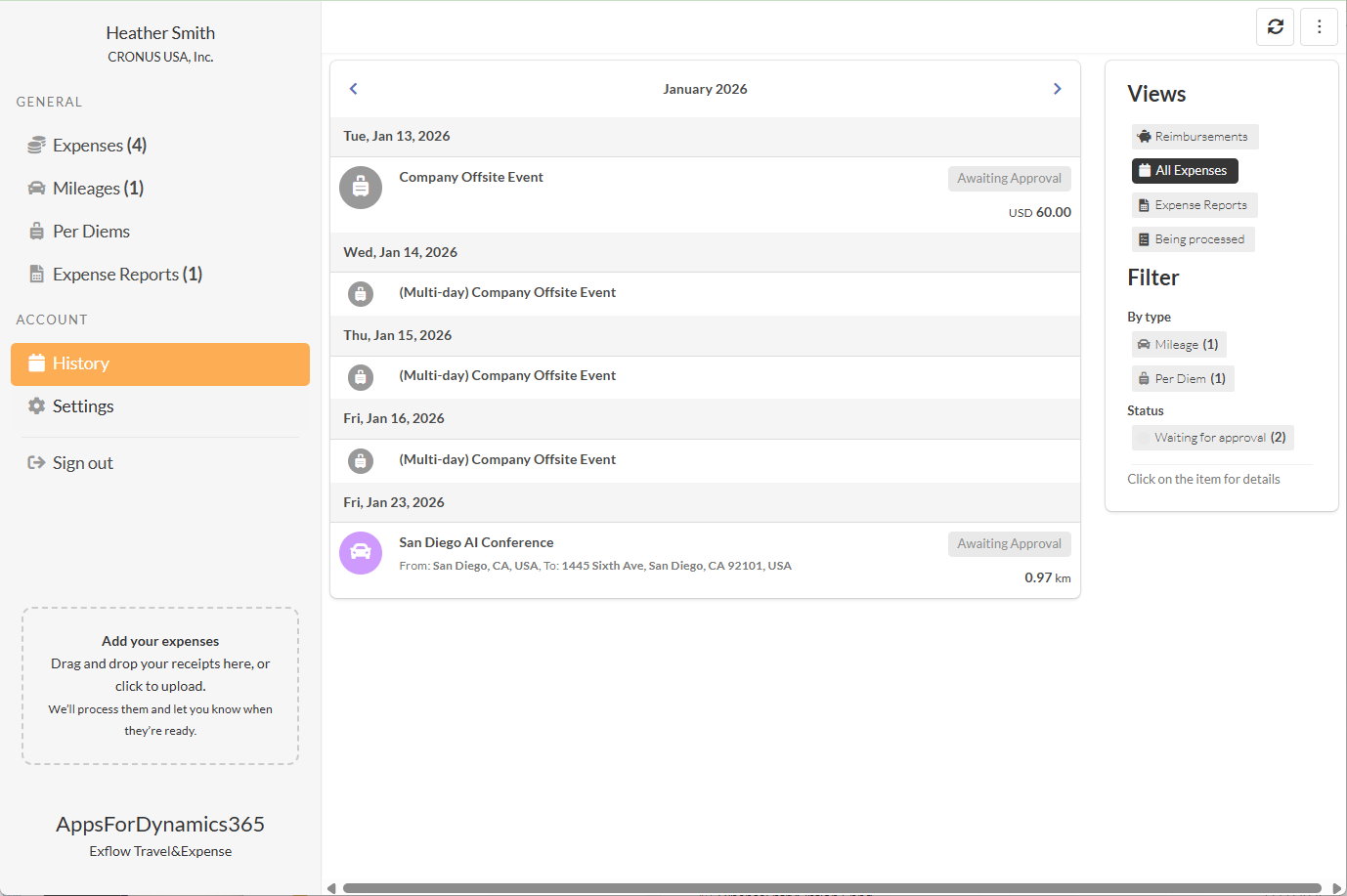
The History menu allows you to review all submitted and approved expenses in the portal or mobile app. It provides several views and filters to help you quickly find the information you need.
-
Available Views:
- Reimbursements: Displays only expenses that have been reimbursed.
- All Expenses: Shows all submitted expenses regardless of status.
- Expense Reports: Displays submitted expense reports.
- Being Processed: Shows expenses that are still under review or approval.
-
Filter
- By Type: Filter entries by expense type, such as Mileage, Per Diem, or standard Expenses.
- By Status: Filter entries by their approval status, for example, Waiting for Approval, Approved, or Rejected.
These views and filters make it easy to track the progress of your expenses, verify reimbursements, and review past entries efficiently.
Settings
The Settings menu allows users to manage personal configurations and review assigned resources within the portal. Each option provides control over key aspects of your account.
-
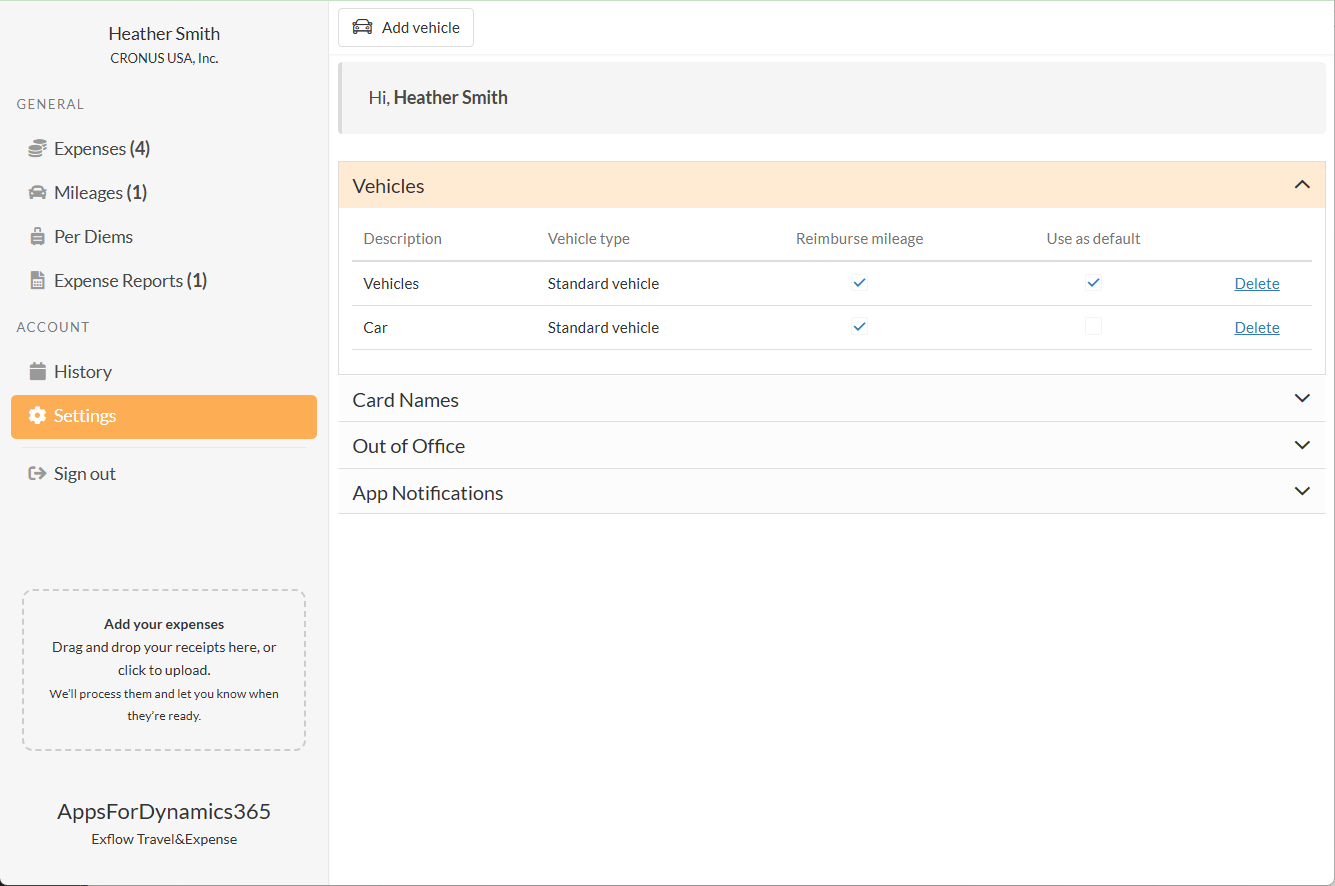
Vehicle Assignments – View and manage vehicles assigned to your account. For each vehicle, the following information is available:
- Description: Name or description of the vehicle
- Vehicle Type: Type of vehicle
- Reimburse Mileage: Indicates whether mileage reimbursement is enabled.
- Use as Default: Indicated is the vehicle is your default for mileage entries.
- Delete: Remove the vehicle from your account if no longer needed.
-
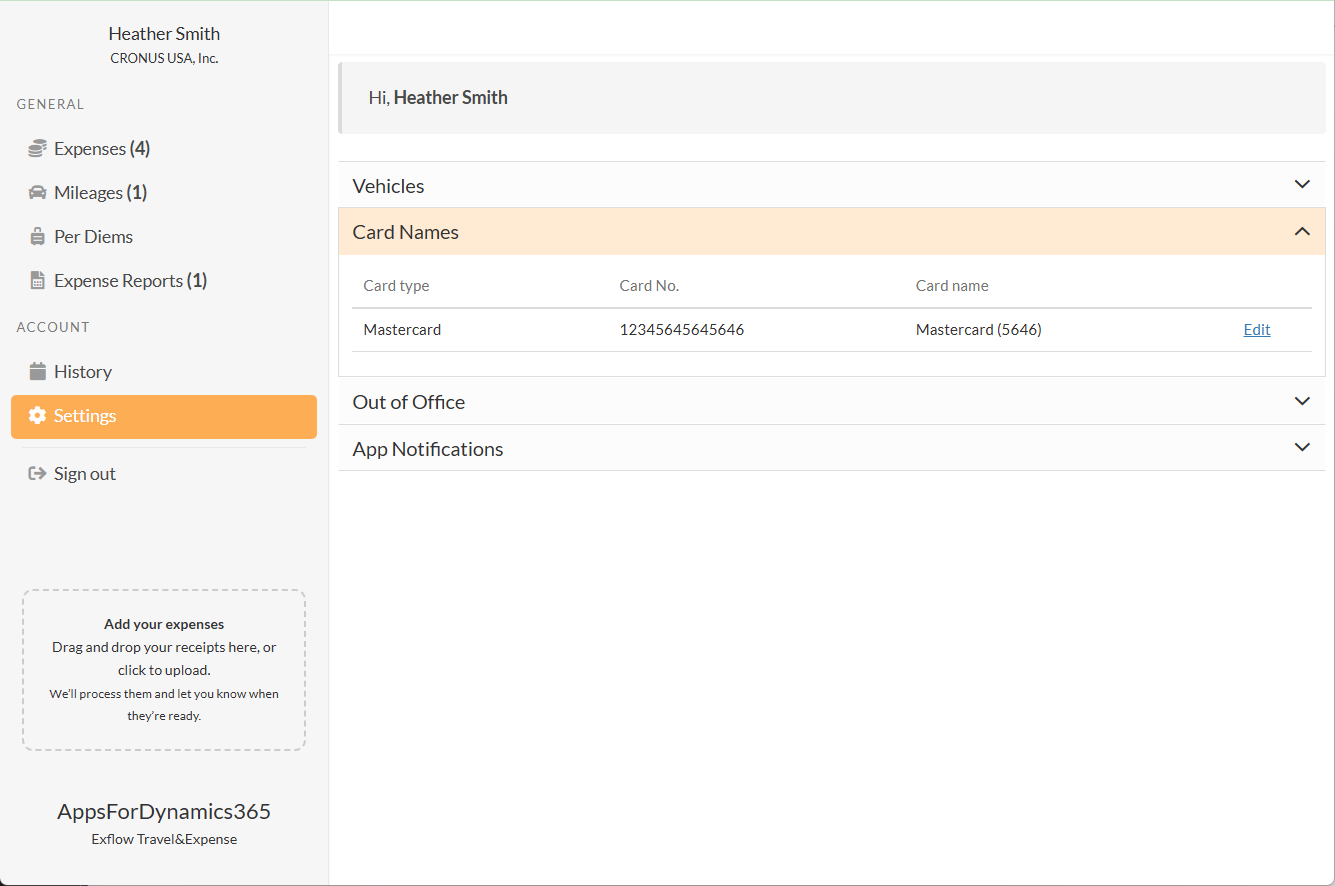
Card Names – Displays the credit cards assigned to your account. You can review and edit card details as needed:
- Card Type: Type of card (e.g., corporate, personal)
- Card No.: Last four digits of the card
- Card Name: User-defined card name for easy identification
- Edit: Modify card details
-
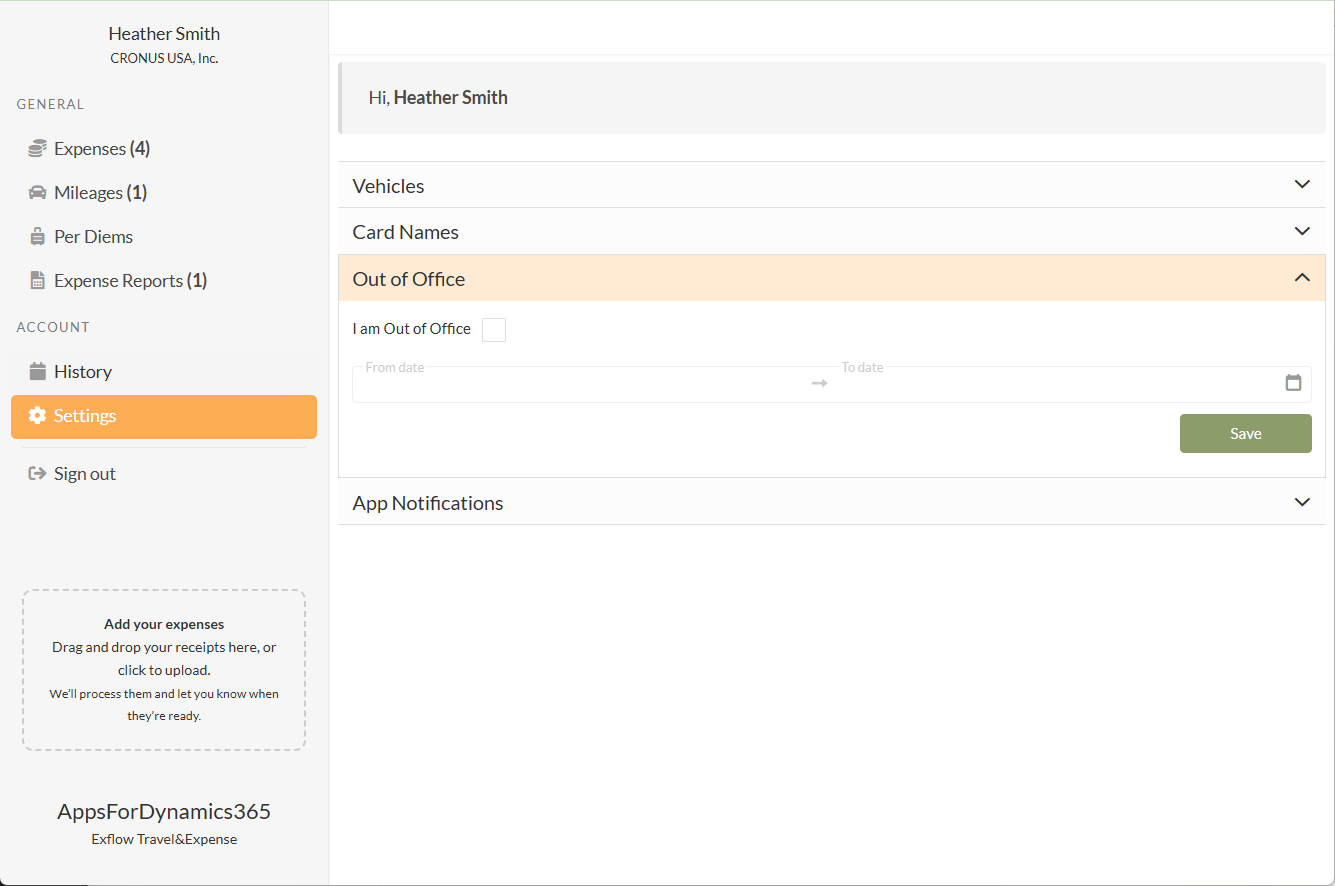
Out of Office – Set up an out-of-office period so the system knows when you are unavailable:
- I am Out of Office: Check this box to enable out-of-office status
- From Date: Enter the start date of your absence
- To Date: Enter the date you will return
-
App Notification - Control which notifications you receive from the portal:
- When Expense is Approved
- When Expense Report is Approved
- When Expense is Reimbursed