For Finance Department
Bookkeeping is the final stage in processing expenses or mileage and can be efficiently managed with just a few clicks in ExFlow Travel & Expense Business Central. Please note that Business Central is not designed for submitting expenses. For these purposes, kindly use the mobile app or the web portal.
Overview in Business Central
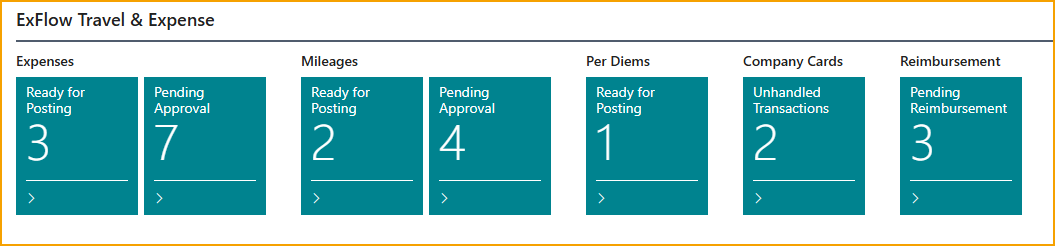
Business Central roles Truvio Expense Management, Business Manager and Accountant contain the following card cues in the role center. Please note! BC will only show the card cues that contain more than 0 expenses.
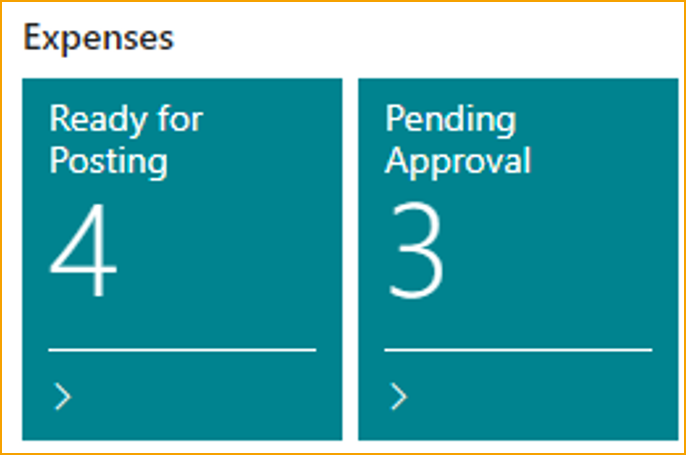
Expenses
After an expense has been submitted and approved it will be available to be processed by the bookkeeper in Business Central. Processing an expense can include a few different elements, such as:
-
Posting the expense.
-
Editing (adjusting G/L accounts, dimension values, tax related fields, etc.) an expense before posting, if needed.
-
Set a credit card transaction as private use
-
Splitting the expense between multiple employees.
-
Sending expenses back to either the approver or completely rejecting them.
Post approved expense
Posting an approved expense can be done in a few short steps.
Go to: Ready for posting (TEM)
Post an expense by clicking F9 or select Post.
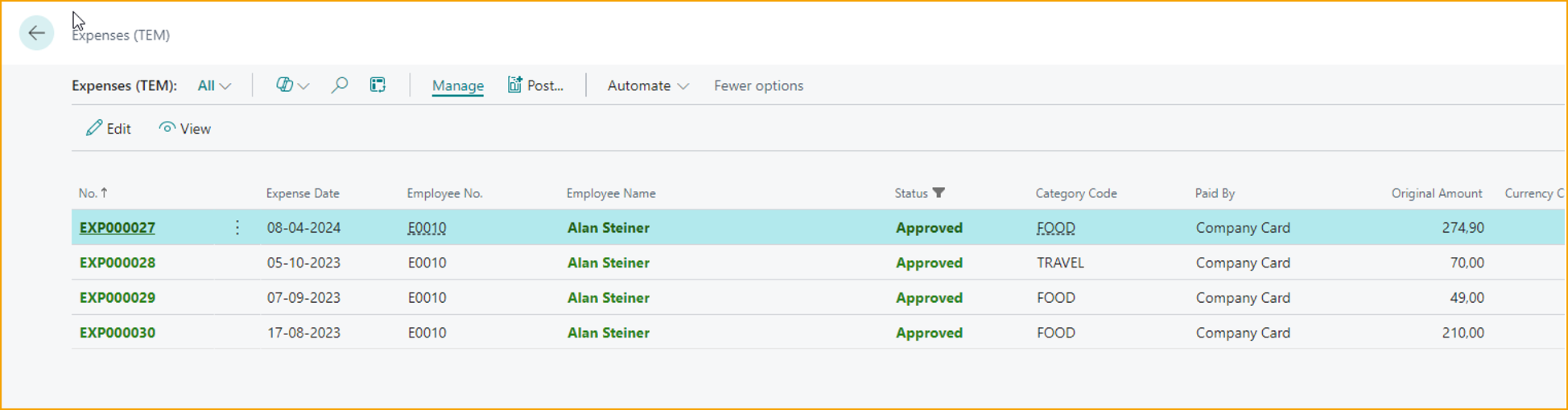
The user can only post expenses with status Approved (green color).
It is possible to select multiple approved expenses and post them at the same time.
Editing the expense
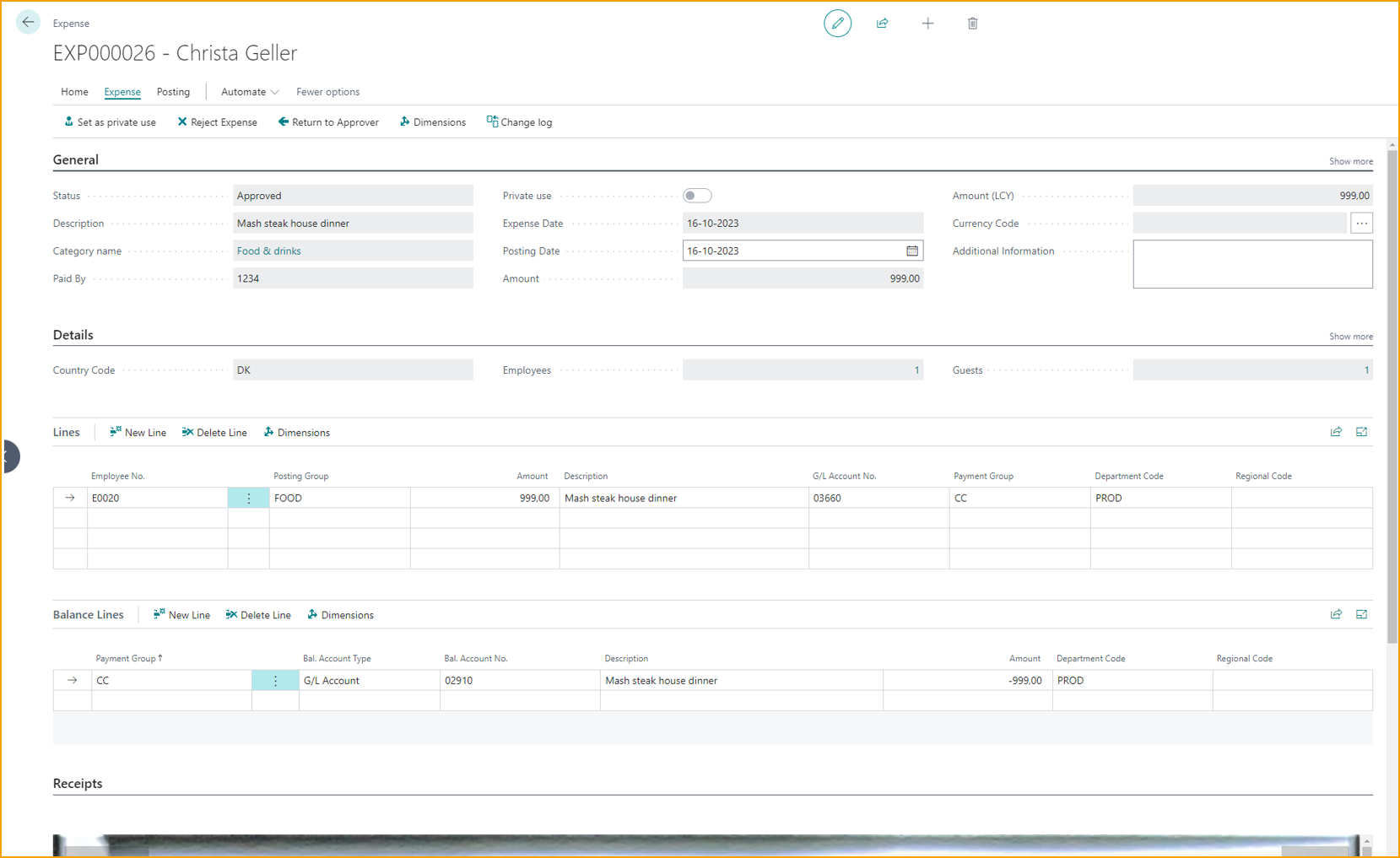
If the bookkeeper wants to review or edit the expense before posting it.
Go to: Edit --> click on the "pin"
The fields that can be edited in this view are:
| Expense | |
|---|---|
| Posting date: | The day on which the item is to be posted, useful for companies that prefer their expenses to be posted on specific date of the month. |
| Additional information: | The user can write any information or context that can be relevant. |
| Lines: | The user can change the particulars of the expense in question, such as posting groups, G/L accounts, etc. The bookkeeper can also split the expenses between employees. |
| Balance lines: | These are the lines that are to be paid out to employees. |
| Dimensions: | ent** The bookkeeper can change dimension values. |
| Tax fields: | Depending on localization of your Business Central, Sales Tax or VAT Tax fields can be adjusted. |
Splitting an expense
Some expenses that have already been approved will on occasion need to be split between the employees. This can be done manually from the expense edit-view.
Go to: Edit --> click on the "pin" --> Details

-
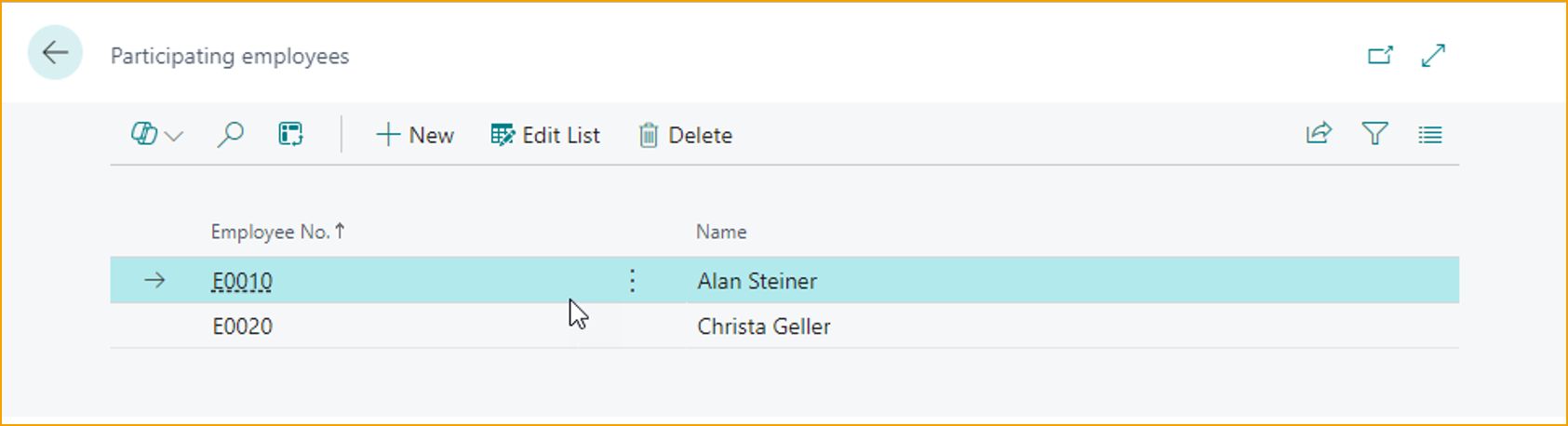
Employees: Click on the number
-
Click New
-
Add an employee
-
Close the window
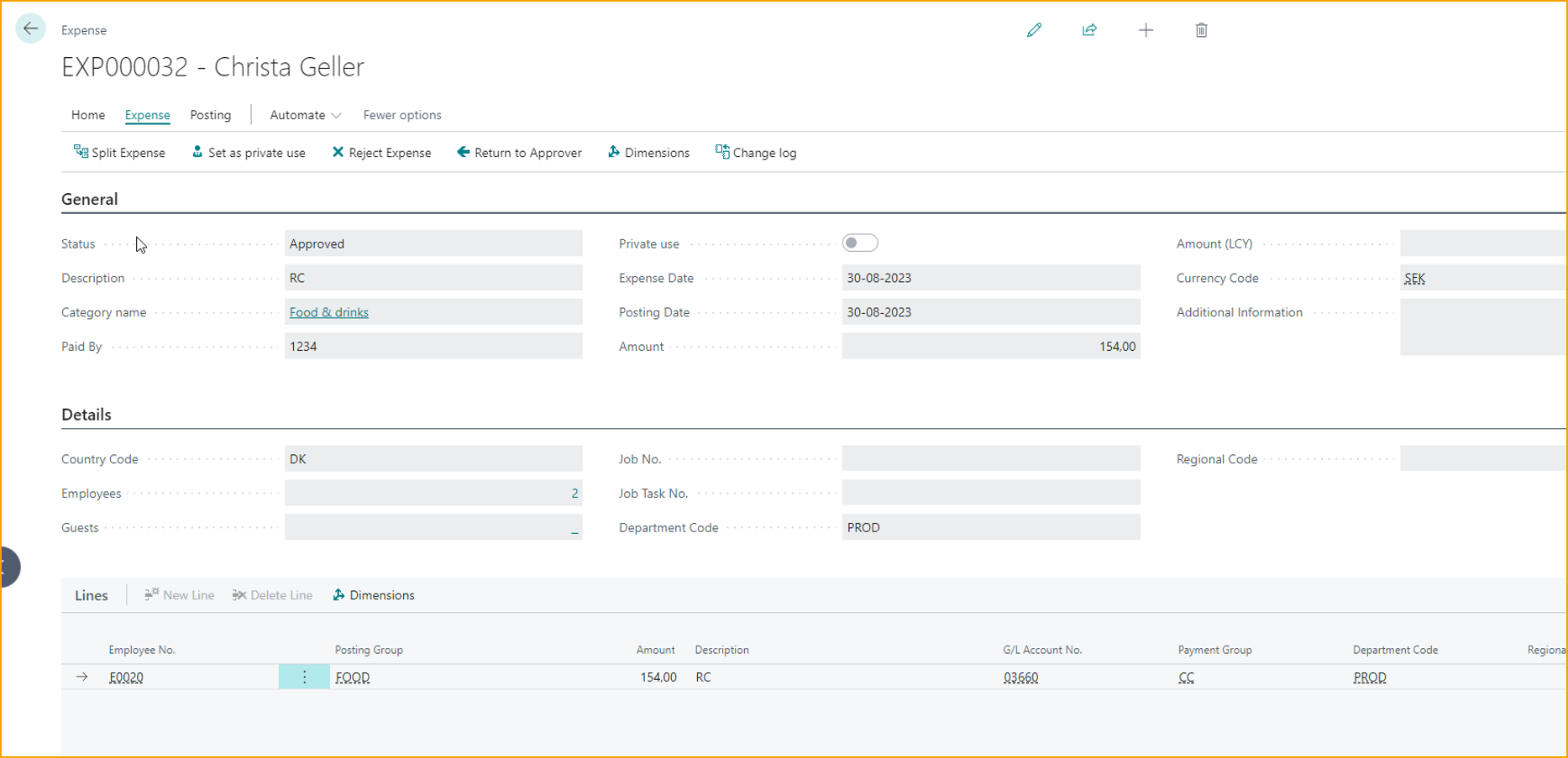
- Click on Split Expense in the action bar
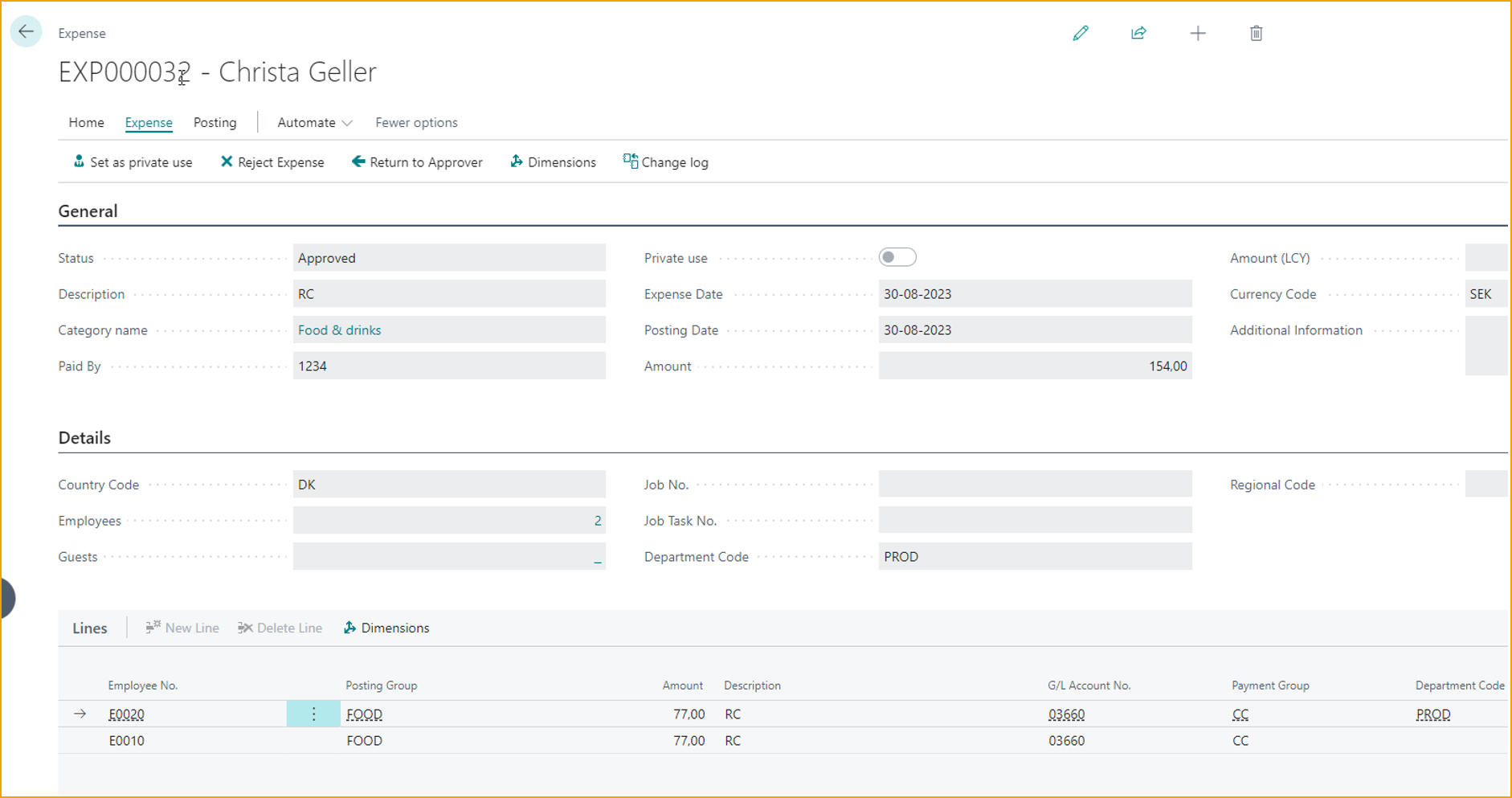
The lines will now be split according to the employees that are chosen.
Set as private use
If an employee used the company card for a private expense and forgot to mark it on the expense during submission, the bookkeeper can do that.
Go to: Edit --> Set as private use
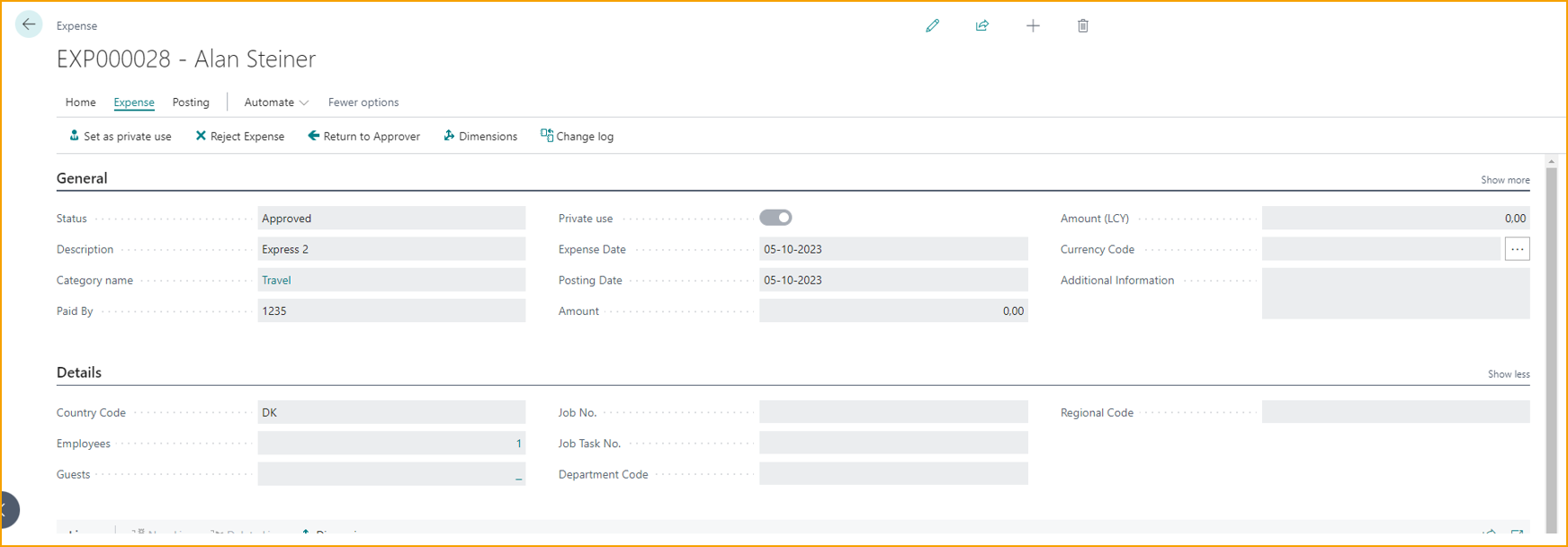
This will make the expense non-reimbursable to the employee.
Vendor Mapping
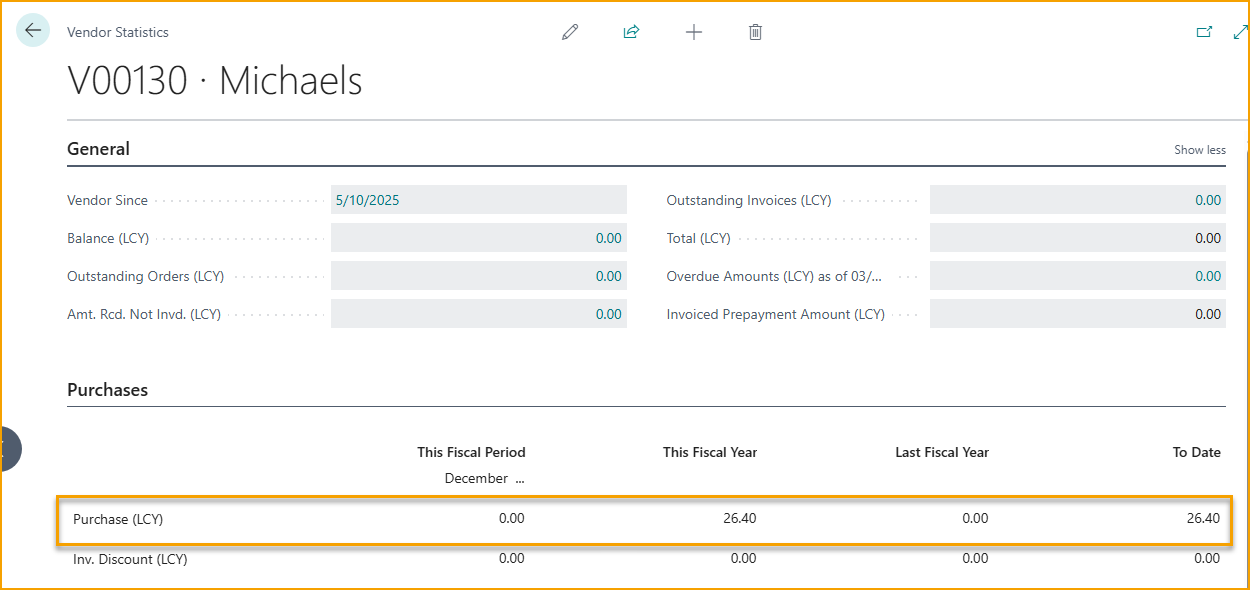
Vendor Mapping feature allows the finance team to map vendor name identified by SmartExtract on expense attachments to a vendor card in Business Central.
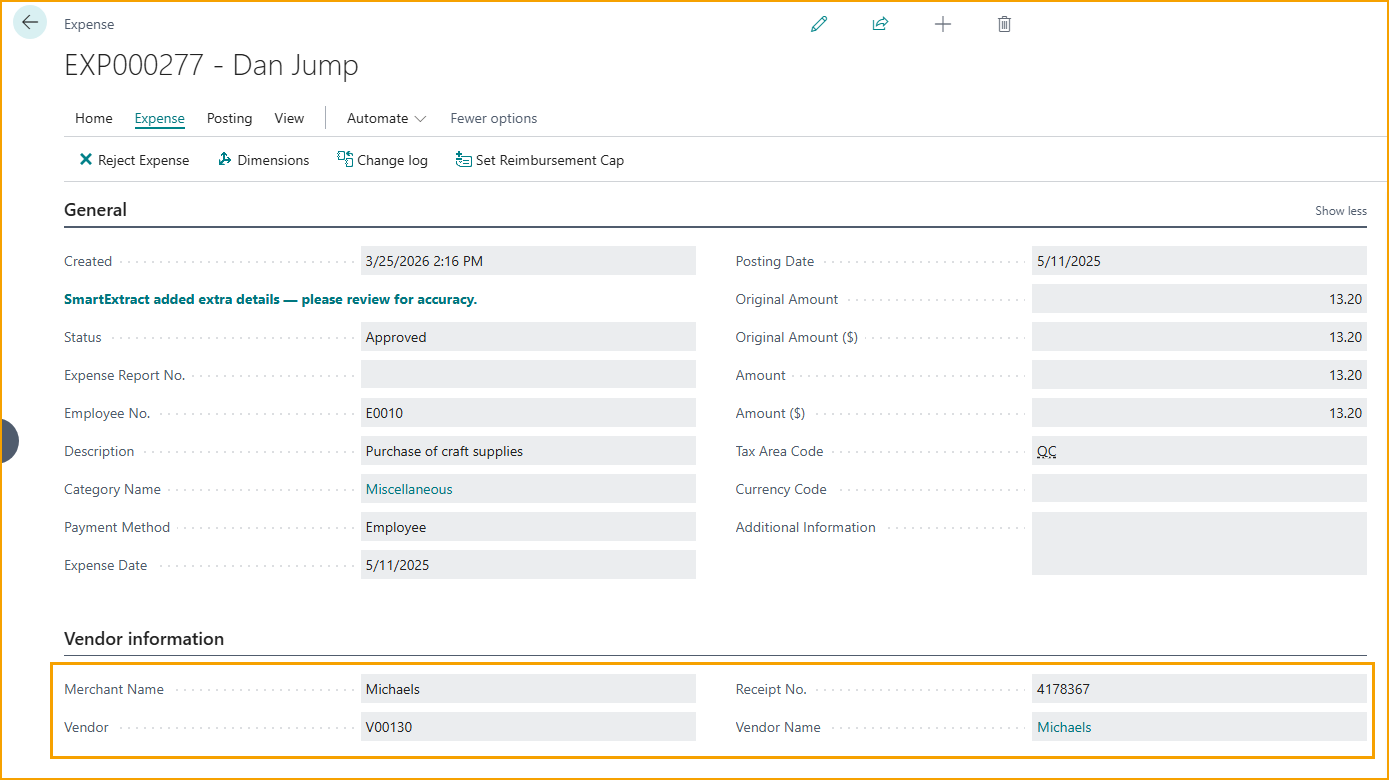
This makes it possible to monitor and analyze spend per vendor, even when costs are incurred and settled through employee expense claims. When expenses are posted, the amounts are reflected on the vendor as purchases, enabling vendor statistics and reporting to include expense based spend.
Reject Expense
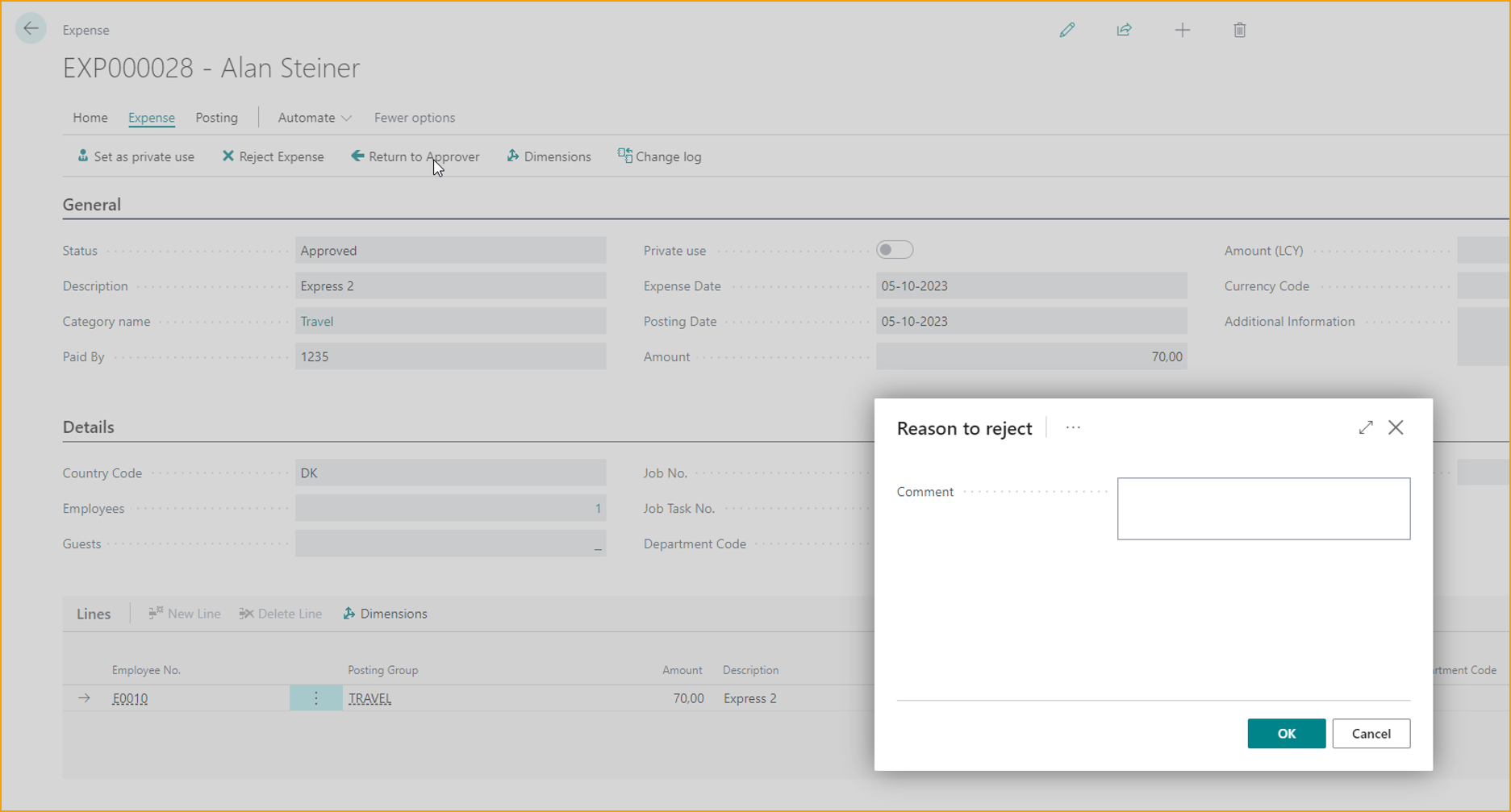
If the bookkeeper needs to reject an expense, please follow the instructions provided below:
Go to: Expense --> Reject Expense
The expense will be sent back to the employee; the bookkeeper will be forced to add a reason for the rejection.
Force Approval
Force approval option allows accounting in Business Central to enforce approval regardless of other conditions. Approval comment is required when using Force Approval function.
Duplicate Receipt Detection
Receipt number, in addition to receipt date and receipt amount, is also used as criteria for duplicate receipt detection.
Mileage
After the mileage has been submitted and approved it will be available to be processed by the bookkeeper in Business Central. Processing an expense can include a few different elements, such as:
-
Posting the mileage.
-
Editing the mileage.
-
Sending mileage back to either the approver or completely rejecting them.
Post approved mileage
Posting an approved mileage can be done in a few short steps.
Go to: Ready for posting or search for: Mileages (TEM)
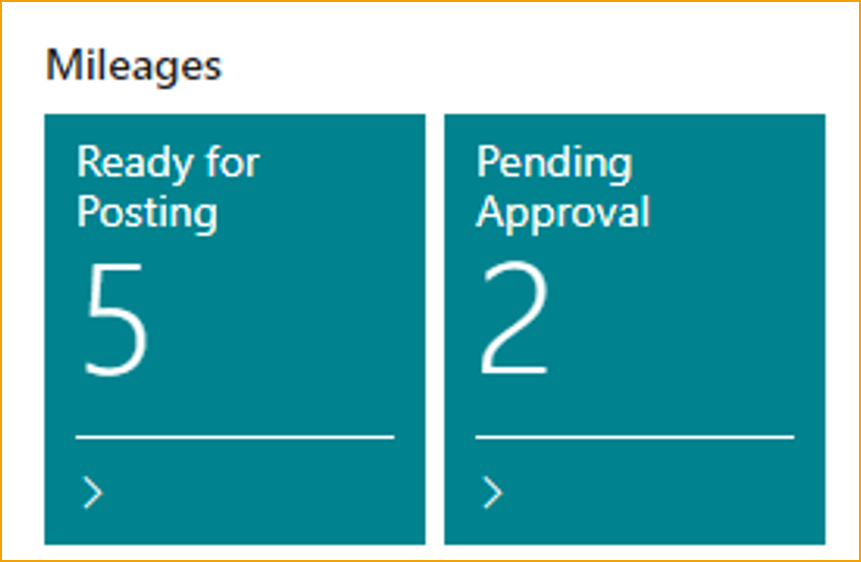
Post mileage by clicking F9 or select Post.
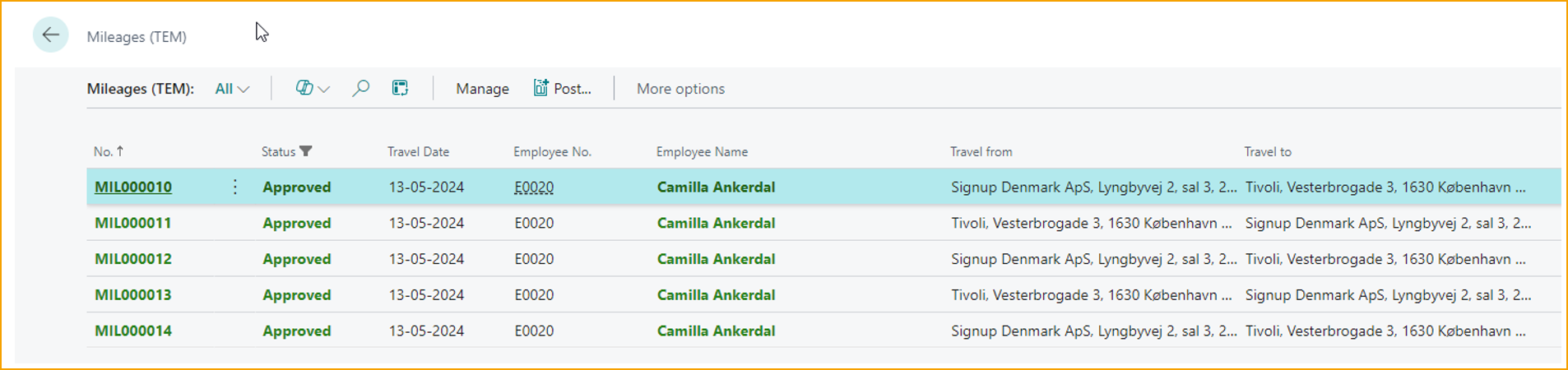
It is possible to select multiple approved expenses and post them at the same time.
It is only possible to post expenses with status Approved (green color).
Credit card transactions
Credit card transactions can be handled in a few ways through Business Central, both of which can add utility and efficiency to the workday of a bookkeeper. Following are the most used options for handling credit card transactions:
-
Manually creating credit card transactions in Business Central for reconciliation against corresponding receipts.
-
Editing credit card transactions.
Manually creating credit card transactions
The manual transaction list is useful for manually importing credit card statements from Excel or csv files you receive from credit card provider when there is no automatic feed set up between the credit card provider and Business Central.
The bookkeeper can either create the transaction by inputting the correct data into each of the fields, or by importing a file in a format chosen while setting up Credit Card Agreement.
Manually creating a credit card transaction by inputting data:
Go to: Manual Credit Card Transactions (TEM)
New: Create a new Credit Card Transaction.

| Manual Credit Card Transactions | |
|---|---|
| Employee: | Select who made the expenditure. |
| Transaction Date: | Enter the date from which the employee made the expenditure. |
| Card No.: | From a list of Employee specific card numbers |
| Description: | Enter a description of the expense. |
| Transaction Currency: | Select the currency used. |
| Transaction Amount: | Enter the amount of the transaction. |
| Billing Amount: | Enter the amount of the billing. |
Click on Create transactions to send the transaction out to all card holders, they will get a notification in the app.
Manually creating credit card transactions by importing a file
Go to: Manual Credit Card Transactions (TEM)
Import file: Select import file

The bookkeeper has three options to import transactions from Import file.
-
Import an Excel or csv file (depends on the setup under Company Card Agreement (TEM))
-
Import from Bank statement
-
Import from bank Reconciliation
Viewing and editing transactions
In the credit card transactions view, the following information will be displeyed:
Go to: Company Card Transactions (TEM)

| Company Card Transactions | |
|---|---|
| Card No.: | The number for the credit card in question. |
| Card holder Name: | The name of the employee who holds the card. |
| Transaction Date: | The date on which the transaction happened. |
| Status: | The status of the transaction, which ranges from ''Sent to employee'' to ''Waiting for posting'' and documents each step in between. |
| Point of Sales Name: | The name of the place where the purchase was made. |
| Transaction Currency: | Currency used for the transaction. |
| Transaction Amount: | The amount of money spent. |
| Billing Amount: | The amount to be reimbursed to the employee. |
Marking a transaction as handled
Go to: Manual Credit Card Transactions (TEM)
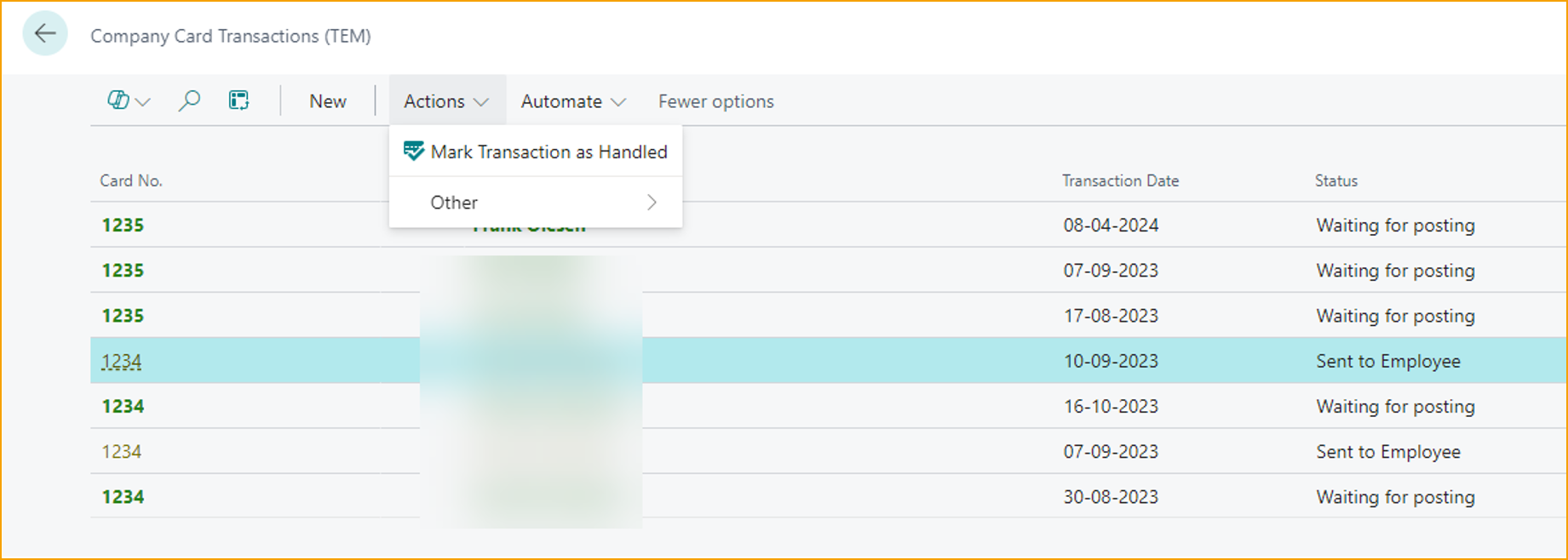
Once a transaction is created, the primary option to process it is to mark it as handled. This step is taken before the relevant employee addresses the transaction and is used in cases where the transaction has become irrelevant.
To mark a transaction as handled, do as follows.
-
Select a transaction.
-
In the action bar, select Actions, then Mark Transaction as Handled.
Per diem
After a per diem has been submitted and approved it will be available to be processed by the finance department in Business Central.
Post a per diem
Posting an approved expense can be done in a few short steps.
Go to: Ready for posting
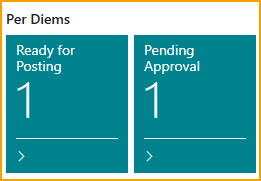
Post an expense by clicking F9 or select Post.

The user can only post per diems with status Approved (green color).
Reimbursement
Once the expenses have been posted in Business Central, they will be available for reimbursement.
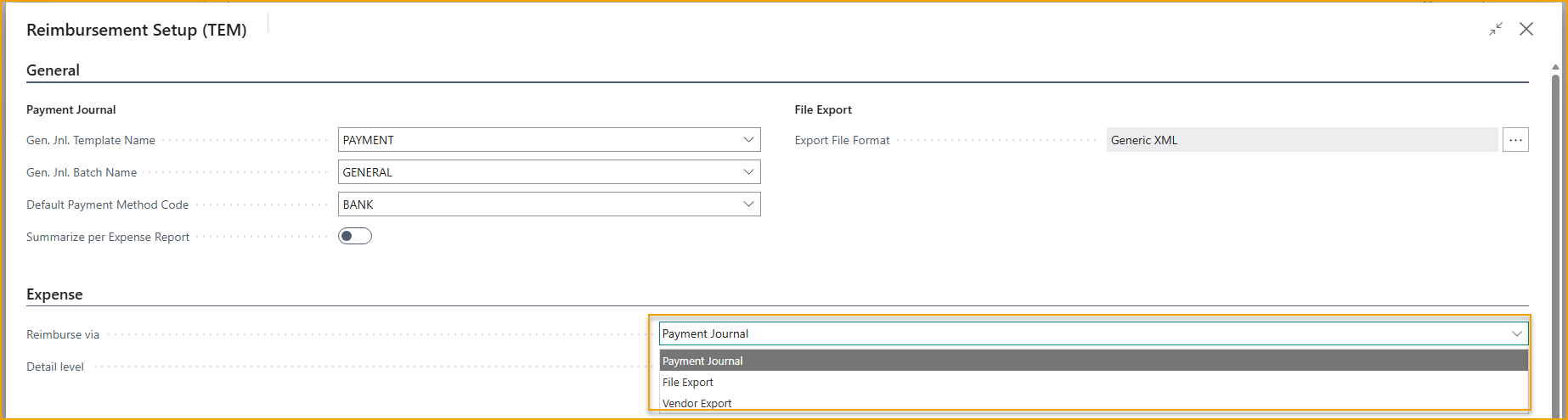
Depending on the reimbursement setup, the process will be completed either through the payment journal in Business Central or via file export.
You have the option to reimburse expenses, mileage and per diem using Payment Journal (to reimburse Employees directly), Vendor Export (to transfer payable from employee to linked vendor to then pay the vendor), File Export (to generate the file and provide it to a payroll provider for processing):
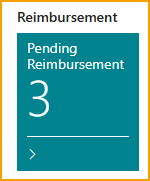
Go to: Pending Reimbursement
Reimbursement overview
Depending on your reimbursement setup and type of expenses pending reimbursement, you might see one or multiple options under this button.
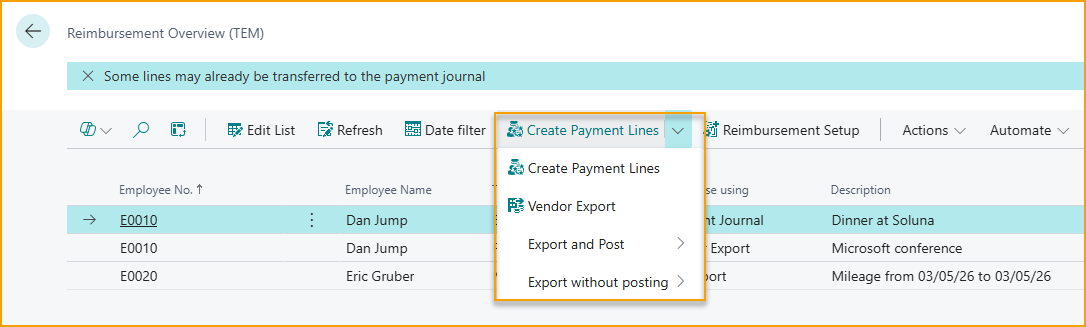
Create Payment Lines
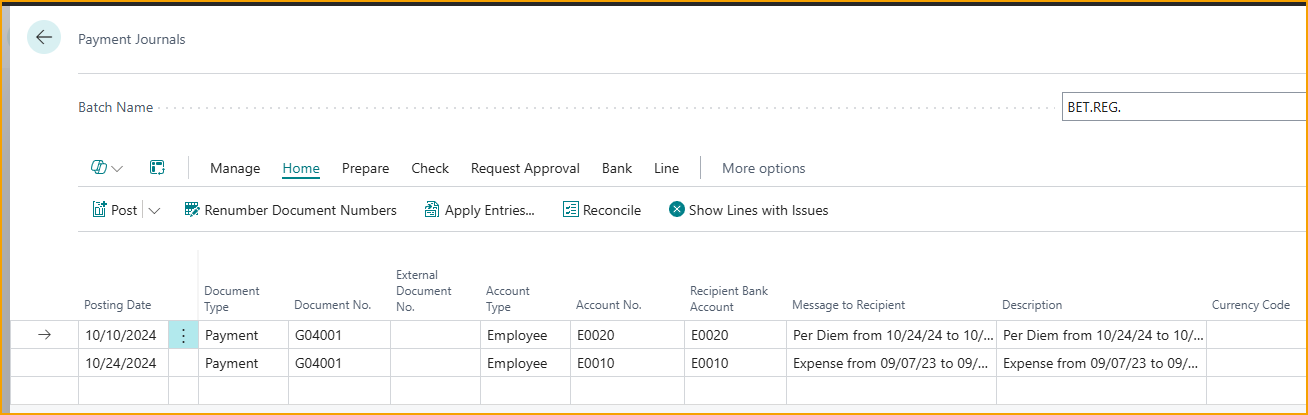
Reimbursement via payment Journal.
Users will be redirected to the payment journal in Business Central.
It will create payment journal entries with Account Type = Employee.
Use this option if you will be reimbursing Employees directly (Using banking information on the Employee card in Business Central).
Vendor Export
Select vendor export for reimbursement via payment Journal using Account Type = Vendor.
With this reimbursement method, the balance originally posted to Employee Ledger Entries, will be reversed and the same balance will be posted to Vendor Ledger Entries (to the vendor linked with Employee Card).
This will make vendor ledger entry ready for reimbursement.
Use your standard method for vendor reimbursement in Busines Central.
File export
Select Export and Post or Export Without Posting for reimbursement via the file export.
The generated file will be located in the download folder.
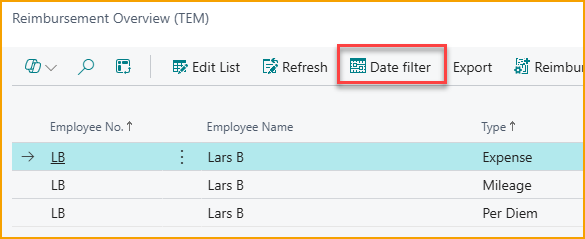
In the Reimbursement module, you can now filter items by a specific date interval. This is particularly useful when exporting data to a payroll system for a defined payroll period.
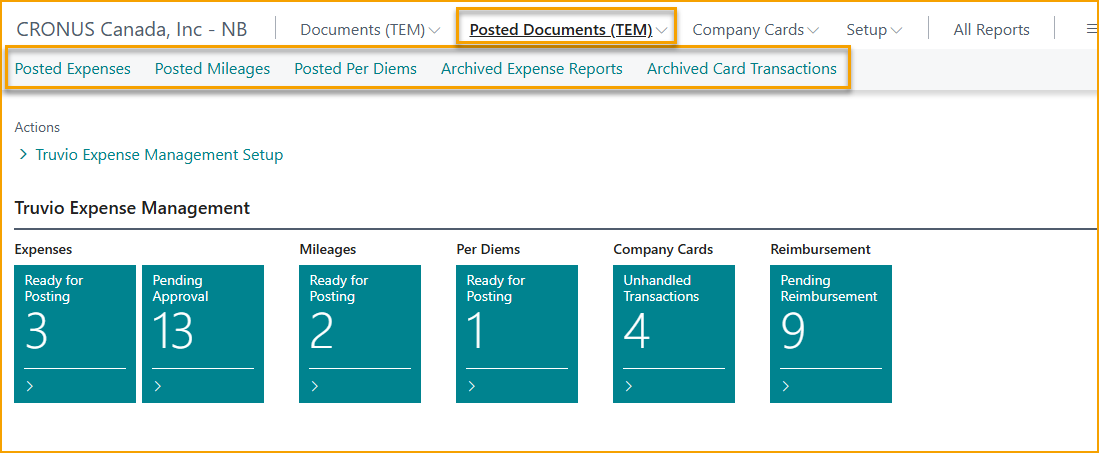
Posted Expenses
Posted Expenses, Mileages, Per Diems, Archived Expense Reports and Archived Card Transactions pages are available to accounting for review and reporting.
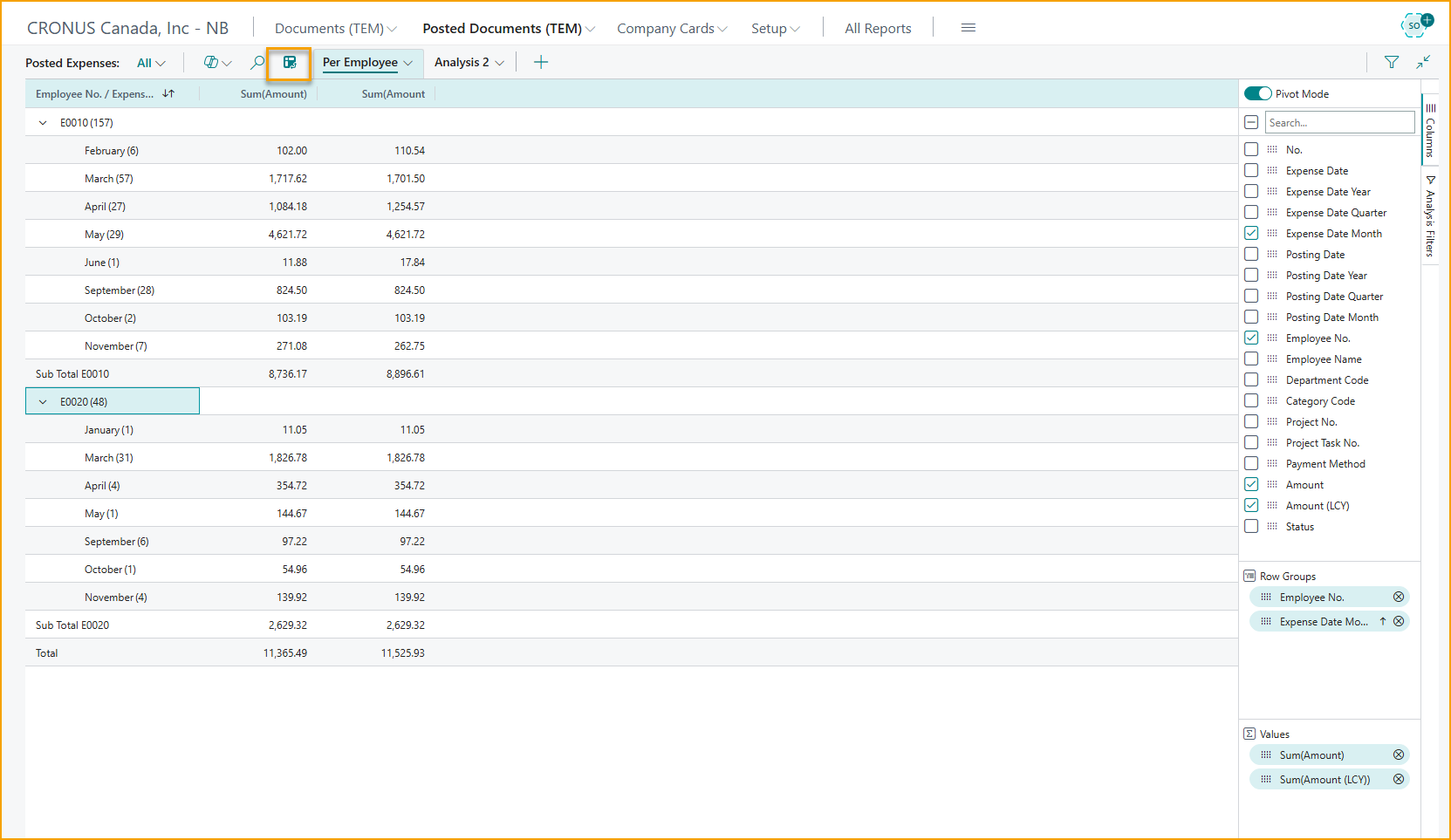
Analysis Mode on these pages can be used to build reports and save them.
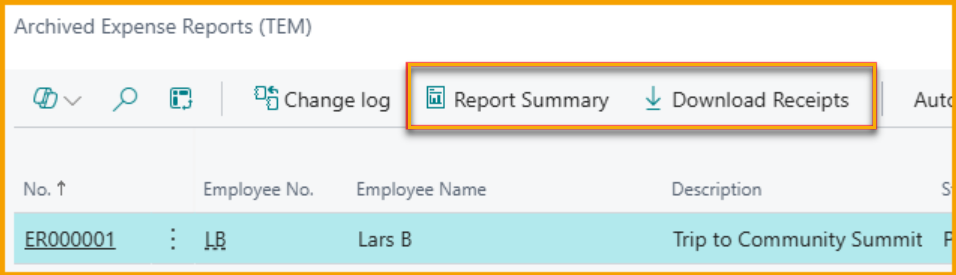
The Archived Expense Reports page now includes options to generate a summary report and to download all receipts related to an expense report as a zip file.
This is useful for audits or when sharing expense details with external parties.