Approver
As an approver, your role involves reviewing and deciding on expense, mileage and per diem submissions from assigned users.
This includes receiving submitted expenses, evaluating them, and either rejecting or approving them for further processing by the bookkeeping department.
This task is performed in the web portal, which provides a convenient overview of all expenses, mileage, expense reports and per diems waiting for approval.
Web portal can be opened on the computer or any smart device (phone / tablet).
Approval
Go to: Expense Management Web Portal --> Approval section on the left-hand side
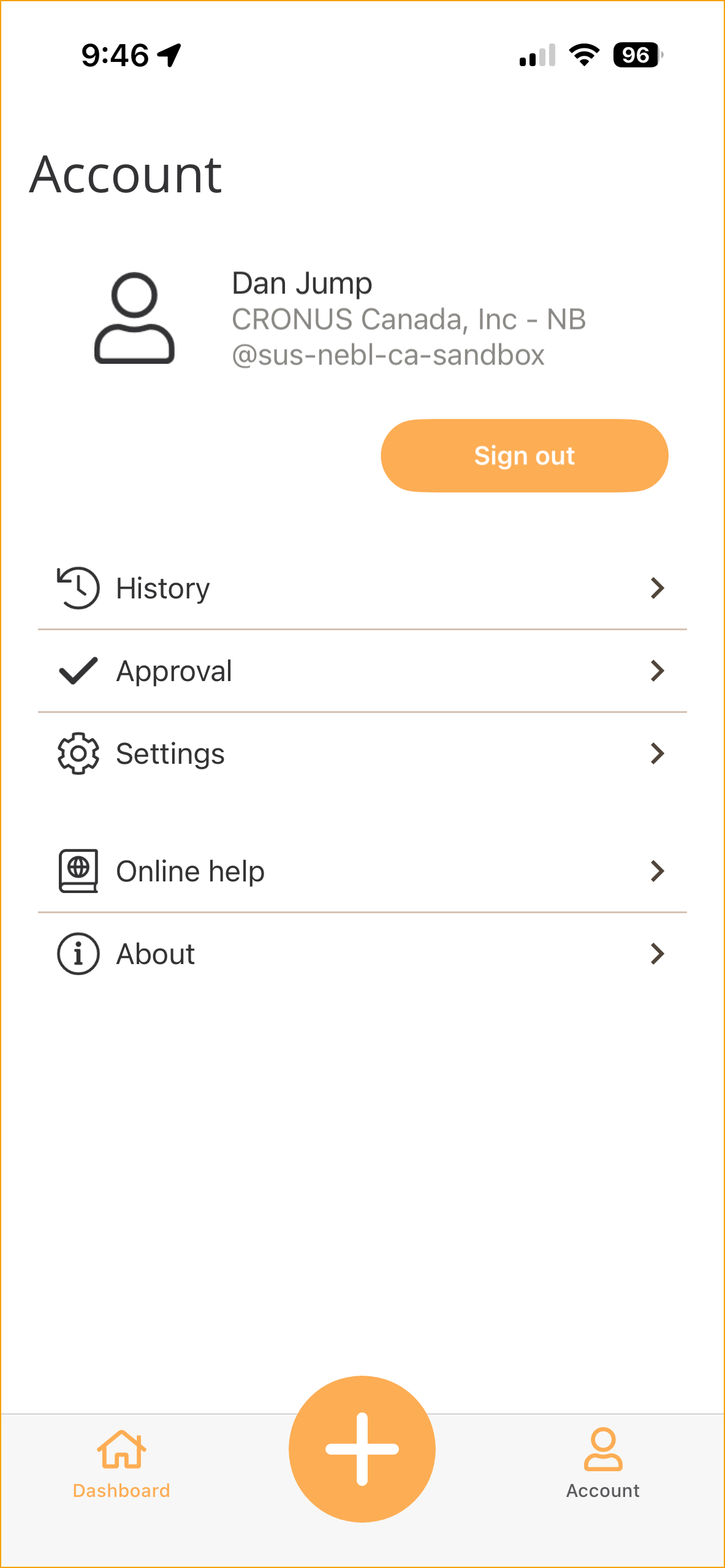
To open approval portal on your mobile phone, log into the mobile app. Then, select Account in the bottom-right corner, under which you can aceess Approval:
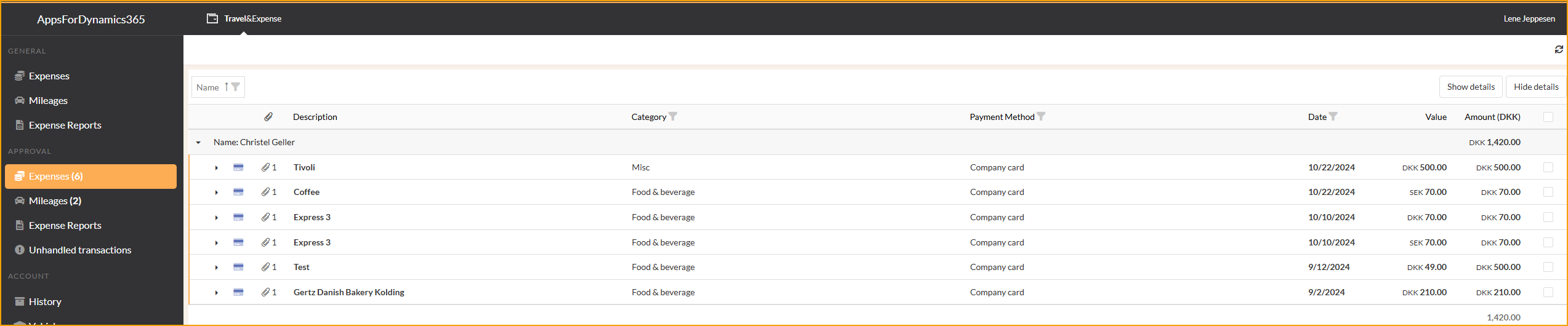
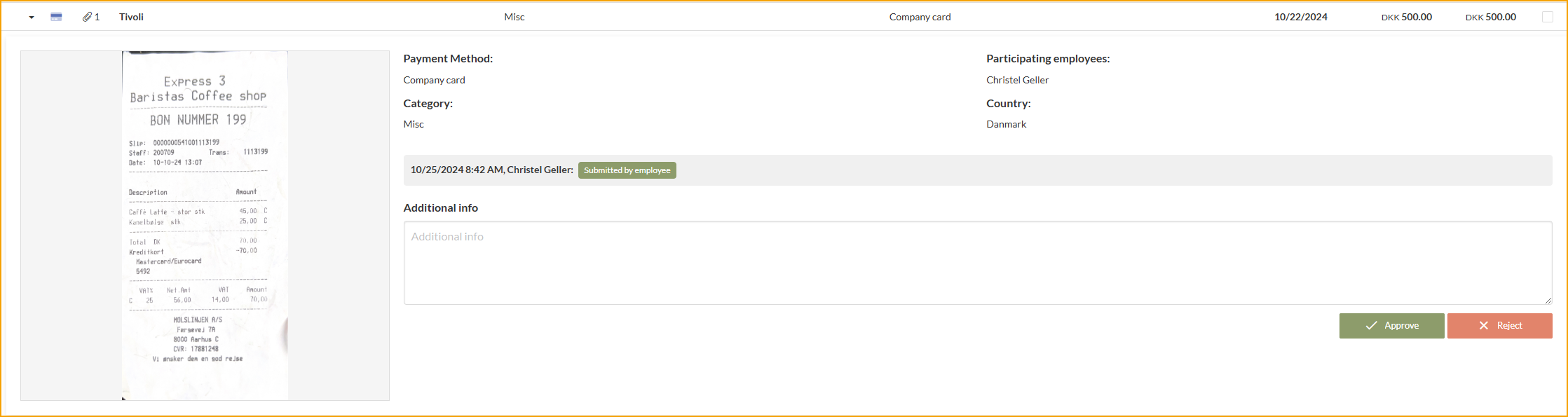
The Approval list gives the approver two easy ways to approve or reject expenses and mileages.
- Open an item, review the attachments and details. Then choose Approve or Reject.
- Use the checkboxes and select one or several items, then use the Approve or Reject buttons at the end of the list for all items at once.

Rejection
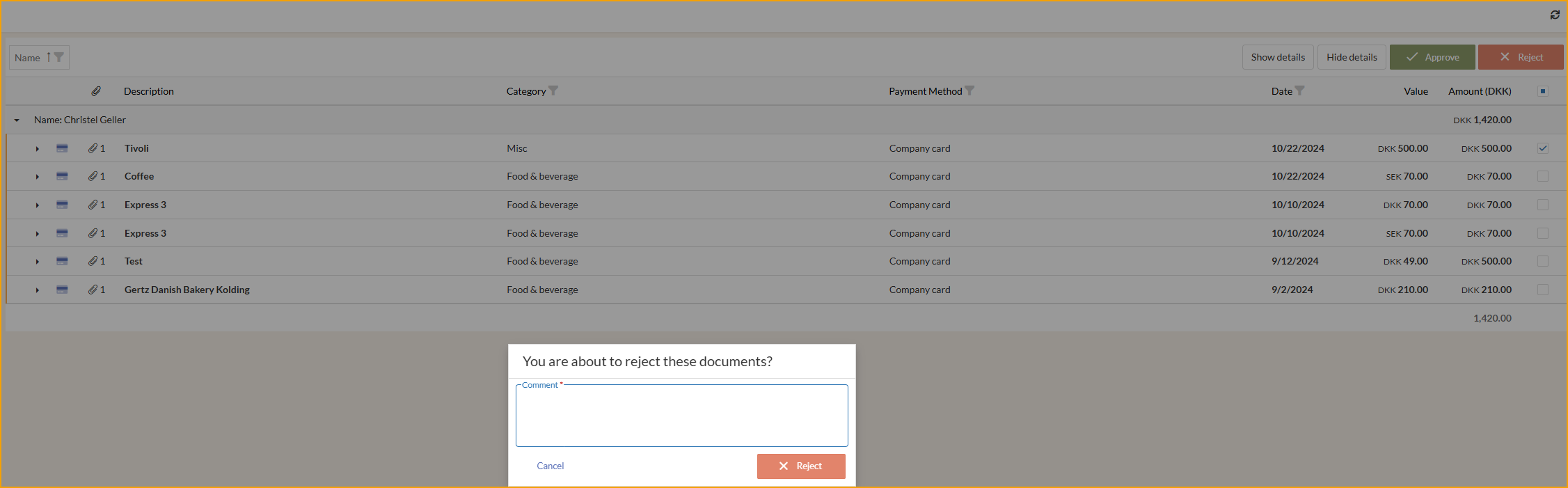
If the approver rejects an expense or mileage, the approver is required to leave a reason for the rejection, such that the person receiving the rejection may change the issues in question.
Approve or Reject an Expense report
Once the Expense Report is submitted, the approver receives a summary and can approve it all at once or reject all / parts of it.
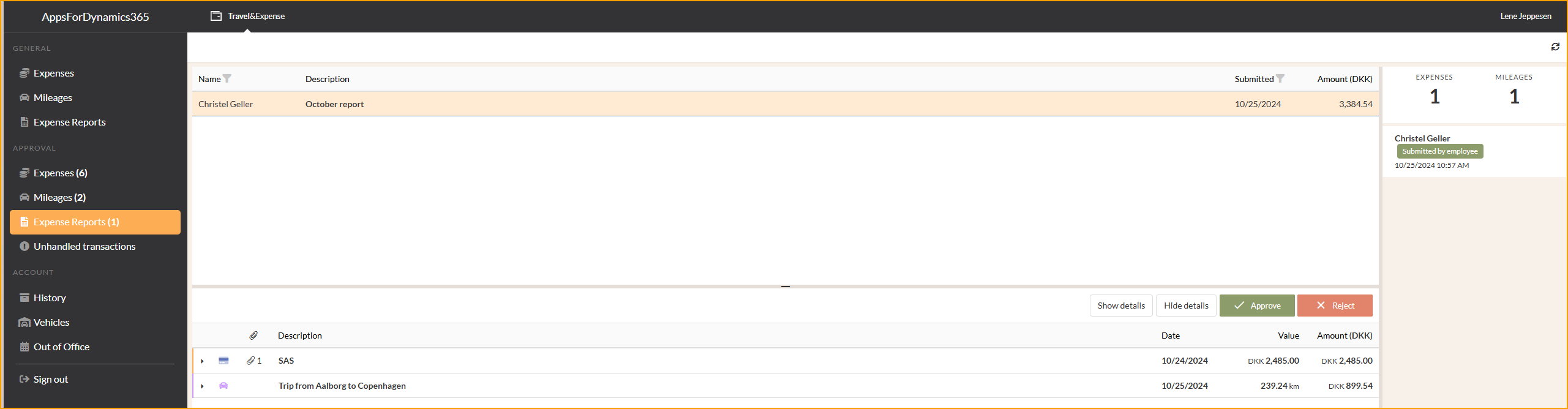
To reject some expenses within the Expense Report, select Reject, then uncheck the box 'Reject entire report', which then opens the possibility to select individual expenses to reject.
In the bottom-right corner, there is a checkbox 'Mark others as checked'. Which this checkbox ticked, once the rejected expense is resubmitted, the approver doesn't need to review again previously reviewed expenses.
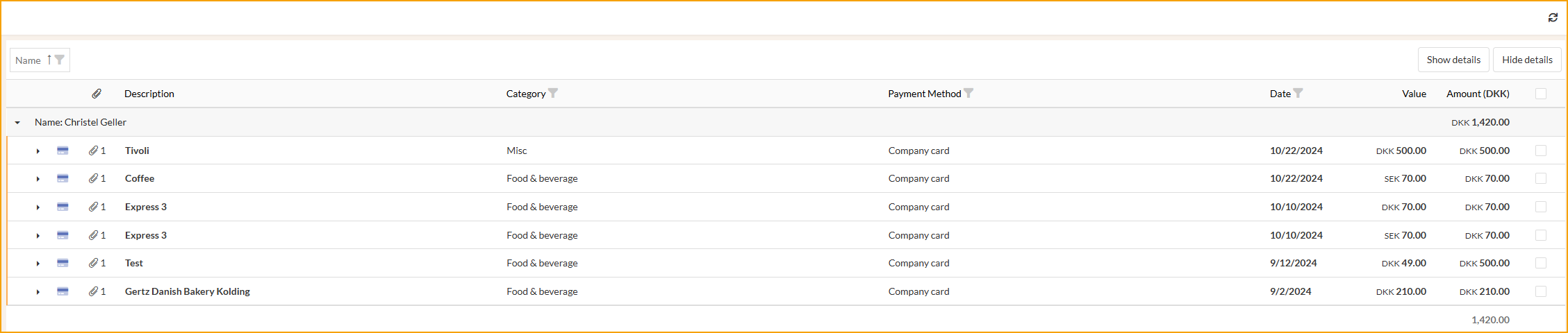
Hide or show details
The approver has the ability to hide or display details in the overview, which can be helpful during the approval process.
Hide details displays expenses as collapsed:
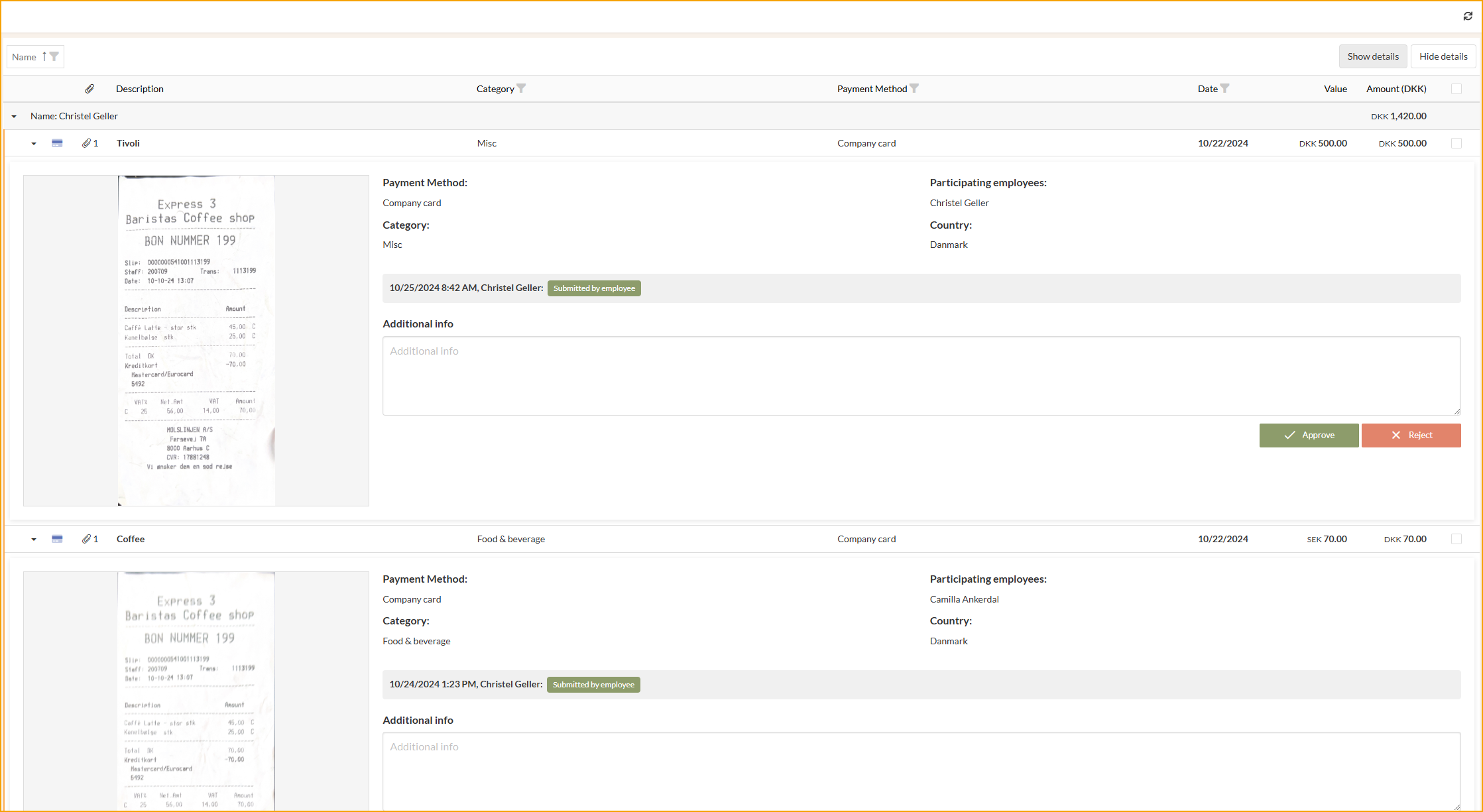
Show details displays expanded expense details including receipt images: