Process reimbursements
Goal
Pay employees for posted expenses through Business Central using your configured reimbursement method.
Before you start
- Expenses must be posted - only posted expenses appear in Pending Reimbursement
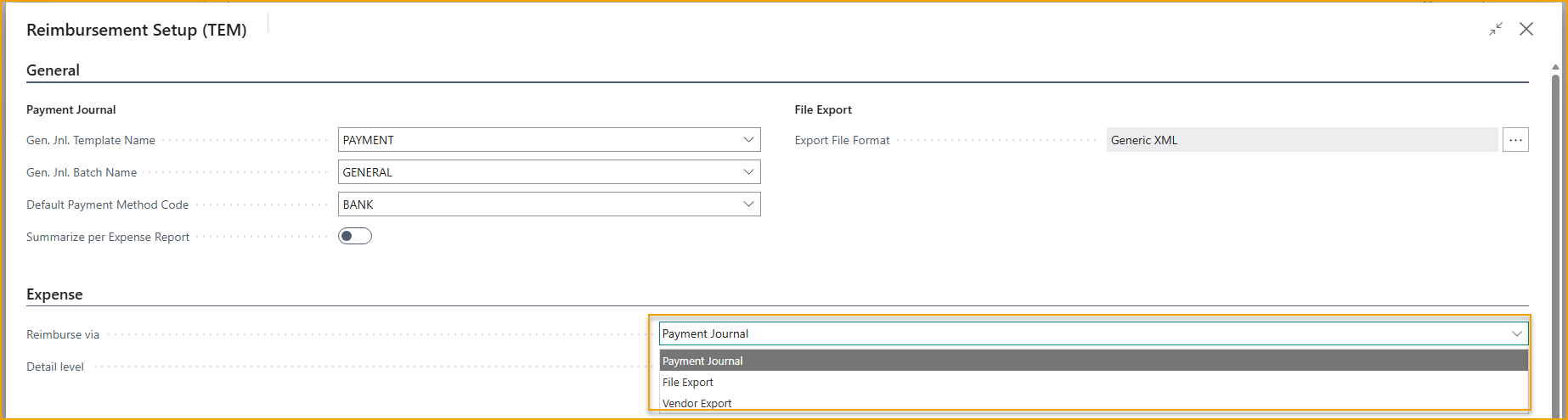
- The reimbursement method must be configured in Reimbursement Setup
- Required fields must be set on each employee card depending on the method used:
- File Export - requires Alt. No. For File Export if your payroll system uses a different employee identifier
- Vendor Export - requires Vendor No. For Reimbursement on each employee card
Steps
-
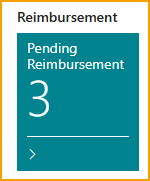
In Business Central, go to Pending Reimbursement
-
Optionally filter by date interval to limit the run to a specific payroll period
-
Click Reimbursement - one or more options appear depending on your setup:
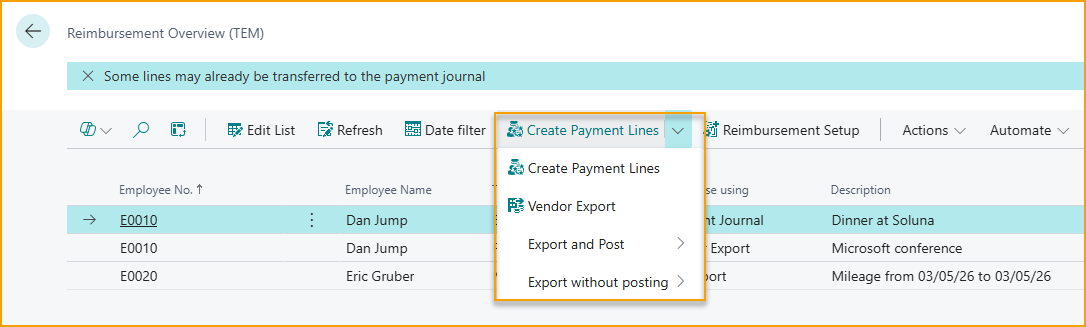
Payment Journal (direct to employee)
- Click Create Payment Lines
- Business Central opens the payment journal with entries using Account Type = Employee
- Review the lines, then post the journal to generate the bank payment
File Export (payroll)
- Click Export and Post (or Export Without Posting if you want to review first)
- The file downloads to your downloads folder
- See Export to payroll for the full payroll flow
Vendor Export (accounts payable)
- Click Vendor Export
- Business Central reverses the Employee Ledger Entry and creates a Vendor Ledger Entry linked to the vendor on the employee card
- Process payment through your standard vendor payment flow in Business Central
What to check
| Check | What it means if wrong |
|---|---|
| All expected employees appear in Pending Reimbursement | An employee may be missing Vendor No. or Alt. No. on their employee card |
| File export contains all employees | Check that Alt. No. For File Export is set correctly |
| Payment journal amounts match posted expenses | Confirm Summarize vs One Each Line setting in Reimbursement Setup |
Related
- How-to: Export to payroll
- Reference: Reimbursement setup
- Best practice: Reimbursement method selection