Login card page
Opened from: AppsForDynamics365 Logins → select a record
Displays and edits a single portal login account.
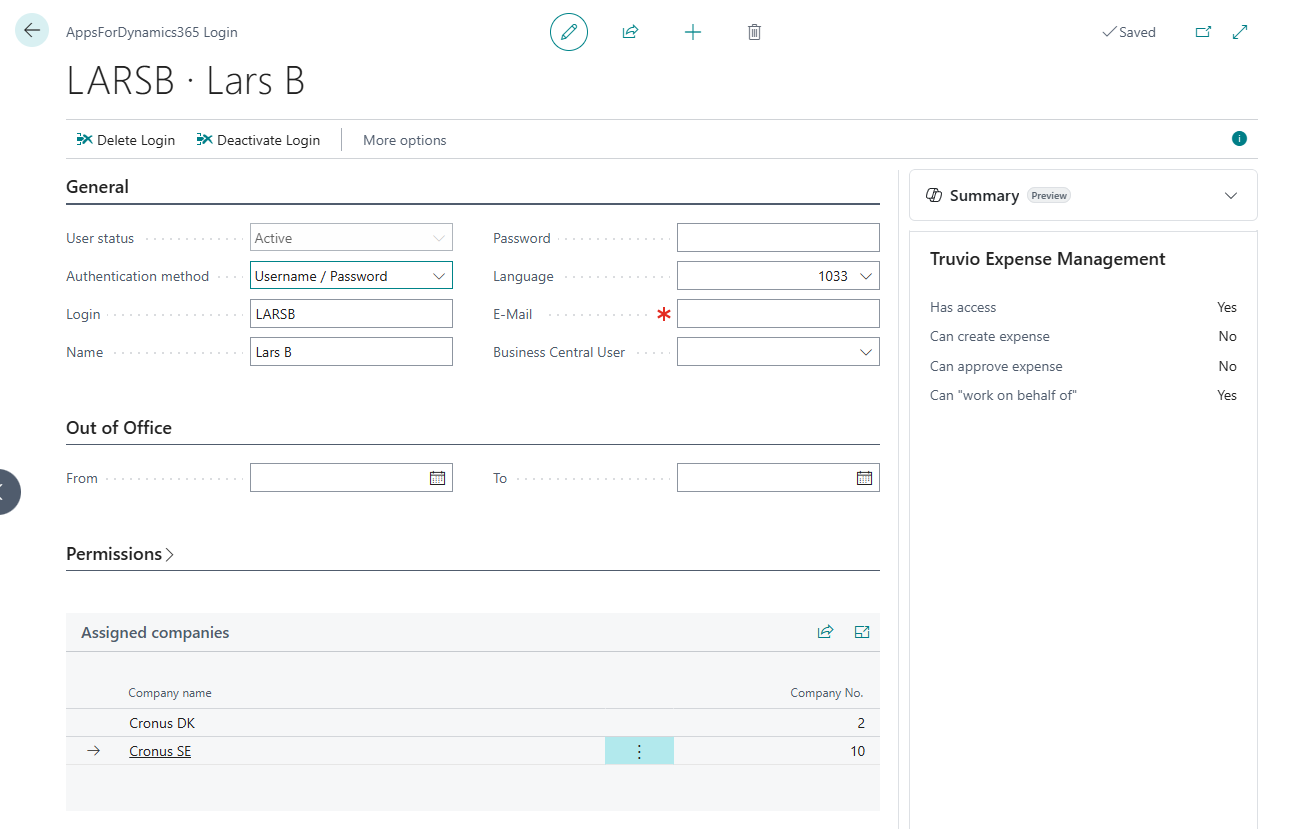
Actions
| Action | Description |
|---|---|
| Delete Login | Initiates deletion. Moves status to PendingDelete. Consumer applications are checked before the record is removed. See User lifecycle. |
| Deactivate Login | Sets status to Inactive immediately. Blocks portal access without starting the deletion process. |
| More options | Shows additional actions including Activate Login and Undo Delete. |
General section
| Field | Required | Description |
|---|---|---|
| User status | - | Read-only. Reflects the current state: Active, Inactive, PendingDelete. Changed via the card actions. |
| Authentication method | Yes | How the user signs in. Must align with the tenant-wide setting unless Mixed mode is active. See Authentication. |
| Login | Yes | The username. For Microsoft Login, must be the user's full email address (their Microsoft 365 UPN). |
| Password | If username/password | Set the initial password here. The field always appears blank - the password is stored encrypted elsewhere. |
| Language | No | Portal display language for this user. Leave blank to inherit the tenant default set during wizard setup. |
| Recommended | Used for notification delivery by installed consumer applications. | |
| Business Central User | Recommended | Links this portal login to a Business Central user account. Required by some consumer applications. |
Out of Office section
| Field | Description |
|---|---|
| From | Start date of the out-of-office period. |
| To | End date of the out-of-office period. |
Employees normally set their own out-of-office period from the web portal or mobile app. The fields here allow an administrator to override or set it on their behalf.
When an out-of-office period is active, TEM routes all pending and new approval requests to the approver's delegate for the duration - both expenses already waiting for approval and any newly submitted during the absence. Routing is disabled automatically when the To date passes.
Configure delegates on the approver's Employee Card - see Delegations.
Permissions section
| Field | Description |
|---|---|
| Allow Setup Access on portal | Grants this user administrator rights on the A4D portal. Enable for Business Central administrators who also manage portal settings. |
Assigned companies subpage
Shows all companies within the Business Central environment where this login is active, listed by name and Company No. (the internal company identifier assigned by the A4D cloud). Populated automatically by consumer applications when they assign the user to a company. This section is read-only in Cloud Configuration.
Summary factbox
The right-hand panel shows application-specific access details managed by installed consumer applications. For Expense Management, the following indicators are shown:
| Field | Description |
|---|---|
| Has access | Whether the login is connected to an active TEM employee record. |
| Can create expense | Whether the employee can submit expenses via the portal or app. |
| Can approve expense | Whether this login is assigned as an approver for any employee. |
| Can "work on behalf of" | Whether this login has been set up as a delegate for another employee. |
These values are read-only and reflect the current TEM configuration. They are not editable here.