Create portal logins
Purpose
Every employee who needs to access the AppsForDynamics365 portal or a mobile app must have a portal login. Logins are separate from Business Central user accounts - they control portal access only.
- Concept: Portal users
Before you start
- The setup wizard must be complete - see Run the setup wizard
- You need the A4DAdmin_EX permission set
Steps
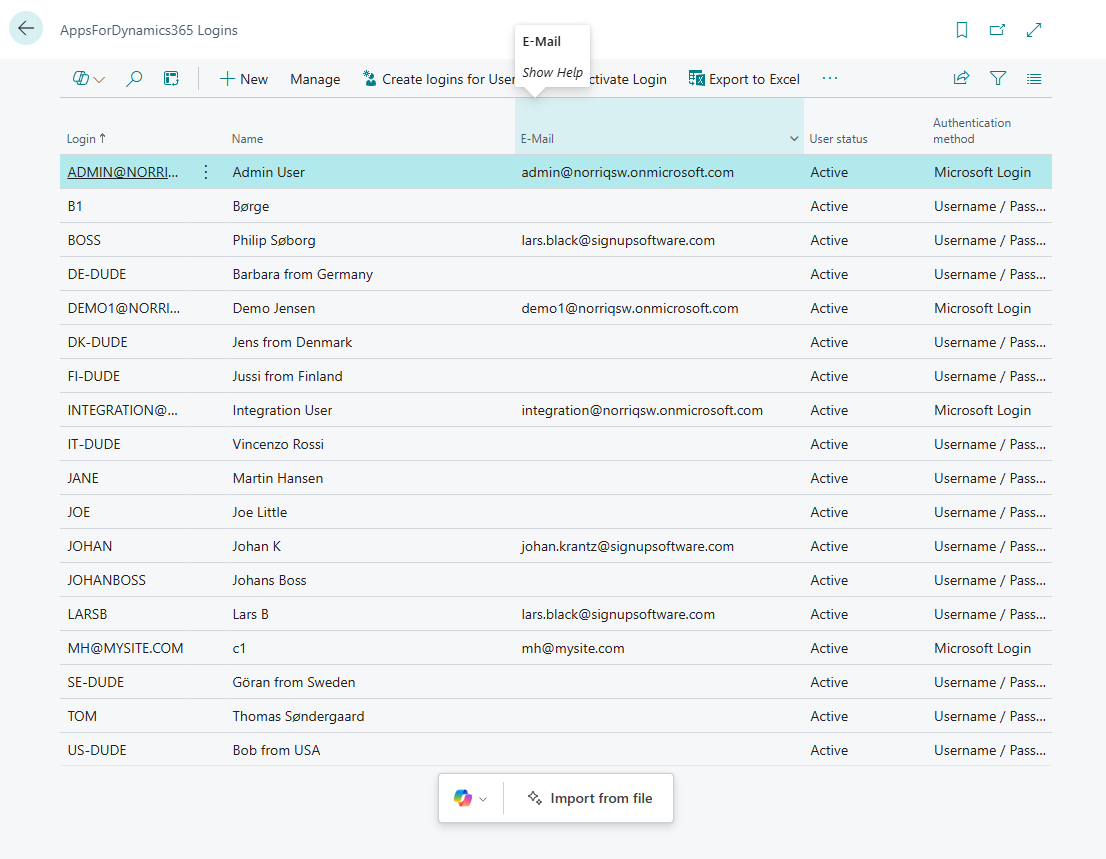
- In Business Central, search for AppsForDynamics365 Logins
- Click New in the action bar
- Fill in the login card:
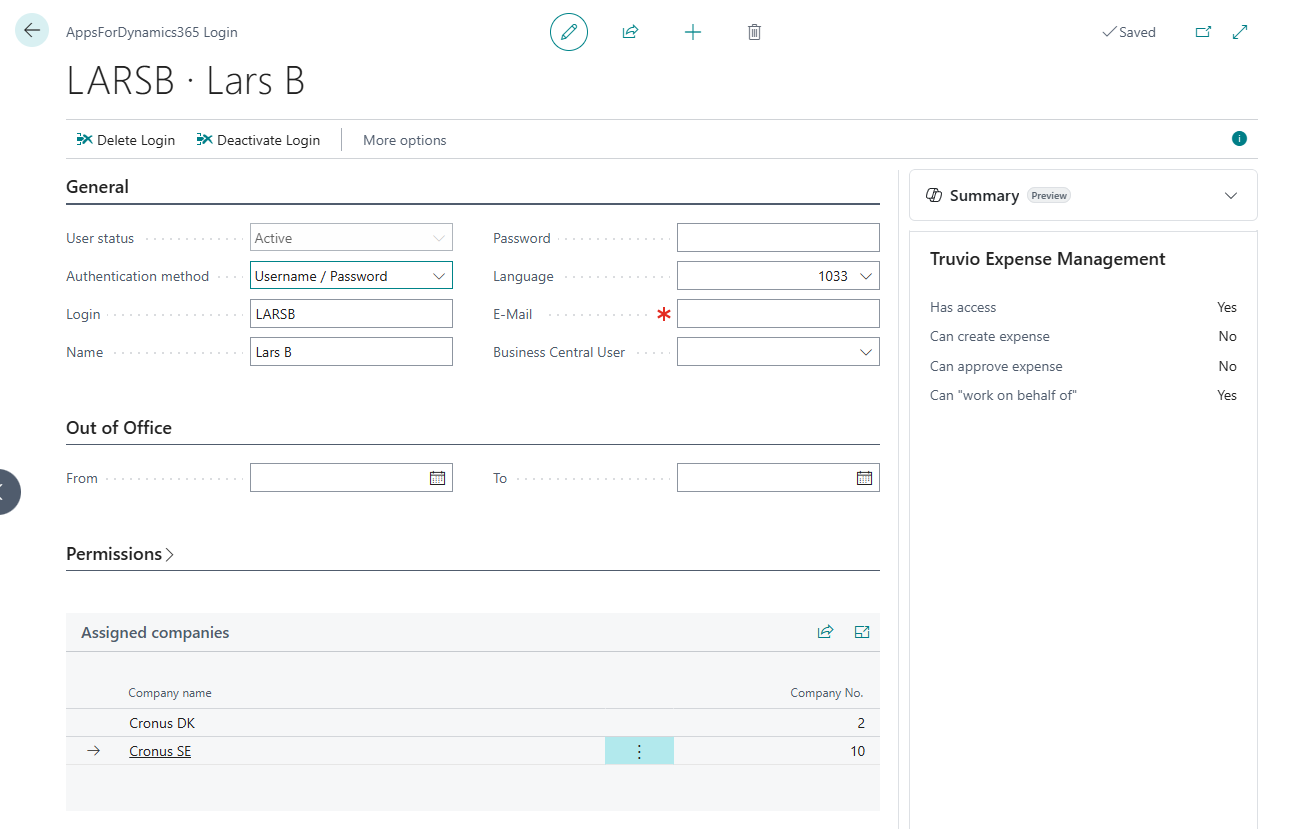
General section
| Field | Required | What to enter |
|---|---|---|
| Login | Yes | The username the employee uses to sign in. For Microsoft Login, this must be their full email address (e.g. jane.smith@yourcompany.com). For username/password, any unique identifier. |
| Name | Yes | The employee's display name on the portal. |
| Authentication method | Yes | Must match the method chosen during wizard setup. See Authentication. |
| Password | If username/password | The initial password. The field stays blank after saving - the password is encrypted and stored separately. |
| Language | No | The portal display language for this user. Leave blank to use the default set during wizard setup. |
| Recommended | Used for notification emails from applications such as Expense Management. | |
| Business Central User | Recommended | Links this portal login to a Business Central user account. Required by some consumer applications. |
Out of Office section
Set a date range during which the user's out-of-office status is active on the portal. Applications may use this to redirect approvals or show an OOO indicator.
Permissions section
| Field | What it does |
|---|---|
| Allow Setup Access on portal | Grants this user administrator access on the A4D portal. Enable for Business Central admins who also need to configure portal settings. |
- Click the back arrow or navigate away - the record saves automatically.
After creating the login
The login is created with Active status. No further action is needed in Cloud Configuration - the consumer application handles assigning the user to the correct company and role.
The Assigned companies section at the bottom of the login card is populated automatically once a consumer application has assigned the user to a company. The Summary factbox on the right shows app-specific access details populated by the installed consumer application.
Create logins from Business Central users
If you are using Microsoft Login and have existing Business Central users to convert, use the Create logins for Users action in the list:
- In the AppsForDynamics365 Logins list, click Create logins for Users
- Select the Business Central users to generate logins for
- Confirm - Cloud Configuration creates one login per selected user, using the user's email as the login name
Next
→ Import logins from file - if you have many users to create at once
Related
- Reference: Login card
- Reference: Login list