SmartExtract
SmartExtract is an AI-powered feature that automates the extraction, classification, and allocation of expense details prior to posting. It helps finance teams ensure accurate application of GL accounts, deferral schedules, and tax treatment during expense processing.
SmartExtract can be configured in two modes - Split or Classify - and optionally with Deferral.
Split
Use Split to break a single expense transaction into multiple lines based on receipt contents, each posting to a different posting group or GL account.
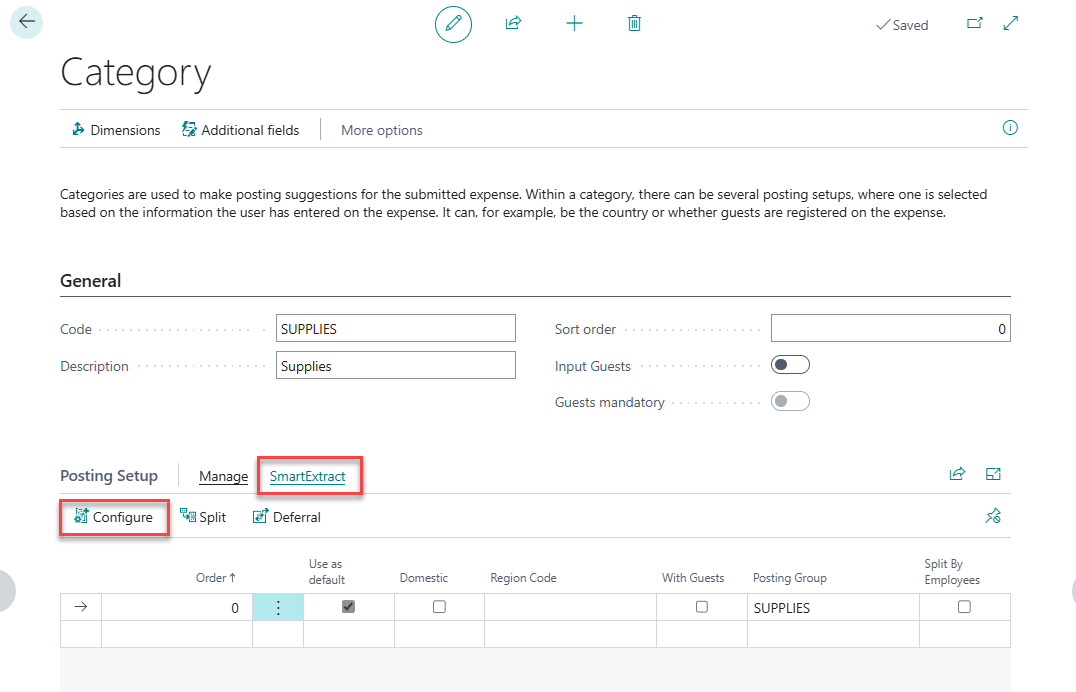
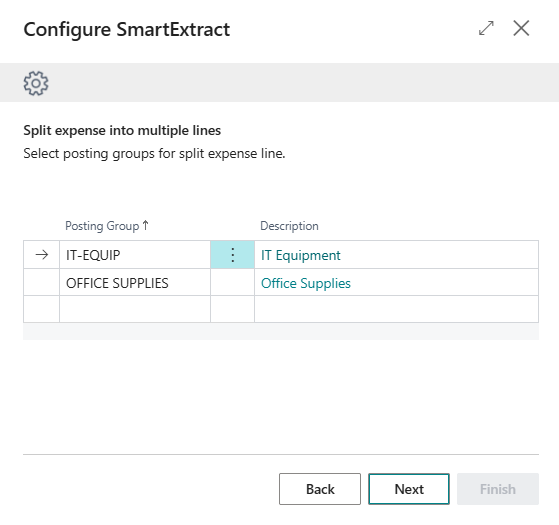
Example: An employee submits a receipt containing both office supplies and IT equipment. The category is SUPPLIES with posting groups OFFICE-SUPPLIES and IT-EQUIP. SmartExtract scans the receipt, identifies the line items, and splits the expense automatically.
Configure:
- Open the Expense Category and select the posting setup line to configure.
- In the Posting Setup section, open the SmartExtract menu and click Split.
- Select the posting groups to apply.
Classify
Use Classify to reduce the number of categories employees must choose from. SmartExtract determines the appropriate posting group based on the receipt content. If no match is found, the default posting rule applies.
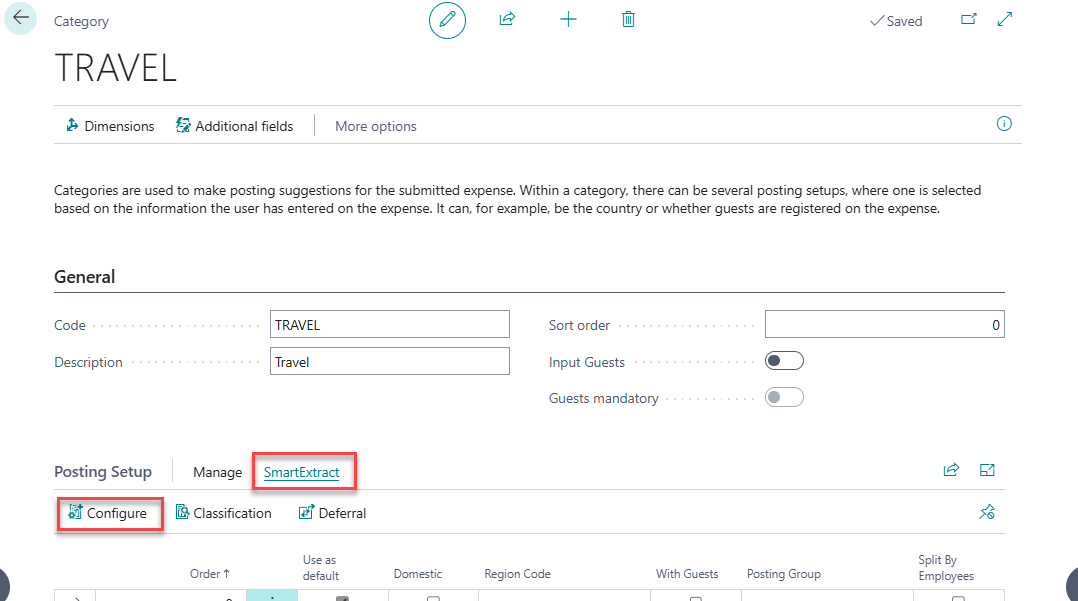
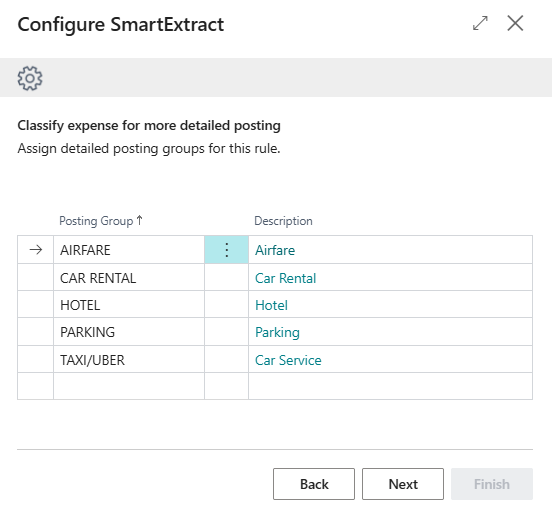
Example: A single TRAVEL category covers all business travel. SmartExtract classifies expenses into AIRFARE, CAR RENTAL, HOTEL, PARKING, or TAXI/UBER based on the receipt.
Configure:
- Open the Expense Category and select the posting setup line to configure.
- In the Posting Setup section, open the SmartExtract menu and click Configure.
- Select the posting groups to classify into.
Deferral
Assigns a predefined Deferral Template (standard Business Central functionality) to an expense category, deferring certain expenses over a series of periods.
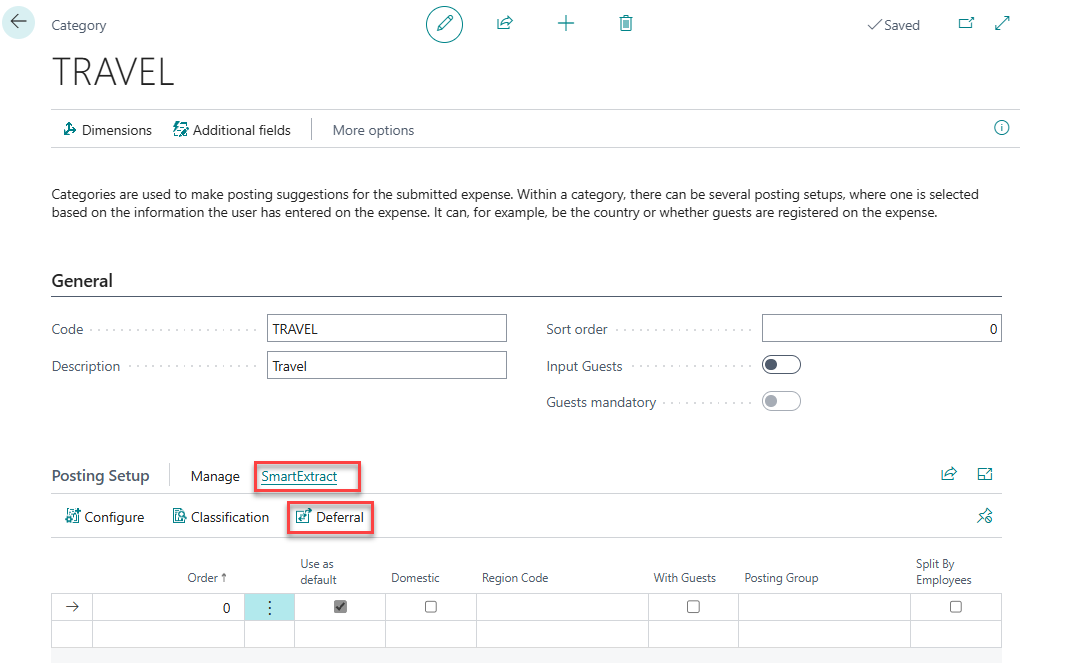
- Open the Expense Category and select the posting setup line to configure.
- In the Posting Setup section, open the SmartExtract menu and click Deferral.
- Configure the applicable deferral templates.
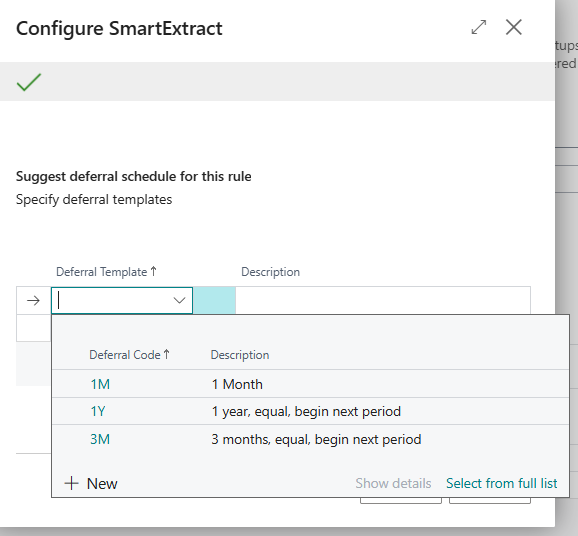
When an expense is submitted, SmartExtract identifies relevant dates and applies the matching template.
Summary panel
After configuring SmartExtract, the Summary panel on the right side of the Category page (click the Summary header to expand it) shows the effective configuration in plain English under SmartExtract configuration.
Examples:
- Classify: "Expenses are classified as one of: Ferry, Flight, Taxi, Train. If nothing fits, the default Flight & Taxi is used."
- Split: "When creating expense lines, the default is Hotel. If data is available, lines will also be created for: Card fees / surcharges, Eat & Drink, Parking."
- Deferral: "When the information is available, one of these deferral templates will be applied: 1 month."
Best practices
- Apply SmartExtract where it adds the most value - typically domestic expenses where receipt formats and tax rules are predictable.
- Use clear, natural language in Posting Group descriptions (e.g. "Food and beverage" rather than "Meals, Personnel").
- AI extraction may occasionally return incorrect data. A notice appears on the expense card for any item processed by SmartExtract.
Related
- Reference: Expense Categories
- Concept: SmartExtract