Fields and posting setup
The core of an expense category: the fields that control how employees enter expenses in this category, and the posting setup lines that determine which posting group each expense lands on.
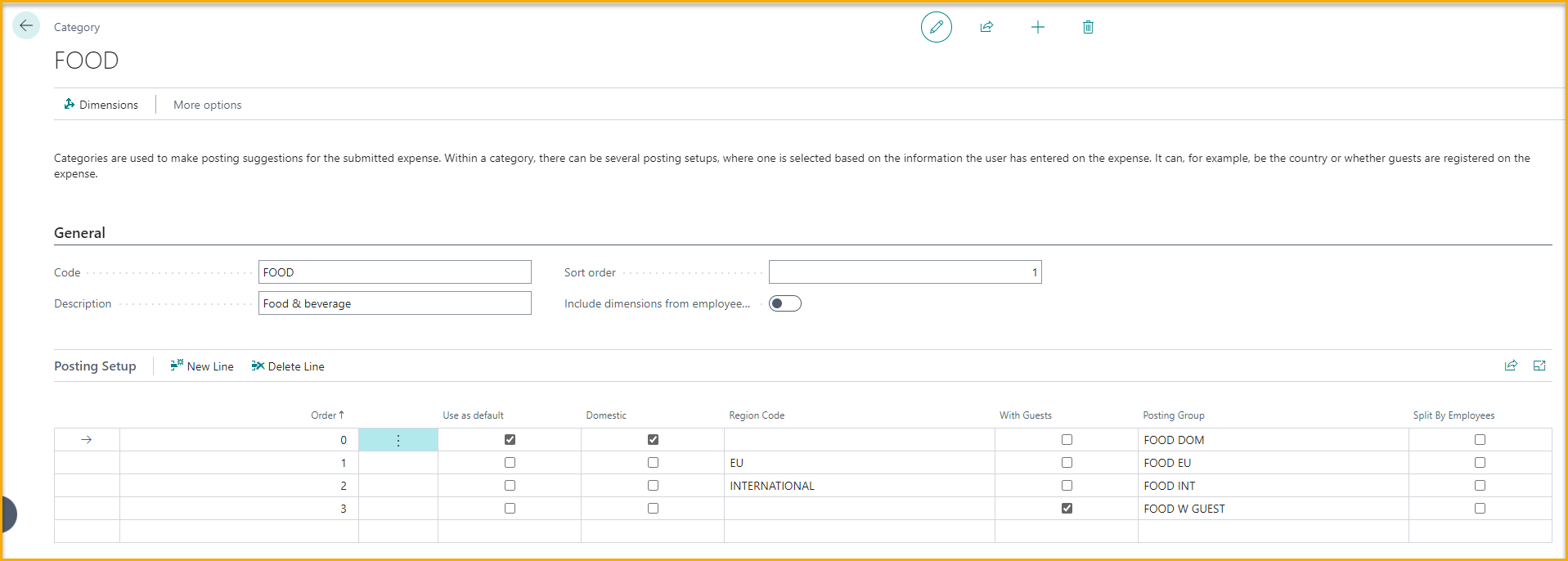
Notable fields
A category is identified by its Code and the Description employees see when picking a category in the app or portal. Sort order sets its position in that list - 0 (the default) sorts alphabetically; a numeric value gives a custom order. The remaining fields change how expenses behave and are not obvious from their labels:
| Field | Description |
|---|---|
| Input Guests | Lets employees record guest information on expenses in this category - used for meals and entertainment. |
| Guests mandatory | Blocks submission until guest information is entered. Only available when Input Guests is on. |
| Require Company Name for Guests | Requires both a name and a company for each guest. Only available when Guests mandatory is on, and enforced only when the SmartExtract "extract name/company from guest" option is enabled in TEM Setup. |
| Project mandatory | Blocks submission until a project (and task) is selected. Only shown when projects are enabled in TEM Setup. |
Posting setup
A category has one or more posting setup lines that decide which posting group an expense lands on. When an expense is submitted, only the lines whose criteria match its details - country, region, project, guests, employee profile - are considered; Order decides which of the matching lines is used. When none match, the line marked as default applies.
| Field | Description |
|---|---|
| Order | The order in which lines are evaluated when matching an expense. |
| Use as default | Marks the fallback line used when no other line matches. Exactly one line is the default - turning it on here turns it off on the previous default. |
| Domestic | Matches only expenses incurred in the employee's home country. Turning it on clears Region Code. |
| Region Code | Matches only expenses incurred in the given region. Shown only when regions are defined, and editable only when Domestic is off. |
| Employee Profile | Matches only employees on the selected profile. Shown only when more than one profile exists. |
| Has Project | Matches only expenses linked to a project. Shown only when projects are enabled. |
| With Guests | Matches only expenses that include guest information. |
| Posting Group | The posting group applied when the line is selected - this sets the GL account and tax posting. |
| Split By Employees | Splits the expense across its listed employees when the line is applied. |
The line also surfaces the chosen posting group's GL account, general/VAT posting groups, and tax fields read-only, for confirmation - see Posting groups for those values.
SmartExtract is configured per line: select a line, then use the SmartExtract action to set up Split, Classification, or Deferral. A configured line is flagged so you can see at a glance which lines carry SmartExtract rules. See SmartExtract.
Card actions
| Action | What it does |
|---|---|
| Dimensions | Set default dimension values applied to expenses in this category. See Dimensions. |
| Additional fields | Enable, per category, the additional fields defined in Additional Fields - select the action and tick the fields to show on this category's expense entry screen. |
Related
- Reference: Expense Categories
- Concept: Posting and GL
- Best practice: Designing expense categories