Architecture
Installation
Cloud Configuration is installed automatically as part of Expense Management. You do not install it separately. After installation, an administrator must run the connection wizard to activate each Business Central environment and each company.
The A4D cloud initiates contact
Cloud Configuration does not push data to the A4D cloud on a schedule. Instead, the A4D cloud service periodically calls Business Central's web service endpoints to pull changes and push updates. This means:
- Sync timing is controlled by the cloud, not by Business Central. You cannot trigger a sync manually from Business Central.
- If sync stops, the most likely cause is on the cloud side or a connectivity issue - not something you change in Business Central.
Business Central environments and companies
The wizard must be run at two levels:
- Business Central environment level - once per Business Central instance. This grants the A4D cloud consent to call the Business Central web service and registers the environment. A Global Administrator must complete this.
- Company level - once per Business Central company that should use the cloud service. This activates that company and establishes the web service connection for it. When running the wizard for a company in an already-connected Business Central environment, the environment-level steps (Verify License, Give Consent, Register Business Central) are skipped automatically.
Multiple Business Central environments - login sync
When more than one Business Central environment is connected to the same A4D account, the A4D cloud automatically synchronizes portal logins across all of them:
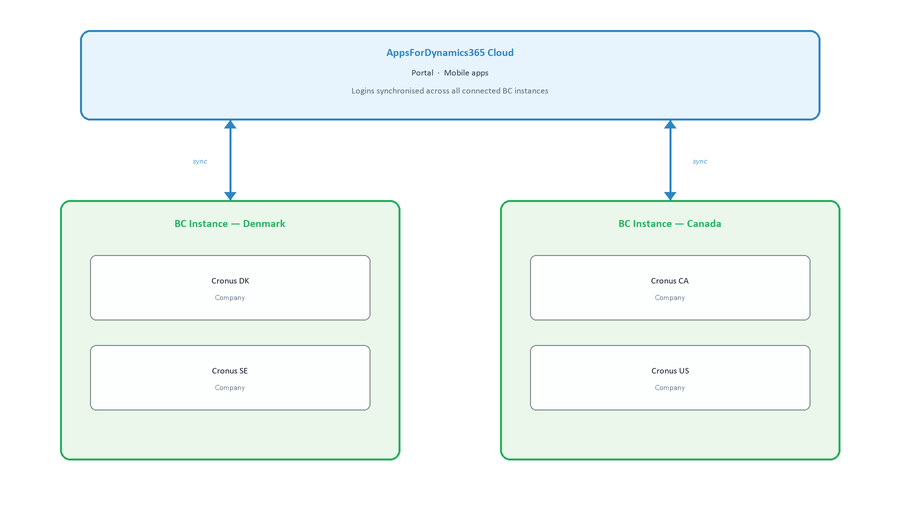
A login created in the Danish environment will appear in the Canadian environment, and vice versa. Administrators do not need to create logins separately in each environment. Changes (updates, deactivations, deletions) also propagate automatically.
This is intentional: an employee who works across multiple legal entities needs only one portal login.
Master company
In a Business Central environment with multiple companies, one is designated the master company. The A4D cloud contacts the master to retrieve the full dataset (users, company registrations, feature settings), then distributes it to the other connected companies.
For most customers with a single Business Central company, this distinction does not matter in practice - that company is automatically the master.
If you have multiple Business Central companies connected to the same A4D instance, be aware that:
- User accounts are shared across all companies in the same Business Central environment - creating or deleting a login affects all companies
- The master company's web service must be reachable by the A4D cloud for sync to work
- A master company is selected automatically; you do not configure it manually
What Business Central stores vs what the cloud stores
| Stored in Business Central | Stored in the A4D cloud |
|---|---|
| Portal user accounts (logins, passwords, roles) | Portal session state |
| Company registrations | Application data submitted via the portal |
| Feature assignments (which users have access to which app) | Notification delivery queue |
| Change history driving sync |
Business Central is the system of record for identity and access. The cloud is the system of record for portal sessions and submitted application data.
The four admin pages
Everything you need to manage the Business Central side of Cloud Configuration is on four pages. See Overview for the list.
Error logging
When the A4D cloud calls a Business Central endpoint and an error occurs, Cloud Configuration records it on the Integration errors page (flow, function name, error text, timestamp). Errors do not stop the sync cycle - the cloud retries on its next poll. See Integration errors.