Per Diem Setup
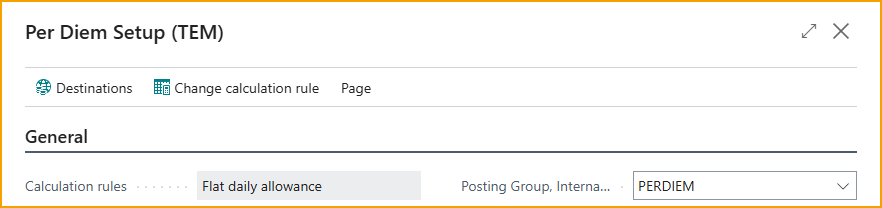
Pro Edition only. Per diems are fixed daily allowances that cover travel costs - meals, lodging, incidentals - instead of reimbursing individual receipts. Per Diem Setup configures the calculation rule, posting groups, number series, and the rates and deductions for the chosen rule.
Calculation rule and posting
| Field | Description |
|---|---|
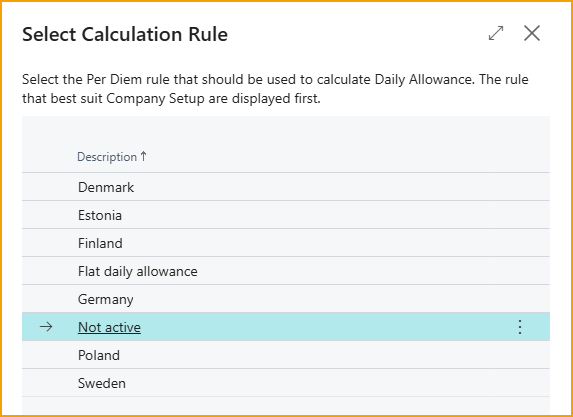
| Calculation rules | The statutory rule that governs how per diems are computed. Read-only here - set it with the Change calculation rule action (below), which lists only the rules valid for your company's country. The selected rule determines which rate and deduction settings appear. |
| Posting Group, domestic / Posting Group, International | The posting groups used when posting domestic and international per diems. The trip type is determined automatically - see Per diem calculation. |
Number series - assigning Per Diems enables per diem; clearing it disables per diem for everyone. Posted Per Diems is the series for posted per diem documents.
Rates and deductions
The rate and deduction fields shown depend on the selected calculation rule - each rule exposes its own settings. Where a rule supports meal deductions, set the percentage of the daily allowance to deduct when a meal is provided (Breakfast, Lunch, Dinner). For example, on a $100/day allowance with a 20% breakfast deduction, a day where breakfast is provided pays $80.
See Per diem calculation for the country-specific rules and how days, destinations, and deductions combine.
Card actions
| Action | What it does |
|---|---|
| Change calculation rule | Select the per diem calculation rule (the list is filtered to your company's country). Choosing a rule activates per diem and creates an initial rate period if none exists. |
| Destinations | Maintain destination rates - per diem rates that vary by country, and optionally by city. |
| Additional fields | Enable extra input fields (such as dimensions) on per diem entries. Shown only when additional fields are defined. |
Destination rates
When rates differ by where the employee travels, set up destination rates from the Destinations action: a Country Code, an optional City, and a Rate per period. The calculation picks the most specific match - exact city, then country, then the base rate.
Periods
Periods define the date ranges that determine which rates apply. When an expense is created, TEM uses the period active on the expense date. Create a new period when rates change (for example, at the start of a new year), and leave past periods unchanged so historical expenses keep their original rates. At least one period must always exist, and you can have only one future-dated period at a time.
Related
- Concept: Per diem calculation
- Set it up: Set up per diem