Connect an employee to TEM
Before an employee can use Expense Management, their Business Central Employee Card must be connected to TEM. This assigns an Employee Profile, links a portal login, and sets an approver.
Option A - Enable multiple employees at once
Use this option when enabling a group of existing Business Central employees.
- From Truvio Expense Management - Overview, select Employees
- From the Expense Management tab, select Add Multiple
- The Select Users to Add to TEM window opens. For each employee row:
- Email - defaults from the Business Central Employee Card when it matches the user account
- AppsForDynamics365 login - select an existing login or choose Create AppsForDynamics365 Login to create one
- Approver - assign who approves this employee's expenses
- Selected - tick the checkbox for each employee to include
- Click Add TEM to Selected in the action bar, then confirm
Option B - Enable a single new employee
Use this option when creating a new employee from scratch.
-
From Employees, select + New and fill in the Business Central Employee Card fields
-
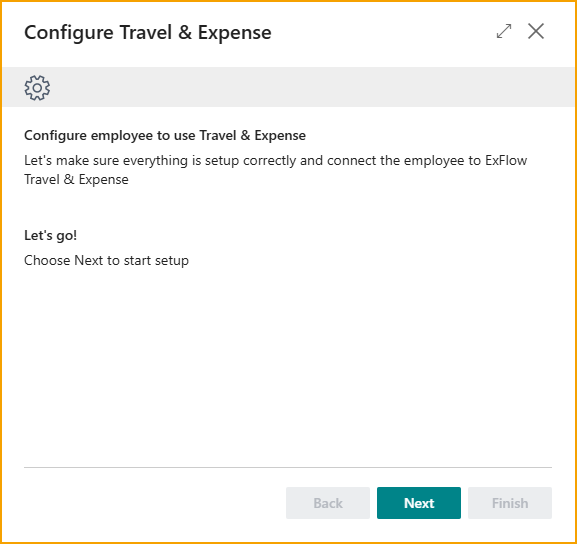
From the page header, select the Expense Management tab, then Configure for TEM
-
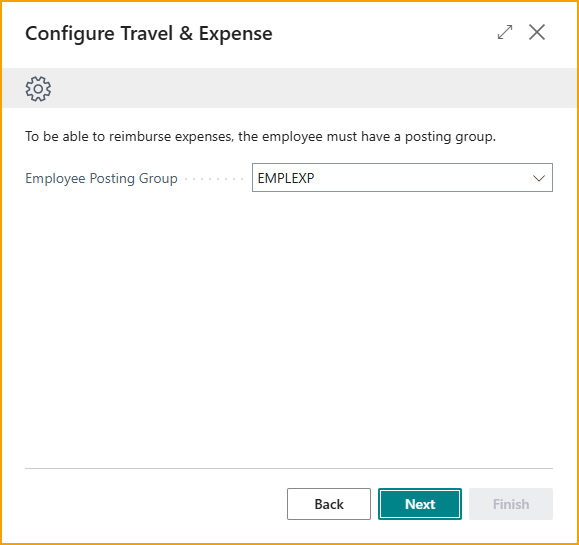
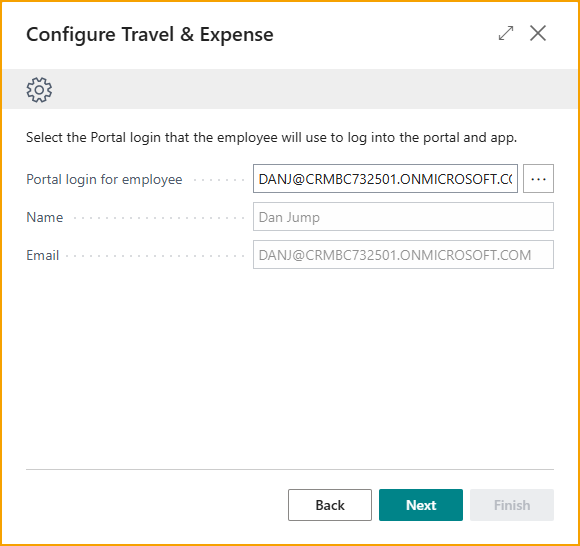
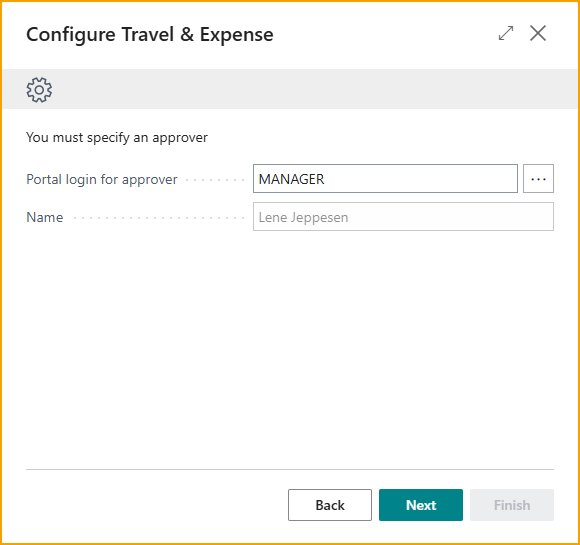
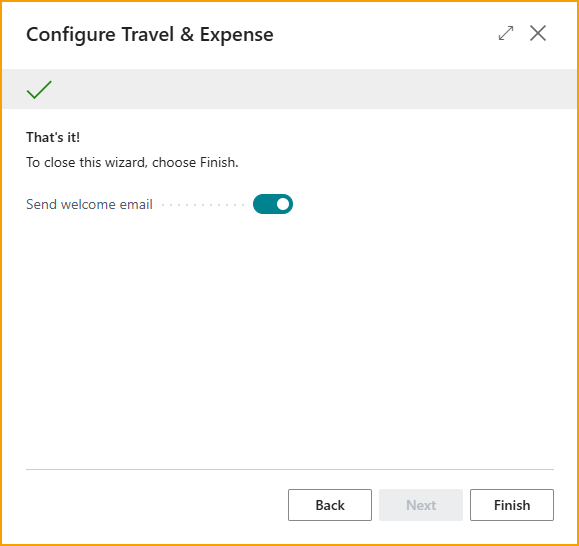
Work through the setup wizard:
- Employee Posting Group - select the posting group for this employee
- Employee Profile - select the profile that controls their expense rules
- AppsForDynamics365 Login - link an existing login or create a new one
- Approver - select the portal login of the person who approves this employee's expenses
- Send Welcome Email - optionally send the employee their login details
After connecting
Complete the employee record - see Employee fields.
Using Multi-Entity Management (MEM)? The Business Central User field on each portal login must be set for MEM entity filtering to work correctly. - Multi-Entity Management