Dimensions
Dimensions in Business Central are tags attached to transactions for analysis and reporting - cost centers, departments, projects, and so on. When TEM posts an expense, it carries dimension values into the journal entry so the transaction appears correctly in financial reports.
Dimension values on an expense can come from several places. Understanding the sources helps you configure them deliberately and troubleshoot unexpected values.
How dimensions are applied on expense creation
When an expense is created, TEM applies default dimension values following standard Business Central dimension prioritization rules for the source code TEM. This means the priority order you configure in Business Central's Default Dimension Priorities for TEM determines which source wins when multiple sources provide a value for the same dimension.
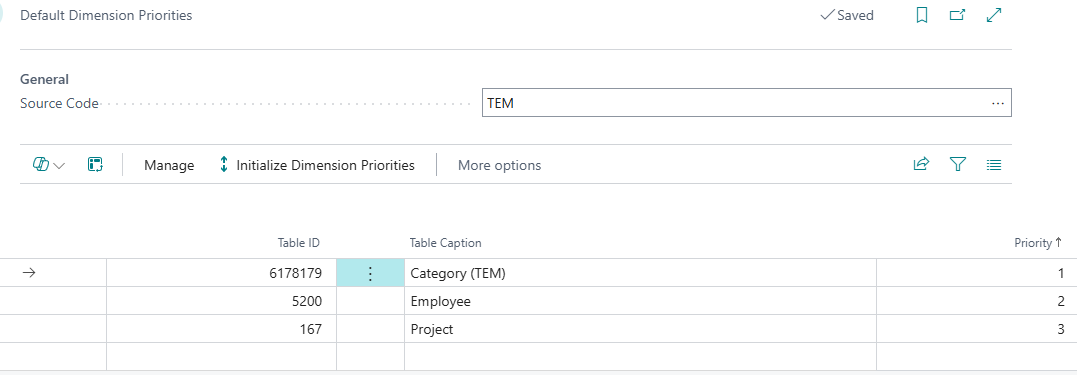
Exception - employee-entered values always win: if a dimension is also exposed as an Additional Field and the employee explicitly selects a value in the portal or mobile app, that value takes precedence over any default applied at creation time.
Sources
1. Employee card defaults
Business Central allows default dimension values to be set on an Employee record. When an employee submits an expense and the dimension is exposed via Additional Fields, the employee's default value pre-populates the field in the portal or mobile app. If the field is mandatory, the pre-filled default satisfies the requirement automatically - the employee does not need to select a value manually.
2. Additional Fields (employee input)
Additional Fields Setup lets you add dimension fields to the expense entry screen in the portal and mobile app. These are visible to the employee and can be:
- Optional - the employee may leave them blank
- Mandatory - the expense cannot be submitted without a value
The available values in the lookup are drawn from the Business Central dimension. In MEM environments, these are filtered to the dimensions and projects belonging to the employee's entity.
Additional Fields must be enabled per expense category. A field with Show on All enabled is available on every category without per-category configuration.
- Reference: Additional Fields
3. Expense category posting setup defaults
The finance admin can set default dimension values directly on a posting setup line within an expense category. These are applied automatically when the expense is created and are not visible to the employee - they require no action from the submitter.
Use this for dimensions that are always the same for a given category or posting rule (e.g. a fixed cost center for a specific type of travel expense).
- Reference: Expense category dimensions
4. Finance review and adjustment
Before an expense is posted in Business Central, the finance team can open the expense record and adjust any dimension values. This is the final opportunity to correct or override any value from the earlier sources.
- How to: Review expense before posting
What this means in practice
| Dimension source | Who sets it | Visible to employee |
|---|---|---|
| Employee card defaults | Finance admin | Yes (pre-filled in portal/app) |
| Additional Fields (user input) | Employee | Yes - overrides all defaults |
| Expense category posting setup | Finance admin | No |
| Finance adjustment before posting | Finance | No |
A well-configured setup minimizes what the employee has to do: silent category defaults and employee card defaults handle predictable values; Additional Fields are reserved for values that genuinely vary per expense (such as a project or cost center the employee must select).
Related
- Concept: Posting and GL
- Concept: Multi-Entity Management
- Reference: Additional Fields
- Reference: Expense category dimensions
- How to: Review expense before posting