Expense Management 4.1
Release date: February 2026 - Minor Release
Key Highlights
- Automatic MEM-based filtering across Business Central, portal, and mobile
- Mandatory Additional Fields and automatic population of default values
- Expanded Per Diem support and configuration refinements
- New Copilots for importing logins and employees
- Enhanced SmartExtract processing and structured attendee handling
- New summary report and ZIP receipt download for Expense Reports
- Date-range filtering and new payroll export options in Reimbursement
- Project-based category improvements and refined posting selection
- Options to store receipts directly in Business Central
- Improved portal drag-and-drop behavior for receipts
- Enhanced Mobile Approval view with multiple images and additional information
MEM Support
This release introduces enhanced support for Binary Stream Multi-Entity Management (MEM). Within Business Central, Cues and Lists are now automatically filtered based on the MEM Entity Setup assigned to each Business Central user, ensuring they only access data from the entities they are permitted to view.
For TEM users on the portal or mobile app, Dimensions and Projects are filtered according to the Business Central user specified in the AppsForDynamics365 login linked to the Employee.
Additional Fields
When configuring Additional Fields, you can now mark a field as mandatory. Mandatory fields must contain a value before an expense can be submitted.
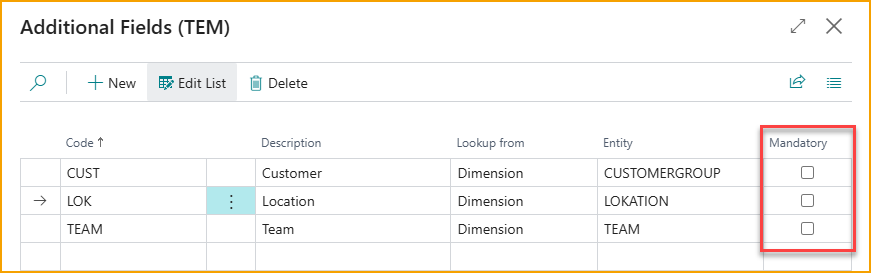
If default Dimension Values are defined on the Employee, these values will automatically appear in the portal or mobile app whenever the expense type or category is linked to the corresponding Additional Field. The default value will also satisfy mandatory-field requirements, removing the need for the user to select a value manually.
Per Diem
Two new countries have been added to the list of supported Per Diem calculations: Poland and Estonia.
In the German configuration, the Accommodation option is hidden when no amount is defined in the setup.
Copilots for easier onboarding
To simplify onboarding, Copilots have been added to assist with creating AppsForDynamics365 logins and Employees.
Portal logins
From the Logins page, you can now export all logins to an Excel file, which is useful when moving data from a test environment to production.
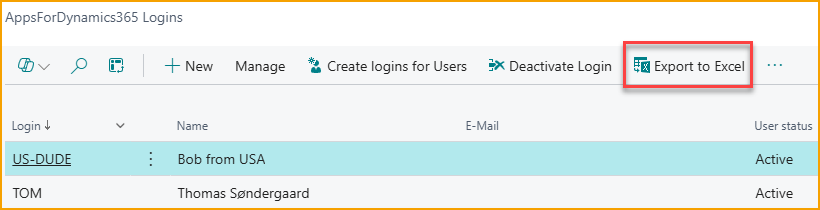
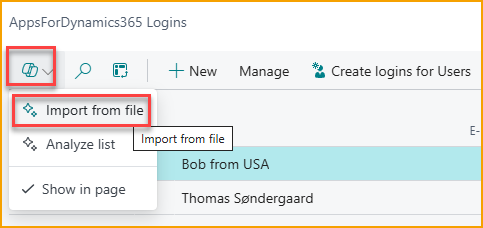
To import logins, use the Copilot "Import from file" function. You can attach either a CSV or an Excel file, and Copilot will automatically analyze the content to identify the relevant information.
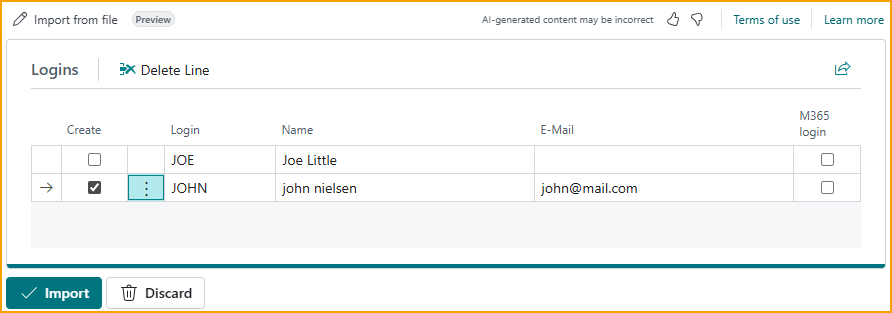
For example, a CSV file like this:
Username,First name,Last Name,Email
JOE,Joe,Little,
john@mail.com,john,nielsen,john@mail.com
will result in suggested logins as shown. If everything looks correct, simply select Import and the logins will be created.
Employees
A Copilot is also available to assist with importing Employees. Since employees are often not yet created in Business Central when organizations begin using Expense Management, and employees are required for the solution to function, this Copilot simplifies the initial setup.
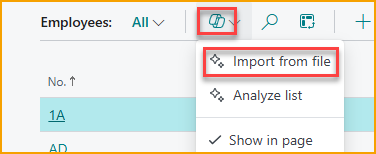
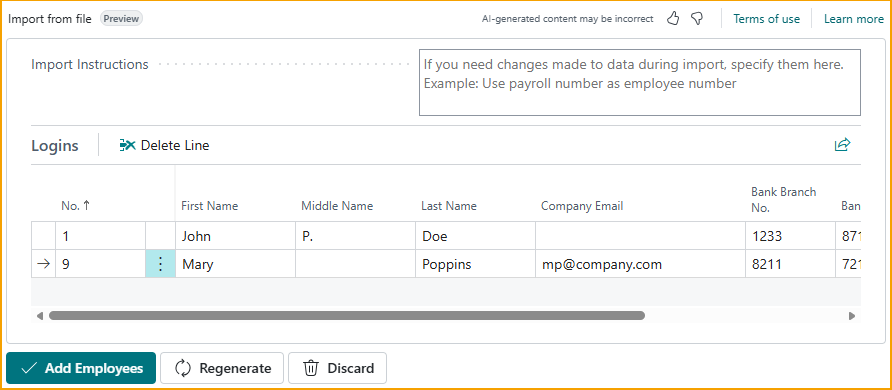
Users can upload an Excel or CSV file, typically exported from the payroll system, and the Copilot will analyze the content and prepare the employees for creation. For example, a CSV file like this:
Employee No;Name;Email;Bank reg. No;Bank Account
1;John P. Doe;jd.company.com;1233;87119212
9;Mary Poppins;mp@company.com;8211;721231
will result in suggested employees as shown.
If the data is not mapped correctly, you can adjust the transformation by entering a prompt and selecting Regenerate. For example:
make the employee no the first two letters of first name and first two of last name
and the system will generate updated values accordingly.
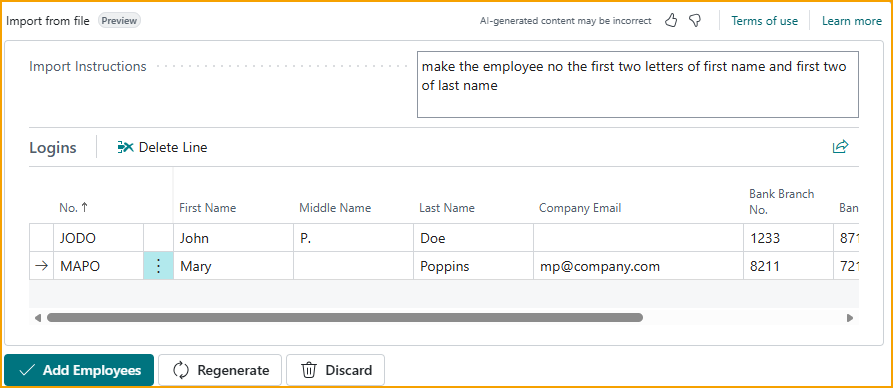
After reviewing the suggested records, select Add Employees to create them automatically.
SmartExtract
New configuration options have been added to SmartExtract AI processing.
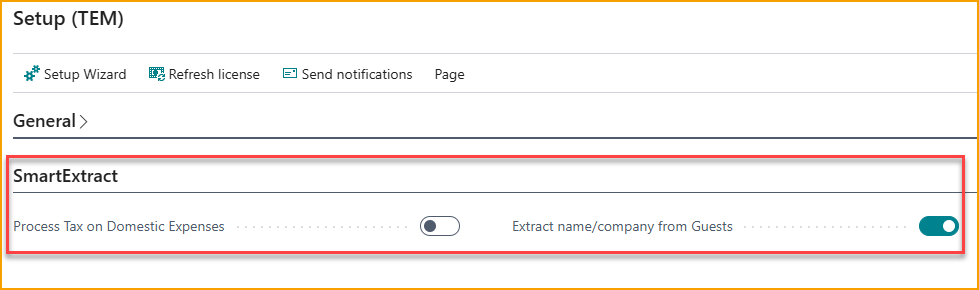
Process Tax on Domestic Expenses applies to North America (USA and Canada) and determines whether SmartExtract should attempt to identify tax areas, taxable amounts, and non-taxable amounts, and update the expense accordingly. This function only applies to domestic expenses.
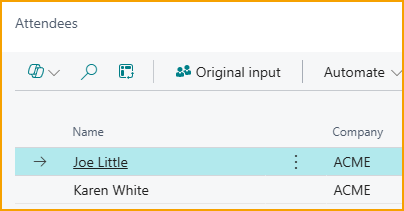
Extract Name/Company Name from Guests converts the content of the Guest field on expenses into a list of individual "Full name / Company" entries instead of keeping the input as a single text field. Users can enter names one by one, or SmartExtract can automatically separate multiple names written on the same line into individual entries.
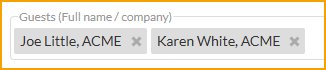

Regardless of how the guests are entered, the resulting expense card will display the attendees in a structured list.
SmartExtract can also recognize groups of people and automatically generate a corresponding attendee list.
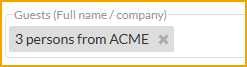
will produce an attendee list like this:
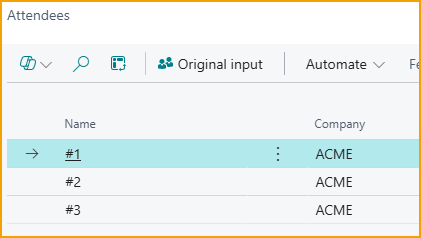
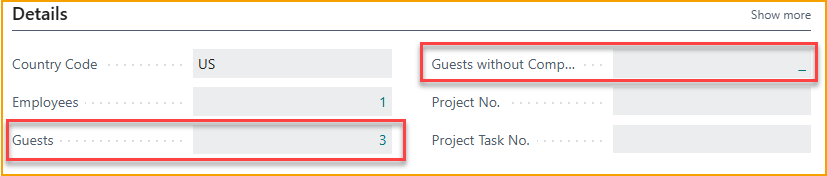
When the attendee list has been created, the expense card will show both the total number of guests and how many of them do not have a company name assigned. In countries where legislation requires both name and company information for client entertainment, this makes it easy to verify whether the data is compliant.
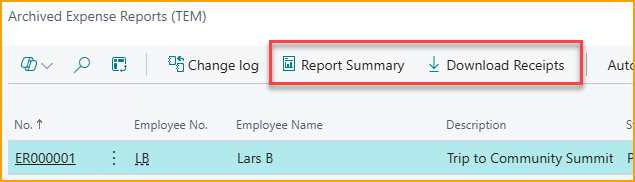
Expense Report
The Archived Expense Report list now includes options to generate a summary report and to download all receipts related to an expense report as a zip file. This is useful for audits or when sharing expense details with external parties.
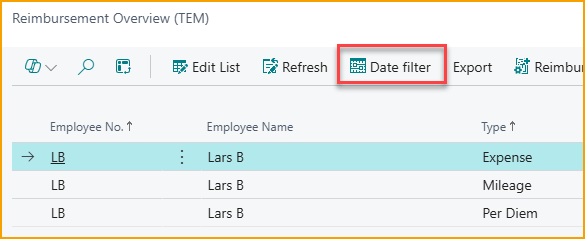
Reimbursement
In the Reimbursement module, you can now filter items by a specific date interval. This is particularly useful when exporting data to a payroll system for a defined payroll period.
File Export has been added for the Danish payroll system Zenegy.
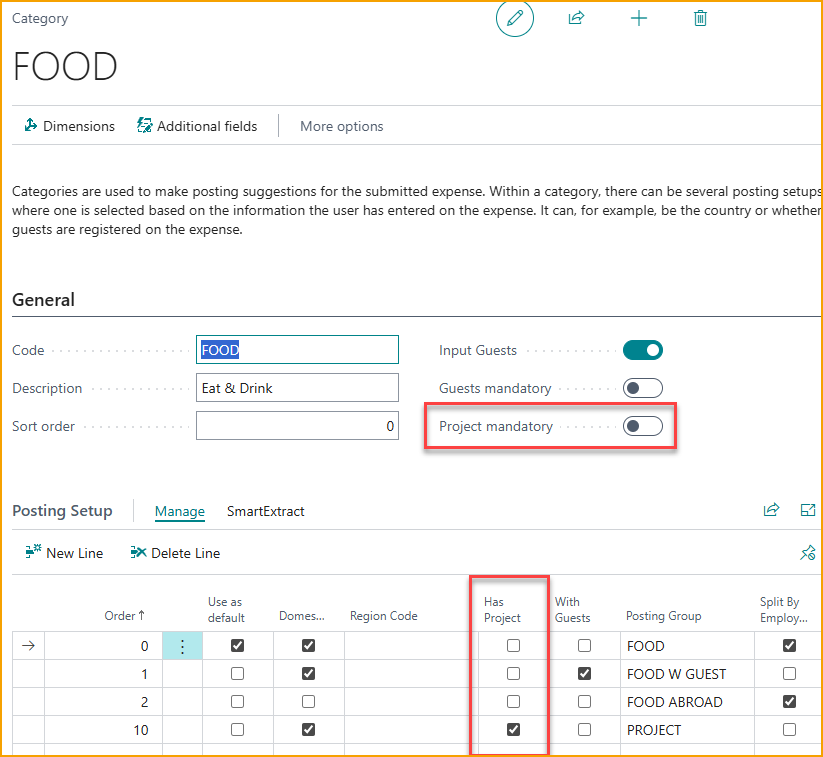
Categories
The category setup now includes options to require project registration on a category. When project information is specified, whether mandatory or optional, it can be used as a parameter to select the appropriate posting setup for the expense.
Download receipts to Business Central
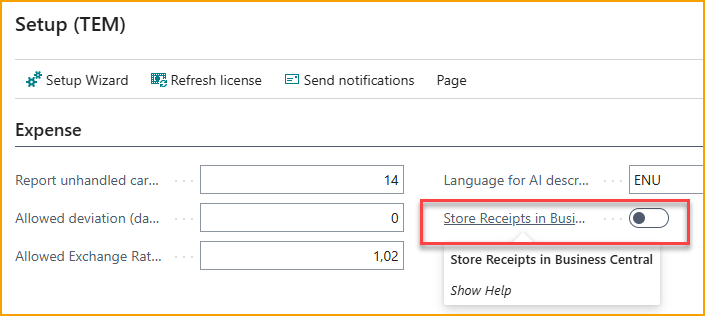
Normally, receipt images and PDFs are stored in the AppsForDynamics365 cloud to reduce storage usage in Business Central. If you also want to store receipts directly in Business Central, two options are now available.
From the Expense Management Setup page, you can enable automatic downloading of receipts to the ledger entries whenever an expense is posted.
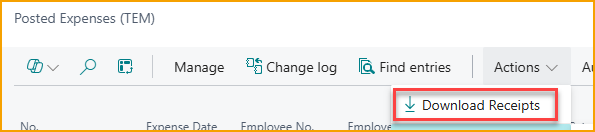
For expenses that were posted earlier, an action on the Posted Expenses page allows you to download the receipts and attach them to the corresponding ledger entries.
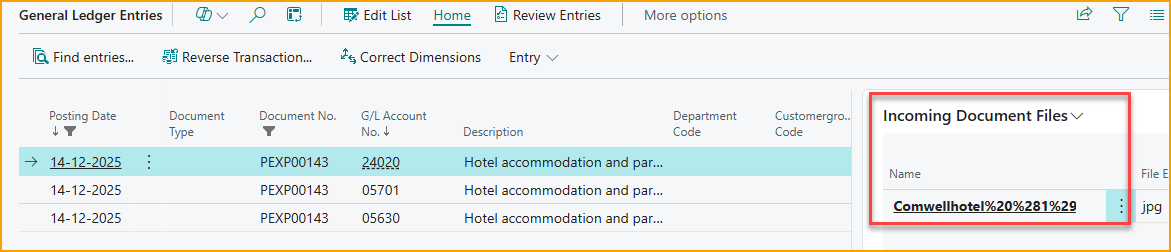
Once the receipts have been downloaded, they will be visible on the ledger entries when you view the related transactions.
Portal
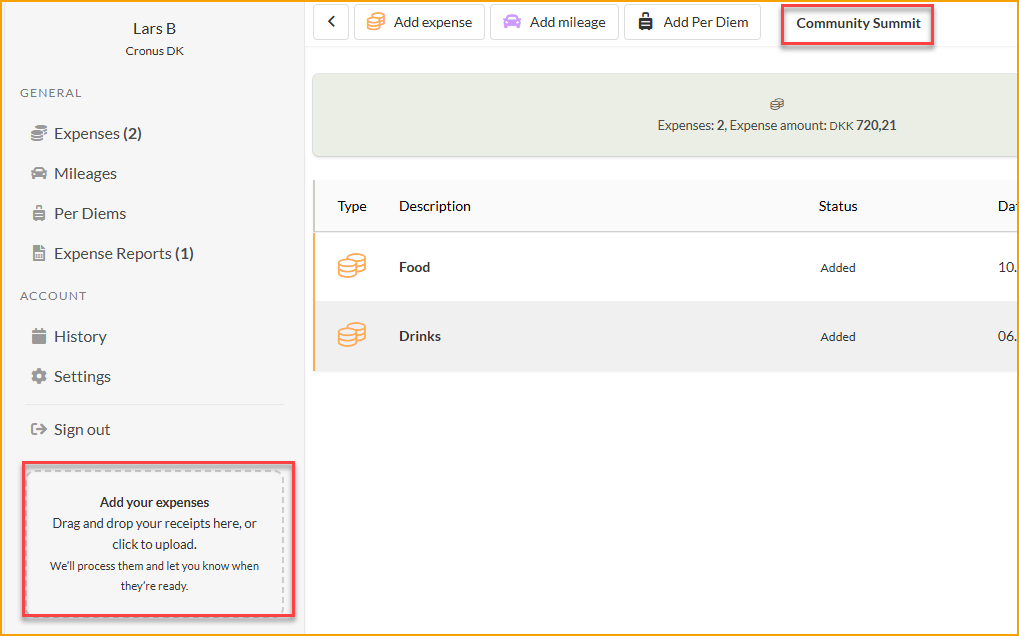
On the web portal, the Drag'n'drop feature has been improved. When an expense report is selected and you drag receipts onto the page, the receipts are now automatically added to the selected report.
On the Mobile Approval page, both multiple images and Additional Information are now displayed for the expense.