Process a private card expense
When an employee uses a company card for a personal purchase, they mark the expense as private when submitting it in the portal or mobile app. The expense then arrives in Business Central ready to process.
Finance can also mark an expense as private manually using Set as private use on the expense card in Business Central, if the employee did not do so themselves.
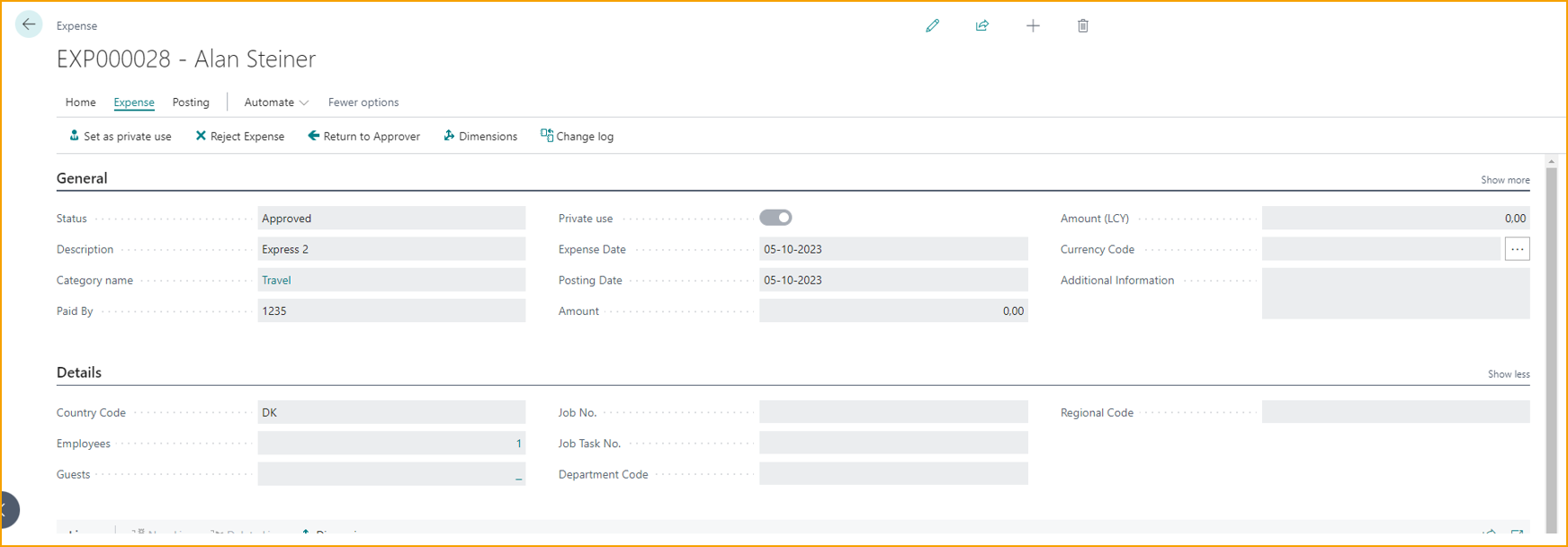
How private use posting works
Posting a private use expense creates two sets of entries:
First posting - same as a regular card expense:
Dr  [Expense GL account]        (from the expense category's Posting Group)
    Cr  [Card liability account]    (from Balance Type on the Agreement)
This ensures the company card balance is correct and the card statement can be paid as normal.
Second posting - private use reversal:
Dr  [Employee balance]
    Cr  [Expense GL account]        (returns the amount to the category GL)
This reverses the company expense and transfers the amount to the employee's balance, recording that the employee owes the company for the personal charge.
The net result: the card liability is intact for payment, the expense GL nets to zero, and the employee carries a negative balance for the private amount.
Before you start
- The employee must have submitted the expense and marked it as private, or finance must mark it manually using Set as private use on the expense card
Steps
1. Locate the expense in Business Central
Open the expense list in Business Central. Private use expenses are ready to process and visible here alongside regular expenses.
2. Post the expense
Post the expense through the normal posting flow. TEM creates both sets of entries automatically.
3. Recover the amount
The private use amount sits on the employee's balance and can be recovered in two ways:
| Method | How |
|---|---|
| Deduct from reimbursement | When processing the employee's next reimbursement, the private use amount is deducted from the payout |
| Payroll export deduction | Include the private use amount as a deduction in the payroll export, so it is recovered via the employee's next salary payment |
Related
- Concept: Company card flow
- How-to: Process reimbursements
- How-to: Export to payroll