Review and edit before posting
Goal
Adjust an approved expense before posting it - correct GL accounts, dimensions, or tax fields, split the cost between employees, or cap the reimbursable amount.
Before you start
- The expense must be Approved and visible in Ready for posting (TEM)
- Editing happens before posting; once posted, changes require a reversal
Edit an expense
-
From Ready for posting (TEM), select the expense and choose Edit, then open the record (the "pin")
-
Adjust the line particulars as needed - posting groups, G/L accounts, dimensions, additional information, and tax fields (Sales Tax or VAT, depending on your Business Central localization).
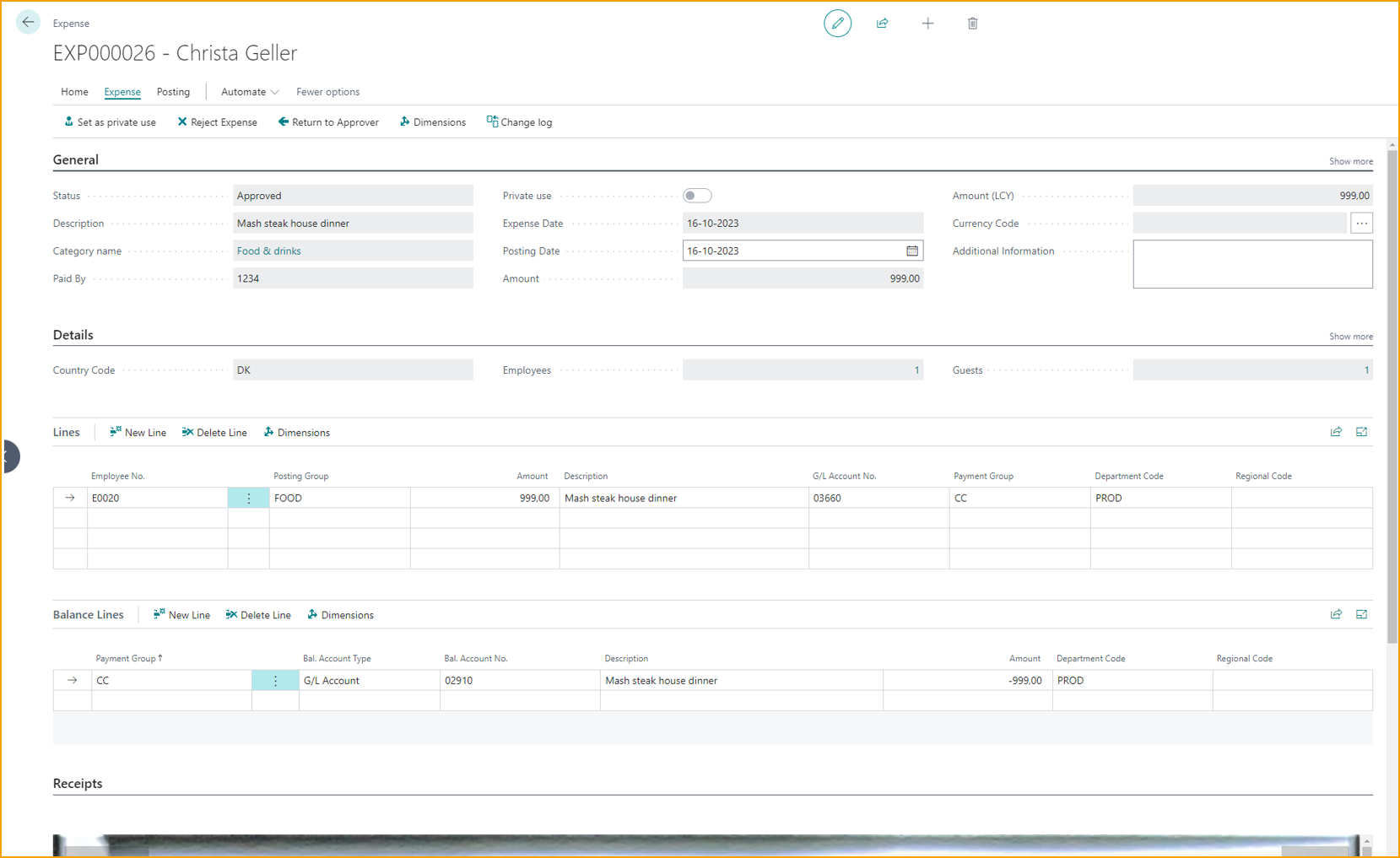
The Posting date is also worth calling out - it sets the date the item posts, useful when expenses must post on a specific day of the month.
When SmartExtract has extracted or split the lines, a blue review banner appears. Verify the split lines and amounts here before posting - SmartExtract is accurate most of the time but can misread a receipt. See SmartExtract.
Balance lines - who the expense is settled against
Every expense has two sides. The expense lines debit the G/L accounts for the cost itself. The balance lines define the other side of the posting - the account the cost is settled against:
- Employee-paid - the balance posts to the employee, creating a reimbursement the company owes them.
- Company card - the balance posts to the company card liability account, which is cleared when the card statement is paid.
- Mixed - the balance is split across both. For example, an employee pays for a client dinner on the company card, but the alcohol on the bill is not allowable company spend. One balance line posts the allowed portion to the card account; another posts the disallowed portion against the employee, who then owes the company for it - the same mechanism as a private card expense.
Edit the balance lines when the default settlement is wrong for a particular expense - for instance, to move part of a company card charge onto the employee.
Split an expense between employees
When an approved expense should be shared across several employees:
-
Open the expense in edit view and go to Details

-
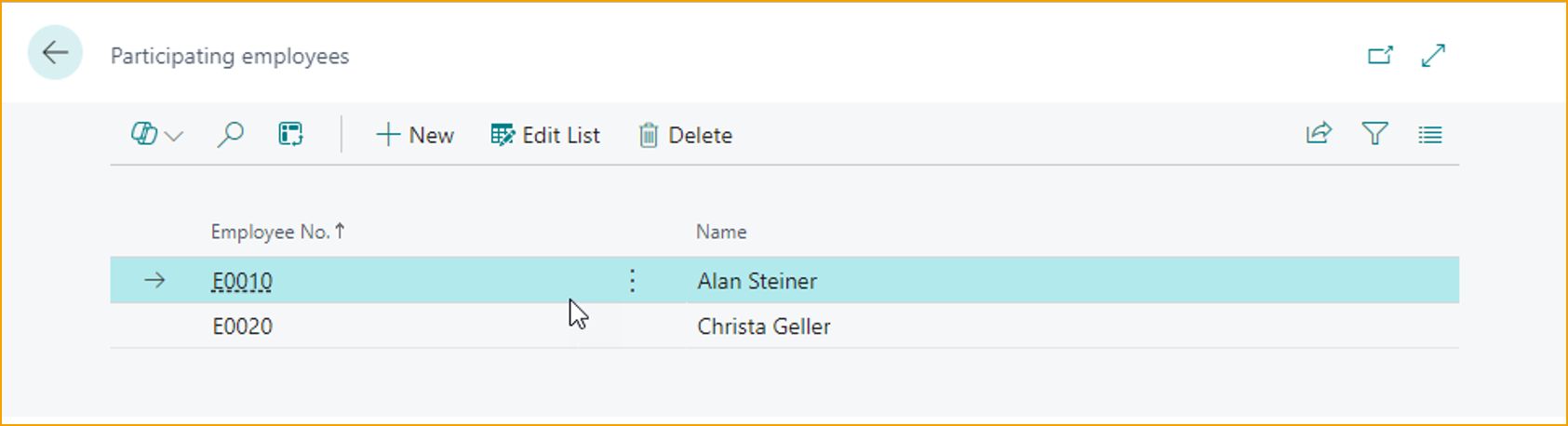
Under Employees, click the number, then New, and add each employee
-
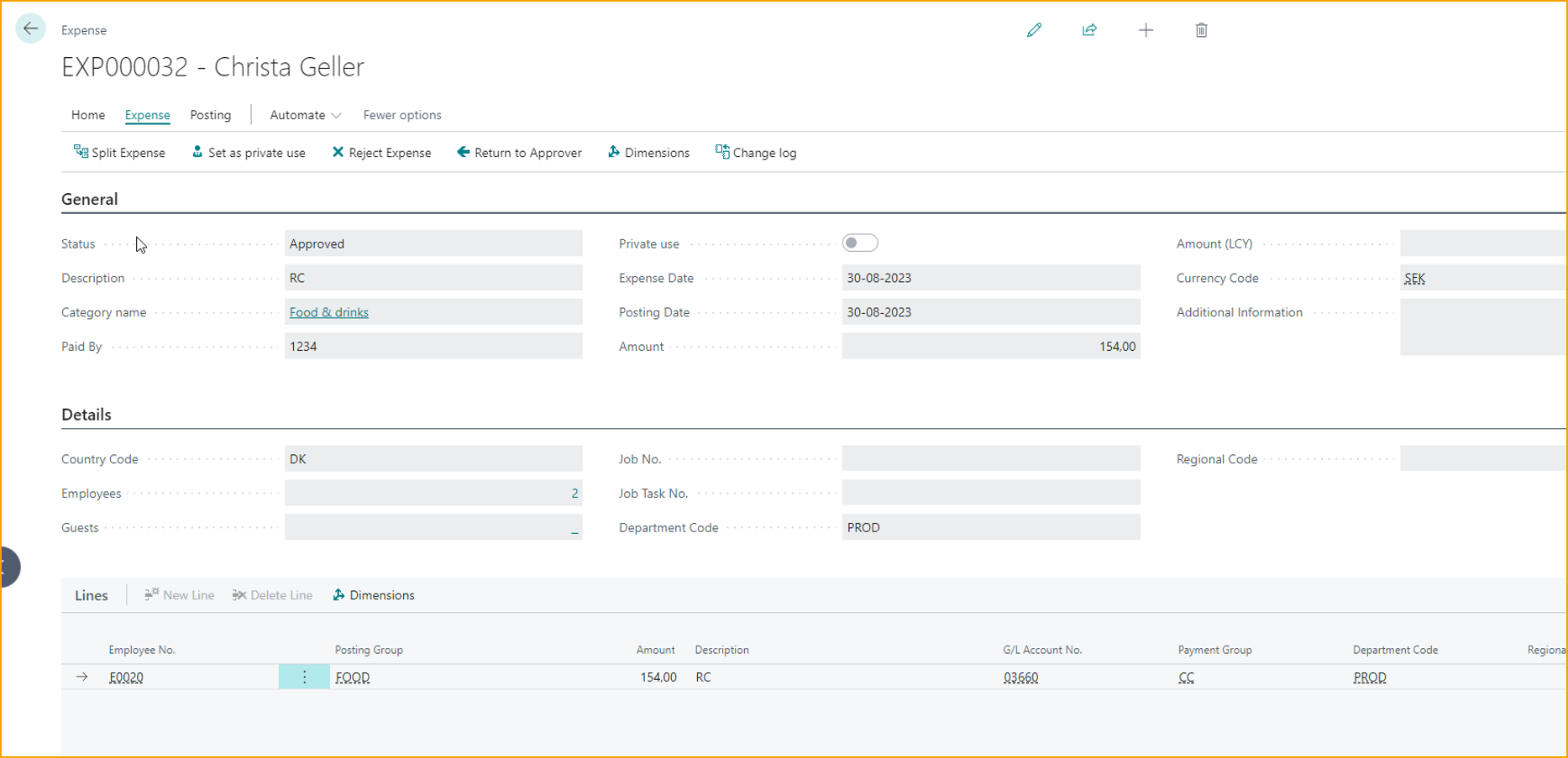
Close the window and click Split Expense in the action bar
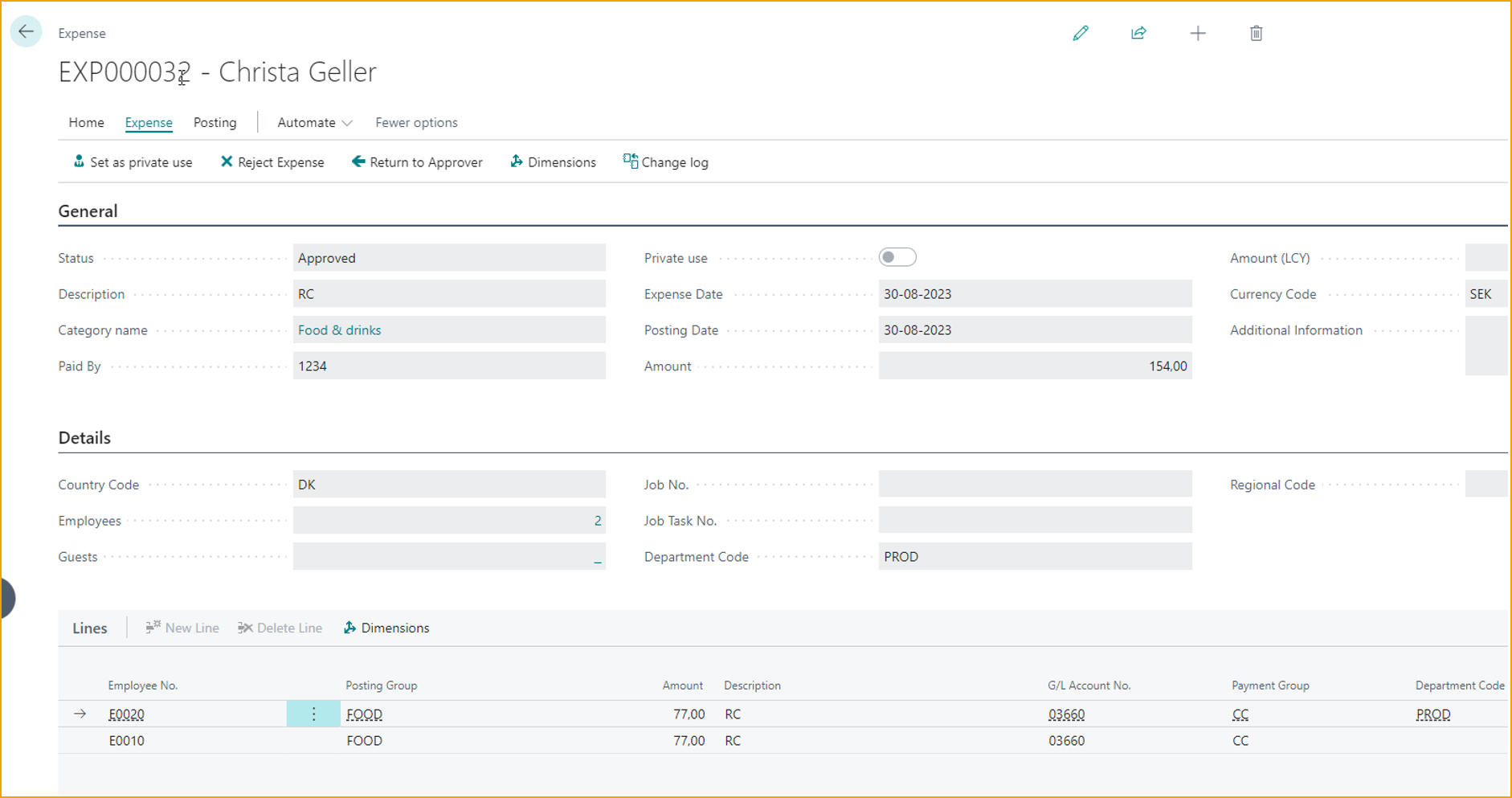
The lines are split across the selected employees.
Set a reimbursement cap
When a submission exceeds the cap configured on the employee's profile for that category, use Set Reimbursement Cap in the expense card action bar to override the reimbursable amount. If the expense has been split, the cap can be set per line.
Related
- Next: Post approved items
- Concept: Posting and GL
- Reference: Employee Profiles