Submitting credit card transactions
Credit card transactions are commonly used for various expenses, including those paid on behalf of your company. ExFlow Travel & Expense simplifies reporting these transactions, especially when Credit Card Agreements are set up to automatically match them with appropriate expense reports.
Report an expense report when using company credit card
Follow the step in "Submitting Expense:
Report your expenses, add the details from your receipt, and submit. The expense report will then wait in the dashboard until the transactions are imported to ExFlow Travel & Expense.
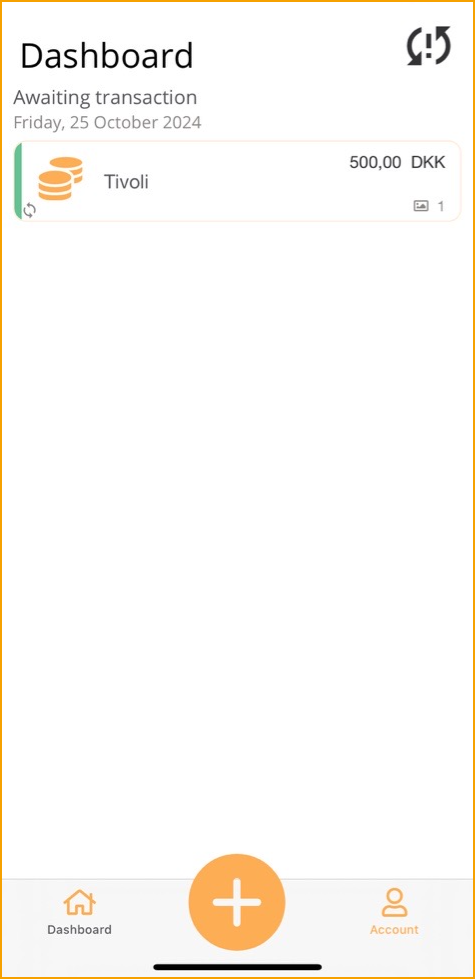
When the match is done, your expense report is sent to your manager for approval.
No match between expense report and credit transaction
If the transaction and the expense report does not match automatically the credit card transaction will be shown in the dashboard.
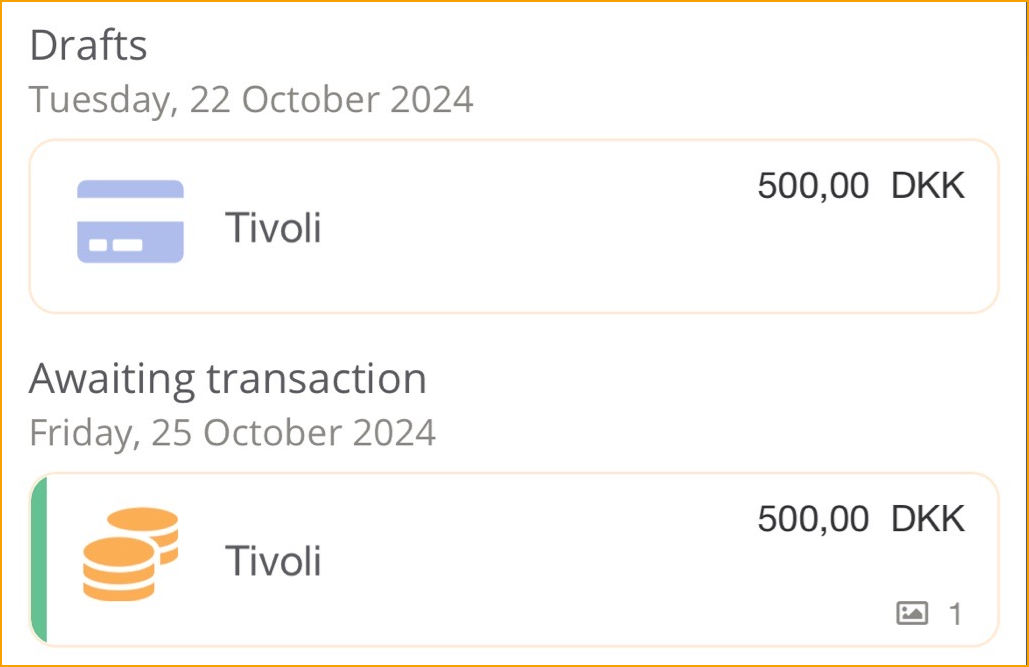
Go to: Credit card transaction

At the top of an opened credit card transaction, the button below will show how many expenses match this transaction. Whether these expenses are considered matches depends on their date, currency, and amount.

The color will indicate how precise the matches are:
-
Red: No match
-
Yellow: Partial match
-
Green: Good match
Tapping the expense button will allow the user to merge the transaction with an expense by pressing the check mark button. Again, the color to the left of an expense will indicate the quality of the match.

A warning will pop up telling the user that this operation will copy the expense to the credit transaction and the expense will be deleted, and the transaction will contain all information.
Click on continue
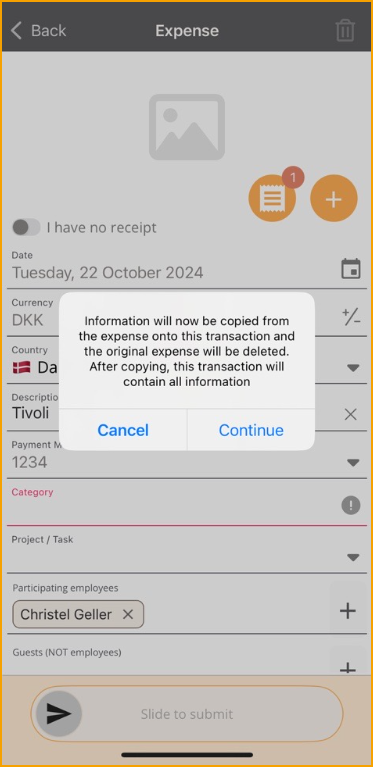
Slide to submit.
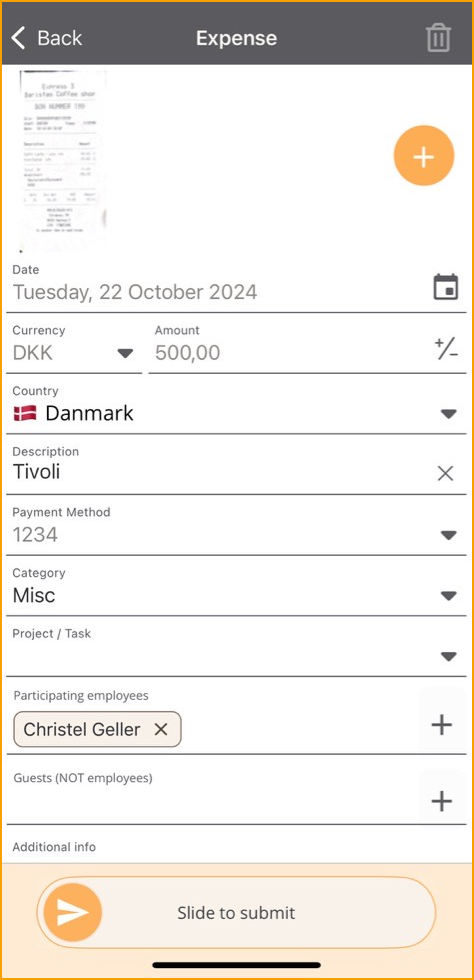
The transaction is now sent for approval to the manager.
Vehicles
Before the user can submit mileages in ExFlow Travel & Expense, a vehicle must be added.
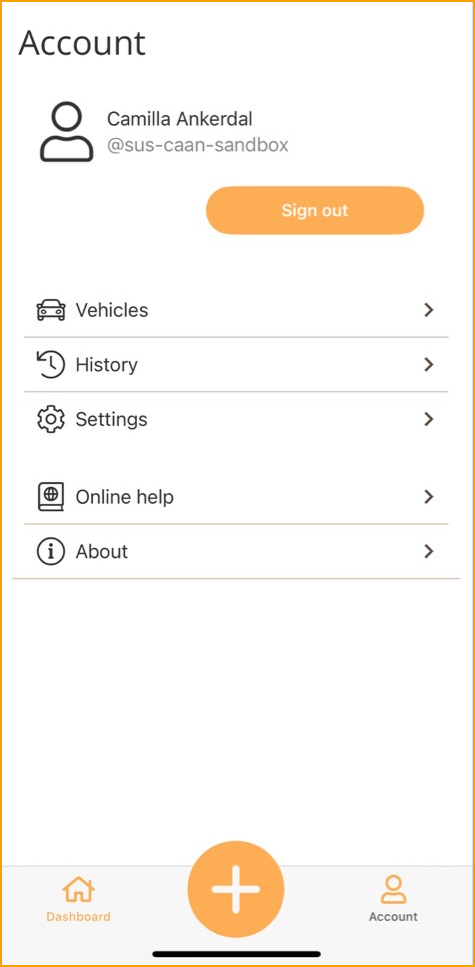
Go to: Account --> Vehicles --> Add

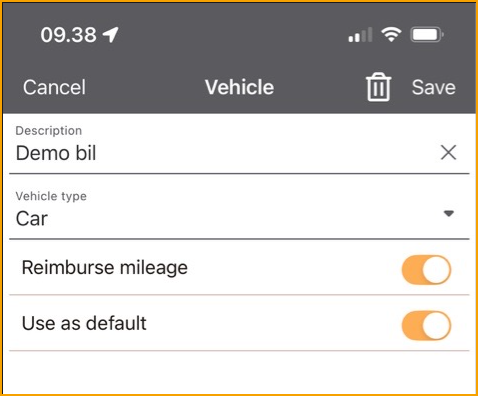
| Vehicle | |
|---|---|
| Name: | Enter a name for the vehicle that describes, good to add the registration number. |
| Reimburse mileage: | If using your private vehicle, choose this option. |
| Use by default: | Active it if it the preferred vehicle. |
Click Save
Submit with an expense report
Expense Reports allow you to organize expenses, Mileages, and per diems to gain a summary of outlays.
Go to: PLUS --> Expense report
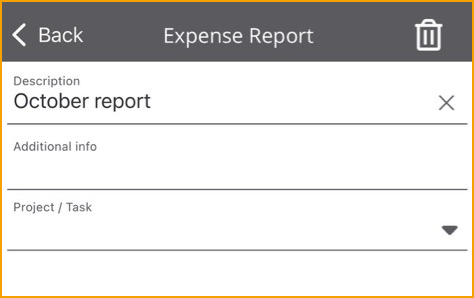
| Expense report | |
|---|---|
| Description: | Enter er description for the expense report. |
| Additional info: | Enter any additional information. |
| Project/Task: | The expense report can be connected to a specific project, this will add the project and task to all transactions that is added to the expense report. |
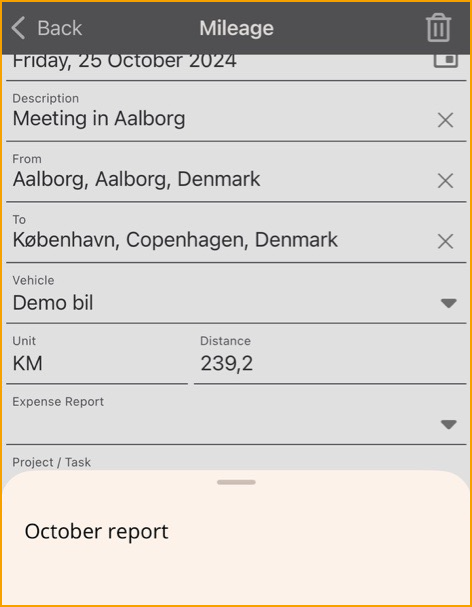
After creating an expense report, a new field labeled Expense Report will be displayed when submitting an expense, mileage, or per diem. Below is an example from the mileage page.