Receiving an e-invoice
Receiving an e-invoice using Truvio ExFlow e-Invoicing with Pagero for France follows exactly the same patern explained in Pagero Service and How to use ExFlow e-Invoicing pages.
When getting successfully an invoice in France via Pagero, in Incoming documents, the invoice is initially marked as "Waiting" until it gets imported into ExFlow AP by running the import method setup.
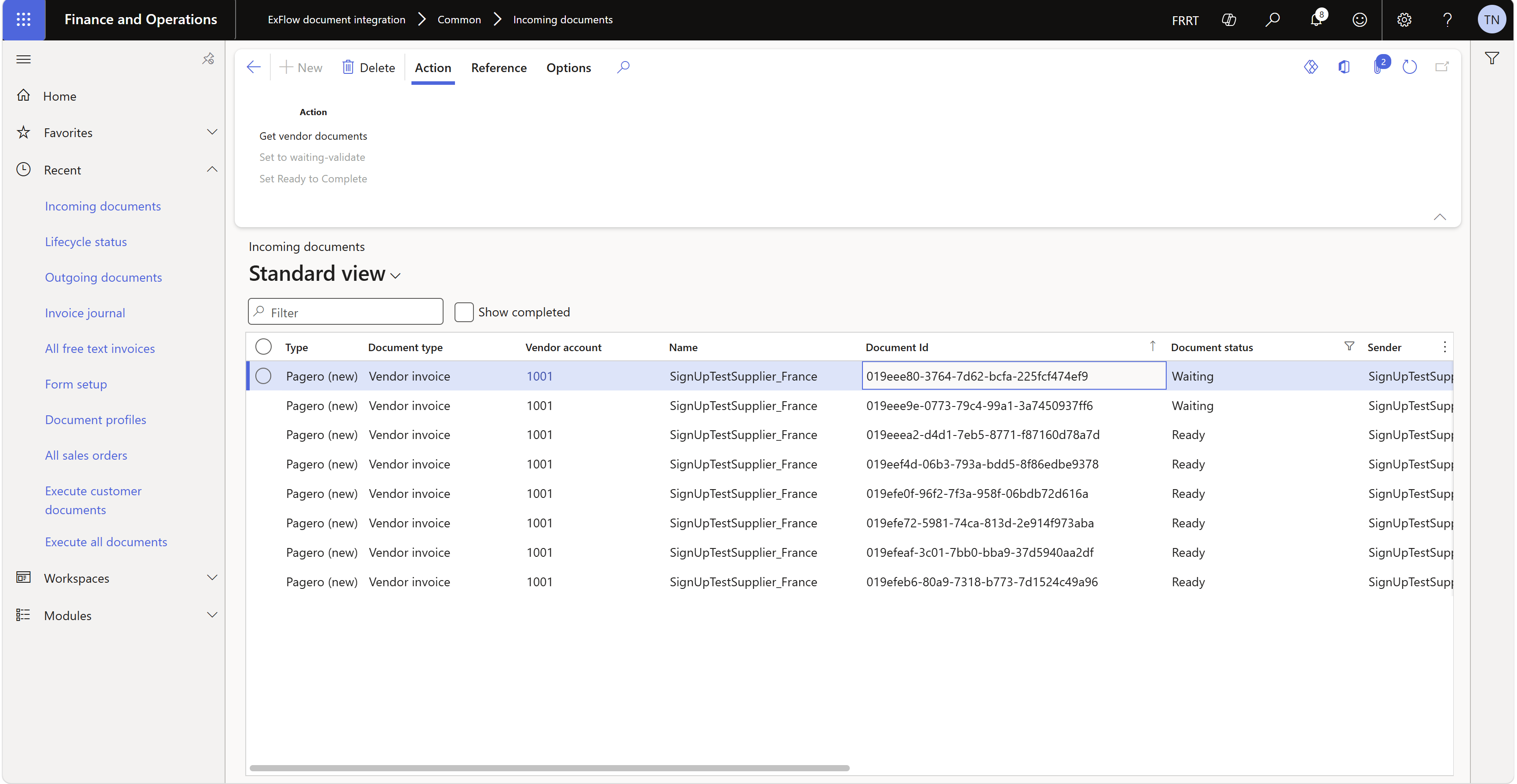 Once imported into Exflow AP, the incoming invoice should be marked as "Completed".
Usage of UBL stylesheet for mapping incoming xml to ExFlow AP xml
The format of incoming e-invoice delivered by Pagero using ExFlow e-Invoicing integration for France is UBL Extended-CTC-FR and, depending on the use case utlized by the vendor submitting it, may contain extra data that are not included in the standard UBL mapping stylesheet. Check with your Truvio consultant for the standard xslt and custoomize it only if required.
ExFlow AP handling and sending lifecycle status for an invoice received from a vendor
The handling of a purchase invoice in ExFlow AP stays the same, using workflow and approvals setup in the system.
Key difference for the flows determined by the FR e-invoicing mandate is that, when refusing an invoice:
- Lifecyle status 210 "Refussée" must be sent to the vendor sending the invoice and to DGFiP
Be aware that as the sender of the invoice did send the e-invoice, DGFiP noted that invoice as posted and expects associated taxes to be declared unless the buyer/recipient refuses it. Note the difference with the standard ExFlow AP approval, that only relates to the processing of the AP invoice in the internal buyer business process.
Sending lifecycle status for an invoice received from a vendor
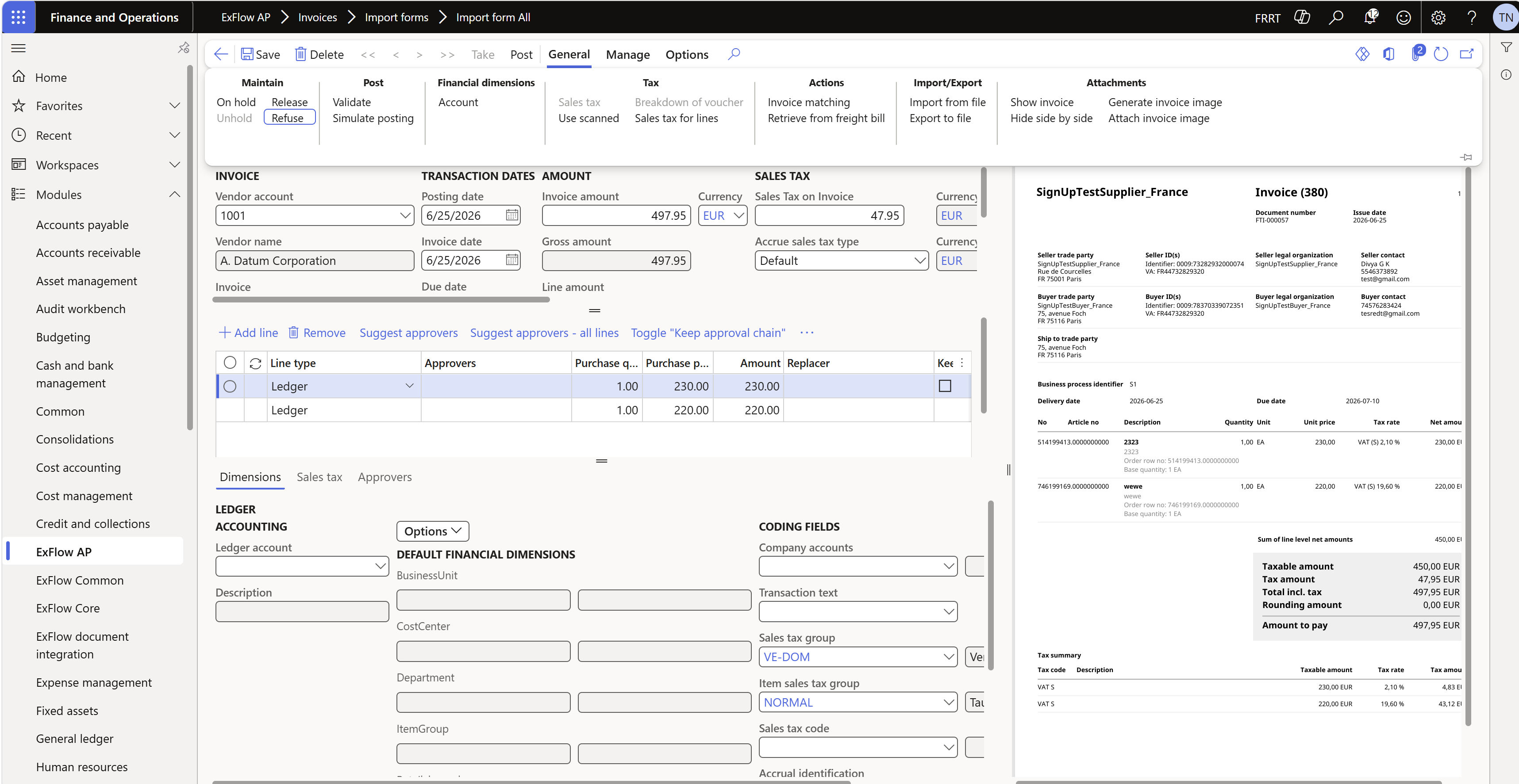
Refuse (210 Refussée)
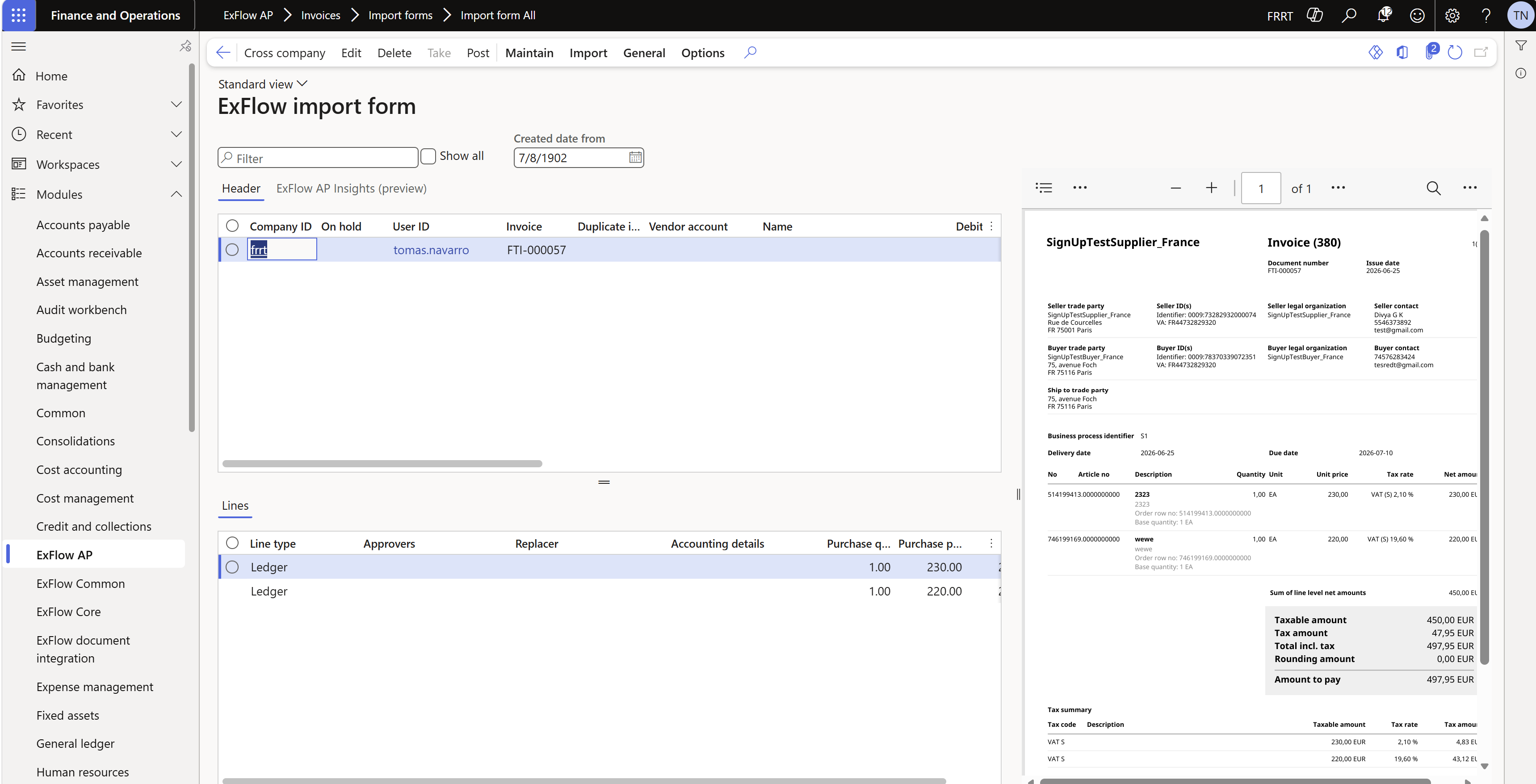
Once the invoice is succesfully imported in ExFlow AP | Invoices | Import forms | Import form All , make sure the status of the Incoming document has been updated to "Completed" in ExFlow document integration | Common | Incoming documents
Click Edit
Select Refuse
A selector will appear to the user and it allows to:
- Select the Code.
- Select the motive.
- Add/edit some explanation.
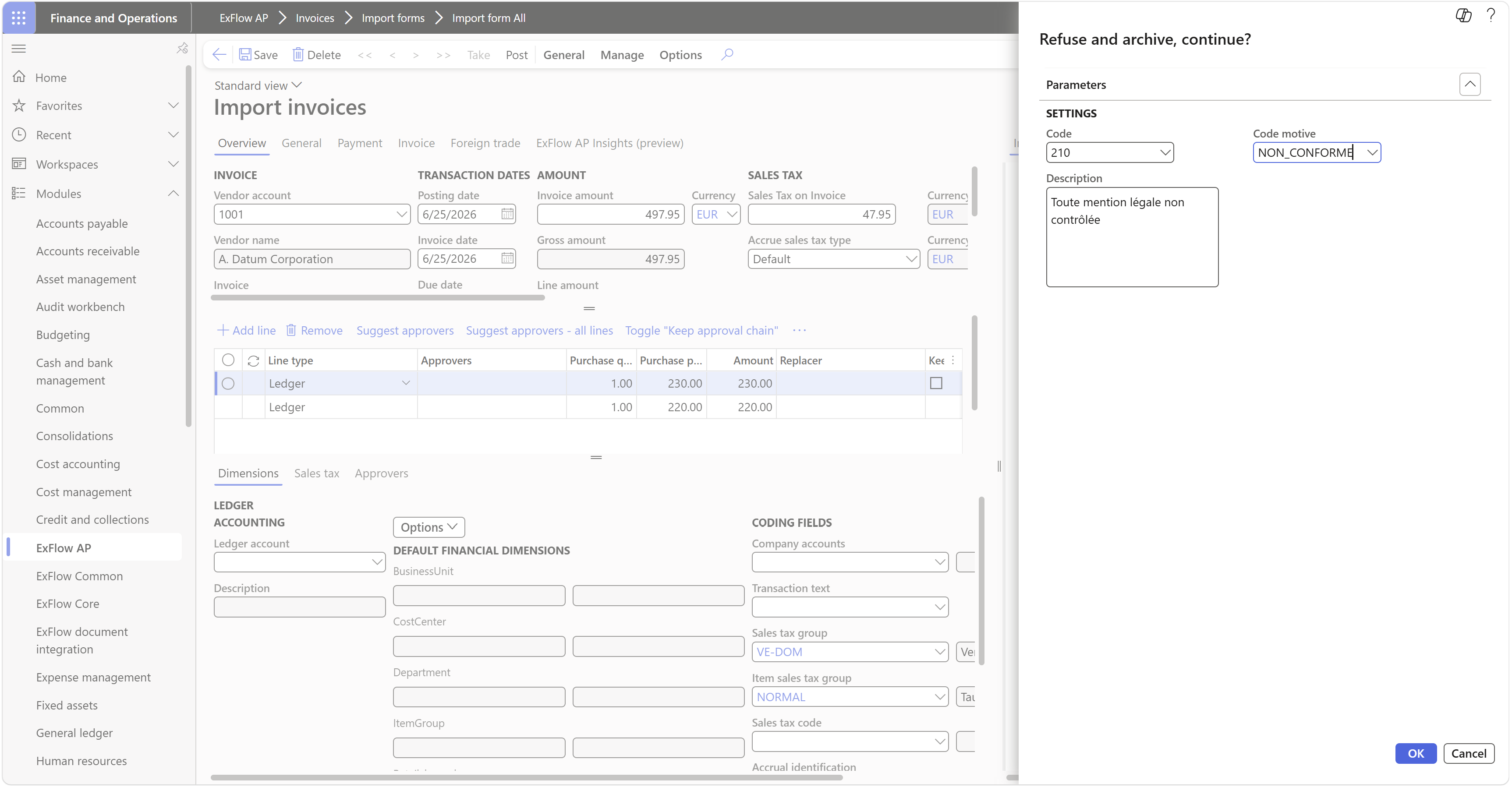
Once this has been done:
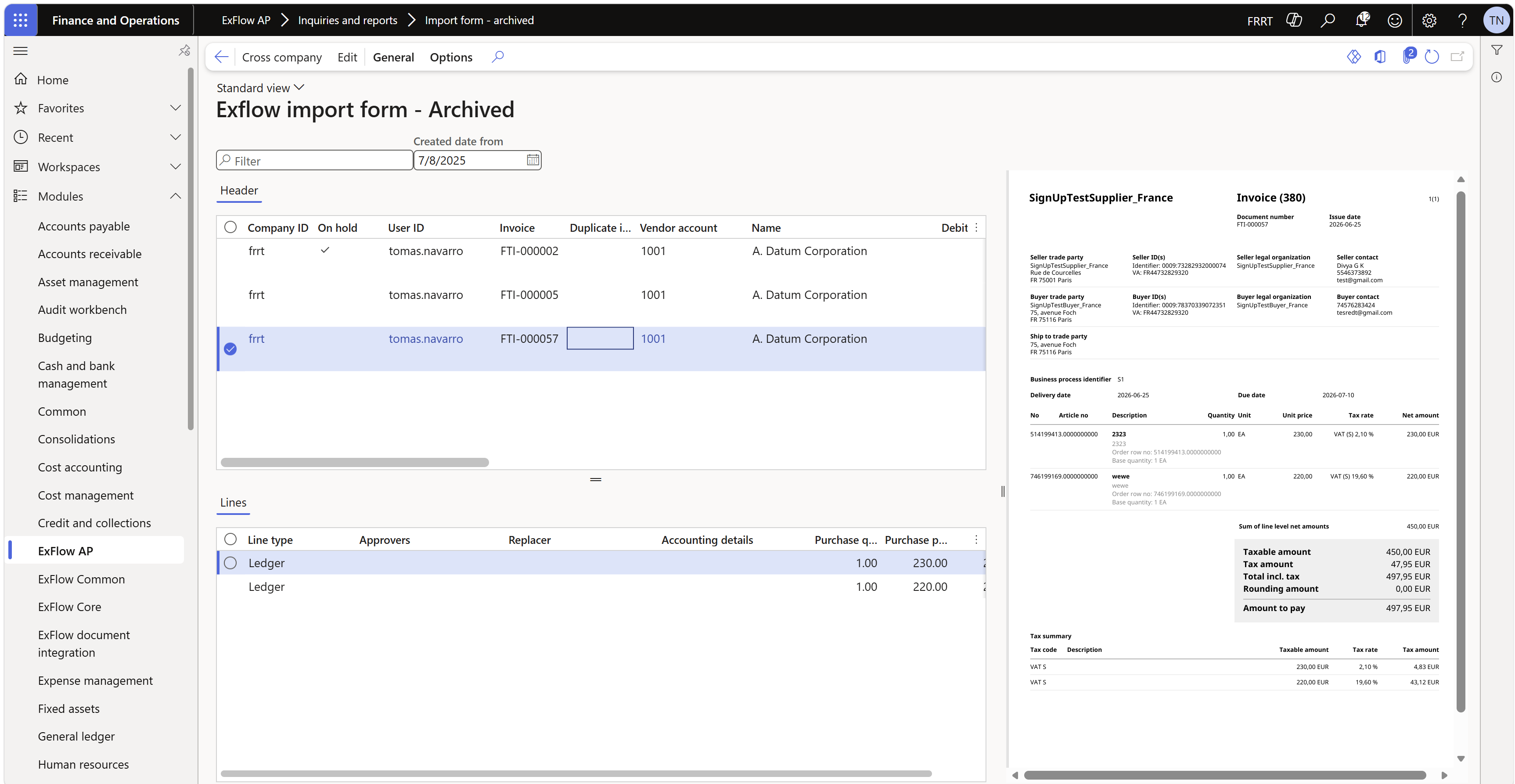
- The invoice record will be moved to the archived page for traceabilty.
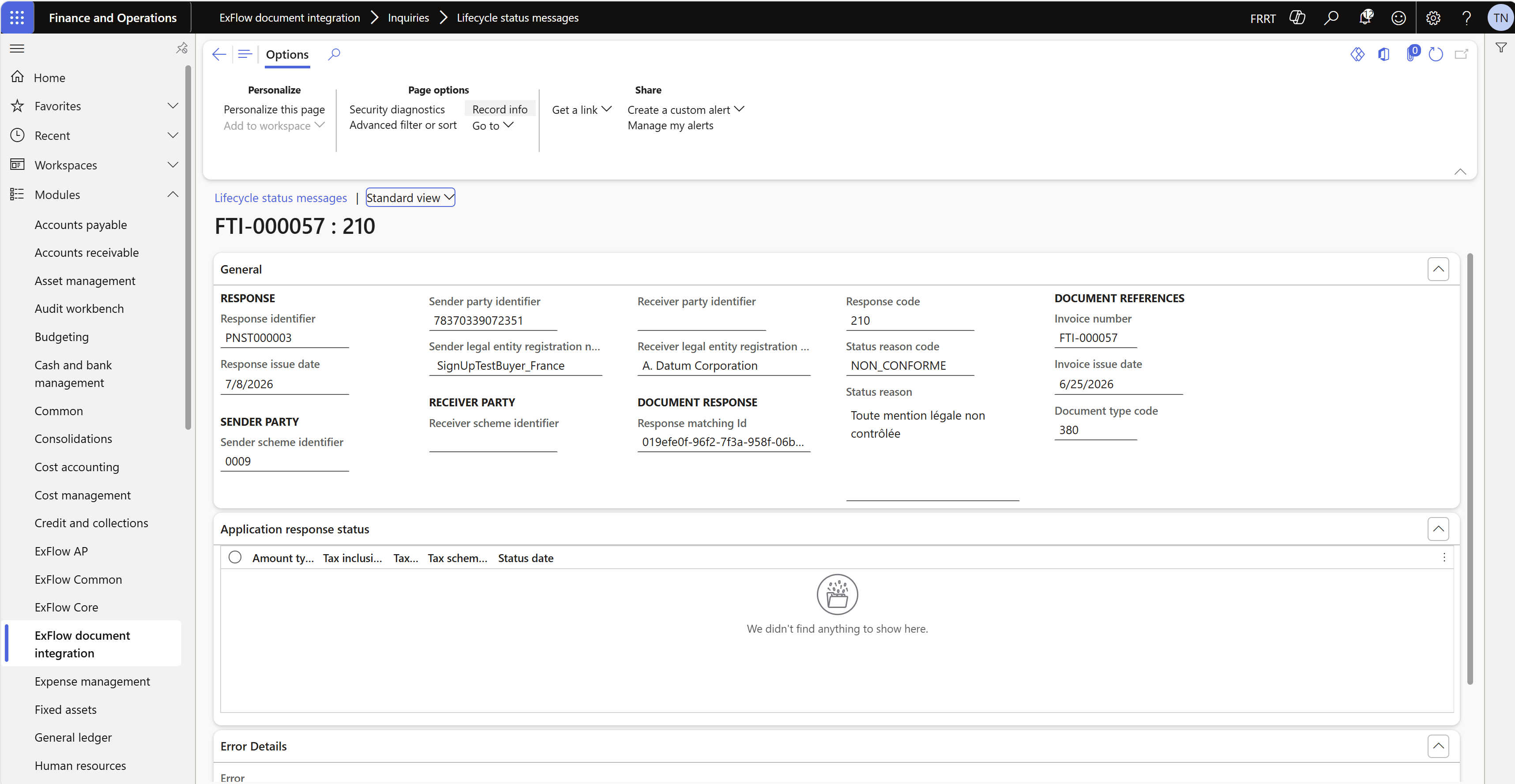
- Lifecycle message record is created and be ready to be picked up by the batch job for submission.
It will be sent automatically by the batch job to Pagero.
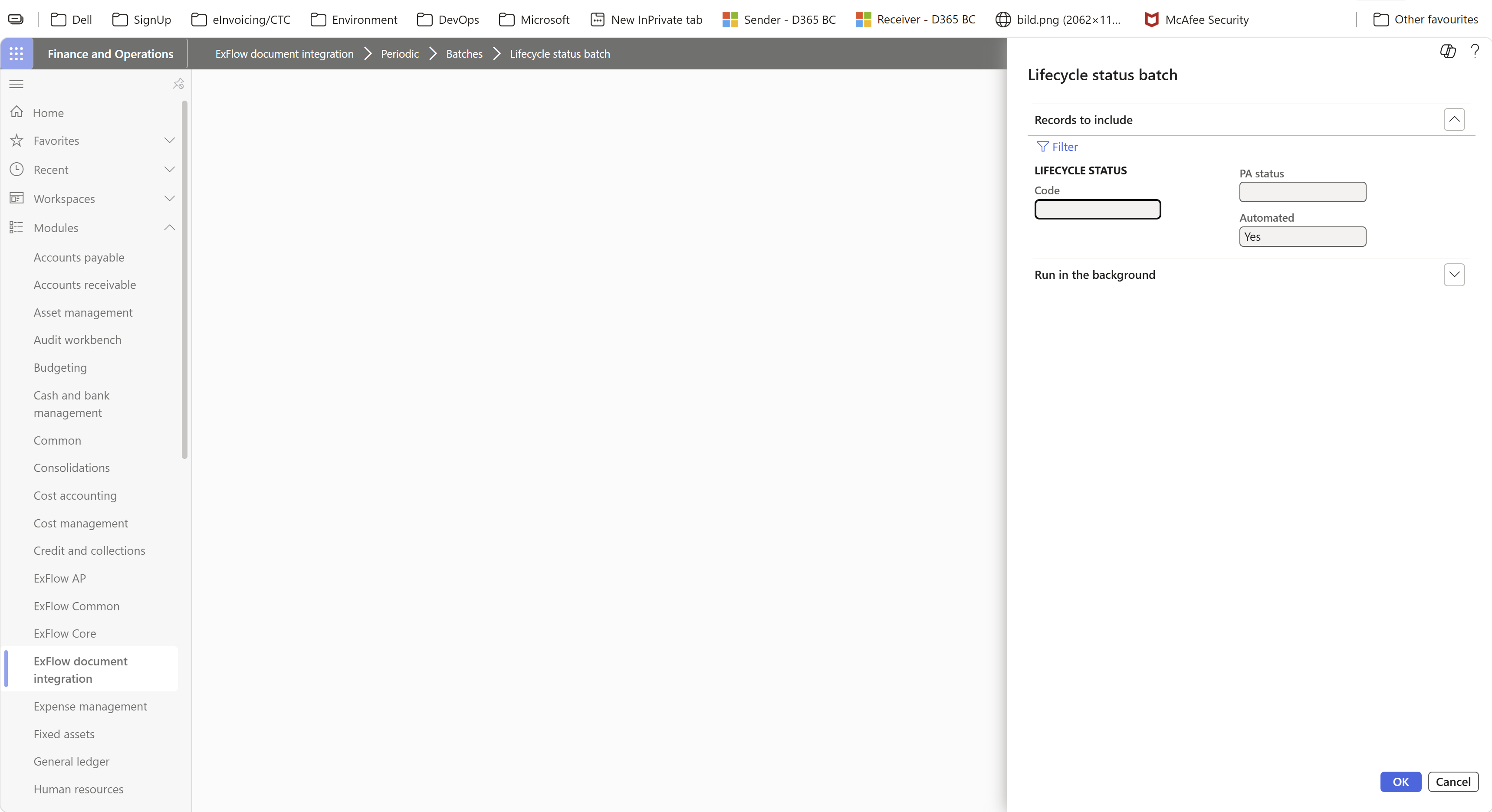
Note: the class associated to this batch job has some limitations to be added to other jobs due to D365 Finance standard usage of Electronic Reporting feature.
The submission can be seen in Outgoing Documents with "Document type" = "Application response" and once Pagero gets it, they will submit it to DGFiP and to the seller that submitted the invoice.