Axtension Shipping Control parameters
The Axtension Shipping Control parameters form is in the Setup >Shipping Control section of the module "Inventory Management".
General
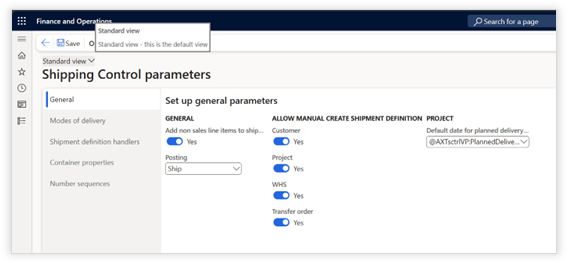
The section "General" contains the general settings for the integration of Axtension Shipping Control into Dynamics 365 for Finance & Supply Chain Management. This section consists of the following parameter:
|
Field |
Description |
|
Add non-sales line items to shipment definition |
Enable manually adding (non-sales and non-stocked) items to shipment definition. |
|
Disable packing slip posting on release |
Ability to disable the option to post a packing slip when releasing a shipment definition. |
|
Allow manual create shipment definition |
Ability to define if a shipment definition can be created on: - Customer sales orders - Project sales orders - WHS shipments - Transfer orders |
|
Default date for planned delivery date |
Ability to set the default planned date from an activity to the activity start or end date. |
Modes of delivery
The section "Modes of delivery" gives the ability to set which mode of deliveries should be allowed for use on shipment definitions.
In addition, it is only possible to add sales order lines if the sales order line has a mode of delivery set which is allowed to be used on shipment definitions.
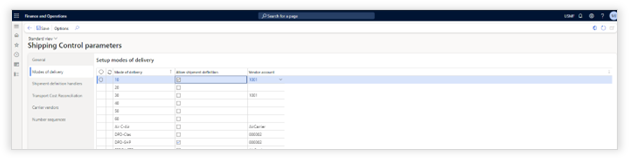
Note: Enabling a mode of delivery in this section will also set a toggle on the mode of delivery itself.
Shipment definition handlers
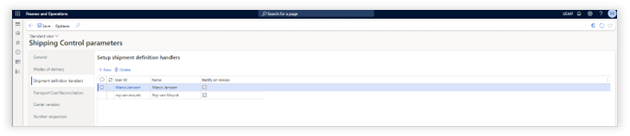
The section "Shipment definition handlers" gives the ability to set the designated handlers for shipment definitions and if a handler needs to be notified on changes or due dates.
Number sequence
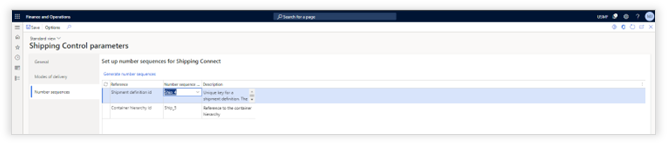
It is mandatory to generate number sequences for both the shipment definition ID's and the Container hierarchy ID's.
Set default pickup address
Axtension Shipping Control introduces the new address purpose Shipment pickup, which can be used as address information per legal entity.
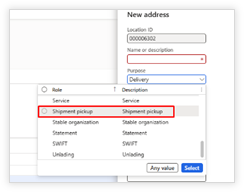
The address set with the purpose Shipment
pickup on a legal entity, will then be used as the default pick up address
for new shipment definitions. The purpose Shipment pickup will
only become available after running the update task Initialize pickup
address role type in the Axtension Shipping Control data update cockpit. With Axtension Shipping Control it is
possible to create shipment definitions directly on projects via the action Shipment
definition. The action Shipment definition is
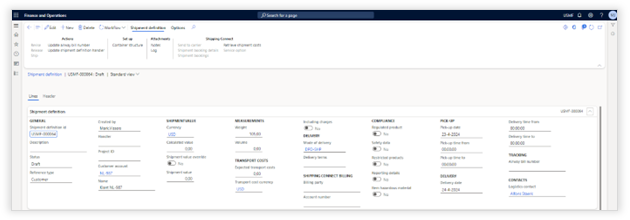
available on main projects and sub-projects. The general section on a shipment
definition shows an overview of details of the shipment definition and ability
to adjust the details. Field Description Shipment definition id Calculated ID based on the configured
number sequence. Description Free text field to enter an optional
description. Status The following statuses are possible: - Draft - Approved - Changed - Released - Shipped - Delivered Reference type Showing if a shipment definition is
originating from a customer sales order or a project sales order. Created by Creator of the shipment definition Handler Assigned handler on the shipment
definition Project ID Clickable number of the related project
ID. Currency Currency used for the shipment
definition. Adjusting the currency will recalculate the shipment and lines
values based on the exchange rates of Microsoft Dynamics 365. Calculated value Shipment value calculated based on the
unit price and quantity of the line(s). Shipment value overwrite Ability to enable overwriting the
calculated value. Shipment value Once overwrite value is enabled, this
field will overrule the calculated value. Weight Total weight of the shipment definition Volume Total volume of the shipment definition Expected transport costs Ability to enter the expected transport
costs for the shipment definition Transport cost currency Currency of the expected transport costs Including charges Ability to mark the expected transport
costs if it is including charges Mode of delivery Mode of delivery will be set by the first
mode of delivery coming from the sales order line(s). The mode of delivery
can be adjusted to another, but only to ones which are enabled for use on
shipment definitions. See section 1.2. Shipping Connect Billing This will show the billing carrier
account information for this shipment definition when send via Axtension
Shipping Connect. It is only available when Axtension
Shipping Control is used with Axtension Shipping Connect. Compliance types If items are added to the shipment
definition with one or more compliance types configured, the appropriate
toggle will be enabled. Pick-up date Requested pick-up date for the shipment
definition Pick-up time from and to Time window wherein the shipment
definitions needs to be picked-up. Delivery date Requested delivery date for the shipment
definition Delivery time from and to Time window wherein the shipment
definitions needs to be delivered. Tracking The airway bill number assigned to the
shipment definition. Logistical contact Receiving contact for the shipment
definition. Shipment definitions have a field called Planned
delivery date, indicating the date on which the shipment is planned to be
delivered. This field can be manually adjusted on shipment definitions with the
statuses draft, review, approved, changed, released and shipped. If a shipment booking is created via
Axtension Shipping Connect for the shipment definition, the shipment booking
can update the planned delivery date and time on the shipment definition. More information about updating shipment
booking statuses can be found in the Axtension Shipping Connect reference
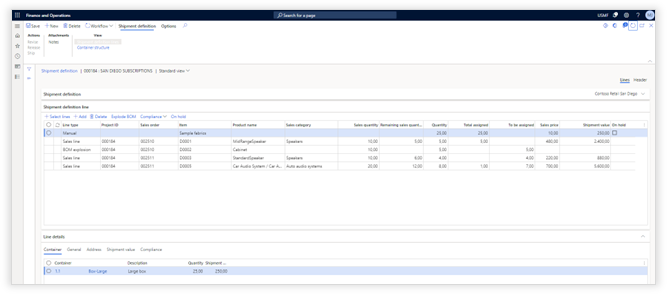
manual. After creating a shipment definition, it is
possible to add the sales order lines which should be included. Available actions Field Description Select lines Ability to add the sales order lines. Add Action to add non-sales order and
non-stocked items. Delete Delete the selected shipment definition
line. Explode BOM Ability to select an item from the BOM of
the selected shipment definition line, so it can be shipped as an individual
item. Compliance If the selected shipment definition line
has a compliance type, these can be shown in this dropdown. On hold For various reasons, it is possible to
mark one or multiple shipment definition lines as on hold. Marking them on
hold requires a note and prevents the shipment definition to be submitted for
approval. Via resume from on hold it is
possible to remove the on-hold status. Note: If
the approval is set up with auto-approval, an on-hold line will grey out the
ability to release the shipment definition. Update sales price Ability to reset the unit price to the
sales line value Update item weight Ability to reset the weight to the
released product value Update item volume Ability to reset the volume to the
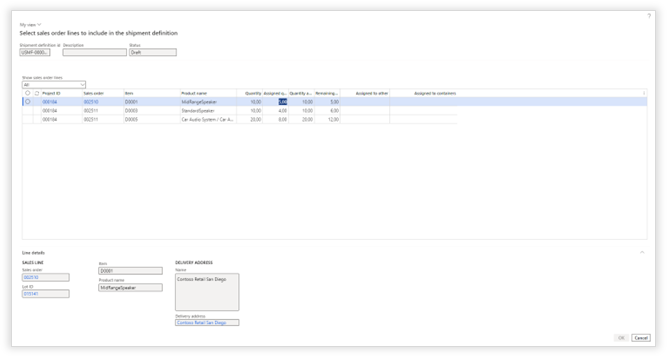
released product value When selecting the select lines
action, the following pop up appears. In this screen it is possible to set the
quantity per sales order line which should be added to the shipment definition. Field Description Show sales order lines This dropdown provides the ability to
filter on status of the sales order line: - All: shows all sales order lines of
the main/sub project(s). - Assigned on shipment definition shows
all sales order lines which have quantity assigned to the shipment
definition. - Completely assigned to shipment definitions: Shows the sales order lines of which the quantity has been
completely assigned to one or multiple shipment definitions. - With remaining quantity: Shows the sales order lines for which quantity has not yet been
assigned to any shipment definition. Project ID Clickable link to the project from which
the sales line originates. Sales order Clickable link to the sales order from
which the sales line originates. Item Clickable link to the product information
of the item. Product name Description of the product. Quantity Total quantity on the sales order line. Quantity available Remaining quantity on the sales order
line which has not been assigned to a shipment definition. Remaining quantity Remaining quantity after assigning
quantity to the shipment definition. Assigned quantity Quantity assigned to the shipment
definition. Assigned to other Quantity assigned to other shipment
definition(s). Assigned to containers Quantity that has already been assigned
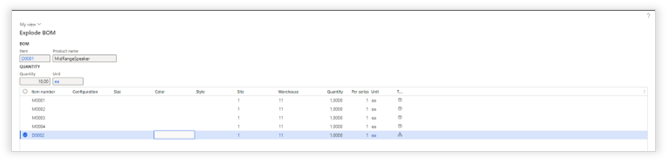
to containers in the shipment definition. When selecting the Explode BOM
action, it becomes possible to select items in the BOM of the selected shipment
definition line which must packed separately in the shipment definition. The selected line in the BOM will be added
as a new shipment definition line, marked as BOM explosion and put
directly under the originating shipment definition line. Note: Exploding a
BOM will not have impact on the inventory but is merely a "virtual" explosion
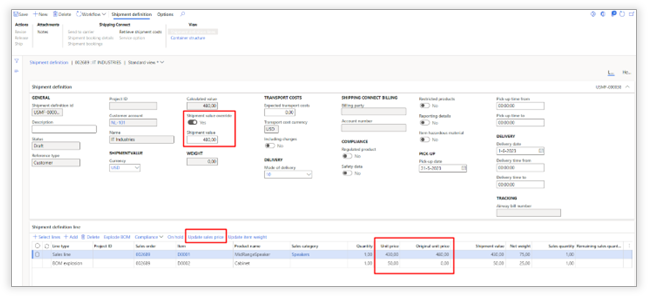
which can be used for packing and/or shipment documentation purposes. It is now possible to adjust the unit price
of a shipment definition line. Field Description Unit price The value of the shipment definition line
can be adjusted. For BOM explosion items, the initial
value will be 0. But any entered value will be deducted from the unit price
value of the originating shipment definition line. Original unit price Unit price on the sales order for the
shipment definition line. Shipment value override When the unit price is adjusted the
"shipment value override toggle" will be set and the shipment value field
will show the total value of the adjusted unit prices. Update sales price This action can be used to reset the unit
price to the original value. In addition to displaying and adjusting the
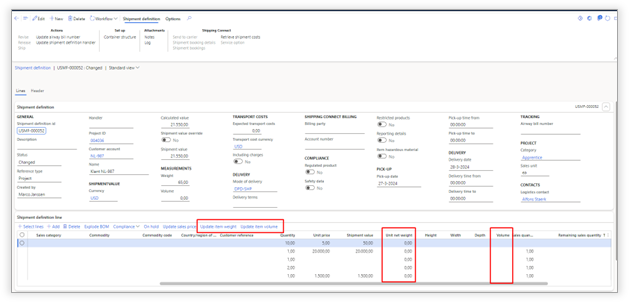
unit price, it is now also possible to show and adjust the weight and/or volume
of a shipment definition line. The initial shipment definition line net weight
and/or volume value will set from the net weight or volume value of the
released product. Field Description Net weight The value of the shipment definition line
can be adjusted. For BOM explosion items, the initial
value will be the net weight value of the released product. Any entered value
will be deducted from the net weight value of the originating shipment
definition line. Update item weight This action can be used to reset the net
weight to the net weight value on the released product. Update item volume This action can be used to reset the
volume to the volume value on the released product. Weight information can also be displayed on
individual containers based on the quantity of items and the assigned weights
to a container and the weight of the container itself. The total weight of the shipment definition
can be displayed in the general section and summarizes the total weight of all
containers and their items in the container structure. If there is no container
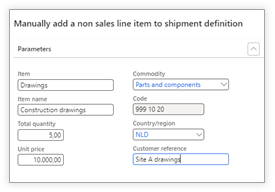
structure, this field will remain 0. It is possible to add non-sales orders
and/or non-stocked items to a shipment definition by using the Add
action. Field Description Item Identifier for the item. Item name Description of the item. Unit price Unit sales price of the item, the total
sales price for the item (sales price x the quantity) will be added to the
total value of the shipment definition. Total quantity Total quantity of the item. Commodity Ability to assign a commodity code to the
item Country/Region Ability to set the country of origin for
the item Customer reference Customer reference identifier for the
item Added items will be marked as Manual
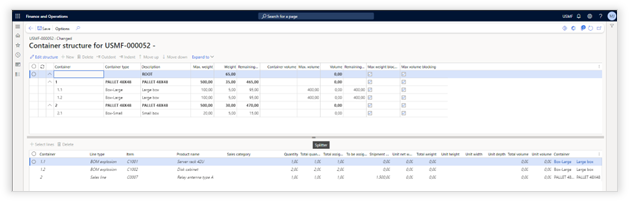
in the Line type field. It is possible to set up the container
structure on the header of the shipment definition and assign the shipment
definition line(s) to the defined container(s). Field Description View structure/edit structure Ability to edit and/or save the container
structure New Ability to add a new container and select
the container type Description Editable description of the selected
container type Outdent Ability to move the selected container to
a higher level in the container structure Indent Ability to set the selected container as
child of the above container Move up Ability to move the selected container up
in the container structure Move down Ability to move the selected container
down in the container structure Expand to Ability to expand the container structure
to a desired level Collapse all Ability to collapse the container
structure to the highest level Select lines Ability to select from the shipment
definition lines the quantity per container Delete Ability to delete a shipment definition
line from a container Any assigned container(s) to a shipment
definition line will be visible on the shipment definition line details. These
container(s) are clickable and will go directly to the container in the
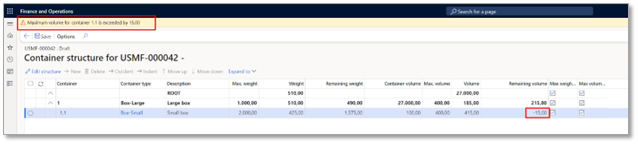
shipment definition. Axtension Shipping Control can use the
maximum weight and volume of container types in Dynamics 365 as a limitation in
setting up a container structure. Additional information is added to the
container structure related to individual containers, but also the container
tree weight and volume. Value Description Max. weight The maximum net weight set on the
container type. Weight The weight of a container including the
tare weight of the container, added items and the weight of any child
container(s). Remaining weight The remaining weight of the container (Max. weight - Weight) Container volume The container
volume set on the container type Max. volume The maximum volume set on the container Volume The used volume of a container including
any item volumes and the container volume of a child container Remaining volume The remaining volume of a container (Max. volume - Volume) Exceeding the maximum weight and/or volume
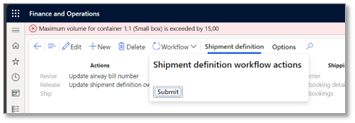
of a container will be shown as a warning in the container structure form: The validation on the maximum weight and
volume of container types will also prevent submitting the shipment definition
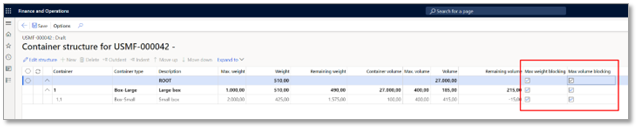
for approval: To ignore the weight and volume value
validation, it is possible to remove a blocking container from a shipment
definition when processing the shipment definition: The container structure of a shipment
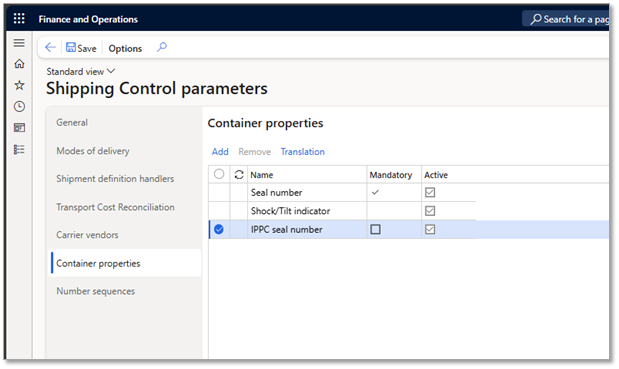
definition now can enter values based on predefined container properties. A
maximum of 20 container properties can be defined (no properties are set by
default) per legal entity in the Container properties tab of the Shipping
Control parameters. Per container property it is possible
to: -
Mark the property as mandatory. Per container in
the container structure will be checked if the property has a value. -
Mark the property as active. -
Delete the property only if it is not marked as
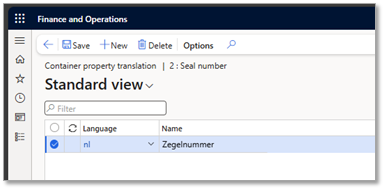
active and if the property has no value in one of the container structures. It is also possible to set per container
property a value per language used in a legal entity by selecting a container
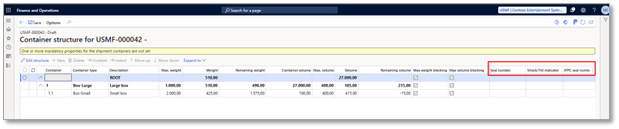
property and selecting Translation. Activated container properties will become
visible in the container structure of any shipment definition. Values can be entered as free text. If a container property is marked as
mandatory, a warning is shown if the value is kept empty. Submitting for approval is not possible if
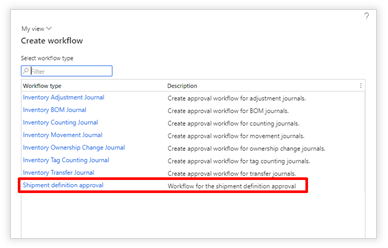
a container property remains empty. Axtension Shipping Control comes with the
workflow "Shipment definition approval". It is mandatory to at least set up an
(auto)approval action in the workflow, to be able to release the shipment
definition. The workflow contains conditional decisions which can check i.e. on
certain compliance types, shipment value, receiving country/region, etc. Based on the required setup, review tasks
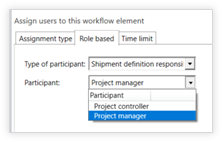
can be assigned to users and groups but also to the "Shipment definition
responsible". This can either be the project manager or
project controller set on the project of the shipment definition. After
approval the shipment definition becomes locked for editing. After approving the shipment definition
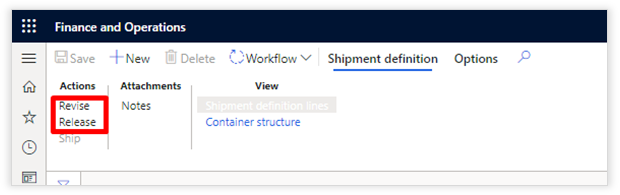
through the approval workflow, the options to Revise or Release
the shipment definition become available. When selecting Revise the approval
gets removed and the status of the shipment definition becomes Changed.
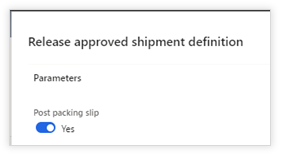
The shipment definition also becomes available for editing. When selecting Release a pop up
appears with the ability to directly post the packing slip when releasing the
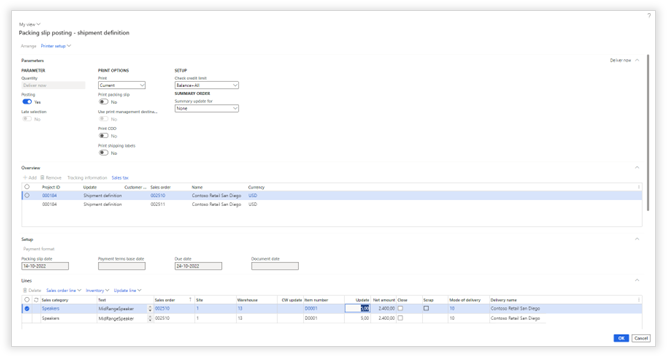
shipment definition. When enabling a standard Microsoft Dynamics
365 packing slip, a form will be shown containing the items and quantity on the
shipment definition. If for any reason a Microsoft Dynamics 365
is unable to post the packing slip, a warning will be shown for the user to
decide if the shipment definition can be released or not. Note: The packing
slip process is not part of Axtension Shipping Control. Any issues with
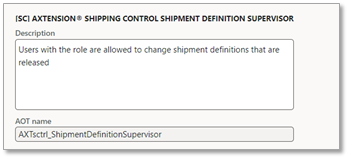
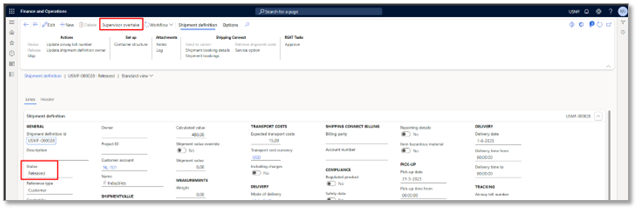
packing the posting slip must be dealt with in Dynamics 365. The role Axtension Shipping Control
Shipment definition supervisor can take over a shipment with the status Released
via the action Supervisor overtake. This action allows users with the
supervisor role to take control and adjust a shipment definition without going
through the approval process. A shipment definition which is controlled
by a supervisor cannot be processed to the status Shipped. After adjusting the shipment definition,
the Supervisor release action can be used to release the shipment
definition for processing. Taking over control of a shipment
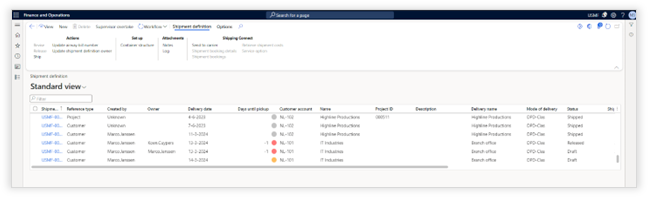
definition by a supervisor will be logged in the shipment definition log. The All shipment definition list
page contains an overview of all shipment definitions, regardless of the
status. Customers can create their own views based on their requirements. Indicators Indicators for shipment definitions are
introduced in the shipment definition list page to visualize the remaining days
until the pick-up date. The remaining days are shown and indicated
with a color based on the pick-up date: Color Description Green The pick-up date is more than 3 days from
today Orange The pick-up date is within the next 3
days Red The pick-up date is overdue Grey The shipment definition has the status
shipped It is possible to directly send released
shipment definitions to the carrier configured for the mode of delivery
selected on the shipment definition. When the Send to carrier action is
selected, Axtension Shipping Connect will generate a shipment booking based on
the information of the shipment definition. On this shipment booking it is possible to
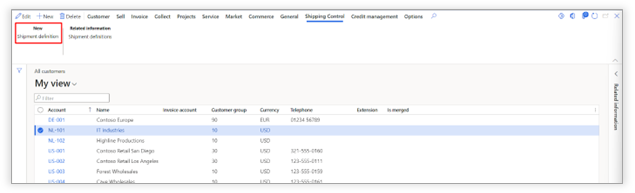
adjust: - The sending address - Pick up date and time - Requested delivery date and time When selecting a customer from the "All
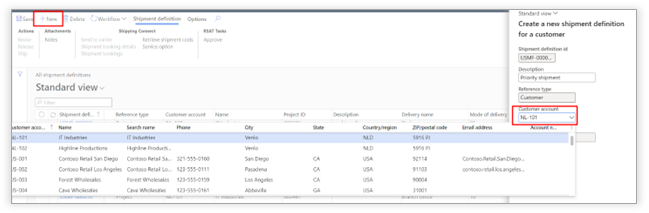
customers" list page, it is possible to create a shipment definition directly
for a customer. From the "All shipment" definition list
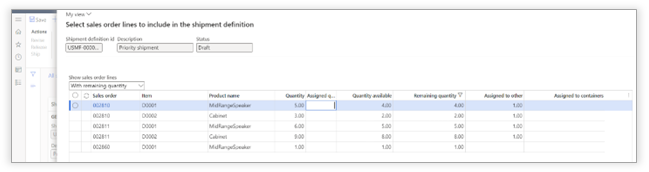
page it is now possible to create a shipment definition for a customer. With the Select lines action it is possible
to assign items with quantity from sales order lines with a remaining quantity. Note: Make sure
to assign a shipment definition enabled mode of delivery on a sales order(s) to
create a shipment definition for the sales order(s) A shipment definition can be created from
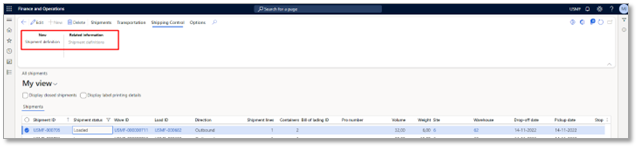
Warehouse Management shipments with the status Loaded and Shipped. For
Warehouse Management shipments with the status loaded or shipped a new action
is available to create a shipment definition based on the items and container
structure set in the Warehouse Management shipment. Handling shipment definitions based on
Warehouse Management shipments is identical to how shipment definitions can be
created from a sales order or projects. To distinguish shipment definitions from
their origin, a new data update task is introduced. Note: Any
adjustments in the container structure of a shipment definition are not synced
back to the Warehouse Management shipment. The data update cockpit can be opened and
executed via Inventory
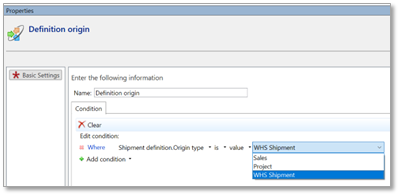
Management > Periodic tasks > Shipping Control > Data update cockpit. The workflow conditional decision Shipment
definition.Origin type can be used to check the origin of the shipment
definition: Note: To
create a shipment definition for a Warehouse Management shipment mandates the
use of a mode of delivery enabled for shipment definitions on the original
sales order(s). Using a mode of delivery disables the automatic creation of
shipment bookings with Axtension Shipping Connect when closing containers via
pack stations. Creation of shipment bookings for a
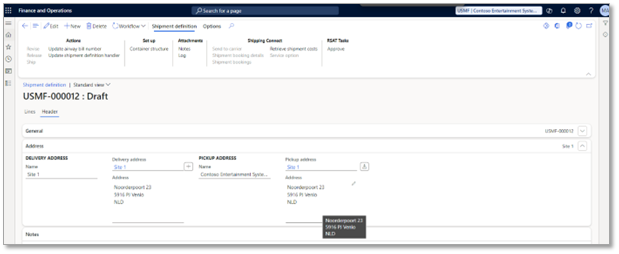
Warehouse Management shipment can be done via the shipment booking. A shipment definition can be created on the
Transfer Order. Note: The
Transfer Order will need to have a mode of delivery assigned which is enabled
for shipment definitions. Shipment definitions created from Transfer
Orders will show: -
Reference type: Transfer
order -
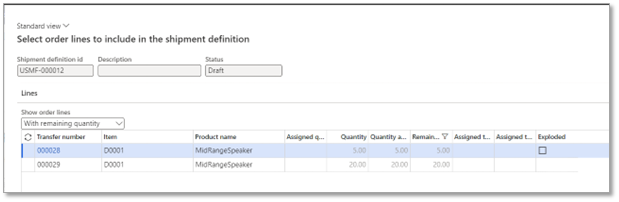
Warehouse information: from and to warehouse. From these warehouses the addresses are used
on the shipment definition. The Select lines action will show
any other Transfer Order lines with remaining quantity from other Transfer
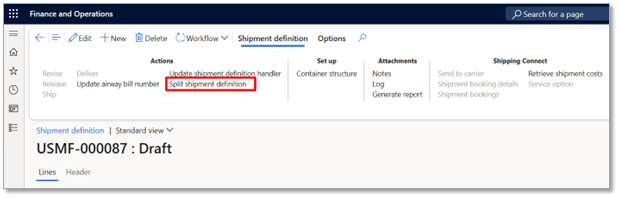
Orders but with the same from and to warehouses. Splitting a shipment definition can be done
by using the Split shipment definition action from Shipment
definition ribbon. To split a
shipment definition into a new or existing shipment definition a form is
displayed wherein the split can be applied according to the following criteria: -
A new shipment definition will be created
automatically, or an existing shipment definition can be used by selecting the
toggle -
Add to existing shipment definition. When selecting an existing shipment definition only shipment ID's
for the same customer can be selected. -
The column Available for split shows the
quantity which is not assigned to a container. -
The amount that needs to be added to a new or
existing shipment definition can be defined in the column Quantity to split
. If the BOM of a
shipment definition line is exploded in the shipment definition, the BOM lines
will be split by using the relative amounts of the splitted shipment definition
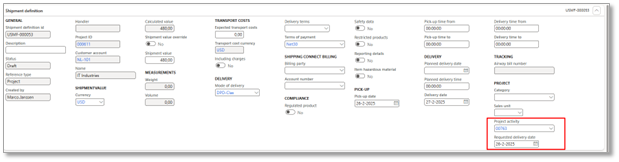
line. Project related Shipment definitions can
now be related to published project activities. This integration allows to select a
specific project task per shipment definition and use either the start or end
date of the selected task as requested delivery date. Activities and/or the requested delivery
date can be assigned, changed or deleted on shipment definitions with the
status draft, review, changed and supervise. Changing the schedule of a project task
which has a related shipment definition, will automatically update the
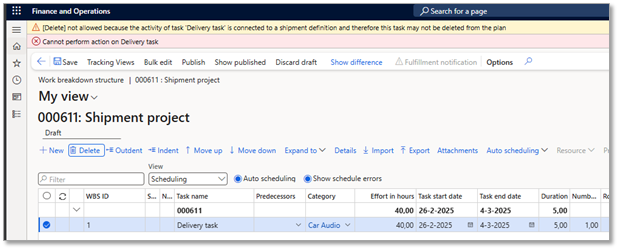
requested delivery date of the specific shipment definition. It is not possible to delete or indent a
project task which has a related shipment definition, such action will be
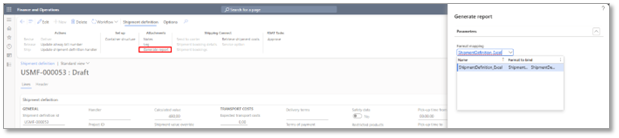
blocked, and an error message will be shown. Axtension Shipping Control now comes with
an out of the box data model and format for Electronic Reporting in D365.
Having set up Electronic Reporting with the Axtension Shipping Control
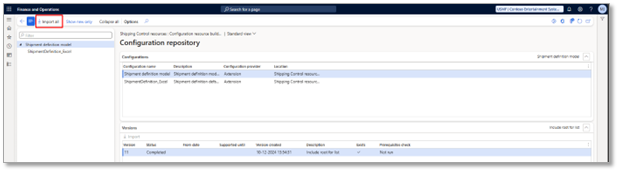
repository, allows to generate reports from a selected shipment definition. Follow the next steps to enable Axtension
Shipping Control in Electronic Reporting. 1.
Load the repository open Organization
administration > Electronic Reporting > Configuration provider table. 2.
Open the Electronic Reporting workspace
in Organization administration and select the Axtension repositories
action. 3.
Open the Shipping Control resources repository. Note: The out of the box format can be used as
an example report. No further support is given on this format, other formats or
the setup of Electronic Reporting. go to Microsoft Learn for more information
about Electronic Reporting. 4. Select Import all, to set up Electronic Reporting with the
data model and out of the box format. Organizations using the Advanced Export
Control feature in Dynamics 365 can validate changes in shipment
definitions against the setup in Advanced Export Control. The integration of Axtension Shipping
Control with Advanced Export Control can validate changes in a shipment
definition against the jurisdiction(s) set in Advanced Export Control in the
following scenarios: Manual validation By using the action Check export control
users can check the shipment definition against a specific purpose in Advanced
Export Control. Submit for approval Depending on the jurisdiction in Advanced
Export Control, a shipment definition can be blocked or show a warning when
submitting it for approval. When submitting a shipment definition for approval
the shipment definition is checked in Advanced Export Control. Setting the status to released or
shipped Similar as when submitting a shipment
definition for approval, a shipment definition can be blocked or show a warning
when changing the status to released or shipped. When changing the status to
released or shipped the purpose packed is used from the Advanced Export
Control. Sell-to country. The field Sell-to country is used to
check the sell-to restrictions in the jurisdiction(s) set in Advanced Export
Control. The initial value of this field is based on the Invoice account value
from the sales order. Export control information of a specific
shipment definition can be found via the Export control check history
action. More information about Advanced Export
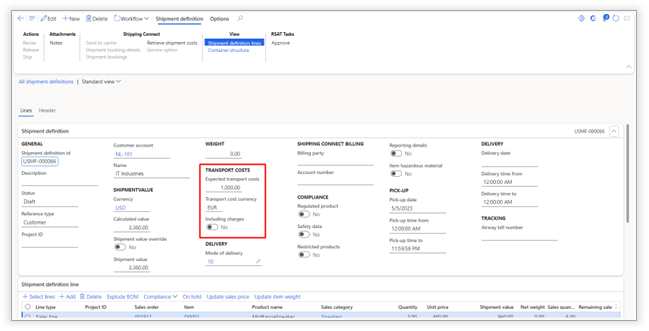
Control and how to set this up can be found on Microsoft Learn. Expected transport costs can be entered on
shipment definitions by using the field "Expected transport costs". In addition to expected transport costs, it
is possible to define the "currency" and if "charges" are included in the
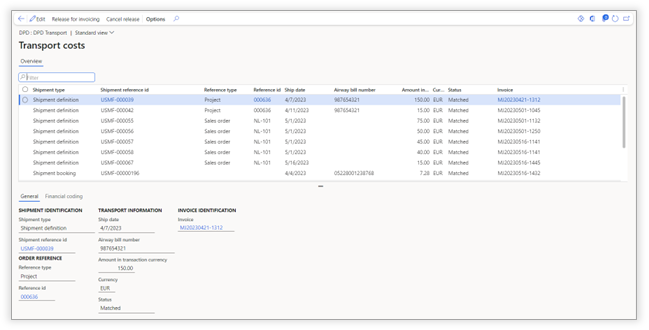
expected transport costs. Transport costs are stored per carrier
vendor which is configured on the selected "mode of delivery" on the shipment
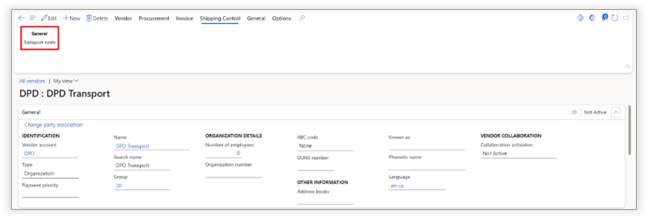
definition. The transport costs can be displayed via
the action "Transport costs". More information about matching the
transport costs with carrier invoices can be found in the section Transport
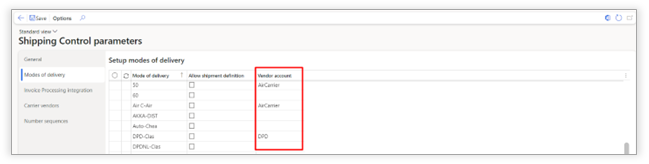
invoice matching in this manual. Configuring an existing (carrier) vendor on
a mode of delivery can be done in the Shipping Control parameters. For organizations using Axtension Shipping
Control with Axtension Shipping Connect, transport costs of shipment bookings
can be retrieved when creating the shipment booking at nShift Transsmart and/or
nShift Delivery. The transport costs of shipment bookings are stored on the
configured vendor for the selected mode of delivery. Organizations using both Axtension Shipping
Control and Axtension Invoice Processing will have the ability to match carrier
invoices against the expected transport costs of that carrier. When both solutions are installed and
enabled, the following configuration form and functionality becomes available: Configure Axtension Invoice Processing integration Axtension Shipping Control supports
multiple shipment bookings. Per shipment booking, it is possible to define
which procurement category is used to create the matching details on the vendor
invoice. The following shipment booking options are
only available when Axtension Shipping Connect is installed and enabled. - Procurement category generic shipment - Procurement category sales order - Procurement category purchase order - Procurement category return order - Procurement category transfer order Configuring carrier vendors In the Shipping Control parameters, it is
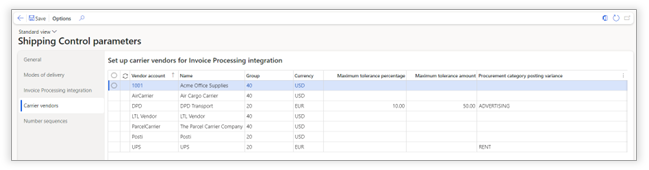
possible to configure how invoice matching should be handled per carrier
vendor. Color Description Vendor account ID of the registered vendor in Dynamics
365 Name Name of the vendor Group Configured group of the vendor Currency Default currency set on the vendor Maximum tolerance percentage Maximum tolerance percentage on which the
vendor invoice can differ with the total released amount transport costs Maximum tolerance amount Maximum tolerance amount on which the
vendor invoice can differ with the total released amount transport costs Procurement category posting variance Select which procurement category is used
to post any variance amount on the vendor invoice. Axtension Invoice Processing has been
extended to be able to process invoices from carriers. To process carrier
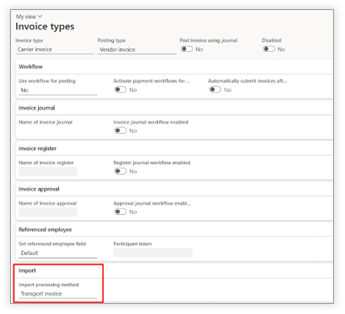
invoices the following improvements have been added: Adjusted import processing method: The import processing method is set to
"Transport Invoice" on the invoice type. Axtension Invoice Processing will use
the imported invoice to match the invoice totals with the released transport
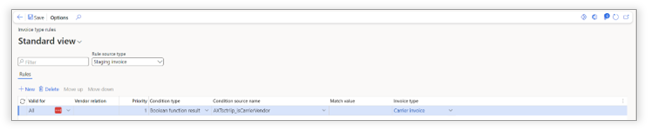
cost amount of the vendor. New invoice type rule Two new invoice type rules have been added
to recognize an invoice as a carrier invoice. Color Description AXTsctrip_isCarrierVendor If the vendor of the invoice is
configured as vendor on a mode of delivery, the invoice will be handled as
carrier invoice. This should be the preferred condition to recognize a
carrier invoice. AXTsctrip_isCarrierInvoice If the invoice contains a value for
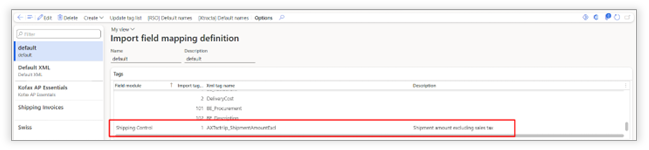
shipment transport costs, the invoice will be marked as a carrier invoice. New import field for Shipment amount Axtension Invoice Processing can import and
process shipment amounts (excl tax) from a carrier invoice. Normally these amounts reflect the total
shipment transport costs for the customer of the used service levels. The value
of the shipment amount should be handled without any charges. If charges are
included in the expected transport costs, the net amount on the invoice is used
to match the invoice against the expected transport costs. Note: Further
information and configuration guidance for handling invoices can be found in
the Axtension Invoice Processing documentation. 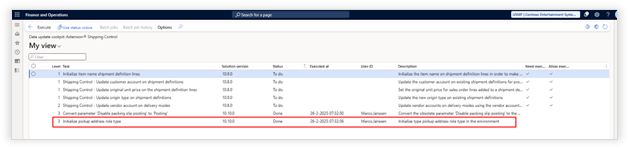
Shipment definitions on Projects
Creating a shipment definition

Setup
Shipment definition
Planned delivery date and integration
with Axtension Shipping Connect
Shipment definition lines

Adding a sales order line
Exploding the BOM

Adjust
shipment definition line value
Show
item weight and volume
Adding a manual item

Creating
a container structure

Use
container weight and volume limitations

Enter container specific
properties
Shipment
definition approval

Releasing a shipment definition
New
supervisor role

All shipment definition list page

Send to carrier
Create shipment definition for sales
orders
Create
shipment definition directly from a customer
Create
shipment definition from all shipment definition list page
Add
sales order lines

Create
shipment definitions from Warehouse Management shipments

Create shipment definitions from transfer orders

Split shipment definition

Connect shipment definition with a
project activity
Shipment definition reports
Configure Electronic Reporting for
Axtension Shipping Control

Integration with Advanced Export Control





Transport cost handling
Transport
costs on shipment definitions
Transport
costs from shipment bookings
Transport invoice
matching

Configure Axtension Invoice
Processing