Setup
General
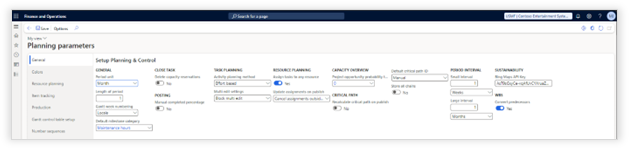
The Visual Planning parameters are in the following menu item: Project management and accounting > Setup > Planning & Control > Planning parameters

The following parameters are available on the “General” tab in the “Planning parameters”:
|
Parameter |
Description |
|
GENERAL |
|
|
Period unit |
This unit specifies the default planning horizon that will be shown from today on forward when a form is opened without any context. |
|
Length of period |
This length specifies the number of periods that will be shown from today on forward when a form is opened without context. |
|
Gantt week numbering |
It is possible to configure per legal entity the week numbering. Locale: Setting the week numbering according to the user locale settings in Dynamics 365 ISO8601: Setting the week numbering according to the ISO8601 standard US: Setting the week number according to the US standard |
|
Default milestone category |
The selected project category will be set according to the predefined parameter. |
|
CLOSE TASK |
|
|
Delete capacity reservations |
When set to yes, the system will remove the capacity reservations for tasks that are marked as “closed”. This will free up the resource to be assigned to a different task. |
|
GANTT DEFAULTS |
|
|
Show Projects |
When set to yes, intercompany linked projects linked will be shown in the task planning by default.
|
|
POSTING |
|
|
Manual completed percentage |
When set to yes, the user needs to update the percentage of completion manually. This will show the earned hours on an activity next to the posted hours and the hours to complete. When set to no, the system will update the percentage of completion based on hours posted.
|
|
TASK PLANNING |
|
|
Activity planning method |
Calculate based on effort This method calculates the progress based on effort. This can be the preferred method for organizations that want to know what the impact is going to be on the “Task effort at complete” based on the “Task effort to complete” in combination with the “Posted hours”.
Calculate based on performance This method calculates the progress based on performance. This can be the preferred method for organizations that want to know what the impact is going to be on the “Task effort at complete” based on the “Reported progress” in combination with the “Posted hours”.
See chapter “Activity planning method” for more information.
|
|
Multi-edit setting |
Block multi-edit: Do not allow multi-project edit if one of the projects is already in draft. Allow publishing of projects already in draft: The person initiating a multi-project edit can publish any existing draft version on the selected projects. Allow discarding of projects already in draft: The person initiating a multi-project edit can discard any existing draft version on the selected projects. Allow publishing and discarding of projects already in draft: The person initiating a multi-project edit can discard any existing draft & publish version on the selected projects. |
|
RESOURCE PLANNING |
|
|
Assign tasks to any resource |
When set to yes, a resource that has non-matching competencies can be assigned to a task after confirming a warning message. This applies to human resources and their roles as well as machined resources and their capabilities. |
|
Update assignments on publish |
Reassign to new period: Resource assignment is behaving as it previously was when a task is rescheduled. The resource assignment will move with the task schedule. Cancel assignments outside activity window: Any assignment outside the new task schedule will be removed from the applicable resources and moved as unassigned time to the required role of the task. |
|
CAPACITY OVERVIEW |
|
|
Project quotation probability threshold |
Set the minimal probability for a project quotation WBS to be considered when viewing the histogram, or capacity overview, on resources and roles. When set to 0, the system will include all quotation WBS capacity in the histograms and capacity overview. When set to a percentage, the following criteria must be met to see the capacity impact. A Project Quotation needs to be linked to an Opportunity The opportunity probability percentage needs to be equal to, or higher than the defined percentage in the “project quotation probability threshold”. |
|
CRITICAL PATH |
|
|
Recalculate critical path on publish |
When set to yes, the default for recalculating the critical path on publish is set to yes. |
|
Default critical path ID |
Manual: The manual option applies the same behavior as in previous versions of Axtension Planning & Control, by forcing the manual creation of a critical path per project. Unique per (sub)project: This setting will create a critical path per (sub)project at project creation. Project + sub-projects: This setting will create a critical path per main project at project creation; any sub-projects will inherit the critical path of the main project. |
|
PERIOD INTERVAL
In both task & resource planning the date range that is visualized can be adjusted by selecting two dates. These dates can be selected manually, or you can use the small & large intervals
|
|
|
Small interval
|
The small interval allows the user to change a date with a single click by days, weeks, or months. |
|
Large interval
|
The large interval allows the user to change a date with a single click by days, weeks, or months. |
|
SUSTAINABILITY |
|
|
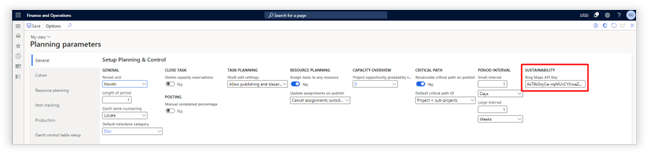
Bing Maps API Key |
Field to enter the Bing Maps API key to calculate resource travel distances in the Resource planning. |
Configure task information
The following parameters are available on the “Configure task information” tab.
|
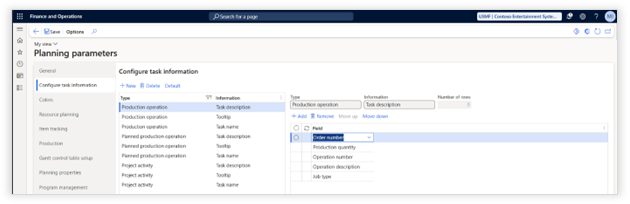
Configure task information
This allows for configuration what information should be displayed on the job/operation, in the tooltip (when you hover over a task with your mouse) and on the description (show in the grid).
|
|
|
Type |
Select for which type of order the setup
should apply: |
|
Information |
Select where you would like to change the information shown:
Task description - The description of a task displayed in the grid on the left side of the screen.
Tooltip - The description of job/operation when you hoover over a task.
Task name - The description shown in the Gantt bar
|
|
Configure description |
Select the fields that should be shown and sequence them with the up and down buttons.
|
|
Number of rows |
See for more information Increase row heigt in resource planning. |

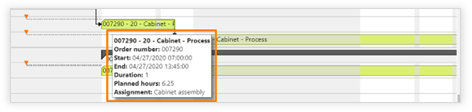
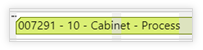
Increase row height in resource planning
To improve readability and comprehensibility of the project activity information in the resource planning, it is now possible to set the numbers of rows on the task name and what information needs to be shown per row.
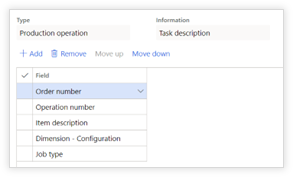
To configure the number of rows and what information needs to be shown, select the “Project activity” in the “Type” column and “Task name” in the “Information” column. The “Number of rows”, add the “Fields that need to be displayed and assign the “Row number” to determine the orders.
Colors
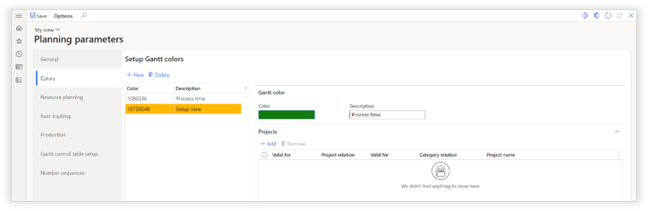
The following parameters are available on the “Colors” tab in the “Planning parameters”:
|
Parameter |
Description |
|
GANTT COLOR |
|
|
Color |
Define the color that should be applied to the activities that comply with the rule’s set up below. |
|
Description |
Provide a clear description that describes when this color is applied. |
|
PROJECTS |
|
|
Valid for |
Table: this color applies to a single project Group: this color applies to a group of projects All: this color applies to all projects |
|
Project relation |
When “Valid for” contains Table, select a project When “Valid for” contains Group, select a project group |
|
Valid for |
Table: this color applies to a single project category Group: this color applies to a project category group All: this color applies to all project categories |
|
Category relation |
When “Valid for” contains Table, select a project category When “Valid for” contains Group, select a project category group |
|
Project name |
This field shows the project name that belongs to the project selected in the “project relation” field. |
Resource planning
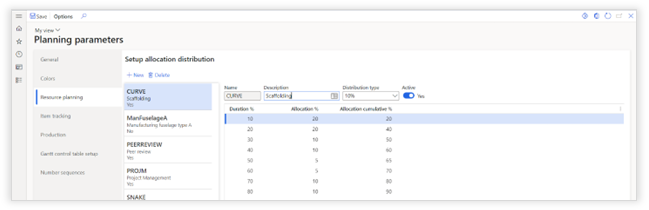
The following parameters are available on the “Resource planning” tab in the “Planning parameters”:
|
Parameter |
Description |
|
GENERAL |
|
|
Name |
Name for the Allocation distribution |
|
Description |
Description of the Allocation distribution |
|
Distribution type |
Selection of the level of detail for the distribution |
|
Active |
When enabled the Allocation distribution can be used on project tasks, enabled Allocation distributions cannot be changed. To apply changes the Allocation distribution must be inactivated. |
|
Duration % |
Number of lines are created based on the distribution type. |
|
Allocation % |
Manual entry for the allocation % per line. |
|
Allocation cumulative % |
Cumulative calculation of all allocation %. |
Item tracking
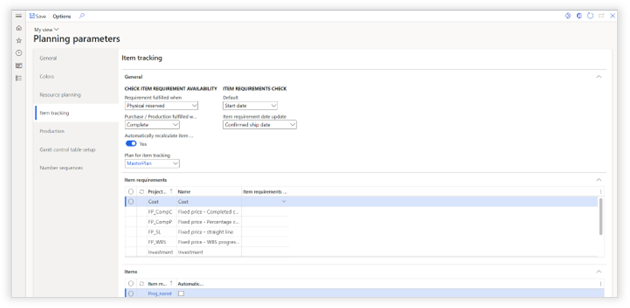
The following parameters are available on the “Item tracking” tab in the “Planning parameters”:
|
Parameter |
Description |
|
CHECK ITEM AVAILABILITY |
|
|
Requirement fulfilled when |
Physical reserved: the system will show that the items tracked on an activity are
available when the inventory is physical reserved and on-hand. On hand available physical: the system will show that the items tracked on an activity are currently available. |
|
Purchase / Production fulfilled when |
Items will be shown as available when: |
|
Automatically recalculate item availability |
When set to Yes, the system will constantly validate automatically if the items linked to an activity via item tracking are available. When set to No, the validation of item availability needs to be manually initiated. |
|
Plan for item tracking |
When item availability is validated and there is no reservation, the master plan identified in this field will be used to check on “delay’s”. |
|
ITEM REQUIREMENTS CHECK |
|
|
Default |
When linking items to an activity via item tracking, the required date for the items can be defined based on the activity start or finish date. This field allows for setting a default in tracking the item’s availability. |
|
Item requirement date update |
Configure the date that will be updated on the item requirement or sales order, when an item is linked to an activity. |
|
ITEM REQUIREMENTS |
|
|
Project group |
Shows project group |
|
Name |
Shows project group name |
|
Item requirements check |
This setting overrules the default specified in “Item requirement check - Default” specified above for the project group specified. |
|
ITEMS |
|
|
Item model group |
Shows item model group |
|
Automatically track |
Select the item model groups that should be automatically put in “Item tracking” on activity level. Only items that are linked via “item tracking” to an activity will be visualized. |
Production
The production menu is not applicable to Axtension Project management. Please review the Axtension Production Planning manual for more details.
Gantt control table set
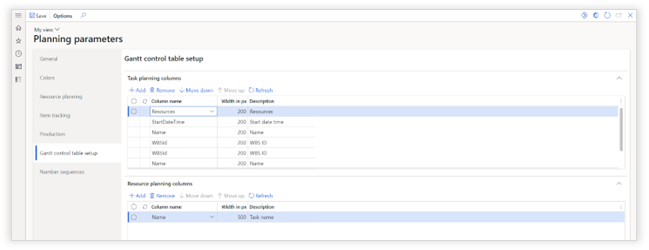
The following parameters are available on the “Gantt control table set” tab in the “Planning parameters”:
|
Parameter |
Description |
|
TASK PLANNING COLUMNS |
|
|
Column name |
Activity field that should be displayed |
|
Width in px |
Number of pixels that should be used to show the information |
|
Description |
Description of the column name |
|
RESOURCE PLANNING COLUMNS |
|
|
Column name |
Activity field that should be displayed |
|
Width in px |
Number of pixels that should be used to show the information |
|
Description |
Description of the column name |
Program management
If inventory is going to be requested from one to another program a specific transfer journal is going to be used.
The desired inventory transfer journal for processing inventory requests in the Project Inventory module can be set here.
Project Parameters
To edit the project parameters, navigate to Project management and accounting > Projects > All projects under the visual planning tab you will find the Planning for projects - Project parameters.
General
The following parameters are available on the “General” tab in the “Project parameters”:

|
Parameter |
Description |
|
|
POSTING |
||
|
Manual completed percentage |
Overrule the default parameter on project level.
When set to yes, you will need to manually update the percentage of completion. This will show the earned hours on an activity next to the posted hours and the hours to complete. When set to no, the system will update the percentage of completion based on hours posted. |
|
|
CRITICAL PATH [MOVED FROM PROJECT TAB “SETUP”]
A critical path ID is by defaulted by the project ID but can be changed. A critical path calculation is executed per ID, this means, all projects linked to the same ID will get one critical path. Linking multiple projects to the same ID is typically done for projects that have dependencies between them.
|
||
|
Critical path ID |
|
Add this project to an existing critical path calculation |
|
|
Create a new critical path ID |
|
|
|
Unlink the project from the critical path ID |
|


Intercompany
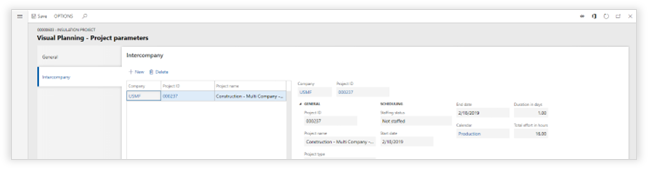
The following parameters are available on the “Intercompany” tab in the “Project parameters”:
|
Parameter |
Description |
|
INTERCOMPANY |
|
|
Company |
Select the legal entity of the related project. This company can also be the same company as the originating project’s legal entity. This allows for linking intra-company as well. |
|
Project ID |
Select the project that should be shown in the planning when enabling “show intercompany projects” |
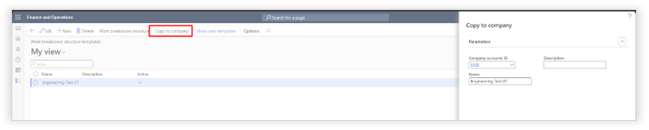
Copy WBS templates to other organizations
WBS templates can be copied to other organizations.
Note: Copying a WBS template to another organization is done by best effort.
Estimate lines which contains categories, items, etc. and does not exist in the target organization will not be copied over.
Roles, competences, etc. which don’t exist in the target organization will be left out empty.
Task Planning
Accessing Task planning
Task planning can be opened in 2 different ways:
1. Project management and accounting > Planning for projects > Task planning
The task planning will show all projects and activities that are active within the date ranges defaulted.
2. Project management and accounting > Projects > All Projects > Planning for projects > Task planning
or
Project management and accounting > Quotations > Project quotations > Planning for projects > Task planning
The task planning form will show one or multiple projects or quotations selected from start to end.
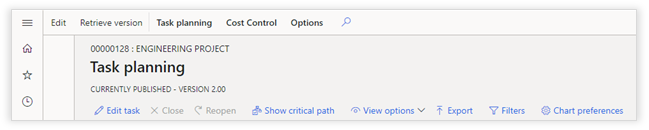
Task planning (Published mode)
GANTT
|
Function |
Description |
||||||||||||||||
|
Edit Task |
Open the edit menu for selected tasks |
||||||||||||||||
|
Close |
Set the selected task as completed |
||||||||||||||||
|
Reopen |
Set a completed task as open |
||||||||||||||||
|
Show critical path |
Outline the activities that are included in the critical path |
||||||||||||||||
|
View options |
|
||||||||||||||||
|
Export |
|||||||||||||||||
|
Export |
Export the selected project WBS as a template. This is the same function that can be triggered from the standard Work Breakdown Structure screen.
|
||||||||||||||||
|
Export summary task |
Export a selected summary task together with underlaying task as a template. |
||||||||||||||||
|
FILTERS |
|||||||||||||||||
|
Select view |
All filters can be stored in a view. Within this dropdown a stored view can be selected. The “Save as view” button, saves the filters set in the form below as a “view”. |
||||||||||||||||
|
Estimated planning status |
Within scheduled effort (LIGHT GREEN): Shows all tasks that have an estimated total effort with less than 100% load of the planned effort of the task. On scheduled effort (BRIGHT GREEN): Shows all tasks that have an estimated total effort with a load of 100% of the planned effort of the task. Less than 10% over schedule (LIGHT RED): Shows all tasks that have an estimated total effort between 100% and 110% of the planned effort of the task. More than 10% over schedule (BRIGHT RED): Shows all tasks that have an estimated total effort higher than 110% of the planned effort of the task.
NOTE: This option is only available when “Show estimated planning status” is enabled in the chart preferences. |
||||||||||||||||
|
Resource load status |
Capacity remaining (LIGHT GREEN): Shows all tasks that have resources assigned with less than 100% load during the total duration of the task Full capacity (BRIGHT GREEN): Shows all tasks that have resources assigned with a load of 100% during the duration of the task. Lightly overloaded (LIGHT RED): Shows all tasks that have resources assigned with a load between 100% and 110% during the duration of the task. Overloaded (BRIGHT RED): Shows all tasks that have resources assigned with a load higher than 110% during the duration of the task.
NOTE: validation is done for the duration of a task, not on individual assignment. NOTE: This option is only available when “load resource availability” is enabled in the chart preferences. |
||||||||||||||||
|
Material status |
Planning error (RED): Materials are delayed. Not available (ORANGE): Materials are not available yet. Available (GREEN): Depending on the parameters, the materials are on hand, or on-hand and reserved. Consumed (GRAY): Materials are consumed on the project. Available & picked (BLUE): Materials are available and have already been picked at the warehouse but not yet consumed. |
||||||||||||||||
|
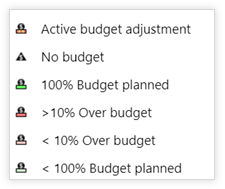
Budget status |
No budget: Tasks without budget Within budget: Task that are within budget On budget: Tasks that are exactly on budget Less than 10% over budget: The planned cost are max 109% of the budgeted costs More than 10% over budget: The planned cost are 110% or more over budgeted costs Budget adjustment requested: There is an active budget adjustment for the CBS code linked to the task
NOTE: This option is only available when “Show budget status” is enabled in the chart preferences. |
||||||||||||||||
|
Category |
Filter activities shown based on category. Multi select allowed. |
||||||||||||||||
|
Project |
Select the projects that should be included in the filter. This dropdown will only show projects that are in the current Gantt view. |
||||||||||||||||
|
Role |
Only show tasks assigned to the selected roles. |
||||||||||||||||
|
Show only critical path |
Show only tasks that are part of the critical path. |
||||||||||||||||
|
Progress |
Only with progress: Show only tasks with a percentage of completion |
||||||||||||||||
|
Show only summary tasks |
When toggle is set to yes, the system will only show summary tasks. |
||||||||||||||||
|
Milestones |
Only milestones: Show only milestones No milestones: exclude milestones from the view. |
||||||||||||||||
|
Staffing status |
Not staffed: Shows only activities which are not staffed at all Partially staffed: Shows only activities which are partially staffed Fully staffed: Shows only activities which are fully staffed Fully staffed with conflict: Shows only activities which are fully staffed, but on which the selected resources might have a load issue |
||||||||||||||||
|
CBS code |
Only show tasks that are linked to one of the selected CBS codes |
||||||||||||||||
|
Buttons |
Reset filter: Set all filters to default OK: Apply filter Cancel: Close screen without applying filters. |
||||||||||||||||
|
CHART PREFERENCES |
|||||||||||||||||
|
From |
From date selection used by Gantt (intervals can be changed in the Visual Planning parameters) |
||||||||||||||||
|
To |
To date selection used by Gantt (intervals can be changed in the Visual Planning parameters) |
||||||||||||||||
|
|
Lock the period duration, allows the user to simultaneously move the “from” and “to” date when using the small & large interval buttons. |
||||||||||||||||
|
Show tasks |
Active:
Tasks that have not yet been closed. |
||||||||||||||||
|
Show item tracking |
When toggled enabled the items linked to an activity will be visualized directly in the planning. |
||||||||||||||||
|
Gantt control table setup |
Users can adjust the default set of columns in the task planning to their own needs. This option is available in the chart preferences.
|
||||||||||||||||
|
PROJECT |
|||||||||||||||||
|
Show projects |
None: Don’t show any projects Current company: Show projects from the current legal entity Intercompany: Show all linked projects |
||||||||||||||||
|
Include subprojects |
When set to yes, show sub-projects from selected project(s) down |
||||||||||||||||
|
Include linked projects |
Show all projects that are linked via an activity as a predecessor or successor activity. |
||||||||||||||||
|
Baseline version |
Select a baseline and compare your current plan to the selected baseline. |
||||||||||||||||
|
Show resource availability |
The icon on tasks indicating if the resource assigned to the task is overloaded during the duration of the tasks. The option to filter on this resource status |
||||||||||||||||
|
Show estimated planning status |
The progress bar showing a color representing the estimated effort on a task. The option to filter on this task status |
||||||||||||||||
|
Show budget status |
The icon on tasks indicating if the task has a budget linked and its status. The option to filter on the budgeting status of tasks The fact pane showing details in relationship to budget status |
||||||||||||||||
|
PRODUCTION (Only when Axtension Production Planning is licensed) |
|||||||||||||||||
|
Production orders |
Show related production orders and their planning |
||||||||||||||||
|
Planned production orders |
Show related planned orders and their planning |
||||||||||||||||
|
Site |
Filter (planned) production orders on site |
||||||||||||||||
|
Master plan |
Show planned production orders based on this master plan |
||||||||||||||||

Action ribbon TASK PLANNING

|
Function |
Description |
|
Bulk Edit |
Update the “Progress” and “Estimated hours remain” for activities in the progress and estimate data set. |
|
Edit |
Take project plan into the draft and make changes. |
|
Retrieve version |
Take one of the previous versions and restore it as a draft. |
|
TASK PLANNING |
|
|
Resource planning |
Open resource planning for a selected project |
|
Capacity overview |
Open the capacity overview for a selected project |
|
Publish log |
This log contains the publishing status when doing a multi project publish. |
|
Resource assignments |
This will open the “edit assignments” from. Within this form, you can adjust the assignment of the selected tasks per resource per day. This screen only works if resources have already been assigned to the selected task. The assigning of resources can be done both directly on the edit activity form and via resource planning. |
|
Update effort |
This can update the value of “Effort in hours”, based on the value of “Estimated total effort”. |
|
Calculate critical path |
Pressing this button will trigger the calculation of a critical path based on all projects assigned to the same critical path ID (defined in the project parameters). |
|
Move |
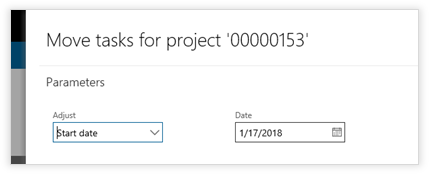
Only available in draft mode. This function allows moving a project forward from a new start date or backwards from a new end date.
|
|
EXPORT |
|
|
File name |
Ability to adjust the generated file name. |
|
Page format |
Ability to choose the desired page format. |
|
Page orientation |
Ability to choose the desired page orientation. |
|
Print mode |
Single page: The selected task- and/or resource planning will be exported to a single page. Cutting marks: The selected task- and/or resource planning will be exported to multiple pages (based on page format and orientation), as each page being part of the total plan. Paging: The selected task- and/or resource planning will be exported to multiple pages (based on page format and orientation), including the columns on each page.
|
|
COST CONTROL |
|
|
Only active if Axtension Project Controlling is licensed. |
|
Edit activity form
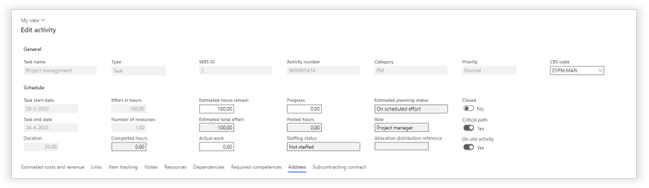
|
Function |
Description |
|
General |
|
|
CBS code |
Link the activity to one of the CBS codes
NOTE: Only available if Axtension Project Controlling is licensed NOTE: This field can only be changed on a published task. |
|
EDIT ACTIVITY (Published Task) |
|
|
Task effort to complete |
See chapter “Activity planning method” for more information |
|
Task effort at complete |
See chapter “Activity planning method” for more information |
|
Actual Work |
Actual time spent on activity in hours. NOTE: Legacy purposes only. New implementations should hide this field. |
|
Completed Percentage |
See chapter “Activity planning method” for more information |
|
Progress |
See chapter “Activity planning method” for more information |
|
Estimated planning status |
Based on the “Estimated total effort”, this field will show how the task’s planning is performing in comparison with the planned “Effort in hours”. This field shows three statuses: - Within scheduled effort - On scheduled effort - Less than 10% over scheduled effort - More than 10% over scheduled effort
|
|
Closed |
When enabled activity is completed and percentage completed will be set to 100 |
|
DETAILS |
|
|
Estimated cost and revenue |
See all cost lines associated with the activity. And additionally Estimates on remaining and total hours on transaction type. Transfer to item requirement: Transfer expected item cost lines to an item requirement directly from the task. |
|
Links |
Show all predecessors and successors to the activity. These can only be edited in draft mode. |
|
Item Tracking |
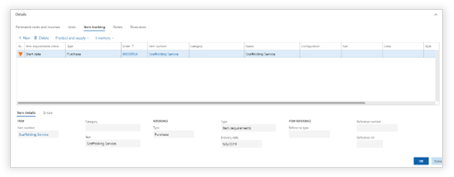
Item requirements, Purchase orders or Production orders can be linked to the start or finish date of an activity. Item details show information about the linked object including reference. Errors shows delays generated by MRP.
|
|
Notes |
Notes can be added to the activity |
|
Resources |
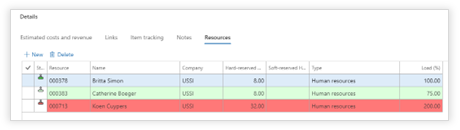
Here you can add or remove the assignments of resources for the selected task, but only on a published plan.
Project resource = A human resource from the project team. Human resource = Any schedulable human resource in the system Equipment = Resource group or resource |
|
Required competencies |
The ability to assign required competences per task on published task plannings. Assigned competencies can be used as criteria for suggesting applicable resources in the “Edit assignment” form of the Resource planning. Required competences can also be used without role assignment on the task. |
|
Address |
When on-site activity toggle is enabled, the on-site address can be entered for the task. This address can be used to calculate the resource travel distance. |
|
Dependencies |
Define the following dependencies:
Free text: Define a dependency required on at the start date or end date of the task. A free text dependency is used for informational purposes. Purchase order line: Define a dependency to any purchase order line in the system. This order does not have to be related to the project. Production order start: Define a dependency to any production order start date in the system. This order does not have to be related to the project. Production order finish: Define a dependency to any production order finish date in the system. This order does not have to be related to the project. Transfer order shipping: Define a dependency to any transfer order shipping date. This transfer order does not have to be related to the project. Transfer order receipt: Define a dependency to any transfer order receipt date. This transfer order does not have to be related to the project.
Result:
|

Task Planning (Draft Mode - Differences to published)
GANTT

All options that differ from the task planning in published mode:
|
Function |
Description |
||||||||||||||||||||
|
New task |
Create a new activity |
||||||||||||||||||||
|
Cut |
See section “Cut activity/activities” in this chapter |
||||||||||||||||||||
|
Delete task |
Delete an activity |
||||||||||||||||||||
|
Copy & Paste |
The ability to copy and paste one or multiple tasks selected in the task planning with the copy action in the action bar. Import option: Ability to paste the copied task(s) as: - Child of the selected task - Above the selected task - Below the selected task Links: When the copied tasks are pasted as a child of the selected task, any links on the selected task can be either redirected to the pasted task(s) or can be deleted. Adopt CBS code from parent: When the copied tasks are pasted as a child of the selected task, it becomes possible to adopt the CBS code of the selected task or to keep CBS code from the copied tasks. |
||||||||||||||||||||
|
ARRANGE OPTIONS |
|||||||||||||||||||||
|
|
|
||||||||||||||||||||
|
Sticky links |
With the “Sticky links” activities will stick to each other based on the links when one of the activities is being rescheduled.
When the action “Sticky links” is enabled, moving an activity either to an earlier or later moment, will also move any of the linked activities throughout the project. When sticky links is enabled, the other activities (predecessors and successors) will be rescheduled in relation to the rescheduled activity, while reapplying all the links and respecting the delay configured on the links. |
||||||||||||||||||||
|
Import |
Show only templates: Enabling this toggle will only show WBS templates, disabling this toggle will allow the ability to import the WBS from a project. Name: Dropdown to select a WBS template or WBS from a project. Import option: Ability to paste the copied task(s) as: - Child of the selected task - Above the selected task - Below the selected task Links: When the copied tasks are pasted as a child of the selected task, any links on the selected task can be either redirected to the pasted task(s) or can be deleted. Adopt CBS code from parent: When the copied tasks are pasted as a child of the selected task, it becomes possible to adopt the CBS code of the selected task or to keep CBS code from the copied tasks. |
||||||||||||||||||||
|
Reapply links |
When a project is in draft mode, this function reapplies links to the selected tasks and sets any spacing between tasks that are not caused by delays to zero. |
||||||||||||||||||||
|
Generate subcontract |
Create a subcontract for a task
NOTE: This option is only available when the Axtension Subcontract Management module is enabled. |
||||||||||||||||||||
The most important actions from the action bar and ribbon are also available as right click mouse actions:
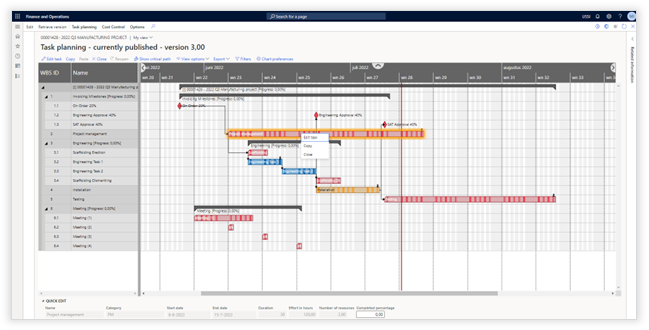
Note: When pasting tasks as a child of the selected task, it will change the selected task to a summary task and can have impact on any progress, resources, etc. It is possible to copy and paste tasks over different projects.
Cut activity/activities
Hours, items and expenses can be deducted from one or multiple selected tasks and pasted into another task by using the “Cut” and “Paste” actions. After selecting one or more multiple tasks the “Cut” option will show the “Reduce quantities” form with the estimated cost lines per WBS ID (task). In this form it is possible to reduce the amounts of hours and items, but also to reduce the costs e.g. for expenses by entering the amount or quantity in the “Reduced quantity” column.
After confirming the reduced quantities by using the “OK” action, the estimated cost lines are directly reduced accordingly to the entered values in the “Reduce quantities” form.
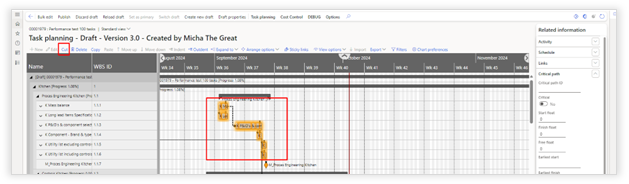
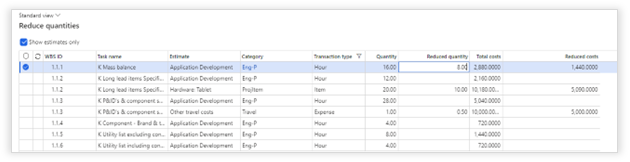
It is possible to use the “Paste” action to create new activities in the current project or any other project with the reduced quantities from the “Reduce quantities” form.
The pasted activities will have:
- Same name
- Same duration
- Same role
- Estimated cost lines with the reduced amounts.
- Same resource assignment
- Same CBS ID (as longs as the CBS exists in either the Cost Control Budget or CBS Template of the target project).
Create multi activity links
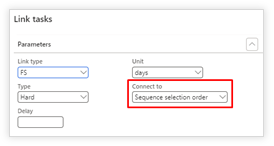
It is possible to create links with multiple activities in one action. First select three or more activities and go to the arrange option “Link”. In the “Link tasks” popup a new option becomes available: “Connect to”.
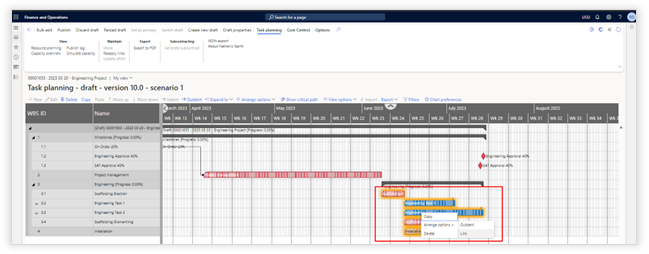
Connect to provides the following options:
|
Option |
Description |
|
Sequence selection order |
Based on the selected link type the selected activities are linked sequentially to each other. |
|
All to first selected |
Based on the selected link type the selected activities are individually linked to the first activity in the selection. |
|
All to last selected |
Based on the selected link type the selected activities are individually linked to the last activity in the selection. |
Intercompany links
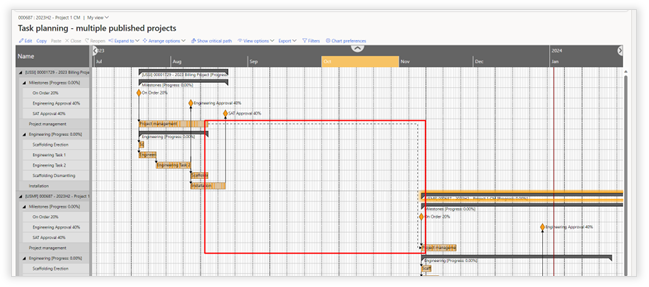
It is possible to create soft links between intercompany projects.
The ability to create a soft link between two intercompany projects is only intended for visualization. Hard links to impact the scheduling of intercompany projects is not supported.
Edit activity / New activity
|
Field |
Description |
|
|
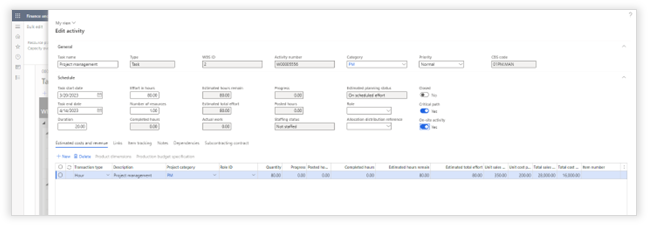
Type |
Task: Standard Activity Milestone: Activity with 0 effort and visualization as a milestone Recurring: Activity that will recur in a certain timeframe |
|
|
Priority |
If activity is set to priority high, an additional visualization will be added to a task on task planning as on resource planning.
|
|
|
CBS code |
Can only be specified for new tasks during draft. Changes can be made on published activities. |
|
|
Critical Path |
If set to yes, this activity will be visualized as part of the critical path. This should only be used if you do not use the automatic critical path. |
|
|
On-site activity |
When enabled on-site address information can be entered for resource travel distance calculation |
|
|
Task start date |
Start date of the task. |
|
|
Task end date |
End date of the task. |
|
|
Duration |
Duration in days for the task. |
|
|
Effort in hours |
Definition for the estimated effort in hours. |
|
|
Number of resources |
Ability to define the number of required resources on a task. This number will be used with the “Distribute evenly” drag action in the Resource planning, The “Distribute evenly” action will distribute the amount of effort evenly per resource. |
|
|
Allocation distribution reference |
Ability to select the required “Allocation distribution” |
|
|
DETAILS |
||
|
Estimated cost and revenue |
Maintain all estimated cost and revenue lines for this task. If Axtension Project Controlling is licensed, you can specify production budget lines for an item line. |
|
|
Links |
Specify the predecessors and successors the activity including positive or negative delays.
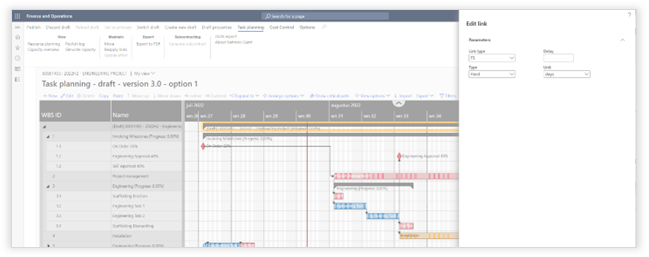
Link type: - FF = Finish Finish - SS = Start, Start - FS = Finish Start - SF = Start Finish Type: - Hard = when rescheduling the related activity needs to move as well. - Soft = no constraints during rescheduling. Delay: Number of units that should be kept as a positive or negative delay.
Unit: Unit that should be used for the delay
|
|

Edit link
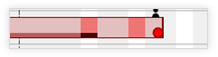
Links can be edited by double clicking them and make any required adjustments.
Summary tasks
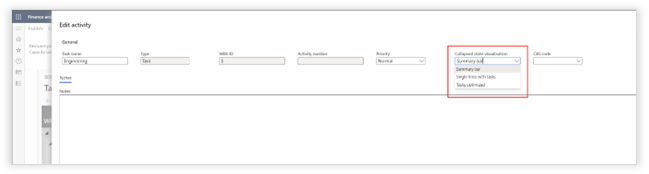
It is possible to define per summary task (on a draft planning) how the summary task is shown when collapsed. The selected setting can be exported to a template.
|
Field |
Description |
|
Summary bar |
When collapsed, the summary task itself will be shown, and the underlying tasks are hidden. |
|
Single line with tasks |
When collapsed, the summary task will be replaced with one line on which all tasks are shown. Any tasks planned in parallel will be shown overlapped. |
|
Tasks optimized |
When collapsed, the summary task will be replaced with one line on which all tasks are shown. Any tasks planned in parallel will be placed underneath each other. |
Bulk edit WBS
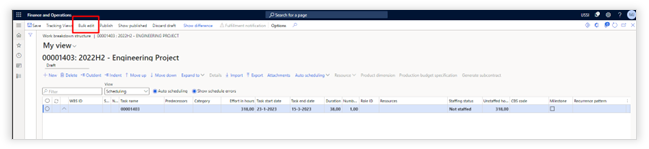
With bulk edit Axtension brings back the ability to edit the WBS quickly and easily without the validations of the standard WBS editor in Dynamics 365 Finance & Operations.
The option to “Bulk edit” a WBS is now available in both the Axtension Project Management task planning and the Dynamics 365 Finance & Operations standard WBS editor.
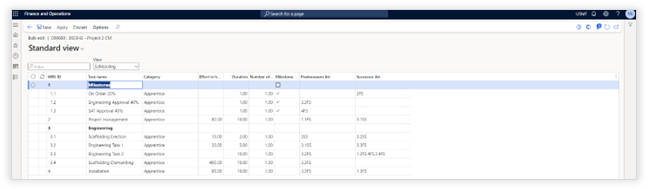
Axtension Planning & Control task planning
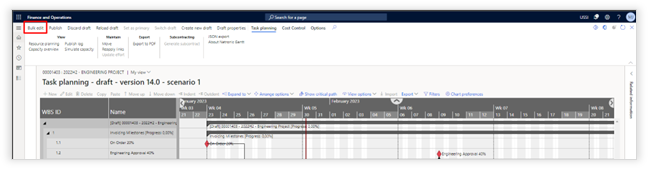
Dynamics 365 Finance & Operations standard WBS editor
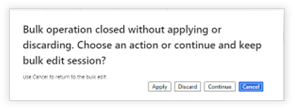
When closing the bulk editor, the user gets the option to apply, discard or cancel the bulk editor. With continue the bulk editor will close while the draft remains available for future editing.
Note: The data shown in predecessor list and successor list columns are read-only and are shown to improve user awareness regarding activity relations.
Handling of fixed milestones
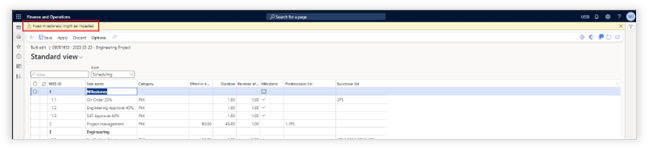
The bulk view will show a warning when it is opened while one of the included milestones are marked as “fixed”.
It is possible to publish a bulk edit even when the fixed date of a milestone is affected. If changes in the bulk edit affect any fixed milestone, the fixed date is ignored, and the milestone is rescheduled according to the new schedule.
Create multiple drafts
It is possible to create multiple drafts of a task planning.

With this, it is possible to work out different planning scenarios for a project, without affecting the published version. When in edit mode of the task planning the following actions become available:
|
Actions |
Description |
|
Set primary |
Ability to set the currently visible draft as primary draft. Only a primary draft can be published. |
|
Switch draft |
When multiple drafts of a planning exist, it is possible with this action to switch to the other drafts. |
|
Create new draft |
Ability to create a new draft from the current draft or from the published task planning. |
|
Draft properties |
Ability to adjust the description of the selected draft. |
Publish
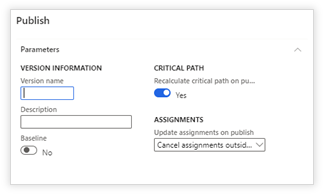
|
Parameter |
Description |
|
PARAMETERS |
|
|
Baseline |
If set to yes, this version will be available as a baseline for comparison |
|
Version name |
Provide a short code to identify the version |
|
Description |
Provide a description to the version |
|
Recalculate critical path on publish |
If set to yes, the critical path will be re-calculated based on the recent changes (only works when a critical path is set up in the project parameters). This toggle is defaulted within the parameters. |
|
Update assignments on publish |
Reassign to new period: Resource assignment is behaving as it previously was when a task is rescheduled. The resource assignment will move with the task schedule.
|
GANTT visuals
|
Visualization |
Description |
||||||||||||||||
|
INTERCOMPANY |
|||||||||||||||||
|
|
Visualization of task |
||||||||||||||||
|
|||||||||||||||||
|
|
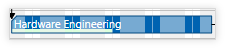
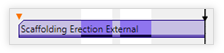
Task with estimated planning status shown enabled in the chart preferences |
||||||||||||||||
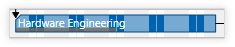
|
|
Task without estimated planning status shown enabled in the chart preferences |
||||||||||||||||
|
|
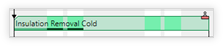
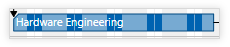
Task without progress Percentage of completion is only show in the workable time according to the calendar. In this example, the task is at 50% progress. |
||||||||||||||||
|
|
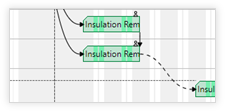
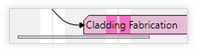
A. Hard link between tasks B. Soft link between tasks
|
||||||||||||||||
|
|
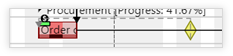
Item tracking on activity - Orange: Planned - Materials are not available, but are expected to arrive on time - Red: Delayed - Materials are not available on time - Green: Available - Materials are available either on hand or on hand and reserved, depending on the parameter - Blue: Picked - Materials have been picked for shipment but not consumed yet. - Grey: Consumed -Materials have been consumed on project |
||||||||||||||||
|
|
Item tracking availability in time |
||||||||||||||||
|
|
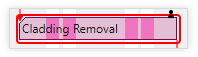
Task identified as critical path |
||||||||||||||||
|
|
Baseline comparison |
||||||||||||||||
|
|
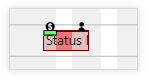
High priority task |
||||||||||||||||
|
|
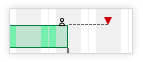
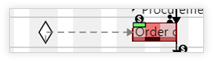
Dependency on task without conflicting date
Dependency on task with conflicting dates |
||||||||||||||||
|
Only if Axtension Project Controlling is licensed |
|||||||||||||||||
|
|
|
||||||||||||||||



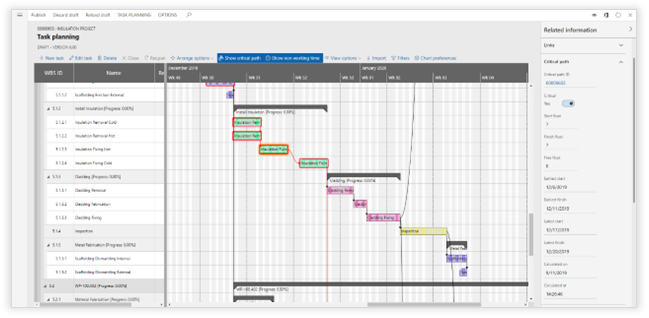
Critical Path Details
|
Parameter |
Description |
|
Critical path ID |
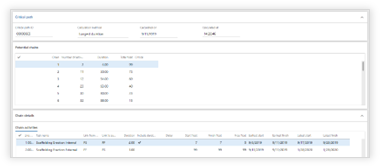
This is the ID one, or multiple, projects are linked to for critical path calculation. When you click on the critical path ID, the system will show all details behind the critical path calculation:
|
|
Critical |
Yes: This task is part of the critical path No: This task is not part of the critical path |
|
Start Float |
Number of days the start date can vary forwards or backwards |
|
Finish Float |
Number of days the finish date can vary forwards or backwards |
|
Free float |
Number of days until you conflict with the next task |
|
Earliest start |
The earliest date the activity can start without influencing the next activity in the critical path |
|
Earliest finish |
The earliest date the activity can finish based on the earliest start date |
|
Latest start |
The latest date the activity can start without influencing the next activity in the critical path |
|
Latest finish |
The latest date the activity can finish based on the latest start date |
|
Calculated on |
Date on which the critical path was calculated |
|
Calculated at |
Time on which the critical path was calculated |
Activity planning method
When creating the task planning for a project the following fields are available on a task from a scheduling perspective.
In the table below a description for each of the fields is added:
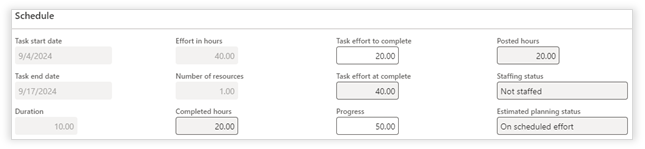
|
Field Name |
Description |
|
Effort in hours |
Scheduled hours |
|
Progress |
Progress percentage on the task |
|
Posted hours |
Posted hours via an hour journal |
|
Completed hours |
Completed hours based on the progress and effort |
|
Task effort to complete |
Remaining hours to complete the task |
|
Task effort at complete |
Total hours based at completion of the task |
In the table below the formula’s for the “Activity planning method” are described:
|
Field Name |
Formula (Effort based) |
Formula (Performance based) |
|
Effort in hours |
The configured effort in hours on the task |
The configured effort in hours on the task |
|
Posted hours |
Posted hours on the task |
Posted hours on the task |
|
Progress (%) |
(Posted hours / Effort in hours) 100 Can be adjusted manually |
(Posted hours / Effort in hours) 100 Can be adjusted manually |
|
Completed hours |
(Effort in hours Progress) /100 |
(Effort in hours Progress) /100 |
|
Task effort to complete |
Effort in hours - Completed hours Can be adjusted manually |
Task effort at complete - Posted hours Can be adjusted manually |
|
Task effort at complete |
Posted hours + Task effort to complete |
(Posted hours / Progress) |
Scenario: Effort based
Scenario 1:
|
Field Name |
Numbers |
Formula (Effort based) |
Formula (Effort based) |
|
Effort in hours |
200 |
|
|
|
Posted hours |
20 |
|
|
|
Progress |
5% |
|
|
|
Completed hours |
10 |
Progress Effort in hours |
5% 200 |
|
Task effort to complete |
190 |
Effort in hours - Completed hours |
200 - 10 |
|
Task effort at complete |
210 |
Task effort to complete + Posted hours |
190 + 20 |
Scenario 2
|
Field Name |
Numbers |
Formula (Effort based) |
Formula (Effort based) |
|
Effort in hours |
150 |
|
|
|
Posted hours |
30 |
|
|
|
Progress |
50% |
|
|
|
Completed hours |
75 |
Progress Effort in hours |
50% 150 |
|
Task effort to complete |
75 |
Effort in hours - Completed hours |
150 - 75 |
|
Task effort at complete |
105 |
Task effort to complete + Posted hours |
75 + 30 |
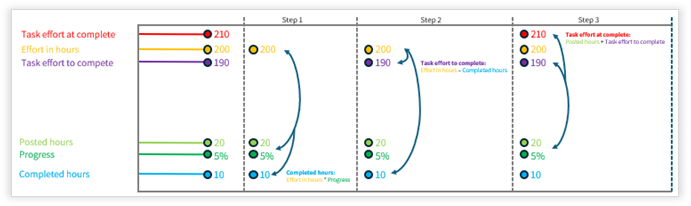
Below a visualization that shows what is calculated when “Effort based” is used as the “Activity planning method”. Per step is shown what is calculated and what values are used.
Scenario: Performance based
Scenario1:
|
Field Name |
Numbers |
Formula (Performance Based) |
Formula (Performance Based) |
|
Effort in hours |
200 |
|
|
|
Posted hours |
20 |
|
|
|
Progress |
5% |
|
|
|
Completed hours |
10 |
Progress Effort in hours |
10% 200 |
|
Task effort to complete |
380 |
Task effort at complete - Posted hours |
400 - 20 |
|
Task effort at complete |
400 |
Posted hours / Progress |
20 / 5% |
Scenario 2:
|
Field Name |
Numbers |
Formula (Performance Based) |
Formula (Performance Based) |
|
Effort in hours |
150 |
|
|
|
Posted hours |
30 |
|
|
|
Progress |
50% |
|
|
|
Completed hours |
75 |
Progress Effort in hours |
50% 150 |
|
Task effort to complete |
30 |
Task effort at complete - Posted hours |
60 - 30 |
|
Task effort at complete |
60 |
Posted hours / Progress |
30 / 50% |
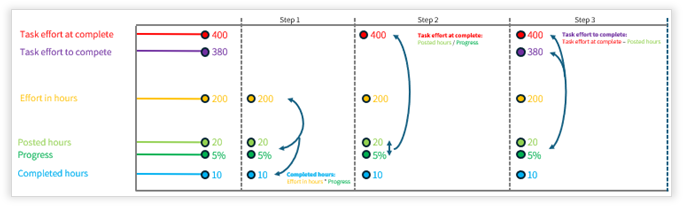
Below a visualization that shows what is calculated when “Performance based” is used as the “Activity planning method”. Per step is shown what is calculated and what values are used.
Note:
- If a task has multiple estimated cost lines of the type “hour”:
- Progress and Task effort to complete are kept in sync, changes on either field will recalculate the other
- Changed “Progress” on the activity is copied over to the individual estimated lines
- Changed “Task effort to complete” is calculated per individual estimated lines to ratio of each line
- Changed “Progress” on an individual estimated line will be rolled up to the activity
- Changed “Task effort to complete” on an individual estimated line will be rolled up to the activity
Comparing the “Activity planning methods”:
Scenario 1:
When using “Effort based” for the “Activity planning method”, the “Task effort at complete” value is calculated based on the “Effort in hours” and “Completed hours”. Based on the “Effort in hours” minus the “Completed hours”, the “Task effort to complete” is calculated. Where the “Task effort at complete” is calculated based on the "Posted hours” plus the “Task effort to complete”.
When using “Performance based” for the “Activity planning method”, the “Task effort at complete” value is calculated based on the “Posted hours” and “Progress”. In other words, in 20 hours, 5% of the work is completed. If this progress trend continues the task will need 400 hours to be completed. The “Task effort to complete” is calculated based on the “Task effort at complete” minus the “Posted hours”.
|
Field Name |
Numbers (Effort based) |
Numbers (Performance based) |
|
Effort in hours |
200 |
200 |
|
Posted hours |
20 |
20 |
|
Progress |
5% |
5% |
|
Completed hours |
10 |
10 |
|
Task effort to complete |
190 |
380 |
|
Task effort at complete |
210 |
400 |
Scenario 2:
When using “Effort based” for the “Activity planning method”, the “Task effort at complete” value is calculated based on the “Effort in hours” and “Completed hours”. Based on the “Effort in hours” minus the “Completed hours”, the “Task effort to complete” is calculated. Where the “Task effort at complete” is calculated based on the "Posted hours” plus the “Task effort to complete”.
When using “Performance based” for the
“Activity planning method”, the “Task effort at complete” value is calculated
based on the “Posted hours” and “Progress”. In other words, in 30 hours, 50% of
the work is completed. If this progress trend continues the task will need 60
hours to be completed. The “Task effort to complete” is calculated based on the
“Task effort at complete” minus the “Posted hours”.
|
Field Name |
Numbers (Effort based) |
Numbers (Performance based) |
|
Effort in hours |
150 |
150 |
|
Posted hours |
30 |
30 |
|
Progress |
50% |
50% |
|
Completed hours |
75 |
75 |
|
Task effort to complete |
75 |
30 |
|
Task effort at complete |
105 |
60 |
Resource planning
Accessing resource planning
Resource planning can be opened in 2 different ways:
1: Project management and accounting > Planning for projects > Resource planning
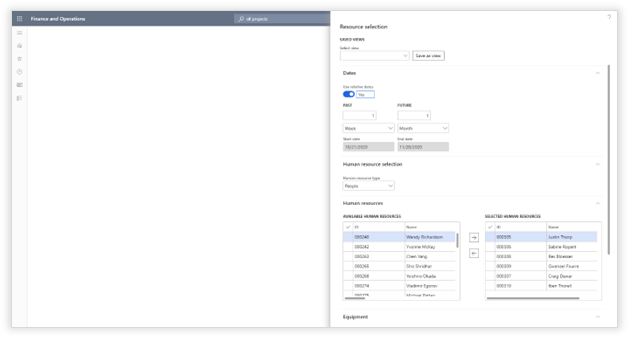
When opening the resource planning form the main menu, the following selection criteria need to be provided.
|
Fields |
Description |
|
SAVED VIEWS |
|
|
Select view |
A selection of resources can be saved as a public or a private view. Select a predefined list of resources. |
|
DATES |
|
|
Use relative dates |
If toggle set to no, select the start & end date manually If toggle set to yes, select a number of periods to the past and a number of periods to the future. The system will dynamically determine the selected dates. Relative dates will be saved in "Saved views". |
|
HUMAN RESOURCE SELECTION |
|
|
Human resource type |
Role: Human resources are selected by role People: Human resources are selected by individual Department: Human resources are selected by department |
|
Roles |
If human resource type is "Role" you can select a single role from a dropdown list. |
|
Include resources with matching competences |
(Only when Human resource type = "Role") If set to "Yes", all resources with competences that match with the competences specified on the role will be shown. |
|
Departments |
If human resource type is "Department" you can select one or multiple departments that should be included. These departments are set up within the organizational hierarchies. |
|
Human resources |
If human resource type is "people" you can select one or multiple human resources. There are multiple filter columns provided in the list of human resources like Title, Office location, Department, Position & Job. |
|
Equipment |
Selection of resource groups. These are the resources defined in: Organization administration > Resources > Resource groups |
2. Project management and accounting > Projects > All Projects > Planning for projects > Task planning or Project management and accounting > Quotations > Project quotations > Planning for projects > Task planning
Resource planning is opened based on the start and end date of the selected project(s) or quotation(s) and its project team.
GANTT


|
Options |
Description |
|
Edit task |
Open the selected task in edit mode |
|
DRAG ACTION |
|
|
Full capacity |
When assigning a task to a resource, it
will take the full resource capacity not considering any tasks that are
already scheduled. |
|
Remaining capacity |
When assigning a task to a resource, the remaining available capacity will be reserved for the resource. Example: When a resource has 8 working hours a day, but 2 hours are already assigned to another task, the system will only take the remaining 6 hours available. |
|
Distribute |
When assigning a task to a resource, a task will be reserved for the resource each day until the effort in hours is spread evenly. The system will consider the required number of resources configured on the task. Example: When a task has 40 hours capacity in a 5-day week and the activity requires 10 hours in that same week, The system will assign 2 hours per day and distribute the effort across those days. If on the same task 2 resources are required, the system will assign 1 hour per day and thus dividing the effort by the number of required resources. |
|
Capacity percentage |
When assigning a task to a resource, a pop-up will appear asking the percentage of this resource capacity that you'd like to use for assigning the activity to. The percentage is always based on the resource capacity, not on the task demanded effort. Example: When a resource has 8 working hours a day and you assign 50%, the system will take 4 hours independent of any activity that have already been scheduled in that period. |
|
Arrange Options |
|
|
Connect Selection |
Ability to connect assignments one after
another in the resource planning based on the selected order. |
|
HIGHLIGHT |
|
|
Project |
Highlight all activities from the same project of the selected assignment (task). |
|
Disabled |
Disable the highlighting of activities. |
|
VIEW OPTIONS |
|
|
Zoom in |
Change the scaling of the entire Gantt. Zoom in, increases the readability. |
|
Zoom out |
Change the scaling of the entire Gantt. Zoom in, decreases the readability. |
|
Reset Zoom |
Set the zoom level adjusted with the zoom in & zoom out to default. |
|
Fit into view |
Show the entire planning horizon in a single view. This changes the scaling automatically. |
|
Scroll to today |
Independent of the scaling, move the view to today. |
|
Show nonworking time |
When enabled, the Gantt will also display time frame in which there is no capacity according to the calendar. When disabled, the non-working time defined in the calendar will not be displayed in the Gantt. |
|
Pin |
The selected resource will be pinned at the top of the screen. This way, when scrolling through the resource list, the pinned resource will remain visible. The pinning of resources is only remembered for a single session, when reopening the screen, the pinning of resources will be gone. |
|
Unpin |
Unpin a previously pinned resource. |
|
Show project colors |
Use project color to visualize tasks. The project color can be defined on the project or in the parameters. |
|
Show category colors |
Use category color defined in the parameters for the color of the task. |
|
FILTERS |
|
|
Select view |
All filters can be stored in a view. Within this dropdown a stored view can be selected. The "Save as view" button, saves the filters set in the form below as a "view". |
|
Resource load status |
Capacity remaining (LIGHT GREEN): Shows all tasks that have resources assigned with less than 100% load during the total duration of the task Full capacity (BRIGHT GREEN): Shows all tasks that have resources assigned with a load of 100% during the duration of the task. Lightly overloaded (LIGHT RED): Shows all tasks that have resources assigned with a load between 100% and 110% during the duration of the task. Overloaded (BRIGHT RED): Shows all tasks that have resources assigned with a load higher than 110% during the duration of the task.
NOTE: Validation is done for the duration of a task, not on individual assignment. NOTE: This option is only available when "load resource availability" is enabled in the chart preferences. |
|
Material status |
Planning error (RED): Materials are delayed. Not available (ORANGE): Materials are not available yet. Available (GREEN): Depending on the parameters, the materials are on hand, or on-hand and reserved. Consumed (GRAY): Materials are consumed on the project. Available & picked (BLUE): Materials are available and have already been picked at the warehouse but not yet consumed. |
|
Category |
Filter activities shown based on category. Multi select allowed. |
|
Project |
Select the projects that should be included in the filter. This dropdown will only show projects that are in the current Gantt view. |
|
Role |
Only show tasks assigned to the selected roles. |
|
Progress |
Only with progress: Show only tasks with a percentage of completion Only without progress: Show only tasks with 0% completion. |
|
Buttons |
Reset filter: Set all filters to default Disable filter: Disable the filter set so everything is shown, but when you re-open the filter screen, all filters are still set and by pressing OK, the filter will be re-applied. OK: Apply filter Cancel: Close screen without applying filters. |
|
CHART PREFERENCES |
|
|
From |
From date selection used by Gantt (intervals can be changed in the Visual Planning parameters) |
|
To |
To date selection used by Gantt (intervals can be changed in the Visual Planning parameters) |
|
|
Lock the period duration, allows the user to simultaneously move the "from" and "to" date when using the small & large interval buttons. |
|
Show tasks |
Active:
Tasks that have not yet been closed |
|
Show unassigned tasks |
Show unassigned tasks that are not assigned to a role, or to a role that is not part of the current resource view. |
|
Show item tracking |
By enabling the show item tracking, items linked to activities and their status will be visualized in the resource planning. |
|
Show projects |
When enabled, show project activities |
|
Show quotations |
When enabled, show quotation activities |
|
Show resource availability |
When enabled, show the resource status icon on the tasks, and enable the filter. |
|
PRODUCTION (Only when Axtension Production Planning is licensed) |
|
|
Production orders |
Show related production orders and their planning |
|
Planned production orders |
Show related planned orders and their planning |
|
Master plan |
Show planned production orders based on this master plan |
|
Intercompany production orders |
Show intercompany production orders if exists following the explosion of the production order. |

Edit assignments
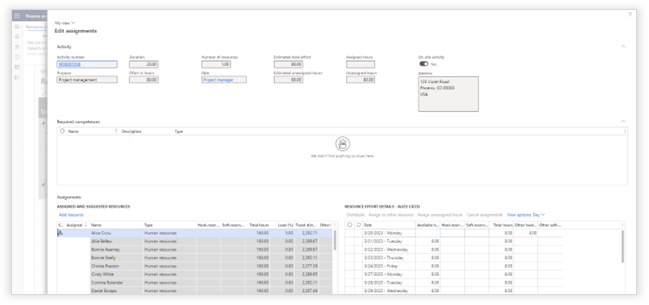
Double click on an assignment to open the edit assignments screen. Or go to the ribbon Resource Planning > Resource Assignments > Edit assignments.
|
Options |
Description |
|
Activity |
Information about the selected activity, including: - Planned effort and duration - Amount of required resources - Estimated total effort based on progress - Estimated unassigned hours based on progress - Assigned hours - Unassigned hours based on the planned effort - If it is an on-site activity. The address is used to calculate the travel distance from the home address of assigned and suggested resources. |
|
Required competences |
Assigned required competences on the activity. Required competences are used to drill down the suggested resources. |
|
Assigned and suggested resources |
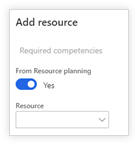
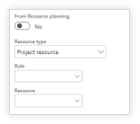
Overview of all assigned resources to the task, and an overview of any suggested resource part of the same role or with matching competences.
Add resource: Allows for manual adding of additional resources to the activity. After assigning hours and specific dates the resource is assigned to the task. |
|
Resource effort details |
|
|
Show the assignment distribution by day for the selected resource and their availability |
|
|
Distribute |
Distribute the selected rows according to one of the scheduling methods. This way, you can distribute all hours easily to specific days. |
|
Assign to other resource |
Assign the selected days 1:1 to another resource.
. |
|
Assign unassigned hours |
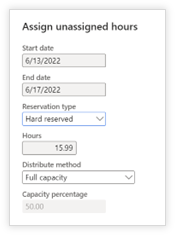
The ability to assign unassigned hours to a resource in a period, following one of the available distribution methods.
|
|
Cancel assignments |
Option to remove any reservations on selected dates for a resource. |
|
View options |
Ability to select days, weeks, or months as a view for a resource and to assign effort in the selected period. |

Note: Travel distance is only calculated for routes following the road. A value of -1 will be shown as the travel distance if the route includes air, sea, or other transportation methods.
Travel distance calculation uses the logic of Bing Maps. To enable this feature, a Bing Maps API must be entered in the Planning parameters.
See for more information on how to obtain a Bing Maps API key and which license suits your organization: Map License Options | Find Your Right Bing Maps License (microsoft.com)
Ribbon menu Resource Planning

|
Function |
Description |
|
View |
|
|
Task planning |
Open the task planning of the project that belongs to the selected activity. |
|
Capacity overview |
Open the capacity overview for the project that belongs to the selected activity. |
|
Show planned activities |
Show all planned activities for the selected resource, independent on the project. |
|
EDIT |
|
|
Task planning |
Instantly edit the project related to the selected assignment. The selected assignment will be highlighted in the project plan. |
|
RESOURCE ASSIGNMENTS |
|
|
Assign equipment |
Assign equipment to the selected task. |
|
Assign human resources |
Assign a human resource to the selected task via standard Dynamics 365 F&O functionality |
|
Edit resource assignment |
This form is opened when double clicking on an assignment. Change the assignments for the selected task per resource per day. |
|
Auto-generate team |
Generate the team based on required capacity. |
|
SELECTION |
|
|
Resources |
Select resources that should be included in the Gantt without instantly adding them to the project team. |
GANTT visuals

|
Visualization |
Description |
|
|
Role Resource |
|
|
Expand role histogram
Expand Resource histogram |
|
|
|
|
|
Check task planning visualizations for additional details in relationship to resources & materials.
Task status: Can be started: predecessors are completed or there are no predecessors. Is started: progress % on task higher than 0% Should not be started: predecessors are not completed. Should not be started: there is conflicting dependency |
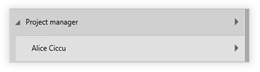
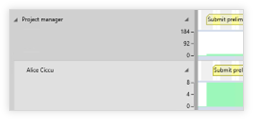
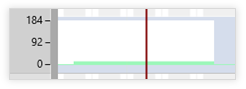
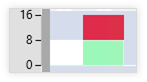







Capacity overview
Accessing Capacity overview
1: Project management and accounting > Planning for Projects > Capacity overview
The capacity overview form will show all capacity loads that comply with the selection criteria provided.
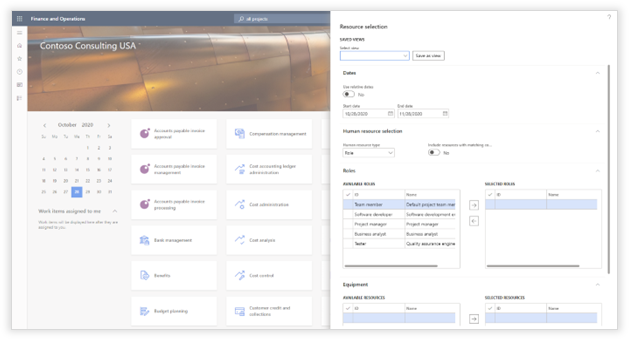
|
Field |
Description |
|
SAVED VIEWS |
|
|
Select view |
A selection of resources can be saved as a public or a private view. Select a predefined list of resources. |
|
DATES |
|
|
Use relative dates |
If toggle set to no: select the start & end date manually If toggle set to yes: select a number of periods to the past and a number of periods to the future. The system will dynamically determine the selected dates. Relative dates will be saved in "saved views". |
|
HUMAN RESOURCE SELECTION |
|
|
Human resource type |
Role: Human resources are selected by role People:
Human resources are selected by individual |
|
Include resources with matching competences |
If set to "Yes", all resources with competences that match with the competences specified on the role will be shown. |
|
Roles |
If human resource type is "role" you can select one or multiple roles. |
|
Human resources |
If human resource type is "people" you can select one or multiple human resources. There are multiple filter columns provided in the list of human resources like Title, Office location, Department, Position & Job. |
|
Departments |
If human resource type is "Departments" you can select one or multiple departments. |
|
Equipment |
Selection of resource groups. These are the resources defined in: Organization administration > Resources > Resource groups |
2. Project management and accounting > Projects > All Projects > Planning for projects > Capacity overview
Project management and accounting > Quotations > Project quotations > Planning for projects > Capacity overview
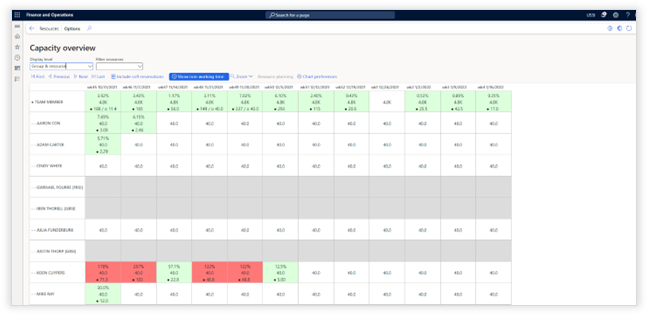
The capacity overview will show all capacity loads for resources and roles assigned to the selected project(s), or project quotation(s).
Overview
|
Function |
Description |
|
|
Display level |
Toggle between: - Showing only resource groups - Individual resources - Combination of group and resources |
|
|
Filter resources |
Show only resources which are overloaded. |
|
|
First |
Go to the first page (See "page start" description) |
|
|
Previous |
Go to the previous page (See "page start" description) |
|
|
Next |
Go to the next page (See "page start" description) |
|
|
Last |
Go to the last page (See "page start" description) |
|
|
Include soft reservations |
If highlighted, the capacity will be validated including soft reservations. |
|
|
Show non-working time |
If highlighted each period that contains no capacity in all of the selected roles and resources, will be hidden. |
|
|
Project team capacity |
If set to "yes", the sum of the capacity on role level will be shown based on the project team. If set to "no", the sum of the capacity on role level will be shown on all employee's that are able to execute this role. |
|
|
Zoom |
Set the columns to group capacity requirements per Hour, Quarter of a day, Half a day, Day, Week, Month, Quarter. |
|
|
Page start |
Navigate to the desired timeframe. The screen will by default show a maximum of periods. This drop-down helps navigate through these multiple pages. |
|
|
Resource Planning |
When one of the capacity cells has been selected, the resource planning button will become available. This will open the resource planning for the selected resource, the selected role and the selected cell's period + the period before and the period after. |
|
|
CHART PREFERENCES |
||
|
Start date |
Set start of date range selection. |
|
|
End date |
Set end of date range selection. |
|
|
Plan |
(only available when Visual Planning for Production is licensed) |
|
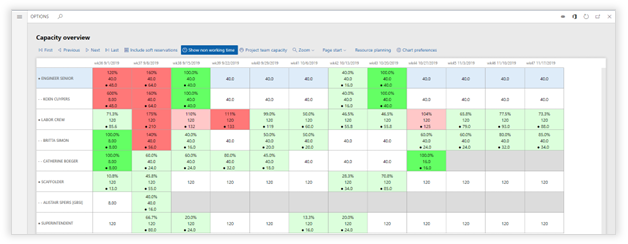
|
Visualization |
Description |
|
|
No Capacity |
|
|
No Capacity demand |
|
|
Partial capacity demand |
|
|
Full capacity demand |
|
|
Lightly overloaded capacity demand |
|
|
Overbooked capacity demand |
|
|
Hard reserved / Soft reserved
|
|
|
Amount of posted hours on that day/week |
|
|
Impact on hours on the remaining duration. This can be a positive or negative number, depending on the amount of posted hours relative to the scheduled amount to that moment. See Include posted hours for more information.
|
|
|
Role |
|
|
Resource |


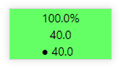
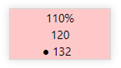
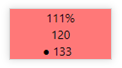
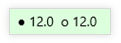



Include posted hours
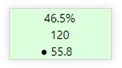
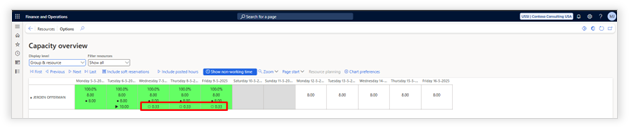
In addition to reserved capacity, the Capacity Overview will also show the number of posted hours on a period and based on the scheduled amount, showing if the remaining hours can be deducted from the remain period or need to be added.
The following screenshot shows an example of 10 hours posted on a certain date:
This resource should have been posted 16 hours in total until this moment. However, a previous posting of 5 hours together with this 10 hours posted, makes a total of 15 hours posted until that date.

Based on the scheduled amount of 16, the resource has posted 1 hour less than should have.
That difference is then divided by the remaining days on the activity:
Using the action Include posted hours will update the capacity percentage on the resource by using:
- Posted hours on that day
- Impact on remaining hours


Resource simulation
It is possible to simulate the impact of a drafted task planning on the resource capacity.

On a selected task planning draft, the option "Simulate capacity" is introduced.

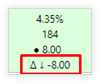
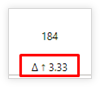
When this action is selected, the capacity overview of the resource roles assigned in this project will be opened and will show with the triangle icon what the impact is of the removal or assignment of hours in the draft compared with the published plan.
Any change will be shown via the following indicators:
|
|
Indicating that hours are removed with the reduced amount. |
|
|
Indicating that hours are added with the assigned amount. |
Note: Resource simulation is currently only possible on role level
When selecting the "Include simulation" action, the draft planning will be loaded and the impact on capacity will be shown immediately.

Project Inventory
The Project Inventory module aims to improve visibility and can streamline the tracking of project related inventory requirements by introducing the Product Breakdown Structure and the Program Tracking Dimension.
Program ID & Program Tracking Dimension
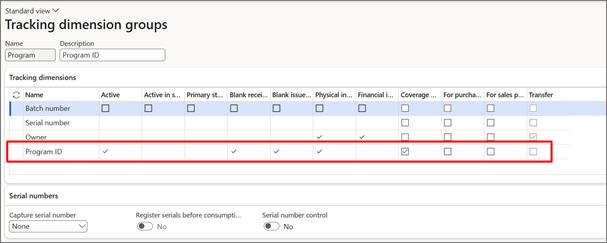
The Program ID & Program Tracking Dimension allows organizations to bundle related projects and track inventory by Program ID. The Program Tracking Dimension can be enabled on a Tracking dimension group and can be set up and used like any of the other tracking dimensions in D365.
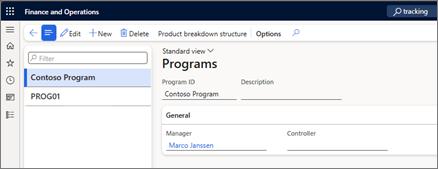
The Program ID can be set up by going to Project Management and Accounting > Project Inventory > Programs. Here it is possible to see and create a new Program ID and assign the manager and controller of the program.
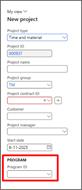
A Program ID can be assigned to new project during the creation of the project, or by setting the Program ID on an existing project.
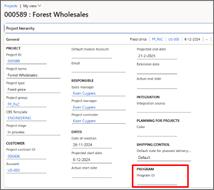
The Program ID set on the project will be automatically set on the following records, if related to the project. And if the selected item has a Tracking dimension group assigned configured to use Program ID as tracking dimension:
- Item requirements
- Production/batch orders
- Sales orders
- Purchase orders
- Project item journals
Product Breakdown Structure
The Product Breakdown Structure can be used in two ways:
- Per project
- Per program
A project specific Product Breakdown Structure can be opened by either going to Project Management and Accounting > Project Inventory > Product Breakdown Structure - Project or to the Product Breakdown Structure from the project directly.
If a project is marked as part of a program the Product Breakdown Structure can also be opened via Project Management and Accounting > Project Inventory > Product Breakdown Structure -> Program.
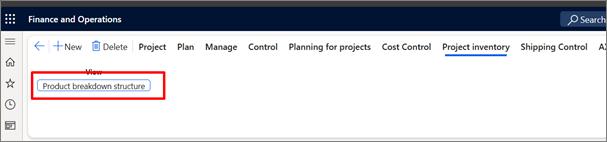
The Product Breakdown Structure shows the item requirement breakdown from the finished item and the status of its availability.
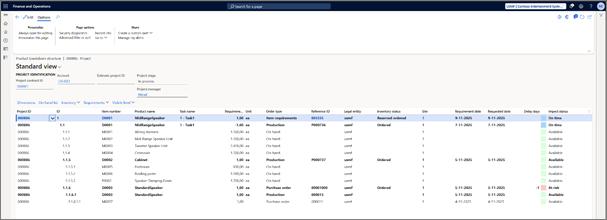
The following fields are available in the Product Breakdown Structure:
|
Column |
Description |
|
Project ID |
Project ID |
|
ID |
ID in the Product Breakdown Structure |
|
Item number |
Number of item |
|
Item name |
Name of item |
|
Task name |
Task name connected with the item requirement, if any. |
|
Requirement quantity |
Requested quantity |
|
Unit |
Unit type |
|
Order type |
Type of order |
|
Reference ID |
Reference to the order fulfilling the requirement |
|
Legal entity |
Legal entity fulfilling the requirement |
|
Inventory status |
Status of the requirement |
|
Site |
Site fulfilling the requirement |
|
Required date |
Requirement date indicate the date the item needs to be available to be consumed as calculated by master plan |
|
Requested date |
The date initially requested for the item to be available |
|
Delay days |
Delayed days as calculated by master plan |
|
Impact status |
Status describing the impact on the item requirement |
Inventory requests
Programs can request inventory from other programs by selecting an item and go to Available Inventory.
Here an overview is shown of the available inventory of the selected item across all sites and warehouses but also showing the amount in inventory reserved for a program.
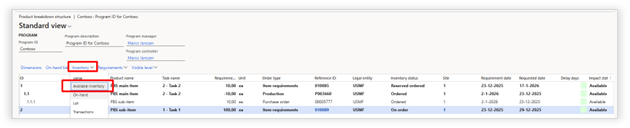
For lines with available inventory reserved for a program the action Request program inventory becomes available.

A form will appear where the desired amount of quantity can be entered of the available inventory.
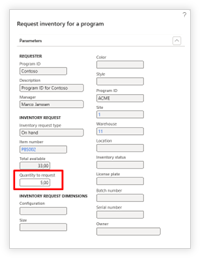
When submitting the form, a request will be sent into an approval workflow.
This workflow can be created and set up in the Project Management and Accounting workflows and is named Program inventory request workflow.
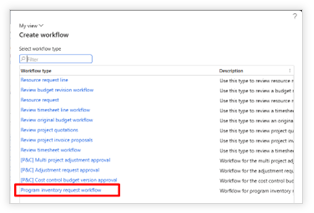
Inventory requests can be found in Project Management and Accounting > Project Inventory > Inventory requests or My Inventory Requests.
The statuses of inventory requests can be found here.
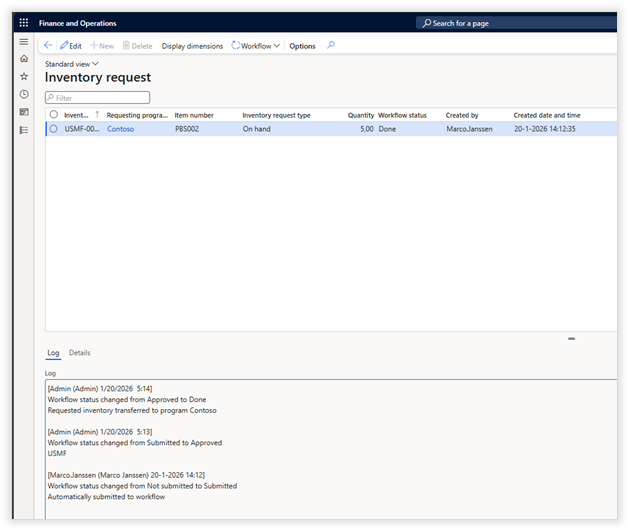
Workspace & Reporting
Analytical workspace
The "Planning analytics" Power BI workspace provides four dashboards with different kinds of insights in how a project organization is performing. Each dashboard contains its own set of filters to drill down to the desired data.
Project dashboard
This dashboard provides insights in how one or multiple projects are performing in ways of planned vs assigned effort, ETC and EAC and variance on effort, expected vs actual start and delays in week on planning and item requirement.
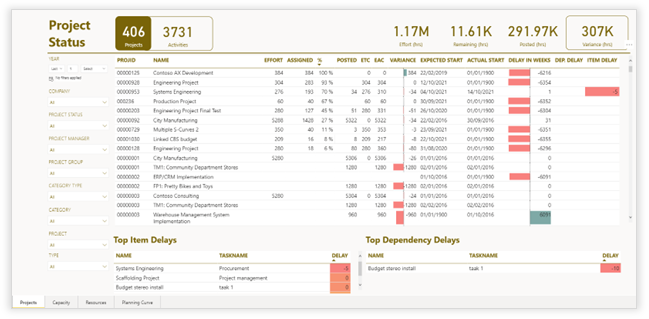
Capacity dashboard
Based on the selected filter, the "Capacity" dashboard shows the actual demand vs resource capacity, capacity utilization in percentage by week and resource demand vs posted effort by week.
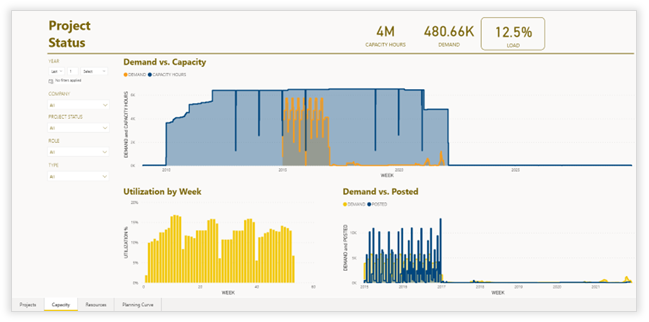
Resource load dashboard
This dashboard provides insights in how resources are utilized in comparison to the capacity and the assigned effort. Additionally, the "Resource load" dashboard provides the same insight on department and role level.
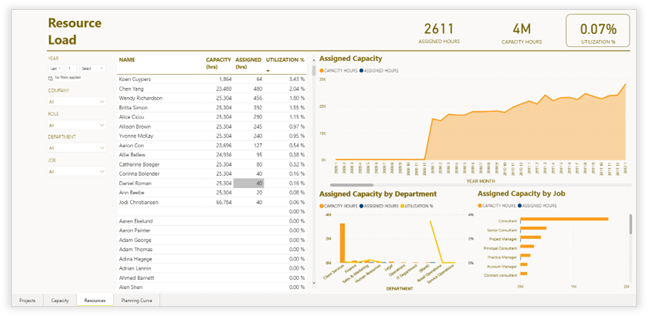
Planning Curve dashboard
The "Planning Curve" dashboard provides a S-Curve with data of amount of planned time (in hours), assigned time, posted time, cumulative demand. cumulative assignments, cumulative time posted.
Additionally, gauges show how planning KPI's are performing in absolute numbers.
All data in the "Planning analytics" workspace is available for self-created Power BI dashboards.
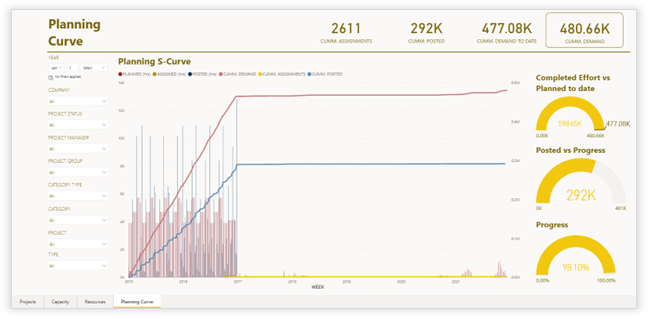
Synergy with other Axtension business solutions
Axtension Content Gate
Expected Content
In the System Administration > Setup > Axtension Content Gate menu, Expected content validation rules settings can be set. Here validation rules can be created on predefined triggers which can either warn or block if certain content is missing.
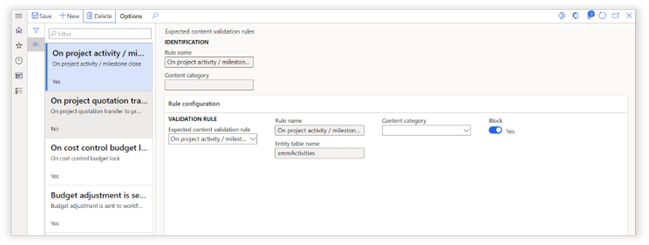
|
Function |
Description |
|
Expected content validation rule |
This field allows the selection of four predefined actions where content validation should be trigged on: - On project activity / milestone close - On project quotation transfer to project - On cost control budget lock Budget adjustment is sent to workflow |
|
Content category |
Optionally, a content category can be selected as an additional criterium what the validation rule should check on: - General - Invoice - Communication - Drawings - Product Info - Project Documents |
|
Block |
Enabling this setting prevents the execution of the defined action, if the expected content is not available. When disabled, only a warning will be shown. |
Extension points are available to create self-defined expected content validation rules.
Additional configuration is needed in Axtension Content Gate to complete the Expected Content setup.