Setup
The Project Cost Control parameters are in the following menu item: Project management and accounting > Setup > Project & Control > Cost Control Parameters.
General
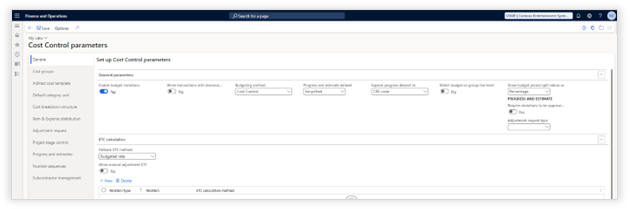
|
Parameter |
Description |
|
GENERAL PARAMETERS |
|
|
Enable budget mutations |
Allow the creation of budget mutations on budgets (These are cost neutral changes, e.g. reallocating budget to a different CBS code). |
|
Enable budget adjustments |
Allow the creation of budget adjustments. (These are actual adjustments requesting additional budget with a formal approval process. A workflow is needed to support the approval) |
|
Allow transactions with descendants |
If set to yes, creating a transaction on a CBS code with descendants is allowed. In this case, you will not be able to allocate or report what the implications of a transaction are on the most detailed level of a budget. (this option is defaulted to "no") |
|
Budgeting method |
Standard: The project budgeting functionality of Dynamics 365 F&O is available. It will not be able to access project cost control functionality from a project. (Only suggested for legal entities that will not be utilizing functionality of AXtension Project Cost Control) Project Cost Control: The project budgeting functionality of Dynamics 365 for F&O is no longer visible on a project and only Project Cost Control functionality can be accessed from. (Defaulted) Standard and Project Cost Control: Both standard project budgeting as well as Project Cost Control functionality will be accessible from a project. |
|
Progress and estimate dataset |
Simplified Simplified overview of all budget lines. See chapter "Simplified progress and estimate data set" for more information. Normal Budget shown based on header and line. |
|
(Normal) Match transactions to budget |
Define on which combination transactions should be matched. |
|
(Simplified) Expand progress dataset to |
Define on which level the simplified progress and estimate data set should be opened. |
|
Match budget on group line level |
If enabled the activity budget status in task planning will be validated against the group of CBS codes instead of the individual code. |
|
Show budget period split values as |
Percentage Enter the budget period split as percentage Amount Enter the budget period split as amount |
|
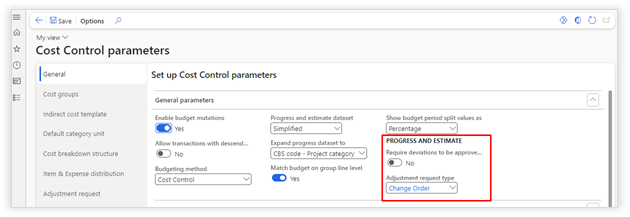
Require deviations to be approved via adjustment request |
Any deviations on the progress and estimate data set will automatically create an adjustment request. |
|
Adjustment request type |
Adjustment request type used for deviations on progress and estimate data set. |
|
Excl. indirect costs |
This toggle can be enabled in the Cost
Control parameters and will add the Total cost price (excl indirect) column
on the details of an activity in the standard WBS or in the Axtension Project
Management task planning. |
|
ETC calculation |
|
|
Fallback calculation method |
Set the default ETC calculation method according to the PMI standards. Budgeted rate: ETC = Budgeted amount – Earned Value CPI rate: ETC = [Budgeted amount / CPI] – Actual costs CPI and SPI rate: ETC = Remaining commitments: ETC = soft committed + reserved amount Bottom up – Manual: ETC = manually entered |
|
Allow manual adjustment ETC |
Allow the manual adjustment of the ETC on the progress and estimate dataset. |
|
Set ETC calculation method per cost group or category |
Define per cost group and/or category the desired ETC calculation method |
|
ADVANCED PARAMETERS |
|
|
Link on category name |
If no link is configured between WBS and CBS, try to link on category name. |
|
Fallback procurement category |
If no procurement category can be determined in the budget creation wizard, this will be the fallback procurement category. |
|
Fallback sales category |
If no sales category can be determined in the budget creation wizard, this will be the fallback procurement category. |
|
Committed to actuals |
|
|
Committed costs enabled |
Enable or disable committed costs on budget. |
|
Consider hard committed as actual |
Enabling the parameter "Consider hard committed as actuals" will use hard committed costs on a confirmed progress and estimate dataset as actual cost in revenue recognition and will calculate the percentage of completion in revenue recognition by including the hard committed costs. |
|
Hard committed costs: Purchase order received not invoiced |
Enable to include received amounts for purchase orders that are not invoiced yet in the hard committed costs. |
|
Hard committed costs: Production order earned value |
Enable to include earned value from production orders in the hard committed costs. |
|
Invoice contract invoice not posted |
Enable to include released amounts where invoice is not posted yet from invoice contracts in the hard committed costs. |
|
Soft committed costs: Purchase order received not invoiced |
Enable to include amounts that are not received (or invoiced) yet from purchase orders in the soft committed costs. |
|
Soft committed costs: Production order earned value |
Enable to include the difference between estimated cost and earned value from production orders in the soft committed costs. |
|
Manual budget reservations |
Enable the ability to manually reserve non-committed costs |
|
Invoice contract remaining amount |
Enable to include remaining amounts from invoice contract in the soft committed costs. |
|
Automatic calculation progress dataset |
|
|
Set progress calculation method |
The ability to set the default progress calculation method for all, per cost group or per specific category. |
|
Project quotation |
||
|
Automatic lock budget version |
The ability to automatically lock the newly created budget when transferring a quote to a project. |
|
Note:
Caution is advised when enabling "Consider hard committed as actual". Organizations that want to calculate the revenue by including hard committed costs will have to correct ledger transactions manually to avoid balance issues.
Invoice contract committed costs information is only shown in combination with Axtension Subcontracting Management.
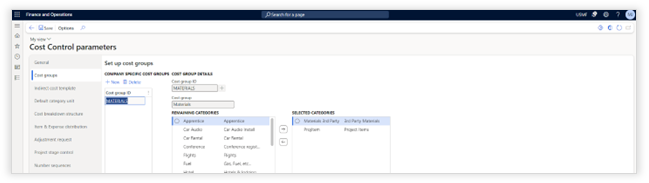
Cost groups
|
Parameter |
Description |
|
COST GROUP DETAILS Cost groups are used to group multiple project categories independent of types. This grouping simplifies reporting as well as automatically calculating indirect costs on a budget based on the total budgeted cost value on cost group level. |
|
|
Cost group ID |
Select cost groups that have been defined for the enterprise (called shared cost groups) from the drop-down list. If the cost group is not available create a new shared cost group by clicking on the "+" icon. |
|
Categories |
Select all categories that should be assigned to the selected cost group by moving them from the remaining categories list to the selected categories list. The category is linked to a single cost group. |
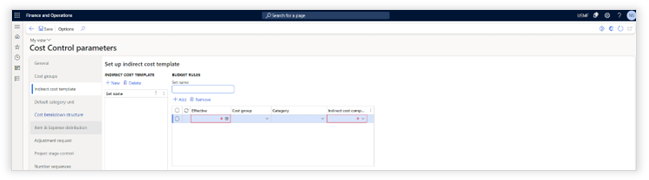
Indirect cost template
|
Parameter |
Description |
|
INDIRECT COST TEMPLATE These templates can be applied to a budget. Each template contains a set of rules that will be used to calculate the indirect costs. |
|
|
Set name |
This is the name of the indirect cost template that can be applied to a budget and exists out of multiple indirect budget definitions. |
|
BUDGET RULES |
|
|
Effective |
Date from which a budget rule will be applied |
|
Cost group |
This budget rule will only be applied to the selected Cost group. If this field is left blank, the rule will be applied to all cost groups. |
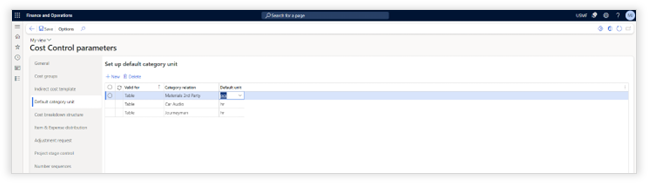
Default category unit
|
Parameter |
Description |
|
SET UP DEFAULT CATEGORY UNIT
|
|
|
Valid for > Category relation |
Set a default unit for all categories, a group of categories or for a single category. |
|
Default unit |
Specify the default budgeting unit. |
Cost Breakdown Structure
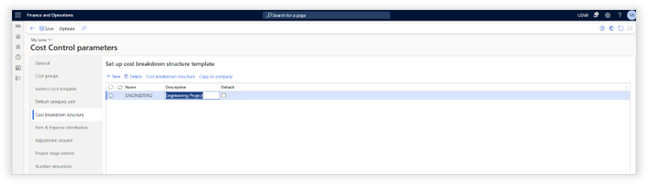
|
Parameter |
Description |
|
COST BREAKDOWN STRUCTURE TEMPLATES These templates can be used when creating a project budget. In most companies, CBS structures are fixed per type of project. This simplifies reporting across projects and companies. |
|
|
Name |
Provide a logical name for the template. |
|
Description |
Provide a logical description for the template. Explain what the template is used for. |
|
Default |
Option to select a CBS template as the default on new project quotations and projects. Note: only one CBS template can be marked as default. Note: a marked CBS template will also be used when a Cost Control budget is created based on the project plan. The CBS template will be used to link the WBS. |
|
Copy to company |
Ability to copy CBS templates to other organizations in the same Dynamics 365 tenant |
|
COST BREAKDOWN STRUCTURE |
|
|
CBS code |
The unique code for specifying a budget. |
|
Description |
A clear description of the budget code. |
|
Alternative reporting code |
An alternative code that can be used for reporting purposes. (e.g. customers have their own naming conventions/codes) |
|
Progress on this level |
When there is a clear hierarchy, specify on which level you'd like to report progress. By default, the system wants all information on the most detailed level but by creating budget group lines, you can manage the reporting of progress on a higher aggregation level. Be aware, when you set progress on this level on a CBS code with descendants, you also need a group budget line on this CBS code. Group lines will be explained later in this document. |
|
CBS locked |
(not applicable in the template) |
Budget template
Axtension Project Controlling can standardize the setup of a Cost Control budget in the Cost Control parameters > Budget template form.
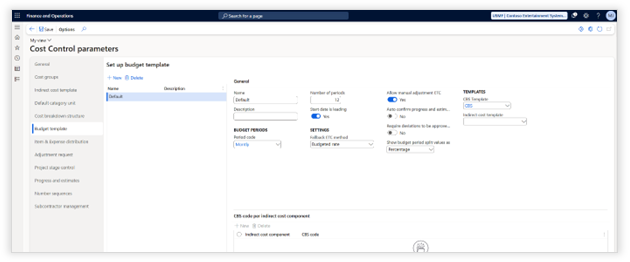
It is possible to predefine the common settings of a Cost Control budget like the default number of periods, the ETC method, link the budget template to a CBS template, automatically confirm progress and estimate datasets or define if the budget period split should be shown as amounts or percentages. In addition, it is possible to default which CBS code should be used per indirect cost component.
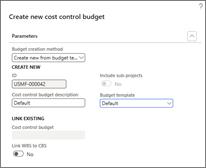
A budget template can be used when creating a Cost Control budget. By using the Create new from budget template method and selecting the required Budget template the settings from the budget template will be applied to the cost control budget. This way it is faster and easier to create a cost control budget by using all the default configuration options from a budget template.
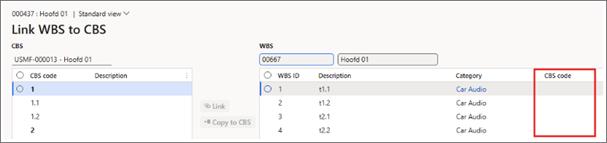
When creating a budget, the Link WBS to CBS form appears wherein it is possible to link project activities from the WBS to CBS codes. This form is only needed when the WBS ID's are not linked to CBS codes in the WBS.
Item & Expense distribution
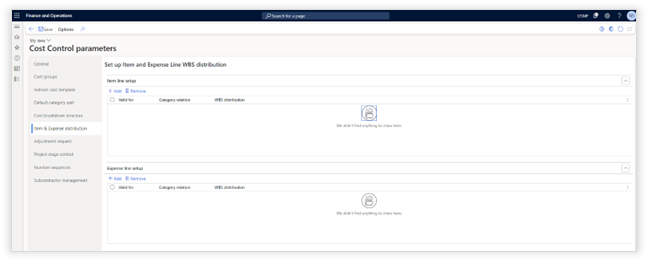
|
Parameter |
Description |
|
Setup Item and Expense Line WBS distribution These settings can be used to predefine how items and expenses are distributed in the Cost Control Budget. |
|
|
Valid for |
All: how are all items and/or expenses distributed from the WBS Group: how are the specified item and/or expense groups distributed from the WBS Table: how are the specific items and/or expenses distributed from the WBS |
|
Category relation |
Select the item and/or expense available from the selection on the Valid for value. |
|
WBS distribution |
Evenly: the cost distribution will be done evenly across the necessary periods based on the WBS. At start: the costs will be concentrated at the beginning of the first period based on the WBS. At end: the costs will be concentrated at the end of the last period based on the WBS. |
Adjustment request
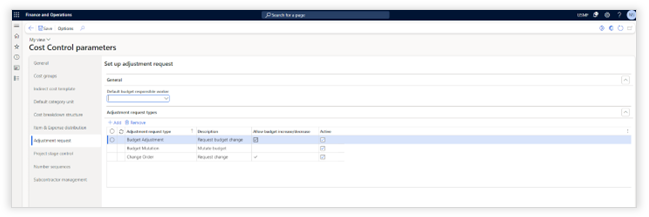
|
Parameter |
Description |
|
Default budget responsible worker |
Ability to assign the default budget responsible for all Cost Control budgets: - Project manager on project - Project manager on budget - Project controller on project - Project controller on budget |
|
Adjustment request types |
Ability to create adjustment request types which can validate if the total budget can be adjusted, but also as criteria for a conditional decision in the workflow. - Adjustment request type: name for the type. - Description: description of the type. - Allow budget increase/decrease: the adjustment request type can adjust the total budget if enabled. - Active: active or deactivate the adjustment request type. |
Project stage control
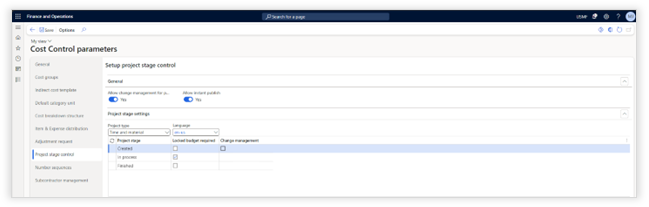
|
Option |
Description |
|
Allow change management for project plans |
Ability to enable change management for project plans. |
|
Allow instant publish |
Ability to enable the instant publish option for project plans. |
|
Locked budged required |
Ability to enforce a locked budget per project stage |
|
Change management |
Ability to enforce change management per project stage. |
Progress and estimates
For simplified progress and estimate datasets, it is now possible to adjust which columns are being shown and in which order. This can be done in the "Cost Control parameters" in the section "Progress and estimates".
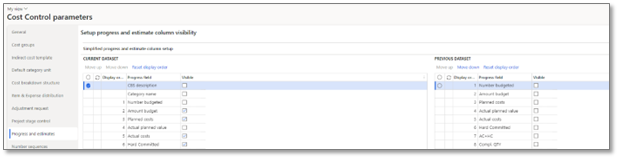
Adjusting which columns should be visible and in which order is not only possible for the actual data in the progress and estimate dataset, but also for the previous dataset should be shown. This allows users to compare the current data with a previous dataset. Data from previous datasets will be shown as white columns.

Number sequences
Create manual number sequences or use the generate number sequences to automatically create and assign number sequences to the objects listed.
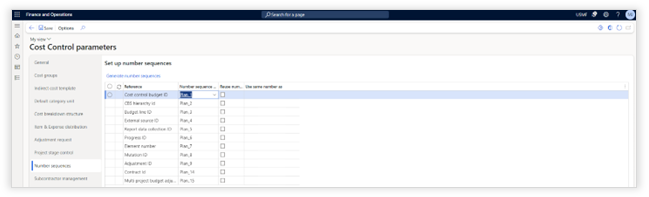
Project Parameters
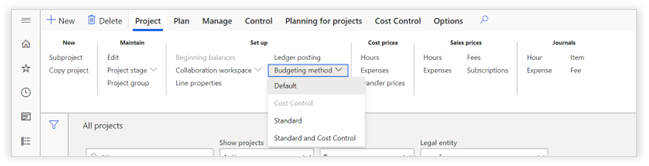
On the project set up the budgeting method can be changed. Go to Project management and accounting > Projects > All projects.
Budgeting method
|
Parameter |
Description |
|
SETUP |
|
|
Budgeting method |
Default: Use the setting defined in the project cost control parameters. Standard: The project budgeting functionality of Dynamics 365 F&O is available. It will not be able to access project cost control functionality from a project. (Only suggested for legal entities that will not be utilizing functionality of Axtension Project Controlling) Project Cost Control: The project budgeting functionality of Dynamics 365 for F&O is no longer visible on a project and only Project Cost Control functionality can be accessed from. (Defaulted) Standard and Project Cost Control: Both standard project budgeting as well as Project Cost Control functionality will be accessible from a project.
|
Creating a budget
Starting from scratch
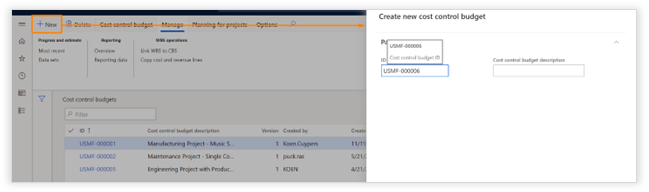
Go to Project management and accounting > Cost control budgets > Cost control budgets
|
Parameter |
Description |
|
GENERAL |
|
|
ID
|
Unique identifier created by the number sequence defined in the parameters. |
|
Cost control budget description |
Provide a clear description of the cost control budget. In most situations this name is equal to the name you would provide for the project. |
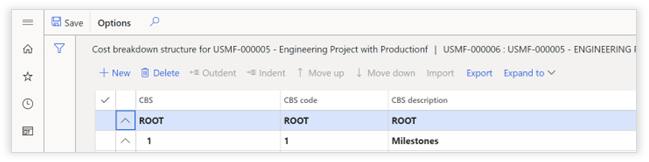
Define CBS structure.

|
Parameter |
Description |
|
COST BREAKDOWN STRUCTURE |
|
|
For manual creation of a CBS structure. |
|
|
For automatic creation of the CBS structure, import a template via:
|
|

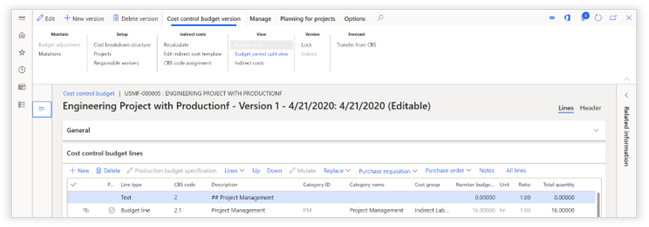
Create Budget lines
|
Parameter |
Description |
||||||||||||||||||||||||
|
MENU
|
|||||||||||||||||||||||||
|
New |
Create a new budget line. |
||||||||||||||||||||||||
|
Delete |
Delete a budget line. |
||||||||||||||||||||||||
|
Production budget specification |
If you create a budget line of the line type "Production budget", the system will automatically open a separate dialog in which the production budget can be specified. After saving, this button allows to re-open the dialog. |
||||||||||||||||||||||||
|
Lines |
Create text lines: Automatically create a text line for each CBS code Order text lines: Automatically arrange the text lines so they align with the budget structure Create group lines: Automatically create group lines for all CBS codes that have "reporting on this level" enabled with descendants. Order group lines: Automatically arrange group lines so they align with the budget structure |
||||||||||||||||||||||||
|
Up |
Move a line up |
||||||||||||||||||||||||
|
Down |
Move a line down |
||||||||||||||||||||||||
|
Mutate |
When a budget is locked, you can mutate the selected budget lines. A mutation allows to reallocate budget if the result of the changes are cost neutral. |
||||||||||||||||||||||||
|
Replace |
CBS code: Replace the CBS code for the selected lines. Category ID: Replace the category ID for the selected lines. Project ID: Replace the project ID for the selected lines. Item number: Replace the item numbers for the selected lines. Procurement category: Replace the procurement category for the selected lines. Period: Replace the period information for the selected lines. |
||||||||||||||||||||||||
|
Purchase Requisition |
Create purchase requisition: Create a purchase requisition for the selected line. Purchase requisition details: Open the purchase requisition linked to the selected lines. |
||||||||||||||||||||||||
|
Purchase Order |
Create purchase order: Create a purchase order for the selected line. Purchase order: Open the purchase order linked to the selected lines. |
||||||||||||||||||||||||
|
Notes |
Add notes to the selected lines. |
||||||||||||||||||||||||
|
All lines |
After creating a budget mutation, the system will only show the result lines of the mutation. With the "all lines" toggle enabled, you will see the original budget line, the correction line, and the result lines. |
||||||||||||||||||||||||
|
COST CONTROL BUDGET LINES |
|||||||||||||||||||||||||
|
[Blank] |
Icon if the budget line is linked to a WBS activity. |
||||||||||||||||||||||||
|
[Blank] |
Icon if there is a note on the budget line. |
||||||||||||||||||||||||
|
Period split |
Icon if the budget line has been successfully split allocated to periods. |
||||||||||||||||||||||||
|
Line type |
Text: a line that is purely informational Budget line: a line that has a budget defined Production Budget Line: this is an item budget line that has an underlying production budget specification. Group line: group all budget lines in a part of the CBS structure.
E.g.
|
||||||||||||||||||||||||
|
CBS code |
Select the CBS code from the CBS structure. |
||||||||||||||||||||||||
|
Category ID |
Select the Project category for this budget line. (the combination CBS code and project category makes the unique budget combination) |
||||||||||||||||||||||||
|
Category name |
Automatically populated after selecting the category. |
||||||||||||||||||||||||
|
Cost group |
Automatically populated after selecting the category. This field is only populated if there is a cost group linked to the category selected. |
||||||||||||||||||||||||
|
Description |
Provide a clear description of the budget line. |
||||||||||||||||||||||||
|
Number budgeted |
Number of units budgeted. |
||||||||||||||||||||||||
|
Unit |
The unit that is used for the budget specification. |
||||||||||||||||||||||||
|
Ratio |
The ratio used to convert to the number
of units for the category. Most of the time this number is one. In some
examples this field can be used to convert the budgeted numbers to the
category unit e.g. |
||||||||||||||||||||||||
|
Total quantity |
Calculated field. Number budgeted * Ratio |
||||||||||||||||||||||||
|
Cost price |
Automatically populated based on project category. |
||||||||||||||||||||||||
|
Amount |
Calculated field. Total quantity * Cost price. This field represents the "Cost most likely [Cm]". |
||||||||||||||||||||||||
|
Start period |
Explained in chapter "Budget period split". |
||||||||||||||||||||||||
|
Number of periods |
Explained in chapter "Budget period split". |
||||||||||||||||||||||||
|
Project ID |
Product that is linked to the budget line. |
||||||||||||||||||||||||
|
Item number |
If the budget line has a project category of the type item, an item can be selected for the budget line. |
||||||||||||||||||||||||
|
Procurement category |
If the budget line has a project category of the type item, a procurement category can be selected. |
||||||||||||||||||||||||
|
Purchase requisition |
If a purchase requisition is created via the menu, this field displays the purchase requisition ID. |
||||||||||||||||||||||||
|
Purchase order |
If a purchase order is created via the menu, this field displays the purchase order ID. |
||||||||||||||||||||||||
|
Opportunity |
This is the "Cost optimistic [Co]". If everything goes well the total budget could end with this amount. |
||||||||||||||||||||||||
|
Risk |
This is the "Cost pessimistic [Cp]". If certain risks occur, this will most likely be the impact on the budget. |
||||||||||||||||||||||||
|
NOTE: Within reporting, the values provided in the fields amount, opportunity and risk will be used to calculate the cost estimate. For cost estimating there are two main methods: Triangular distribution = [Cm + Co + Cp] / 3 Beta distribution = [4Cm + Co + Cp] / 6
|
|||||||||||||||||||||||||
|
Reason |
Provide a description that explains the opportunity and the risk amount. |
||||||||||||||||||||||||
|
Sort field |
Field used for sorting. |
||||||||||||||||||||||||
|
Mutation ID |
If a mutation exists on a budget line, this column displays the original mutation ID. |
||||||||||||||||||||||||
|
Mutation Type |
Original: The original budget line Mutation: The correction line Result: The outcome of the mutation |
||||||||||||||||||||||||

Starting from a project
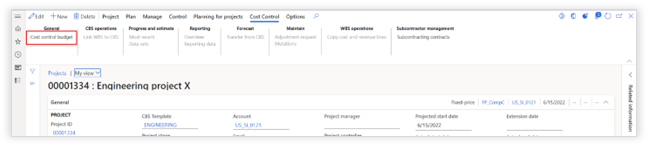
Getting started
|
Parameter |
Description |
|
GENERAL |
|
|
Cost Control Budget |
If a project does not yet have a budget, clicking on the cost control budget button will open a dialog to create a new budget. |
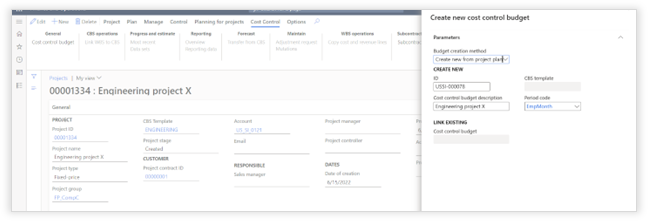
Wizard
|
Parameter |
Description |
|
GENERAL |
|
|
Budget creation method
|
Select how to create a new budget.
|
|
CBS template |
Ability to select a CBS template, or to show if a CBS template has been assigned to a project. |
|
Period code |
Based on the project plan and the selected period code the following will be configured automatically during the creation of the project: - Number of periods - Start date. Note: State date is leading is now enabled by default. - Distribution of budget lines over the determined number of periods, based on the WBS. |
|
|
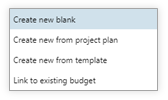
Create new blank: Create an entirely new budget where everything needs to be defined manually. Create new from project plan: Copy the WBS structure to a CBS structure and copy all estimated cost lines to the budget accordingly. Create new from template: Create an empty budget by using a cost breakdown structure template. The system will automatically take you to the "Link WBS to CBS" form. Link to existing budget: Link this project to an existing budget. |
Budget period split (Optional)
Splitting a budget into periods allows for full-earned value management and having a more detailed Planned Value per period. For smaller projects, we suggest not using this feature.
Budget period definition
Open a cost control budget Project management and accounting > Cost control budgets > Cost control budgets
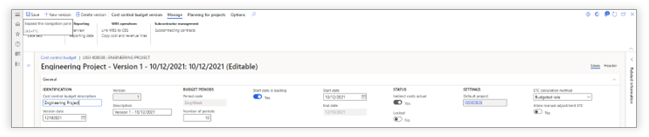
|
Function |
Description |
|
BUDGET PERIODS |
|
|
Period code |
Select a period code defined in the [Organization administration > Setup > Calendars > Period types]. This period defines if the budget will be broken down to e.g. weeks or months. (In most situations, budgets are broken down by month) |
|
Number of periods |
The total number of periods the budget will be consumed in (e.g. if a project takes 1 year and the period code is months; the number of periods will be 12. If the project takes 1 year and the period code is weeks, the number of periods will be 52.) |
|
Start date is leading |
Yes: Define start date and the system will calculate the end date based on period code and number of periods. (forwards) No: Define end date and the system will calculate the start date based on period code and number of periods. (backwards) |
|
Start date |
The budget consumption is expected to start. |
|
End date |
The budget consumption is expected to end. |
Budget period line definition

Switch the budget to "Budget period split view"
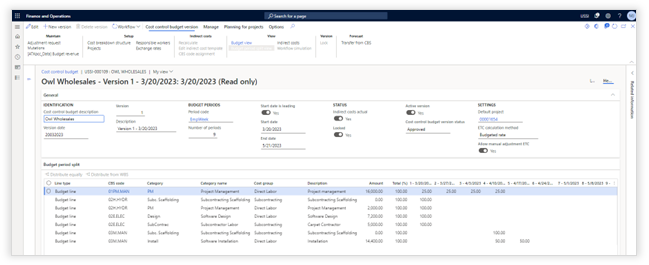
|
Function |
Description |
|
||
|
MENU
|
||||
|
Distribute equally |
Distribute the cost perceptually across all the periods to determine the "Planned Value [PV]" per period. If the budget line (to see this information you need to toggle back to the "budget view") has a start period and the number of periods specified, the system will only distribute equally across the specified periods: Start Period: This field contains the period in which a project will start (e.g. If the period code is Months, the total periods for the budget is 12 and the expected consumption of this piece of the budget starts after 6 months, the start period is 6) Number of periods: The number of periods it will take for this budget to be consumed. (e.g. If the consumption of a budget starts after 6 months and is expected to be done within 3 months, the value for the number of periods is 3) |
|
||
|
Distribute from WBS |
If the budget is linked to a WBS, the system will use the planning of your project to distribute the cost automatically across the periods to determine your "Planned Value [PV]" per period. |
|
||
|
Budget period split |
||||
|
Total (%) |
Calculated field. This field validates if the budget has been fully broken down. The value is shown as a percentage. |
|
||
|
[Period] (%) |
This column can be populated via the distribute functionality and manually adjusted. The value in this field represents a percentage of the budget that will be allocated to the specified period. |
|
||


ETC Calculation Method
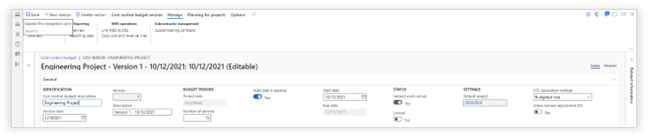
|
Function |
Description |
|
ETC calculation Until a budget is locked, the ETC calculation method can be changed from the default set in the parameters. If this setting needs to be changed for future reporting a new budget version needs to be created. |
|
|
ETC calculation method |
Here the appropriate ETC calculation method can be selected. Budgeted rate: ETC = Budgeted amount – Earned Value CPI rate: ETC = [Budgeted amount / CPI] – Actual costs CPI and SPI rate: ETC = [Budgeted amount – Earned Value]/[CPI*SPI] Bottom up - Manual: ETC = manually entered
|
|
Allow manual adjustment ETC |
This function enables the option to manually adjust the ETC value on the progress and estimate dataset before confirming it. |
Budgeted Revenue
Expected revenue can be captured on projects that have budget periods.
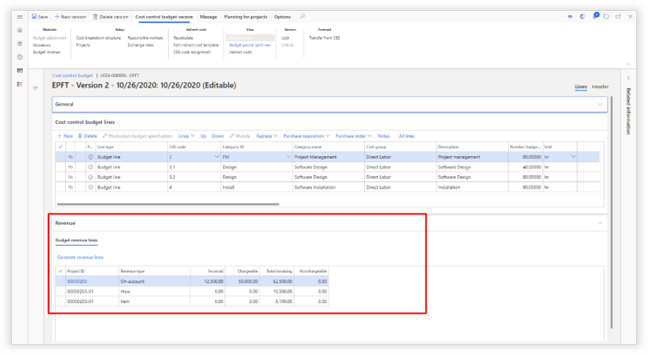
|
Function |
Description |
|
BUDGET REVENUE LINES |
|
|
Generate revenue lines |
This function will collect all expected revenue from the related projects in the specified periods. The result will be visualized in the lines. |
Adjust revenue period split
It is possible to adjust the calculated revenue period split.

Exchange rates
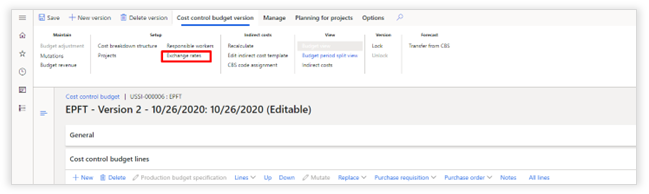
When a project, the contract or a specific On-account is set in a different currency, an exchange rate on the budget needs to be specified. Cost control budget version > Setup > Exchange rates
Conversion rates for committed costs
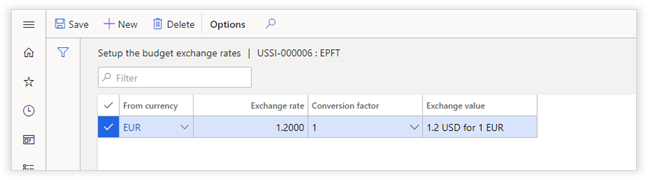
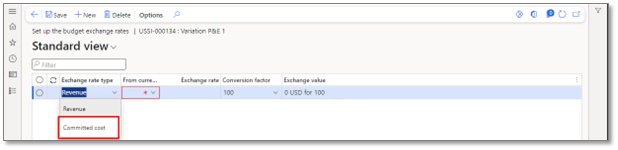
Exchange rates can be set for committed costs. In the "Set up the budget exchange rates" form, the "Committed cost" is available as the "Exchange rate type" for exchange rates destined to be used for committed costs.
If an exchange rate is set for committed costs, any cost committed value is shown based on the exchange rate instead of the price of the purchase order and/or production order.
The exchange rate is not date controlled. When updated, all converted values for the budget will be calculated accordingly.
Indirect Costs (Optional)
Open a cost control budget Project management and accounting > Cost control budgets > Cost control budgets

|
Function |
Description |
|
INDIRECT COSTS |
|
|
Recalculate |
Function to recalculate the indirect costs based on the indirect cost template assigned. |
|
Edit indirect Cost template |
Opens a new form to specify the indirect costs applicable to this budget. |
|
CBS code assignment |
Assign CBS codes to indirect costs. |
Edit indirect cost template
|
Function |
Description |
|
INDIRECT COSTS |
|
|
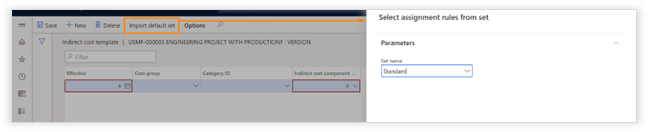
Import default set |
Import a template to define the indirect cost rules. These templates are defined in the Project Cost Control parameters. (See set up project cost control parameters for setting up Indirect cost template) |
CBS code assignment
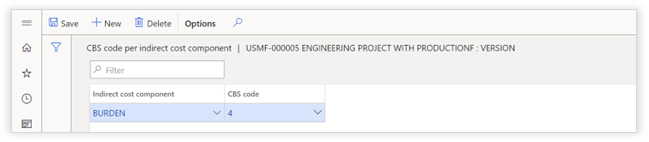
|
Function |
Description |
|
CBS code per indirect cost component |
|
|
Indirect cost component |
Select the indirect cost component. |
|
CBS code |
Link the indirect cost component to a CBS code. If an indirect cost is not linked to a CBS code, the indirect cost will be calculated and managed for each CBS code. |
Indirect budget lines
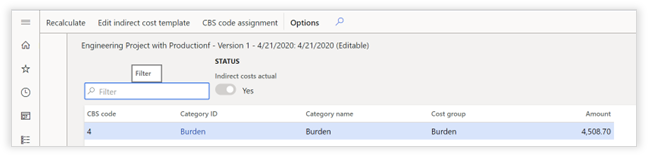
After recalculating, the total budget for indirect costs is available. Open the details via the menu item "indirect costs".

Linking a budget to one or more projects
Open a cost control budget Project management and accounting > Cost control budgets > Cost control budgets

|
Function |
Description |
|
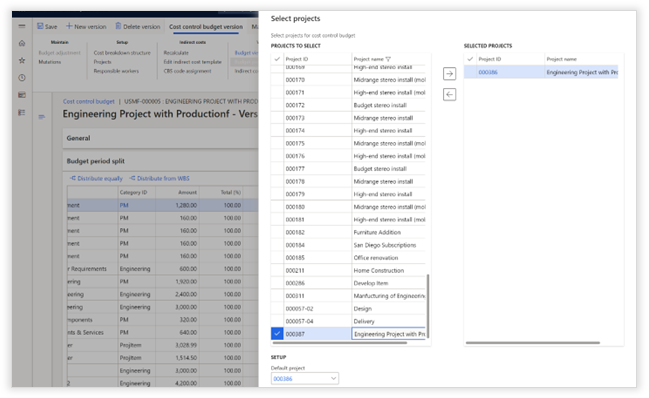
Select projects |
|
|
Selected Projects |
Link projects by moving projects from the Projects to select list to the selected projects list. |
|
Default project |
Set one of the selected projects as the default project. |
NOTE: Only projects which cannot be linked to CBS templates can be selected.
Link CBS to WBS (Optional)
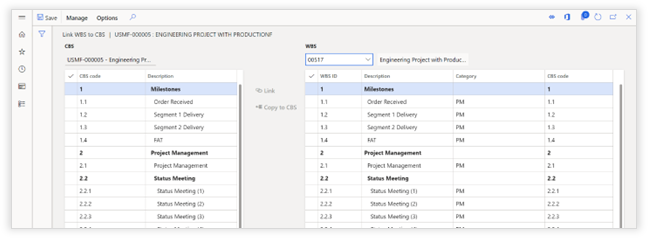
Linking a CBS to a WBS allows the following options:
- Copy WBS cost lines from the Work Breakdown Structure to the budget.
- Automatically determine the CBS code on Timesheets. (Not on journals)
Open a cost control budget Project management and accounting > Cost control budgets > Cost control budgets

|
Function |
Description |
|
MENU > MANAGE |
|
|
CBS > Edit |
Open the CBS structure and edit the CBS codes. |
|
CBS > Unlink CBS |
Unlink all WBS codes that are linked to this CBS code. |
|
WBS > Edit |
Open the WBS structure. |
|
WBS > Unlink |
Unlink the selected WBS code from its linked CBS code. |
|
LINK WBS TO CBS |
|
|
WBS > Hierarchy |
Select the WBS hierarchy from one of the projects linked to this budget. |
|
Link |
Link selected WBS codes to the selected CBS code. |
|
Copy to CBS |
Copy the selected WBS nodes to the CBS structure as CBS codes. |
Submit budget for approval
Open a cost control budget Project management and accounting > Cost control budgets > Cost control budgets
To enable budget version approval a workflow is introduced in Axtension Planning & Control. The "Cost control budget version approval" workflow. In addition to the standard workflow participants, it also possible to configure the Budget related project resources participant provider and the Budget responsible worker participant provider.
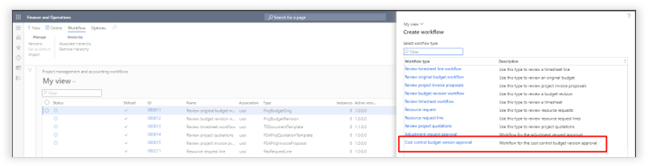
Once a workflow is configured the option becomes available to submit an unlocked version of the Cost Control budget for approval.
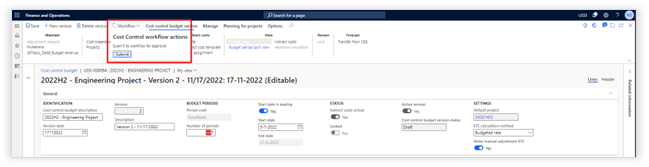
Submitting the Cost Control budget for approval applies validations on the period split of budget lines and if the budget lines are in line with the Cost Breakdown Structure of the Cost Control budget.

Once the Cost Control budget is submitted to workflow for approval, the option to show the workflow simulation becomes available.

The workflow simulation option can be used to see what the next expected steps for the invoice will be when submitted into workflow. This also includes visualization of who will be next to touch the invoice for approval- or review tasks. This creates transparency and understanding of what the invoice requires.
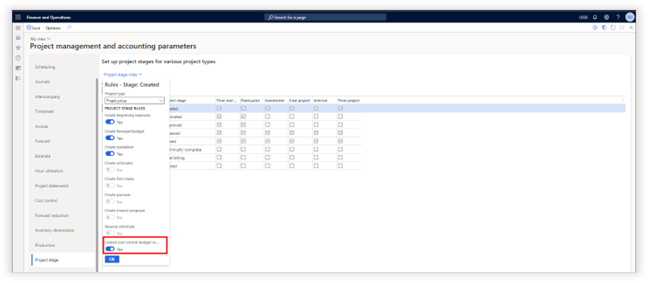
A locked Cost Control budget can be set as mandatory when setting a project on a specific stage. This can be set in the Project management and accounting parameters > Project stage section.
Import budget lines via Excel
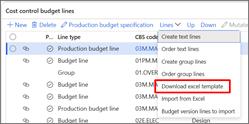
For organizations which are not creating a Cost Control budget from the WBS, it is now possible to import budget lines from Excel. This can be done by downloading an Excel template from the Cost Control budget, then adding the required information and uploading it into the Cost Control budget.
Download Excel template
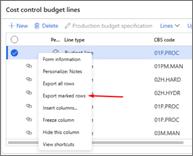
Creating the Excel template can be done by either using the standard D365 function to select rows and export them to an Excel file or by using the option to download an empty Excel template within the Cost Control budget.
Import from Excel
The import of budget lines from Excel can be done on an unlocked budget version by using the action Import from Excel.
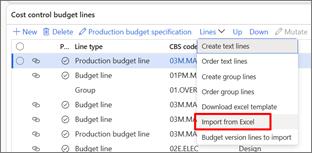
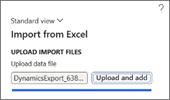
When selecting Import from Excel the following popup will appear where it is possible to select the Excel file which will be imported into the Cost Control budget. The import process will start after the Excel is uploaded and Start import is selected.
Validate imported budget lines
Lines imported from Excel are not automatically added to the Cost Control budget but are first added in a stage form. This can be opened by selecting Budget version lines to import.
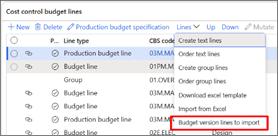
During the import process, the imported budget lines are automatically validated and checked e.g. on valid CBS code and/or category. The results of the validation check can be found in the Budget version lines to import form.
Incorrect lines can still be edited in the Budget version lines to import form and validated manually by using the validate action in the top-ribbon. The Transfer to budget action can be used to add the staged budget lines into the Cost Control budget.

Transfer budget to forecast
Open a cost control budget Project management and accounting > Cost control budgets > Cost control budgets

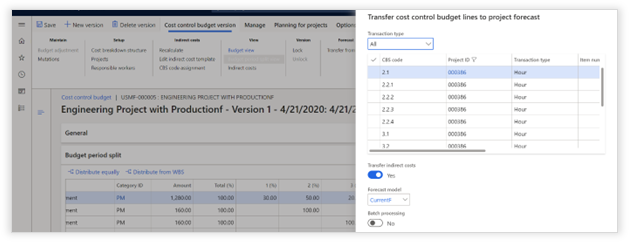
|
Function |
Description |
|
TRANSFER COST CONTROL BUDGET LINES TO PROJECT FORECAST |
|
|
Transaction type |
Select budget lines by: All, Fee, Hour, Expense or Item. |
|
Grid |
Select all lines that should be transferred. |
|
Transfer indirect costs |
If set to yes, all indirect costs calculated for the selected lines will be transferred as well. |
|
Forecast model |
Select the forecast model to which the selected lines are transferred. |
|
Batch processing |
Run this process via the batch server yes or no. |
Budget baseline creation during quotation transfer to project
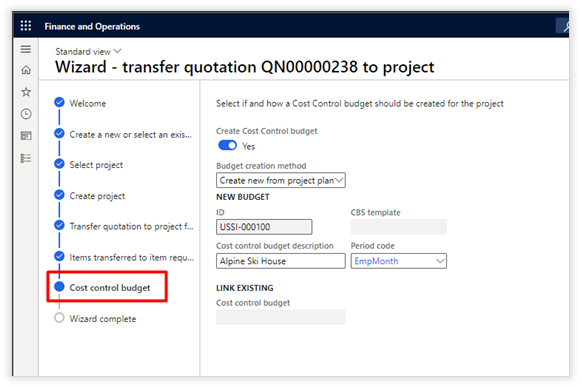
When transferring a project quotation to a project it is possible to create an Axtension Project Controlling budget directly from the WBS of the project quote.
In the transfer project quotation wizard of Dynamics 365, an additional step has been added in this version of Axtension Project Controlling to create a Cost Control budget for a new project based on the project quotation.
The options which are available are the same as when a Axtension Project Controlling budget is created on a project.
Maintaining a budget
Progress and estimate reporting
Progress and estimate reports are created periodically for budget to provide information regarding:
- Progress, how much of the budgeted work has been completed. (Progress)
- Forecast, how much of the budgeted work still needs to be done. (Estimate / Forecast)
Each progress and estimate report is stored and represents a snapshot in time to show how a project was performing and how the project is developing in time.
Open a cost control budget Project management and accounting > Cost control budgets > Cost control budgets

|
Function |
Description |
|
TRANSFER COST CONTROL BUDGET LINES TO PROJECT FORECAST |
|
|
Most recent |
Open the latest created progress and estimate report. |
|
Data sets |
Show a list of all progress and estimate reports created for this budget. |
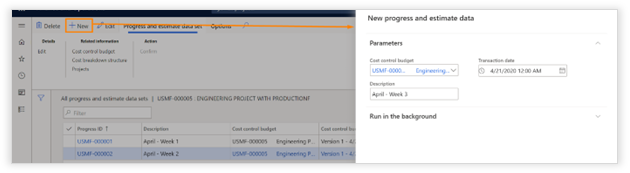
Create a new progress and estimate report
Open a cost control budget Project management and accounting > Cost control budgets > Cost control budgets > Manage > Progress and Estimate > Data sets
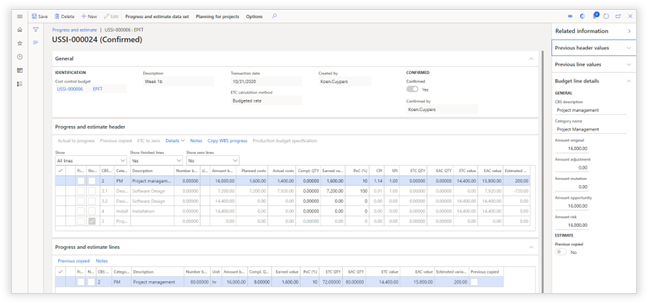
Provide progress and estimate information
|
Function |
Description |
|
PROGRESS AND ESTIMATE HEADER MENU
|
|
|
Actual to progress |
Automatically calculate the percentage of completion based on the actual cost compared to budget. |
|
Previous Copied |
Copy the progress and estimate information provided in the previous progress and estimate data set to this estimate reporting line. |
|
ETC to zero |
Set the estimate to complete to "0". |
|
Details > Actual costs |
Show all associated actual cost for the selected line. |
|
Details > Actual planned value |
This shows all the activities that are assigned to this CBS code. This way it is easy to validate which activities will be consuming from this budget line. |
|
Notes |
Add notes to the selected line |
|
Copy WBS progress |
Copy the percentage of completion from related activities to the selected progress & estimate lines. This only works for progress and estimate lines of the type "hour" and when the WBS is linked to the CBS.
sum (%completed on tasks PROGRESS AND ESTIMATE HEADER MENU effort on the task of all linked tasks) / (sum of effort hours of all linked tasks) |
|
Production budget specification |
This button allows further analysis of total production budget compared to estimated production orders and realized production orders. This button is only available if one of the budget lines part of the selection is a production budget line. |
|
Reservations |
This reserved amount can be used to deduct the non-committed cost amount and shown in reporting that a part of the budget is reserved for a specific purpose. |
|
PROGRESS AND ESTIMATE HEADER |
|
|
(Blank) |
[Display] Icon indicating if there are notes linked to this line. |
|
Finished |
[Edit] Mark the budget as finished. When check enabled, no progress information can be provided at this stage. |
|
Non Budget |
[Display] There is an actual cost posted to a combination of CBS code and category for which no budget lines exists. |
|
CBS code |
[Display] CBS code for the budget line. |
|
Category |
[Display] Category for the budget line. |
|
Description |
[Display] Budget line description. |
|
Number budgeted |
[Display] Number of budgeted units. (only for group lines) |
|
Unit |
[Display] Unit of measure that applies to the number budgeted. |
|
Amount budget |
[Display] Total amount budgeted. |
|
Actual planned value |
[Display] Total costs currently scheduled in the related project activities. |
|
Actual costs |
[Display] Total actual cost posted to the CBS code and category combination. |
|
AC quantity |
[Edit] Number of budgeted units completed. (only for group lines, in other occasions change update this value on progress and estimate lines) - Manually entered - Calculated based on PoC(%) * Number budgeted |
|
Earned Value |
[Edit] The value added to the project. - Manually entered - Calculated based on PoC(%) * amount budget |
|
PoC (%) |
[Edit] The percentage of completion. - Manually entered - Calculated based on AC quantity / Number budgeted - Calculated based on Earned value / amount budget |
|
Actual to progress |
[Display] Has the function "Actual to progress" been used on this budget reporting line. |
|
ETC quantity |
[Edit] Number of budgeted units to complete. (only for group lines, in other occasions change update this value on progress and estimate lines) |
|
ETC value |
[Edit] Budget amount needed to complete the activities. This value is automatically calculated but can be manually adjusted. [amount budget] – [earned value] |
|
EAC value |
[Edit] Estimated cost at the end of the project. |
|
Estimated variance |
[Display] Difference between amount budget and EAC value. |
|
Previous copied |
[Display] Has the function "Previous copied" been used on this budget reporting line. |
|
PROGRESS AND ESTIMATE LINES MENU
|
|
|
Previous copied |
Copy the progress and estimate information provided in the previous progress and estimate data set to this budget line. |
|
Notes |
Add notes to the selected line. |


After providing all information "Confirm" the dataset.
Committed cost

The progress and estimate datasets and reporting datasets in Axtension Project Controlling can include both soft committed costs and hard committed costs in the reporting.
For soft committed costs the following project related costs are selected:
- Purchase orders confirmed not received.
- Production orders not reported as finished or charged to the project.
- Invoice contract remaining amount.
For hard committed costs the following project related costs are selected:
- Purchase orders received but not invoiced or charged for the project.
- Production order estimated costs minus realized costs.
- Invoice contract invoice not posted / released.
Soft committed costs are shown purely for informational purposes but can affect the non-committed costs totals (Estimated To Complete minus soft committed costs). Hard committed costs will influence the CPI and SPI.
The committed costs in the reporting can be adjusted via the following Axtension Project Controlling parameters.
Enabling committed costs in the parameters will add the following columns in the progress and reporting dataset:

|
Field |
Description |
|
HC |
Totals of the hard committed costs. |
|
AC + HC |
The sum of actual costs and hard committed costs. |
|
SC |
Totals of the soft committed costs. |
|
NC |
The result of deducting ETC with the soft committed costs. |
These columns are also available on the reporting datasets:

From both the progress and estimate dataset and the reporting dataset it is possible to drill down in the committed costs via the cost menu:

When creating a revenue recognition with the UAC - Actuals cost to complete method, the Cost to Complete column is calculated based on the ETC and hard committed costs.
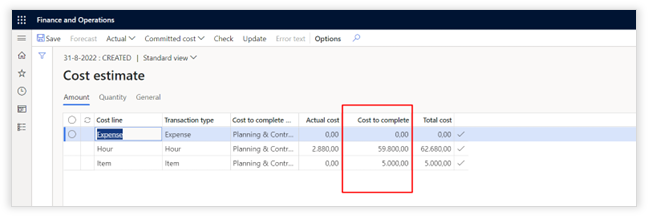
Simplified progress and estimate data set
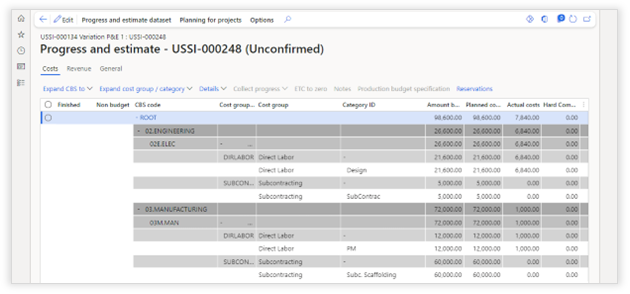
The simplified progress and estimate dataset will show the CBS codes with budget lines in one overview. This is like the "Reporting data" view.
The simplified progress and estimate dataset contains three tabs:
|
Tab Name |
Description |
|
Costs |
Overview of the CBS codes, cost groups, and categories |
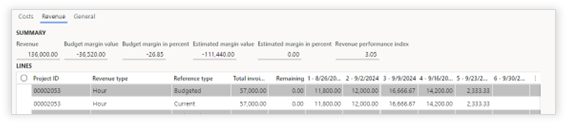
|
Revenue |
Revenue information, including total revenue, margin and revenue period split broken down into revenue types of hour, expense and item.
The revenue of the reference type current can be adjusted. Note the values entered in here will not be written back in to the Cost Control budget and can only be used for reporting purposes.
|
|
General |
General information about the progress and estimate dataset. |
Adjustment requests for progress and estimate deviations.
Organizations can automatically create an adjustment request when estimated variations exists on a progress and estimate dataset and the dataset is being confirmed. This feature can be enabled in the "Cost Control parameters" with the ability to select the "Adjustment request type".
The "Adjustment request type" can also be configured per Cost Control budget.
The created adjustment request type will contain new budget lines with amounts corresponding to the variances in the progress and estimate dataset. The budget lines will copy the budget period split from the originating budget line.
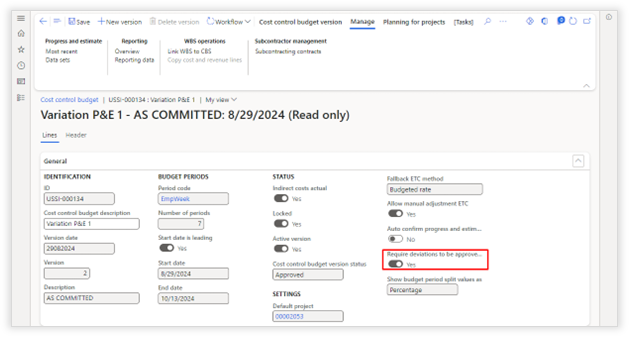
When an adjustment request is created for variations on a confirmed progress and estimate dataset, a new progress and estimate dataset can only be created when the adjustment request is approved or declined.
Automatically create and confirm progress and estimate datasets
Progress and estimate datasets can be created and confirmed automatically by using a period task.
Create progress and estimate datasets
A periodic task is available which can be scheduled to run at predefined dates. The periodic task can be found via Project management and accounting > Periodic > Cost Control > New progress and estimate data.
The periodic task can be created on request but also be scheduled at a specific moment.
Note: if progress and estimate datasets need to be created at months end, make sure to schedule one periodic task per month and select the last date of the month as the transaction date.
In addition, filters can be used to select Cost Control budgets based on e.g. project financial dimensions such as Service Line.
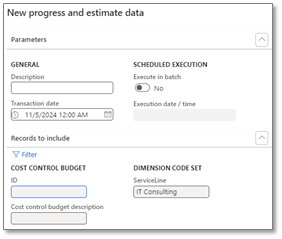
Confirm progress and estimate datasets
Next to the automatic creation of a progress and estimate dataset, it is also possible to define if a generated progress and estimate dataset should be confirmed automatically per cost control budget.
This can be done by setting the "Auto confirm progress and estimated dataset" toggle to yes.
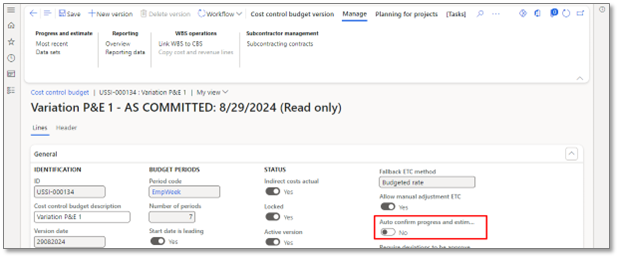
Responsible workers
Set the responsible workers for a budget to use them in the workflow. Open a cost control budget Project management and accounting > Cost control budgets > Cost control budgets


|
Function |
Description |
|
BUDGET RESPONSIBLE WORKER |
|
|
Role |
Each budget can contain multiple people assigned to the following roles: - Project Manager - Sales Manager - Project Controller - Sales Manager When opening the "My cost control budgets" the system will only show the budgets on which you have been assigned to as a responsible worker. This assignment can also be used in workflow to request approvals for budget adjustments. |
|
Worker |
Worker assigned to the budget role. |
Workflow
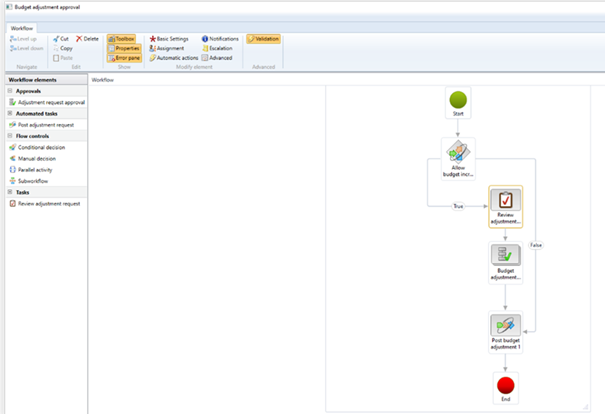
Open a cost control budget Project management and accounting > Setup > Project management and accounting workflows
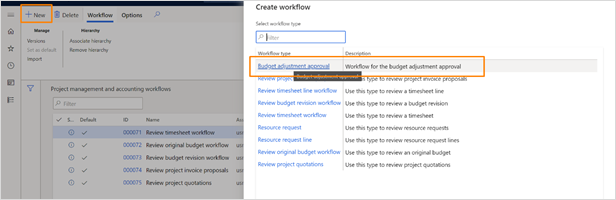
|
Function |
Description |
|
Adjustment request approval |
Create an approval step for the budget adjustment. The approval step(s) can be assigned to any user in the organization or the following participant types can be used: - Adjustment request budget resources participant provider: User defined with the budget responsible role. - Adjustment request budget responsible participant provider: User defined on the adjustment request as budget responsible. - Adjustment request project resources participant provider: User defined with the selected role on the project. - Budget responsible worker: User defined on the adjustment request as budget responsible. |
|
Review adjustment request |
Review task for the adjustment request. |
|
Post budget adjustment |
Post the budget adjustment. After posting, the adjustment cannot be changed, and the budget lines are added to the budget. |
Budget adjustments
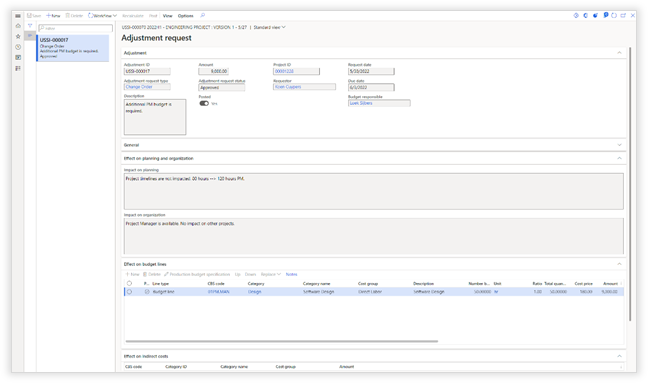
Open a cost control budget Project management and accounting > Cost control budgets > Cost control budgets

|
Function |
Description |
|
ADJUSTMENT MENU
|
|
|
Save |
Save changes mode on the budget adjustment. |
|
New |
Create a new budget adjustment. |
|
Delete |
Delete a budget adjustment. |
|
Workflow |
Execute workflow tasks. (Submit, Approve, Reject, Request Change, Delegate, view history) |
|
Recalculate |
Recalculate indirect costs associated with the budget lines in the adjustment. |
|
Post |
Finalize the adjustment and add the budget lines to the budget. |
|
View |
Switch from budget line view to period split to breakdown the adjustment budget lines to periods. |
|
ADJUSTMENT |
|
|
Adjustment ID |
This is the unique identifier for the budget adjustment. |
|
Adjustment request type |
Ability to assign the correct type to the adjustment request. Based on the selection, appropriate actions can be assigned in the workflow. |
|
Description |
Provide a clear description of the budget adjustment. |
|
Budget adjustment status |
Status of the budget, updated by the workflow: (Draft, in review, rejected and approved) |
|
Project ID |
Select a project from the list of projects that are assigned to this budget. The adjusted lines will be applied to all transactions of the selected project. |
|
Amount |
Total amount of budget adjustment. |
|
Posted |
Check if budget adjustment is posted. |
|
Request date |
Request date of the adjustment request. |
|
Due date |
Before when must the adjustment request be approved. |
|
Budget responsible |
Optionally assignment of the responsible person for approval of the adjustment request. |
|
EFFECT ON PLANNING AND ORGANIZATION |
|
|
Free text fields for optional description of impact on the planning and/or organization from the adjustment request. |
|
|
EFFECT ON BUDGET LINES |
|
|
Add positive or negative budget lines including production budget specification. |
|
|
EFFECT ON INDIRECT COSTS |
|
|
If indirect costs are configured, the impact from the adjustment request on the indirect costs will be calculated and made visible. |
|
|
EFFECT ON REVENUE |
|
|
Revenue calculation uses the same method and information as available generating the revenue lines on a Cost Control budget.
The revenue lines on an adjustment request are always generated for the complete project. Not only for new billing rules in case of a fixed price project or new estimated cost and revenue lines on a time & material project.
The total revenue amount is shown in the field Revenue amount on the adjustment request. The difference between the revenue lines on the adjustment request and the revenue lines on the Cost Control budget is shown in the field Revenue amount impact on the adjustment request.
Once the adjustment request is approved and posted, newly generated revenue lines on the adjustment request will become the actual revenue amount on the Cost Control budget.
Note: it is possible to create an adjustment request for only revenue line calculation without any changes to the budget lines itself. |
|

Budget versions
Open a cost control budget Project management and accounting > Cost control budgets > Cost control budgets

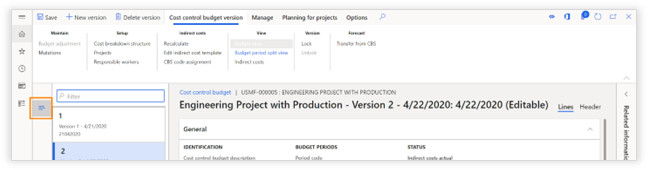
After creating a new budget version, the budget adjustments and mutations will become standard part of the budget.
The budget will be unlocked so changes can be applied. After completion, the budget needs to be locked.
By selecting an older version and going back to the "details view" you can view the original budget.
Update production budget specification
It is possible to change the production budget specification from the WBS after the creation of a Cost Control budget.
This will allow organizations to update the production budget specification after engineering is done, this way it will reflect the actual production costs compared to the initial estimate before engineering.
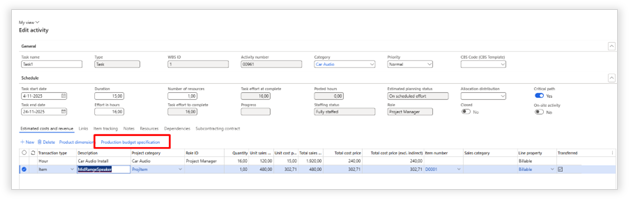
Editing an existing production budget specification is done by using the standard D365 WBS or via the task planning on a draft WBS.
Updating the production budget specification is done in the same matter as creating a new production budget specification.
Note The quantity or unit cost price of an estimated cost line cannot be changed once a production budget specification is calculated on that estimated cost line.
CBS template on project quotation and project headers
It is possible to assign a CBS template on the header of both a project quotation and project.
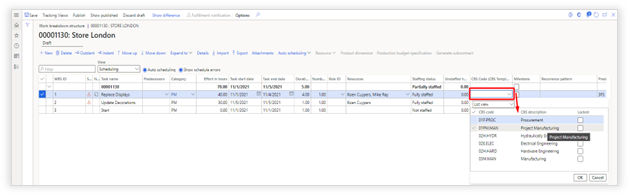
By doing so it is possible to assign in the WBS of standard Dynamics 365 or Axtension Project Management CBS codes coming from the selected CBS template.
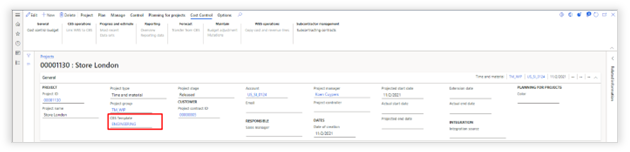
Selection when using standard WBS in Dynamics 365:
Selection when using Axtension Project Management:
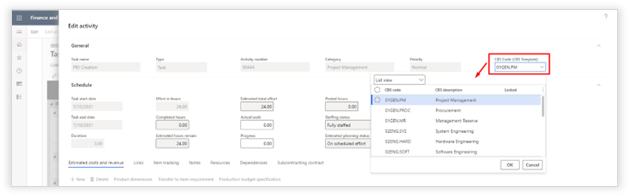
NOTE: The CBS code for published tasks can only be changed when the planning is published.
Change Management
For organizations following strict change management protocols, Axtension Project Controlling, in combination with Axtension Project Management, offers the ability to handle changes in the task planning through adjustment requests.
Adjustment requests now introduce the ability to combine multiple changes in the budget and task planning in one adjustment request while publishing a new version of a task planning. Additional options are available when publishing a new version of the task planning.
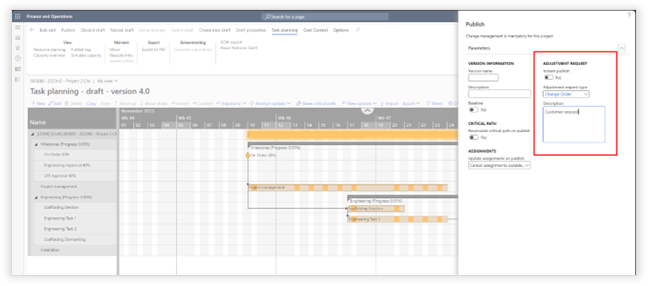
|
Option |
Description |
|
Instant publish |
A task planning draft can be instantly published (if enabled), any related budget adjustments will still go through the adjustment request workflow. |
|
Adjustment request type |
Ability to select the correct adjustment request type. |
|
Description |
Mandatory field to provide a description. |
In the adjustment request in the fast tab "Effort on planning and organization", impact on the project categories are shown in "Previous effort", "Proposed effort" and "Difference".
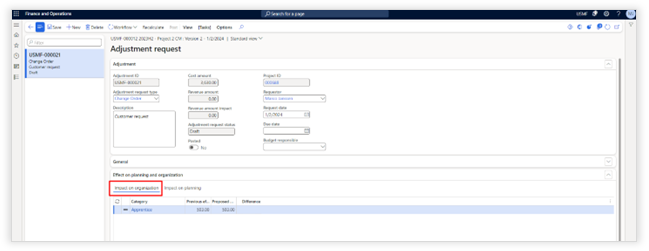
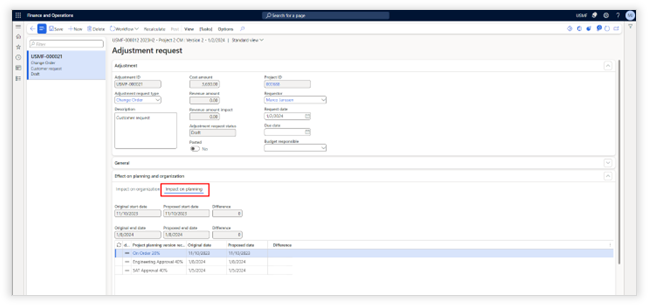
"Impact on planning" shows the milestones of the task planning and if these have been affected with
Multi-project change management
Change management is also available for multi-project publishing.
For these scenario's a new header workflow is introduced:
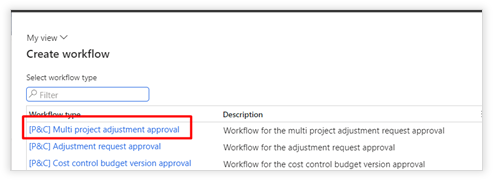
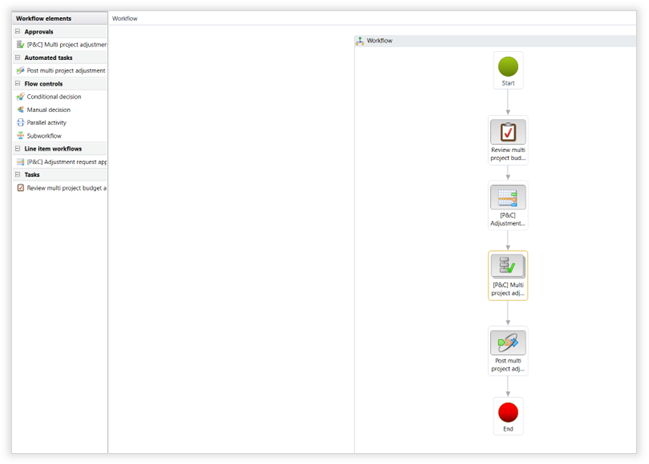
This workflow allows organizations to review a multi-project draft before the individual project plans are approved in the line workflow.
Note:
A multi-project adjustment request requires a mandatory approval.
Declining an adjustment request unlocks the drafts without publishing them.
Denying the adjustment request will stop the workflow.
Workspace & Reporting
Analytical workspace
Access the workspace from the Default Dashboard or Project management and accounting > Workspaces > Project monitoring and control
Drill down to the actual budget form by clicking on the budget code (single click - wait for 2 seconds after clicking):
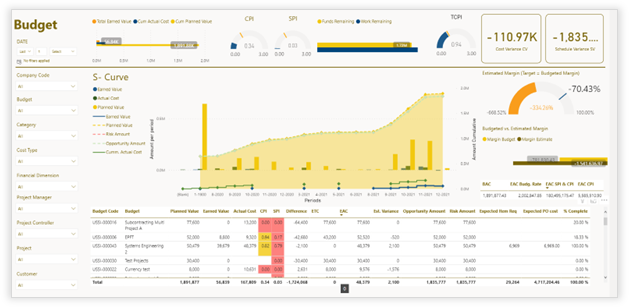
Reporting overview
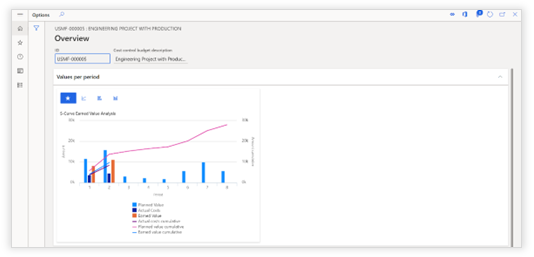
Open a cost control budget Project management and accounting > Cost control budgets > Cost control budgets
S-curve diagram showing the cost per period and cumulative lines.

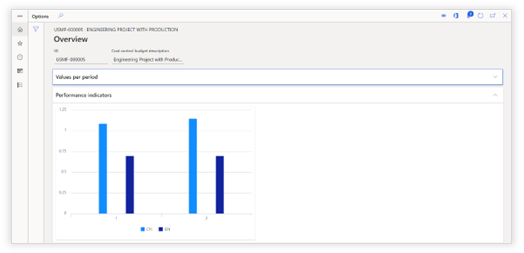
CPI and SPI per period.
Reporting dataset
Open a cost control budget Project management and accounting > Cost control budgets > Cost control budgets

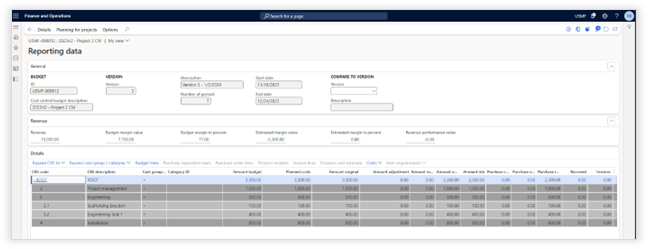
Compare budget versions
Axtension Project Controlling now supports the ability to compare versions of the budget. This can be done by selecting one of the previous versions in the reporting data with the active budget version.
Based on the selected version to compare the active budget with the reporting data lines will show indicators to show changes in budget.
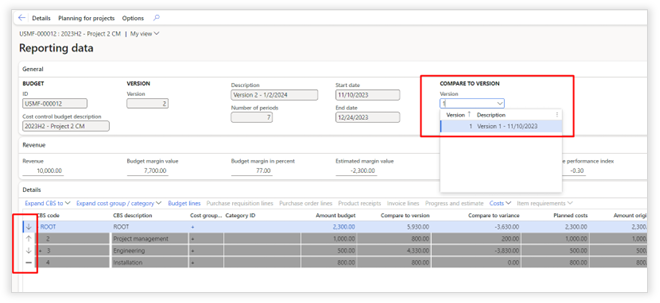
|
Option |
Description |
|
|
Budget is added compared to the selected version. |
|
|
Budget is lowered compared to the selected version. |
|
|
Budget remained equal compared to the selected version. |
|
|
There is no active budget, but the compared version contains budget. |
|
|
There is active budget, but the compared version contains no budget. |


In addition, the actual amounts and difference compared with the selected version are shown in the new "Compare to version" and "Compare to variance" columns. These columns will only be shown if a "Compare to version" is selected.
Synergy with other Axtension business solutions
Axtension Project Management
Budget fact pane on planning
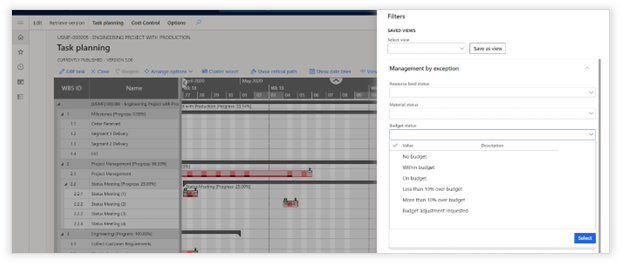
Within your Task Planning, the system will show an additional fact pane, displaying the differences in budgeted costs and planned costs. To activate this information, make sure you enable "show budget status" in the chart preferences of your task planning.
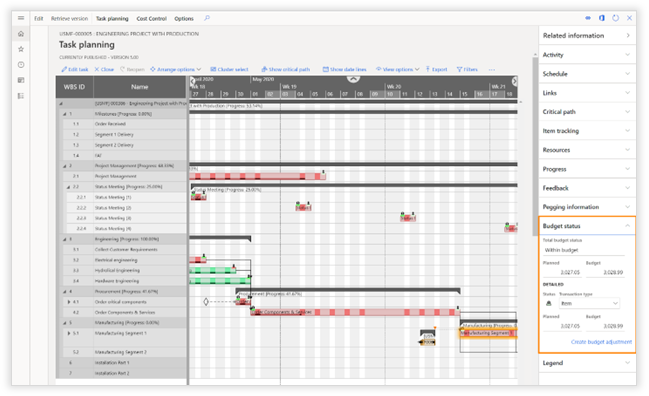
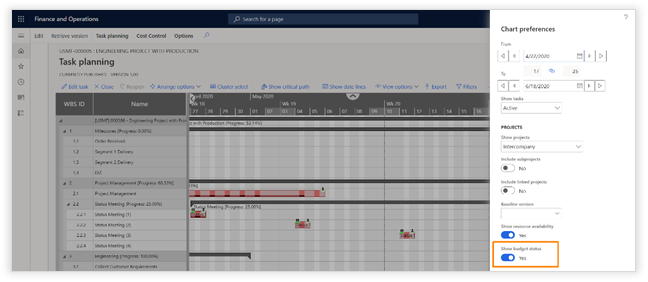
|
Function |
Description |
|
Total budget status |
This field shows the budget status of the CBS code related to the selected task.
|
|
Planned |
The total estimated cost in your planning. |
|
Budget |
The total budget available for this project |
|
DETAILED |
|
|
Status |
This is the status icon for the transaction type. It could be that on task level there is sufficient budget, but there might be a difference per individual transaction type. (hour, item, expense) |
|
Transaction type |
Select if you would like to see the details of the budget for Hour, Item or Expense. |
|
Planned |
Total planned cost for the selected transaction type |
|
Budget |
Total budget available for the selected transaction type |
|
Create/Open budget adjustment |
Create a budget adjustment with the positive or negative difference between planned cost and budgeted cost. If a budget adjustment already exists, you can open the budget adjustment from here. NOTE: This function is only available if the budget is locked. |
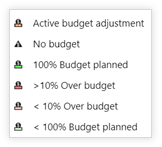
Filter tasks on budget status
Within your Task Planning, there will be additional management by exception filter. To activate this information, make sure you enable "show budget status" in the chart preferences of your task planning.
Axtension Content Gate
Expected Content
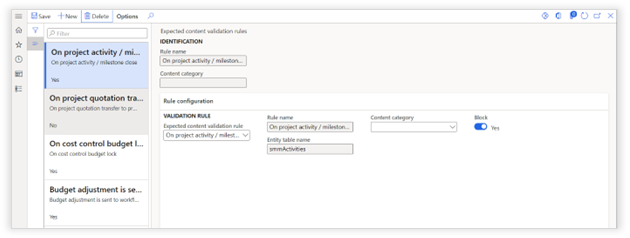
In the System Administration > Setup > AXtension Content Gate menu, expected content validation rules settings can be set. Validation rules can be created on predefined triggers which can either warn or block if certain content is missing.

|
Function |
Description |
|
Expected content validation rule |
This field allows the selection of four predefined actions where content validation should be trigged on: - On project activity / milestone close - On project quotation transfer to project - On cost control budget lock - Budget adjustment is sent to workflow |
|
Content category |
Optionally, a content category can be selected as an additional criterium what the validation rule should check on: - General - Invoice - Communication - Drawings - Product Info - Project Documents |
|
Block |
Enabling this setting prevents the execution of the defined action, if the expected content is not available. When disabled, only a warning will be shown. |
Extension points are available to create self-defined expected content validation rules. Additional configuration is needed in Axtension Content Gate to complete the Expected Content setup.